
In the world of team and organizational communication, Slack is rising quickly as the most efficient application. Slack is a cross-platform business app that has Channels that organize your conversations in one place and several other features for effective communication. It is the perfect replacement for Email and it is much more than a traditional Email application. For more information on Slack, follow this official link.
Since Slack is cross-platform, you can use it for your team’s communication without hesitation, but what if one of the members is using Ubuntu 24.04? Don’t worry because Slack is now officially available on Ubuntu.
This guide illustrates the methods to install Slack on Ubuntu 24.04.
How to Install Slack on Ubuntu 24.04
For installing Slack on Ubuntu 24.04, use either of the following methods:
- Using the App Center.
- Using the Snap.
- Using the .deb File
- Using the Flathub
Let’s explain the above methods in detail.
Method 1: Install Slack on Ubuntu 24.04 Using the App Center
Slack is officially available on the Ubuntu 24.04’s App Center. To install Slack, open the App Center and search for it, as seen in the below snippet:

Now, select the Slack version to install. Here, you can install the beta (which may contain bugs) and stable (bug-free). After selecting the Channel or Version, use the Install button to trigger the installer:

Note: You can update Slack from Ubuntu 24.04’s App Center as well.
Method 2: Install Slack on Ubuntu 24.04 Using Snap
The Snap is referred to as a package that contains all the dependencies to install a specific Package. You can use it to install several packages, including Slack. To install Slack on Ubuntu 24.04, execute the following command:
sudo snap install slack
To confirm the installation of Slack, run the following command:
slack -v
Now to launch Slack which is installed using Snap, run the below-mentioned command:
snap run slackTo update Slack installed using Snap, use the following command:
sudo snap refresh slackMethod 3: Install Slack on Ubuntu 24.04 Using the .deb File
The .deb is the software distribution package file developers use to distribute their software on Debian-based distributions. Slack is also available in a .deb file. To download it, navigate to the official Slack website and download the .deb file:

After downloading Slack, navigate to the Downloads folder, List its contents to get the filename and install Slack from the .deb file by running the below-stated commands:
cd Downloads
ls
sudo apt install ./slack-desktop-4.36.140-amd64.deb
To launch Slack, use the Activities button or run the below command:
slackYou can upgrade Slack (if installed using the .deb file) by executing the following command:
sudo apt upgrade slack-desktopMethod 4: Install Slack on Ubuntu 24.04 Using the Flathub
The Flathub is a centralized place to install and distribute application software on almost every other Linux distribution. It also hosts Slack and you can install it by following the below steps:
Step 1: Install Flathub
To use Flatpak on Ubuntu 24.04 and install Slack, add Flathub’s repository first before installing it by using the below command:
flatpak remote-add --if-not-exists flathub https://flathub.org/repo/flathub.flatpakrepo
Now install it by executing the following command:
sudo flatpak install flathub
Step 2: Install Slack
Next, install Slack on Ubuntu 24.04 via the Flathub via the following command:
sudo flatpak install flathub com.slack.Slack
To update Slack which is installed using Flatpak, execute the below command:
sudo flatpak update --app com.slack.Slack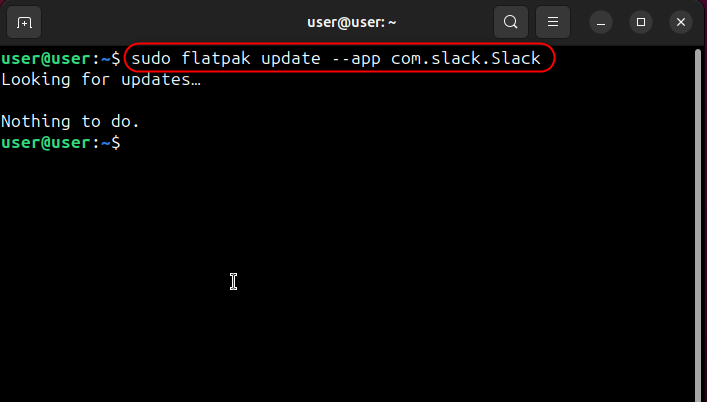
To run Slack which is installed using flatpak, run the below command:
flatpak run com.slack.SlackHow to Remove Slack on Ubuntu 24.04
If you have installed Slack using Snap, App Center or a .deb file, use the below command to remove it:
sudo snap remove slack
If you used the .deb file, run the below command to remove it as well:
sudo rm /home/user/Downloads/slack-desktop-4.36.140-amd64.debTo remove Slack installed using the Flathub on Ubuntu 24.04, run:
sudo flatpak remove flathub com.slack.Slack
Final Words
To install Slack on Ubuntu 24.04, use the App Center, Snap, or Flathub. Slack is a cross-platform business communication application that is transforming the way to share information in or out of the organization. This guide has presented the methods to install, update, and uninstall Slack on Ubuntu 24.04.
Frequently Asked Questions
How can I install Slack on Ubuntu 24.04?
You can install Slack on Ubuntu 24.04 using methods like the App Center, Snap, .deb File, or Flathub.
Is Slack available for Ubuntu 24.04?
Yes, Slack is now officially available for Ubuntu 24.04, making it convenient for team communication.
What are the benefits of using Slack on Ubuntu 24.04?
Using Slack on Ubuntu 24.04 allows for organized team communication, channel management, and efficient collaboration.
Can I update Slack on Ubuntu 24.04 from the App Center?
Yes, you can update Slack on Ubuntu 24.04 directly from the App Center, ensuring you have the latest version.
How do I install the beta version of Slack on Ubuntu 24.04?
To install the beta version of Slack on Ubuntu 24.04, select the beta Channel or Version during installation from the App Center.
What is Snap and how can I use it to install Slack on Ubuntu 24.04?
Snap is a package that contains all dependencies for installation. You can use Snap by executing 'sudo snap install slack' to install Slack on Ubuntu 24.04.
Can I check the Slack version after installing it on Ubuntu 24.04?
Yes, you can check the Slack version by running the command 'slack -v' in the terminal after installation on Ubuntu 24.04.
Are there any known bugs in the beta version of Slack for Ubuntu 24.04?
The beta version of Slack for Ubuntu 24.04 may contain bugs, so it's recommended to use the stable version for a bug-free experience.