

Quick answer: run uptime to see the load average, then top (press P to sort by CPU, 1 to show each core) to see who is using the processor. Compare the load average with the number of cores from nproc: a load above the core count for a sustained period means work is queuing. The commands come from procps (2:4.0.4-9 on Debian 13 Trixie, 2:4.0.2-3 on Debian 12 Bookworm) and util-linux (lscpu), both normally installed; mpstat and pidstat need sudo apt install sysstat.
A Debian server that feels slow can be short of CPU, short of memory, or waiting on the disk, and the fix is different for each. This guide shows how to read the CPU numbers correctly: how many cores you have, whether the machine is overloaded, which process is responsible, and how to tell real CPU load from a disk or a noisy VPS neighbour. If you suspect memory instead, use the memory usage guide for Debian.
Which command to use
| Question | Command | Package |
|---|---|---|
| How many CPUs and what model? | lscpu, nproc |
util-linux, coreutils (installed) |
| Is the server overloaded? | uptime or cat /proc/loadavg |
procps (installed) |
| Live view, sorted by CPU | top, then P |
procps (installed) |
| Friendlier live view | htop (3.4.1-5 on Debian 13, 3.2.2-2 on Debian 12) |
htop |
| Top CPU processes, one-off list | ps -eo pid,user,%cpu,%mem,comm --sort=-%cpu | head |
procps (installed) |
| Usage per core, with iowait and steal | mpstat -P ALL 1 3 |
sysstat (12.7.5-2 on Debian 13, 12.6.1-1 on Debian 12) |
| CPU used per process over time | pidstat -u 1 5 |
sysstat |
| Run queue, wait and steal in one line | vmstat 1 5 |
procps (installed) |
Step 1: Find out how many CPUs the server has
Load numbers mean nothing until you know the core count, so start here.
lscpu
nproc
lscpu -e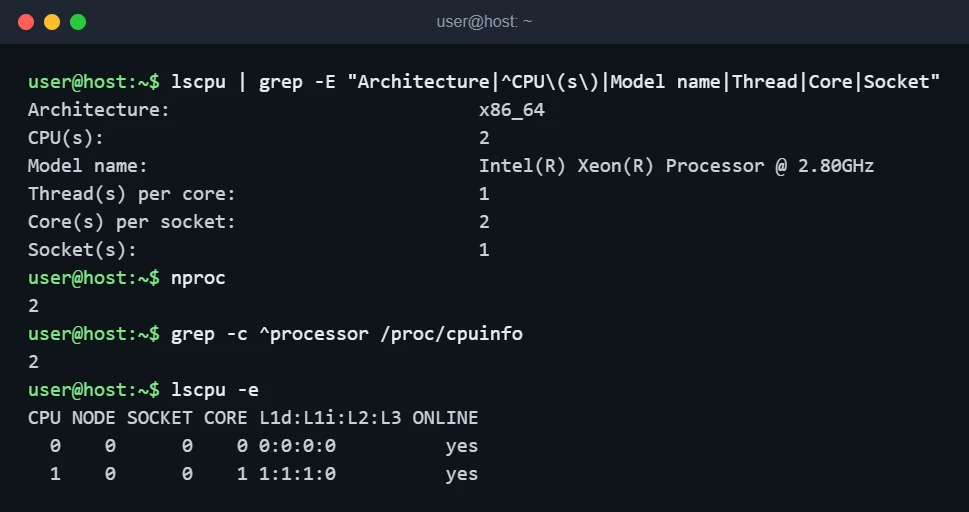
nproc prints the number of CPUs available to your process, and grep -c ^processor /proc/cpuinfo gives the same count. On a VPS these are virtual CPUs (vCPUs), and the lscpu line Hypervisor vendor confirms the machine is virtualised. Remember the number: a 2-vCPU server running at a load of 2.0 is fully busy, while a 16-core server at 2.0 is nearly idle.
Step 2: Read the load average
uptimeThe three numbers after load average are the average over the last 1, 5 and 15 minutes. On Linux they count tasks that are running or ready to run, plus tasks in uninterruptible sleep, which usually means waiting on disk. That second part matters: a high load with an idle CPU often points to a slow disk, not to a CPU problem.
| Load average vs. cores | What it means |
|---|---|
| Well below the core count | Healthy, spare capacity. |
| About equal to the core count | Fully used. Fine briefly, no headroom if it stays there. |
| Above the core count for 5 or 15 minutes | Work is queuing. Find the cause (steps 3 to 5). |
| Spikes in the 1-minute value only | A short burst, usually harmless. |
Step 3: See which process is using the CPU
topInside top, press P to sort by CPU, 1 to split the CPU line per core, and q to quit. For a non-interactive snapshot that you can paste into a ticket, use batch mode:
top -bn1 | head -12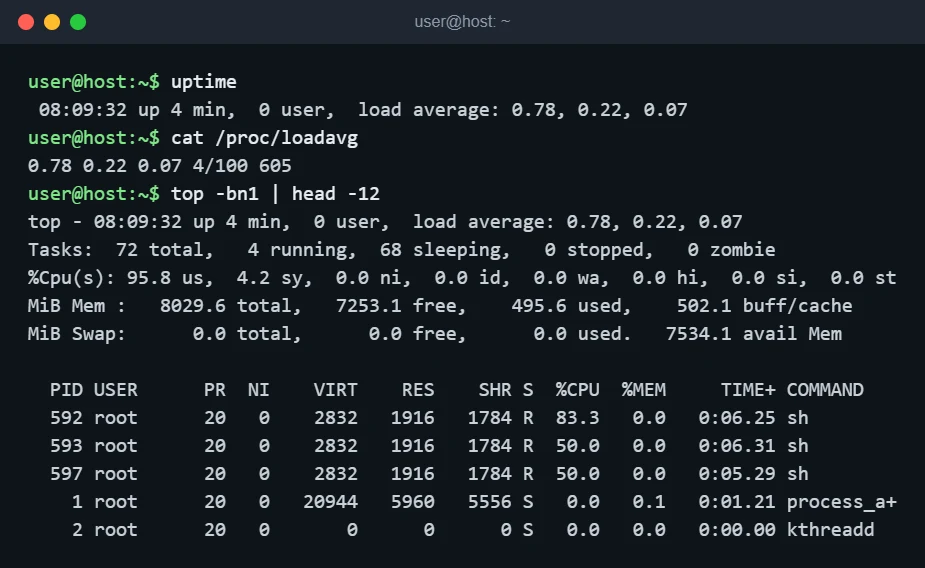
The %Cpu(s) line splits time into categories, and each tells you something different:
| Field | Meaning | If it is high |
|---|---|---|
us |
User programs | An application is computing. Find it in the process list. |
sy |
Kernel work | Heavy system calls, networking or disk handling. |
ni |
Programs with a lowered priority (nice) | Background jobs. Usually fine. |
id |
Idle | High is good. |
wa |
Waiting for disk or network I/O | The CPU is not the bottleneck; check the disk. |
hi, si |
Hardware and software interrupts | Busy network card or driver issue if persistently high. |
st |
Steal: time the hypervisor gave your vCPU to another guest | Your VPS host is oversubscribed. Software changes on your side will not fix it. |
In top, a process using one full core shows 100 in the %CPU column, so on a multi-core machine a multi-threaded program can show more than 100. Total capacity is 100 multiplied by the core count.
Step 4: List the top CPU processes with ps
ps -eo pid,user,%cpu,%mem,comm --sort=-%cpu | head -6Warning: the %CPU in ps is the CPU time a process has used divided by how long it has been running, so it is a lifetime average, not what it is using right now. A process that was busy yesterday and idle now can still rank high, and a brand-new process can show an inflated value. In the capture below, the ps command itself appears with 50.0 for exactly this reason. Use top, mpstat or pidstat for current usage.
Step 5: Check each core and each process over time with sysstat
The sysstat package adds mpstat and pidstat, which sample over an interval and are much better for a spike you are trying to catch.
sudo apt update
sudo apt install sysstat
mpstat -P ALL 1 3
pidstat -u 1 2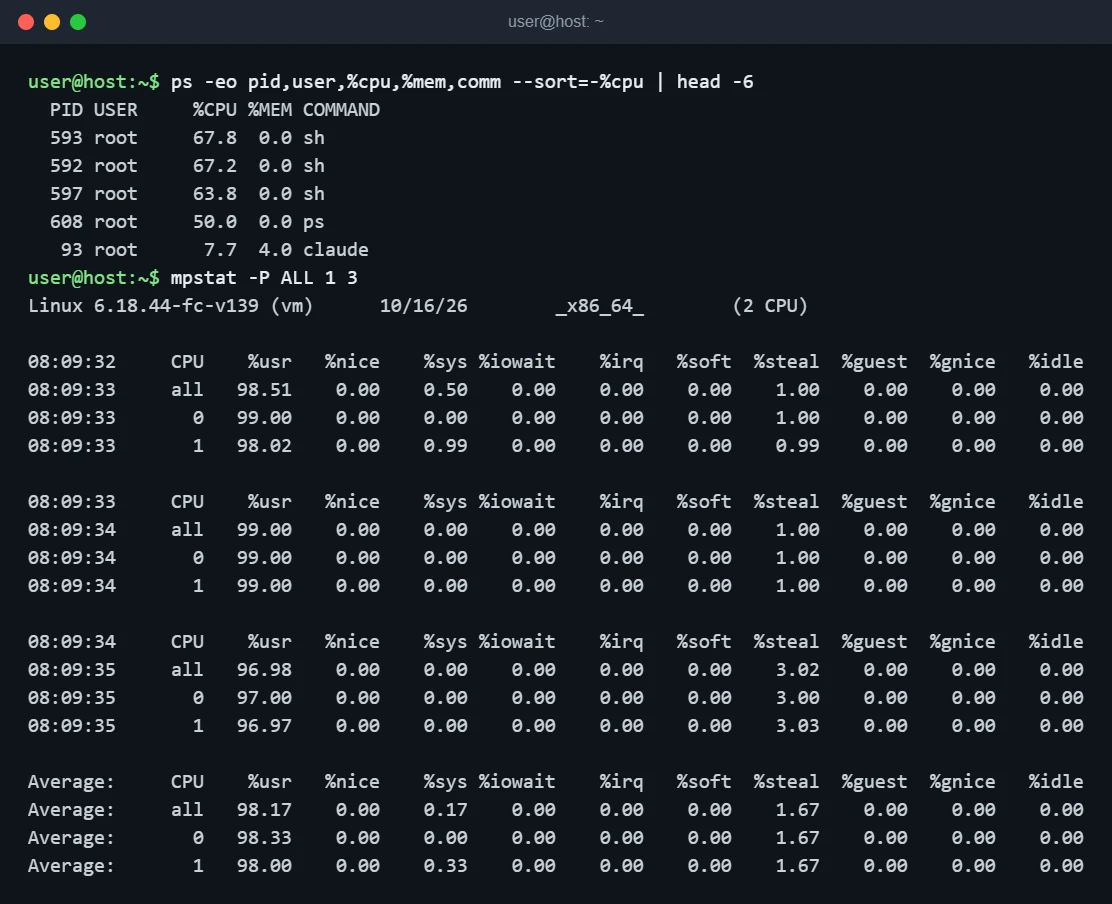
mpstat is the quickest way to tell a single-threaded problem from a general one. If one core sits at 100 percent while the others are idle, a single-threaded program is the limit and adding cores will not help. pidstat -u shows the same split per process, and its %wait column shows how long a process was ready to run but had no CPU free.
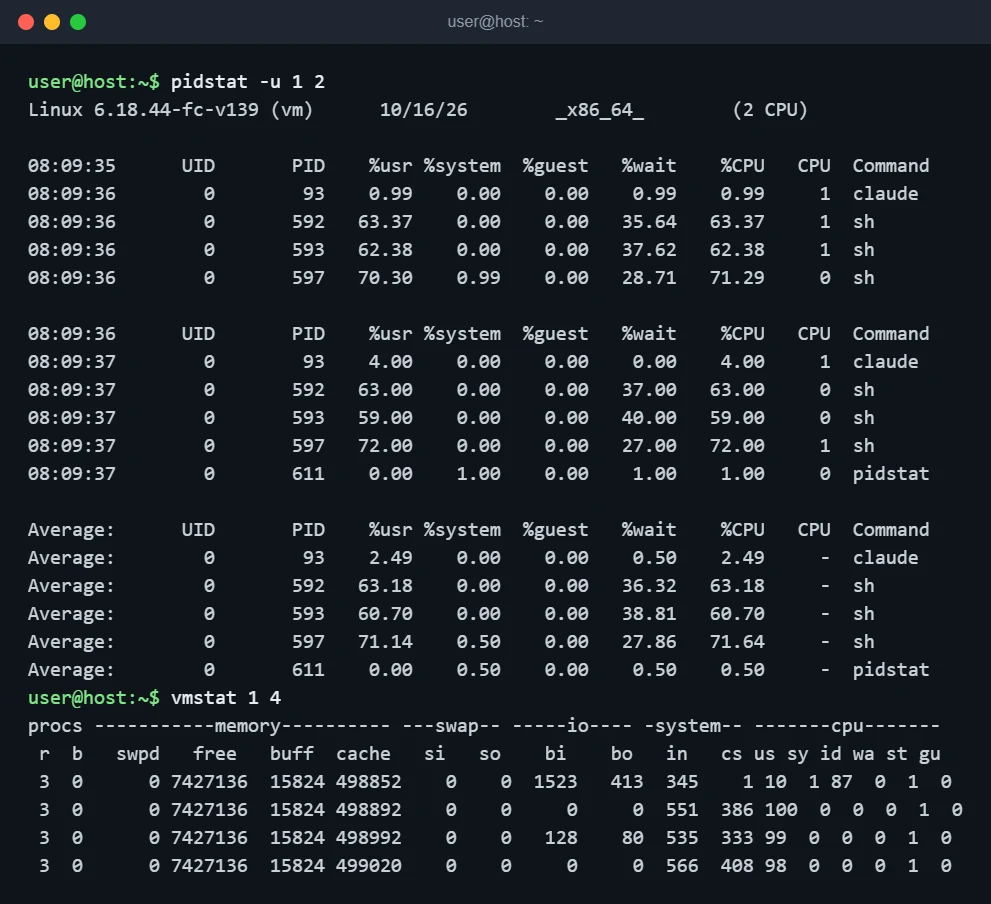
Read the vmstat line like this: r above your core count means processes are waiting for a CPU, b is processes blocked on I/O, and wa and st separate disk waits and a crowded host from real CPU work. The first line of vmstat is an average since boot, so look at the lines after it.
Keep history so you can see what happened last night
The commands above only show the present. To look back, sysstat can record statistics every 10 minutes and let you read them with sar. On the 12.6.1 package the collector is off by default, and the setting is in /etc/default/sysstat:
sudo cp /etc/default/sysstat /etc/default/sysstat.bak
sudo sed -i 's/^ENABLED=.*/ENABLED="true"/' /etc/default/sysstat
sudo systemctl restart sysstat
systemctl list-timers | grep sysstat
After the first interval has passed, sar -u prints today’s CPU history and sar -q prints load averages. I verified the file, the ENABLED="false" default and the systemd timer units in the 12.6.1 package; I did not run the collector end to end here because the capture machine has no systemd, and I did not inspect the 12.7.5 package used on Debian 13, so check cat /etc/default/sysstat on your server first. To undo, restore the .bak file and restart the service.
What to do once you find the process
- Identify the service:
systemctl status PIDshows which unit a process belongs to, andps -fp PIDshows its full command line. - If it is a runaway job, lower its priority first with
sudo renice +10 -p PIDso the server stays responsive. - Restart the service with
sudo systemctl restart SERVICErather thankill -9, which gives the program no chance to close files or finish writes. - If the same process comes back, read its log with
journalctl -u SERVICE -eand fix the cause instead of restarting forever.
Troubleshooting
| Symptom | Likely cause | What to do |
|---|---|---|
| High load average but CPU mostly idle | Processes stuck waiting on disk or network storage | Check wa in top; check disk space and inodes. |
| CPU high but no single large process | Many small processes or a fork loop | Sort top by CPU and count similar names with ps -C name | wc -l. |
| One core at 100 percent, others idle | A single-threaded program | Confirm with mpstat -P ALL 1; more cores will not help. |
st or %steal above a few percent for long periods |
Oversubscribed VPS host | Open a ticket with the provider or move to a different plan or host. |
High sy or si |
Heavy network traffic or a kernel or driver issue | See what is listening with the open ports guide and check for unexpected traffic. |
| CPU high from a process you do not recognise | Possible unwanted program such as a miner | Check ps -eo pid,user,%cpu,args --sort=-%cpu | head for unknown paths, and review server hardening. |
mpstat: command not found |
sysstat is not installed | Run sudo apt install sysstat. |
If a server is repeatedly loaded by login attempts, Fail2Ban reduces the noise from brute-force traffic.
FAQ
What is a good CPU usage for a Debian server?
There is no single number. Sustained use near 100 percent with a load average above the core count means the server is short of CPU, while short bursts are normal. Judge by load average per core and by whether the application still responds quickly.
Do these commands work the same on Debian 12 and Debian 13?
Yes. top, ps, vmstat and uptime come from procps and lscpu from util-linux on both releases, and all options used here exist in the versions listed above. The screenshots were captured on Ubuntu 24.04, not on a Debian host, as stated under each one.
Why is the load average high when top shows the CPU is idle?
Linux includes tasks waiting on disk in the load average. Look at the wa value in top and at b in vmstat; if either is high, investigate storage.