
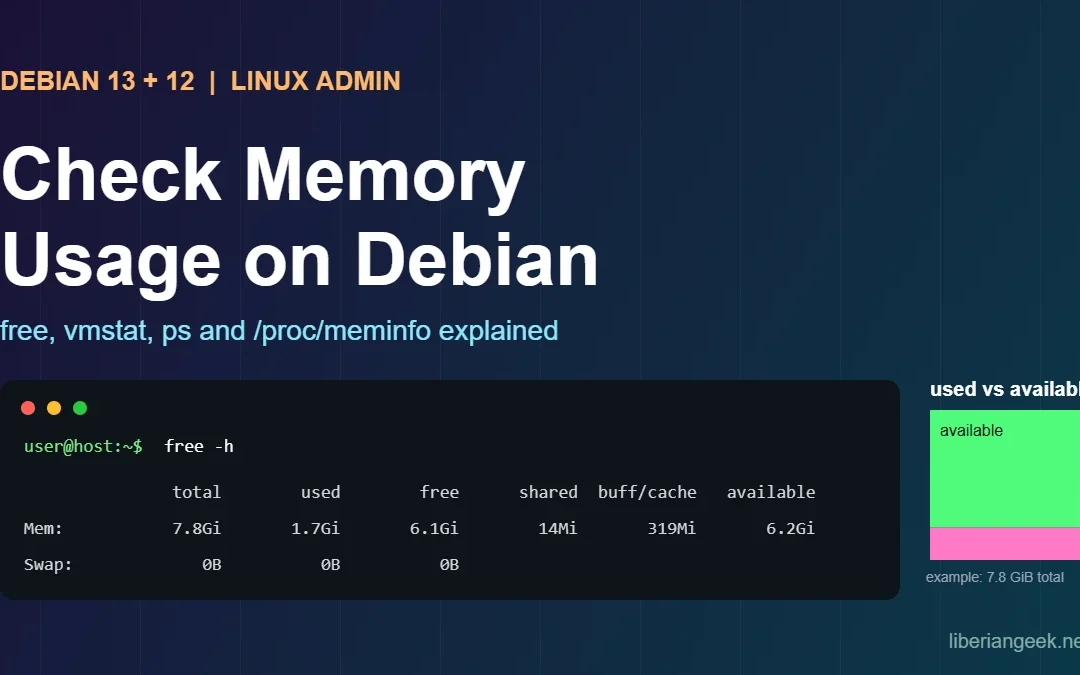
Quick answer: run free -h and read the available column. That is the memory Debian can give to new programs without swapping, and it is the number that matters, not free. To find what is using it, run ps -eo pid,%mem,rss,comm --sort=-rss | head. The commands on this page come from the procps package (2:4.0.4-9 on Debian 13 Trixie, 2:4.0.2-3 on Debian 12 Bookworm), which is installed by default.
High memory use on a Debian server shows up as slow responses, a swap that keeps growing, or a service that disappears without a clear error. This guide covers how to read the numbers correctly, how to find the process responsible, and how to check whether the kernel already killed something to free memory. If the disk is the problem instead, see how to check disk space on Debian.
Which command to use
| Question | Command | Package |
|---|---|---|
| How much RAM and swap is used? | free -h |
procps (installed) |
| Is the system swapping right now? | vmstat -S M 1 5 (watch si and so) |
procps (installed) |
| Which process uses the most memory? | ps -eo pid,%mem,rss,comm --sort=-rss | head |
procps (installed) |
| Live view sorted by memory | top -o %MEM or press M inside top |
procps (installed) |
| Friendlier live view | htop (3.4.1-5 on Debian 13, 3.2.2-2 on Debian 12) |
htop (sudo apt install htop) |
| Raw kernel numbers | grep -E 'MemTotal|MemAvailable' /proc/meminfo |
kernel |
Step 1: Check total, used and available memory with free
free -h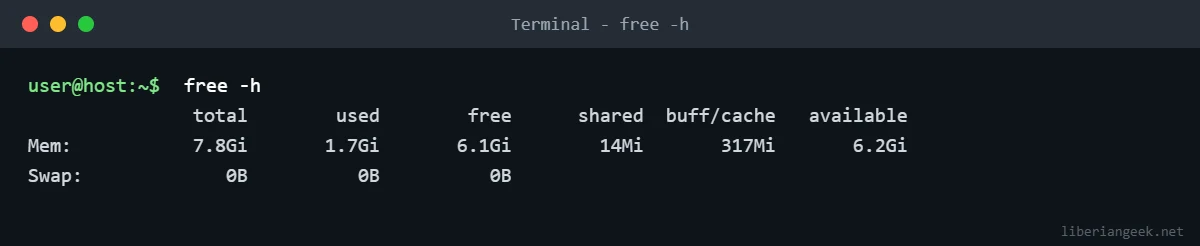
Here is what each column means:
| Column | Meaning |
|---|---|
| total | Installed RAM that the kernel can use. |
| used | Memory held by programs and the kernel (total minus free, buffers and cache). |
| free | Memory not used for anything at all. It is normally small on a healthy machine, because Linux fills spare RAM with cache. |
| shared | Memory used by tmpfs and shared memory. |
| buff/cache | File cache and buffers. The kernel gives this back when programs need it. |
| available | The kernel’s estimate of how much memory could be given to new programs without swapping. Use this column. |
A server showing little free but a large available is fine. It is a problem when available is close to zero, or when swap use keeps climbing.
free -h uses powers of 1024 (GiB). Add --si for powers of 1000, and -m to print mebibytes, which is easier to compare in scripts. The -w option splits buffers and cache into separate columns:
free -m -w
grep -E 'MemTotal|MemFree|MemAvailable|Buffers|^Cached|SwapTotal|SwapFree' /proc/meminfo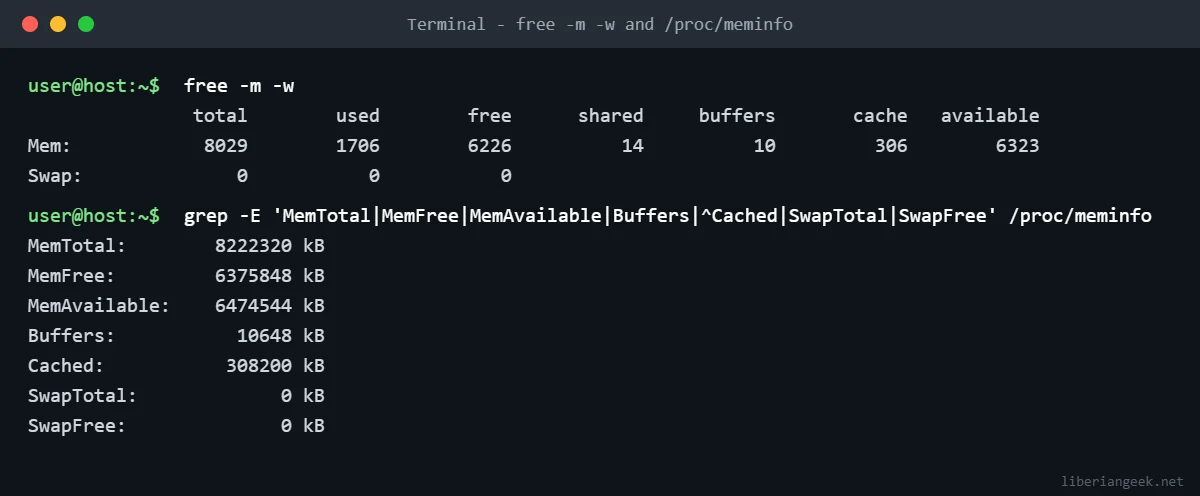
To watch memory change over time, repeat the command every two seconds. Press Ctrl+C to stop:
watch -n 2 free -hStep 2: Check whether the system is swapping
Swap use alone is not a fault. Debian can move rarely used pages to swap even when RAM is available. What hurts performance is constant swapping in and out. vmstat shows this live. The first line it prints is an average since boot, so read the lines after it:
vmstat -S M 1 3
swapon --show
cat /proc/sys/vm/swappiness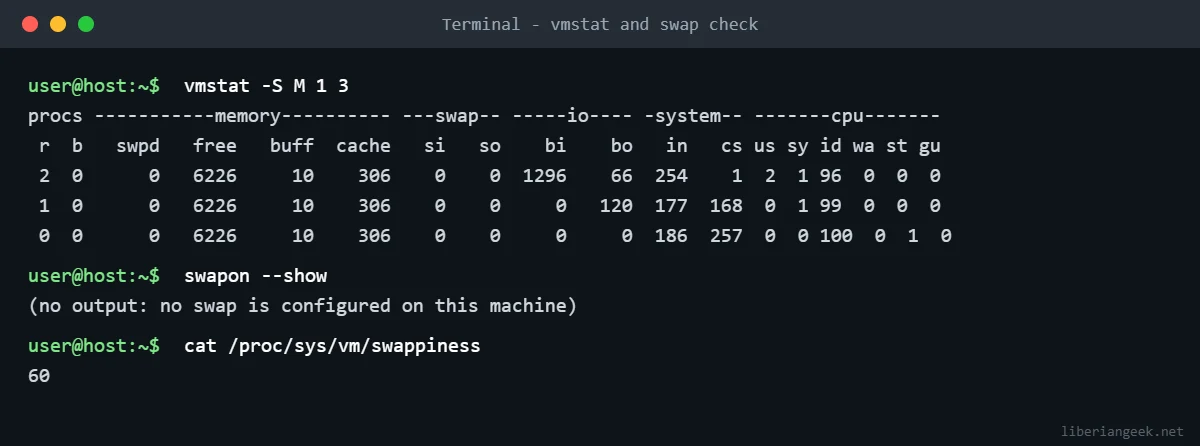
| vmstat column | What it tells you |
|---|---|
si / so |
Memory swapped in from and out to disk per second. Values that stay above zero mean active swapping. |
free, buff, cache |
Same idea as in free, in the unit you chose with -S M. |
wa |
CPU time waiting on disk. High values together with swapping point to memory pressure. |
If swapon --show prints nothing, the machine has no swap. That is common on cloud images and not an error, but it means the kernel has no buffer before it starts killing processes (see step 4).
Step 3: Find the process using the most memory
ps -eo pid,%mem,rss,comm --sort=-rss | head -n 6rss is the resident set size in kibibytes, the memory the process currently holds in RAM. To look at a single process, replace PID with its number:
ps -o pid,%mem,rss,comm -p PID
grep -E 'VmRSS|VmSwap' /proc/PID/status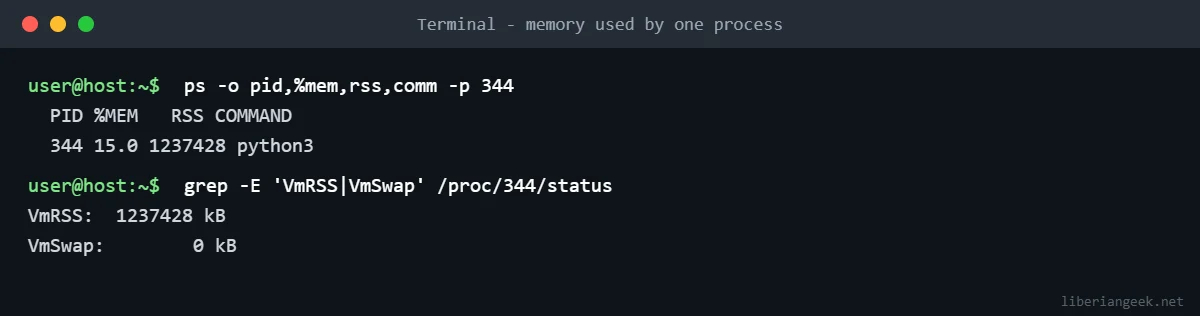
For a live view, run top -o %MEM. Inside top, M sorts by memory, P by CPU, and q quits. With htop installed, press F6 and pick PERCENT_MEM.
RSS counts shared pages once for every process that maps them, so the total across processes can exceed real usage, which is common with PHP-FPM workers or several processes using the same libraries. For a fairer per-process figure, read Pss (proportional set size) from the kernel:
grep -E '^(Rss|Pss)' /proc/PID/smaps_rollupStep 4: Check whether the OOM killer ran
When RAM and swap are exhausted, the kernel’s out-of-memory (OOM) killer ends a process to recover. If a service such as MariaDB or PHP-FPM stopped with no error in its own log, check the kernel log:
sudo journalctl -k --no-pager | grep -iE 'out of memory|oom-kill'On Debian the systemd journal is persistent only if /var/log/journal exists; otherwise logs from before the last reboot are gone. A matching line names the process that was killed and its memory use at that moment. This check was not run on the capture machine, which has no journal, so the output is not shown here.
Troubleshooting
| Symptom | Likely cause | What to do |
|---|---|---|
| free is almost zero but available is large | Normal file caching | Nothing. Do not clear the cache. |
| available near zero, swap full | A process or service is using too much memory | Find it with ps or top, then restart or limit that service. |
si/so stay above zero |
Active swapping, usually from memory pressure | Reduce the workload or add RAM; adding swap only delays the problem. |
| Service vanished, no error in its log | OOM killer | Run the journalctl command in step 4. |
swapon --show prints nothing |
No swap configured | Expected on many cloud images. Add swap only if your workload needs a buffer. |
free: command not found |
procps removed or broken PATH | Run sudo apt install procps. |
Warning: do not run echo 3 > /proc/sys/vm/drop_caches to “free memory”. It only throws away useful cache, slows the server down afterwards, and does not fix a real shortage.
Related checks on the same server
A memory shortage rarely arrives alone. After this, check open ports on Debian to see what is listening, and make sure the system is on the latest kernel with the Debian kernel update guide. The full list of hardening and monitoring steps is in the Debian server security guide.
FAQ
How much free memory should a Debian server have?
Look at available, not free. A comfortable server keeps available memory well above zero during normal load, and swap use stays low and steady.
Is the same command valid on Debian 12 and Debian 13?
Yes. free, vmstat, ps and top are in procps on both releases, and the options used here are available in both versions listed above. The screenshots were captured on Ubuntu 24.04 with procps-ng 4.0.4, not on a Debian host.
Why is my used memory high after the server has been running for weeks?
Often it is not. Linux uses spare RAM as file cache, which shows under buff/cache and is released when needed. Check available instead.