

Last updated:
AWS CLI v2 installs on Ubuntu 26.04 LTS and 24.04 LTS with the official zip installer, the AWS-supported Snap, or (on 26.04 only) the awscli package from Ubuntu’s universe repository. The commands are the same on both releases. The screenshots in this guide were taken on Ubuntu 24.04.
Quick answer
Use the official zip installer if you want the current AWS CLI v2 and the same behavior as AWS’s documentation: curl the zip, unzip it, run sudo ./aws/install, then check aws --version. Use Snap (sudo snap install aws-cli --classic) for the shortest path on a desktop. Avoid the pip method unless you specifically need the old v1 CLI.
| Method | Ubuntu 26.04 | Ubuntu 24.04 | Notes |
|---|---|---|---|
| Official zip installer | Supported by AWS (Ubuntu is a listed distro); not run on 26.04 here | Yes, shown below | Latest v2, installs to /usr/local/aws-cli, symlink in /usr/local/bin |
Snap aws-cli |
Same command | Yes, shown below | AWS-supported, auto-refreshes, cannot pin a minor version |
APT awscli |
v2 package 2.31.35-1 in universe (Launchpad data, 13 Oct 2026) |
No candidate: apt-cache policy awscli shows Candidate: (none) |
Version is fixed by the release |
pip awscli |
Installs v1 | Installs v1 | Old major version; use only if a script needs v1 |
What was checked for this update: the install and uninstall steps against AWS’s installation and uninstall pages, the APT versions from Launchpad publishing data, and apt-cache policy awscli on Ubuntu 24.04.5. The zip and Snap installs were not re-run on 26.04 for this update because the AWS download host was not reachable from the test sandbox.
How to Install AWS CLI on Ubuntu 24.04 Using Snap Packet Manager?
The Snap package manager is a secure and reliable way to download, install, update, or remove multiple packages via one-line commands across multiple Linux distributions. This section will use Snap to install AWS CLI on Ubuntu 24.04.
Step 1: Install AWS CLI
Install the AWS CLI on Ubuntu 24.04 from the Snap package manager in the “classic” mode:
sudo snap install aws-cli --classic
Step 2: Verify the Installation
This command will verify if the AWS CLI has been installed on Ubuntu 24.04:
aws --version
How to Uninstall AWS CLI on Ubuntu 24.04 Using Snap Package Manager?
The AWS CLI can be removed via the Snap package manager with the given command:
sudo snap remove aws-cli
How to Install AWS CLI on Ubuntu 24.04 From Tar.gz Source File?
Curl is a versatile command-line tool in Debian-based distributions that allows users to download and transfer data from different servers using protocols such as HTTP, HTTPS, etc. The same tool is used to fetch other packages, such as when you install Go on Ubuntu 24.04. The curl utility is not pre-installed in Ubuntu 24.04. However, you can install it with this command:
sudo apt install curlAfter installing curl on Ubuntu 24.04, follow the steps below to install AWS CLI.
Step 1: Install AWS CLI Using Curl
The command below downloads AWS CLI version 2 and saves it as “awscliv2.zip“:
curl "https://awscli.amazonaws.com/awscli-exe-linux-x86_64.zip" -o "awscliv2.zip"
Step 2: Unzip AWS CLI
To unzip the “awscliv2” archive on Ubuntu 24.04, run:
unzip awscliv2.zip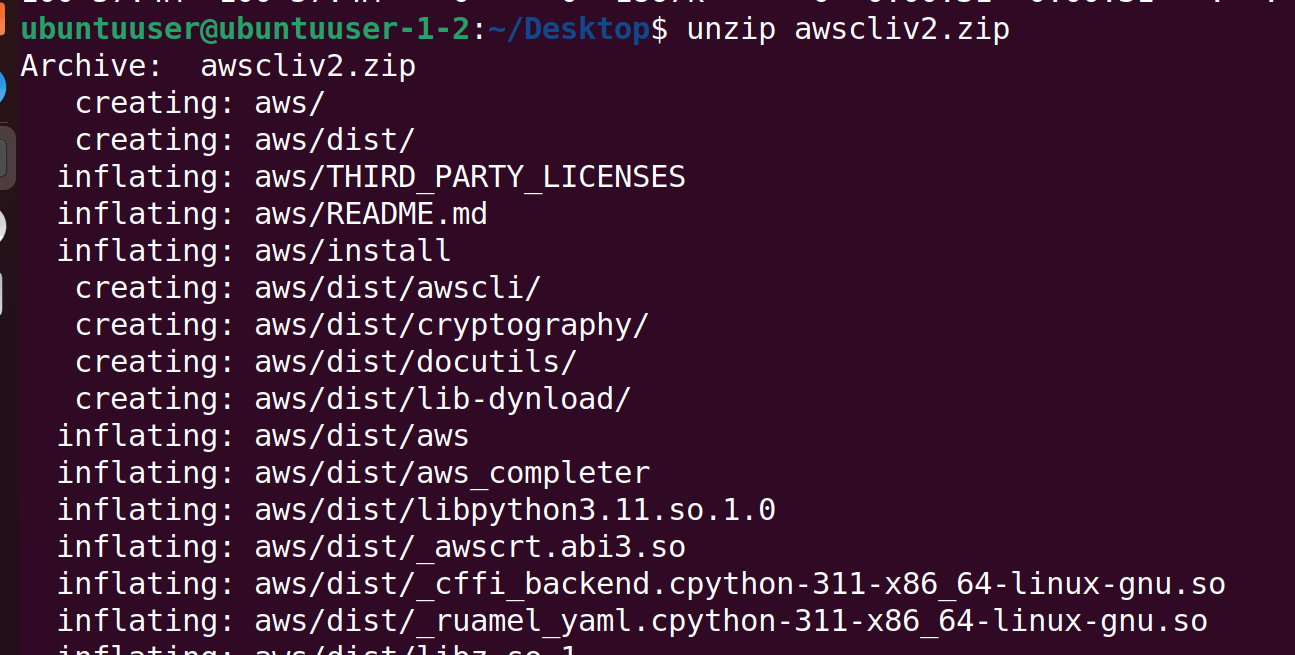
Step 3: Install AWS CLI
This executes the AWS CLI installer in the “aws/install” directory. Provide the password for the currently logged-in user to begin installation:
sudo ./aws/install
Step 4: Verify Installation
Verify the installation by running:
aws --version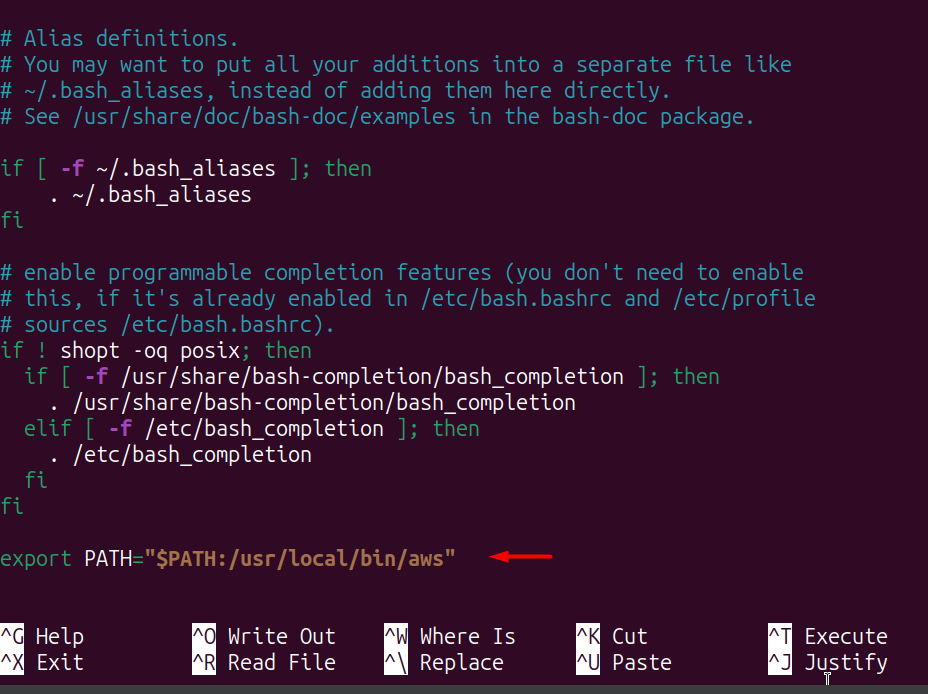
Step 5 (only if you get “aws: command not found”): check PATH
The installer puts a symlink in /usr/local/bin, which is already in the default Ubuntu PATH, so this step is normally unnecessary. Confirm with ls -l /usr/local/bin/aws first. If the link exists but your shell cannot find it, open your own .bashrc (no sudo):
nano ~/.bashrc
Append this line, then press CTRL+X, Y and Enter to save. The screenshot below shows an older line ending in /usr/local/bin/aws; PATH needs the directory, so use /usr/local/bin:
export PATH="$PATH:/usr/local/bin"Refresh the shell:
source ~/.bashrc
You can now check the AWS CLI version without superuser privileges:
aws --version
How to Uninstall AWS CLI on Ubuntu 24.04?
To uninstall AWS CLI installed with the zip installer, remove the install directory. AWS documents the default as /usr/local/aws-cli (the screenshot below shows an older path, /usr/local/aws, which does not match the installer default):
sudo rm -rf /usr/local/aws-cli
Then remove the two symlinks (aws and aws_completer). Your credentials in ~/.aws/ are not touched by these commands:
sudo rm /usr/local/bin/aws /usr/local/bin/aws_completer
Confirm removal — the command should return “command not found”:
aws --version
How to Install AWS CLI on Ubuntu 24.04 Using Pip Installer?
Python provides a pip installer which is useful for downloading and installing various packages. This method installs AWS CLI v1, the older major version. Use the zip method above if you need AWS CLI v2.
Step 1: Update Apt Repository
Update the apt repository first:
sudo apt-get update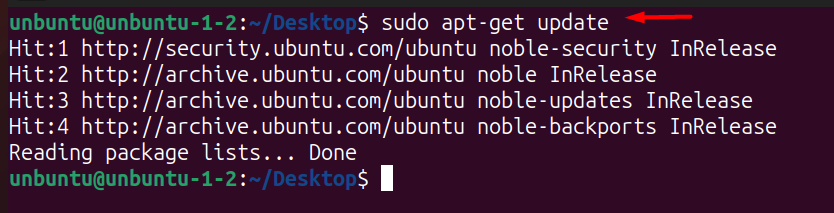
Step 2: Install Pip Installer
Install pip3 via apt:
sudo apt-get install python3-pip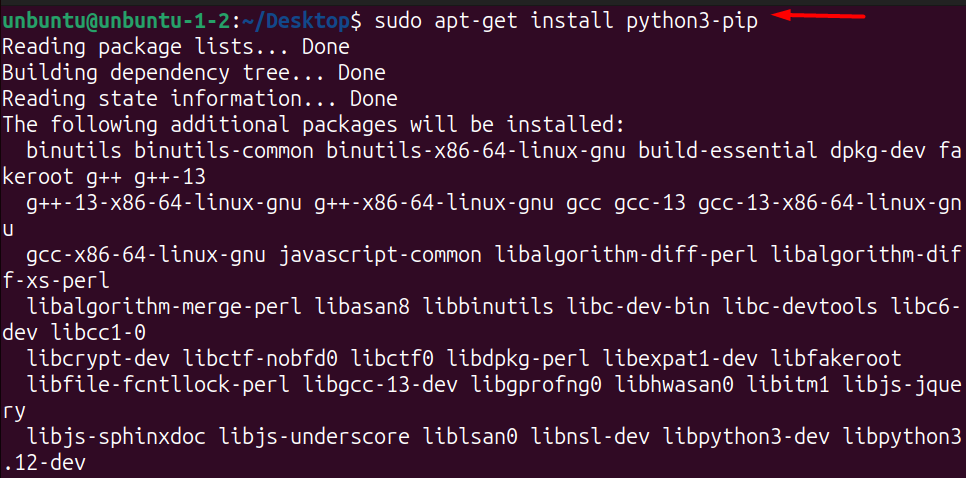
Step 3: Install AWS CLI
Install AWS CLI using pip3. The --break-system-packages flag prevents the “externally managed environment” error on Ubuntu 24.04:
pip3 install awscli --break-system-packages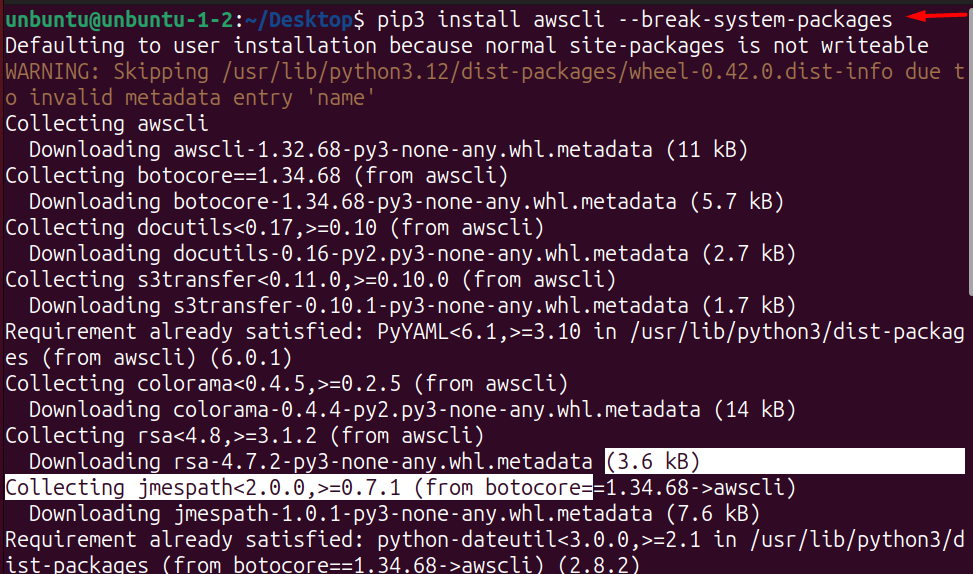
Step 4: Verify Installation
Check which version of AWS CLI is installed:
pip show awscli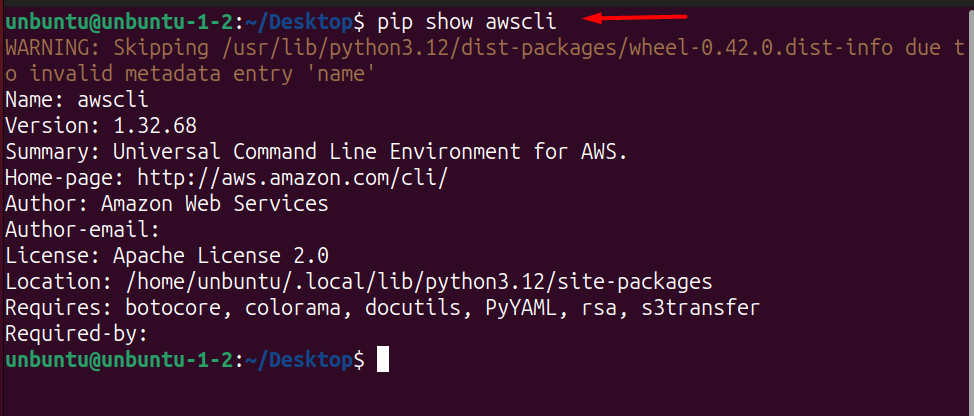
How to Uninstall AWS CLI on Ubuntu 24.04 Using Pip Installer?
Remove AWS CLI installed via pip3:
pip3 uninstall awscli --break-system-packages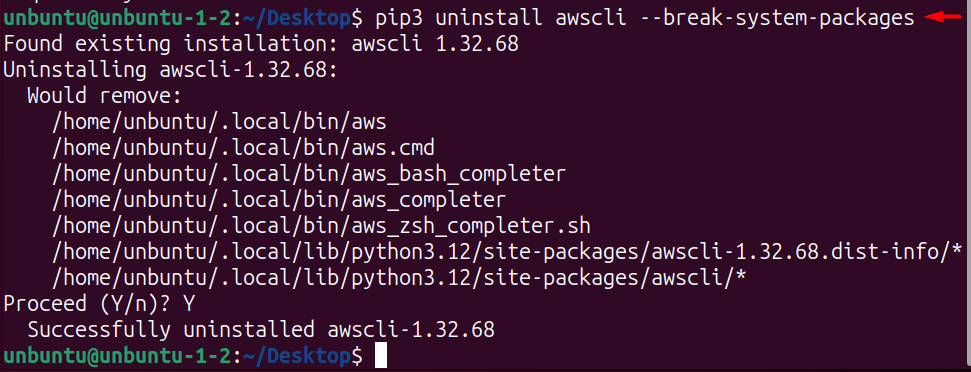
Install AWS CLI v2 with APT on Ubuntu 26.04
Launchpad lists awscli 2.31.35-1 in the universe component for Ubuntu 26.04 (resolute), and it is a v2 build. On Ubuntu 24.04 the package has no candidate, so use the zip or Snap method there. On 26.04 the command would be:
sudo apt update
sudo apt install awscli
aws --version
This APT install was not run for this update. The version is frozen for the life of the release, so choose the zip installer if you need newer AWS features.
Update AWS CLI later
AWS’s page says an installation made with the official installer can be updated with aws update (use sudo aws update for an all-users install). The Snap refreshes itself automatically. The pip and APT versions follow their own tools.
Troubleshooting
| Problem | Likely cause | What to do |
|---|---|---|
unzip: command not found |
unzip is not installed | sudo apt install unzip, then repeat the unzip step |
aws: command not found after the zip install |
Symlink missing or the shell has not reloaded | Run ls -l /usr/local/bin/aws; if it exists, open a new terminal or run source ~/.bashrc |
| Snap refuses to install | Classic confinement needs the flag | Use sudo snap install aws-cli --classic |
| Both Snap and zip versions installed | Two copies compete in PATH | Check which aws and aws --version, then remove the one you do not want |
Next steps on a cloud workstation usually include installing kubectl on Ubuntu and, for remote servers, setting up OpenSSH Server.
Configure AWS CLI after installation
After installing AWS CLI, run aws configure to set up your credentials before running any AWS commands:
aws configureThe command prompts for four values: AWS Access Key ID, AWS Secret Access Key, default region (e.g., us-east-1), and output format (json, yaml, or text). Credentials are stored in ~/.aws/credentials and ~/.aws/config. Verify the active profile with:
aws sts get-caller-identityWhich AWS CLI install method should you use?
Use the official zip installer when you want the current AWS CLI v2 package and predictable compatibility with AWS documentation. This is the better choice for servers, automation, and development systems used for real cloud work. On a remote server you administer over SSH — after you install OpenSSH Server on Ubuntu 24.04 — the zip installer is the safer pick.
Use Snap when you want the shortest installation path on a personal Ubuntu desktop. After installation, configure credentials with aws configure only on trusted machines — avoid placing long-term access keys on shared systems.