

rsync copies only what changed between a source and a destination, so it is the standard tool for backing up a folder on Debian or Ubuntu. The safe routine is: run the command with -n (dry run) first, then run it for real. This guide uses one test folder and shows the real output of each command, including how to skip folders, mirror deletions safely, and keep dated snapshots that share unchanged files.
Quick answer
Install it with sudo apt install rsync, preview a backup with rsync -avn source/ backup/, then run the same command without the n. Keep the trailing slash after source/ so you copy the folder’s contents rather than a nested folder.
sudo apt install rsync
rsync -avn source/ backup/   # preview only
rsync -av source/ backup/ # real backup| OS | rsync package version | How it was checked |
|---|---|---|
| Debian 13 (trixie) | 3.4.1+ds1-5+deb13u4 | Debian package archive, 21 Oct 2026 |
| Debian 12 (bookworm) | 3.2.7-1+deb12u6 | Debian package archive, 21 Oct 2026 |
| Ubuntu 24.04 | 3.2.7-1ubuntu1.5 | apt candidate on the machine used for the screenshots |
| Ubuntu 26.04 | Not checked | The syntax below is not version-specific, but the version was not looked up |
How this guide was tested: every local command and every screenshot below was run on Ubuntu 24.04 with rsync 3.2.7. The remote (SSH), cron and restore-over-SSH examples were not run because no second machine was available, so they are written from rsync’s documented behaviour and are marked as such.
What the common options do
| Option | What it does |
|---|---|
-a |
Archive mode: recurses into folders and keeps permissions, timestamps, symlinks, owner and group. Use it for backups. |
-v |
Lists each file that is transferred. |
-n / --dry-run |
Shows what would happen and changes nothing. |
--itemize-changes |
Prints one coded line per changed item, so you can see why a file was sent. |
--exclude=PATTERN |
Skips matching files or folders. |
--delete |
Deletes files in the destination that no longer exist in the source (mirror). |
--link-dest=DIR |
Hard-links unchanged files to an earlier snapshot instead of copying them again. |
-z, -e ssh |
Compress data in transit and use SSH as the transport for remote copies. |
Install rsync
On Debian 13, Debian 12 and Ubuntu, rsync is in the standard repositories:
sudo apt update
sudo apt install rsync
rsync --version | head -1
For the remote examples later, rsync must also be installed on the other machine.
The test folder used in this guide
The examples use a small folder called project containing docs/data.txt, docs/report.md, src/app.py, a node_modules/ folder and a .env file. An empty backup folder is the destination. All paths are relative to the current folder.
Step 1: Preview the backup with a dry run
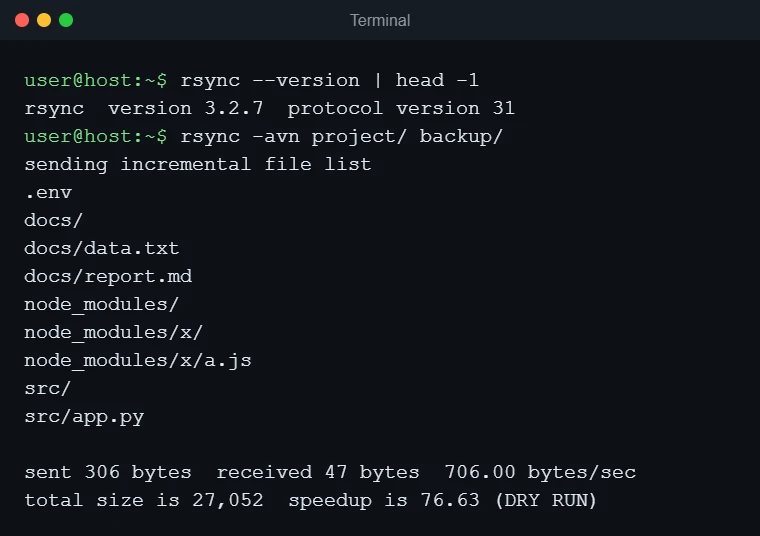
rsync -avn project/ backup/The n in -avn makes rsync list what it would copy without writing anything. The last line ends with (DRY RUN) as confirmation. Check that the list matches what you expect before you continue.
Step 2: Run the backup, then run it again
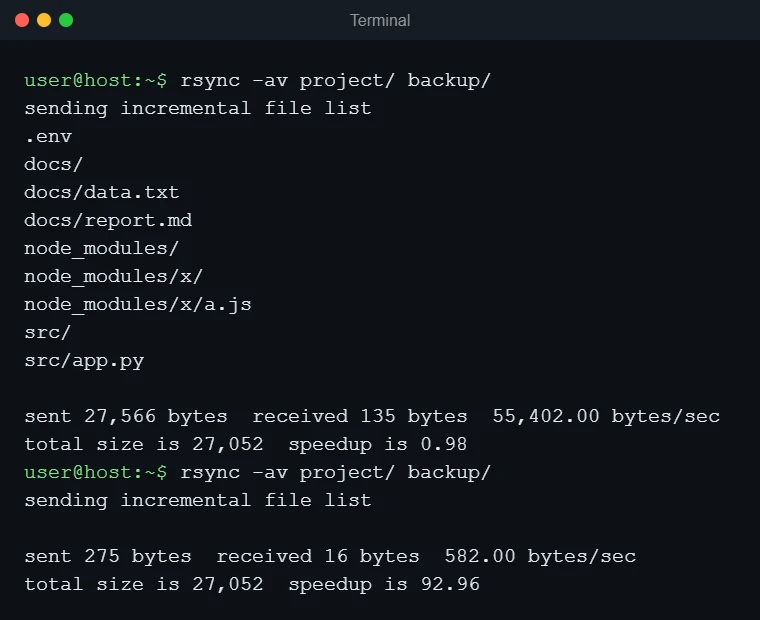
rsync -av project/ backup/The first run copies everything. Run the same command again and rsync transfers nothing, because the size and modification time already match. That second, near-empty run is what makes rsync fast for repeated backups.
The trailing slash decides where files land
A slash after the source folder means “the contents of this folder”. Without it, rsync copies the folder itself. In a test with the same project folder:
| Command | Result in the destination |
|---|---|
rsync -a project/ t2/ |
t2/docs, t2/node_modules, t2/src (contents copied directly) |
rsync -a project t1/ |
t1/project (a nested folder) |
Step 3: See exactly what changed
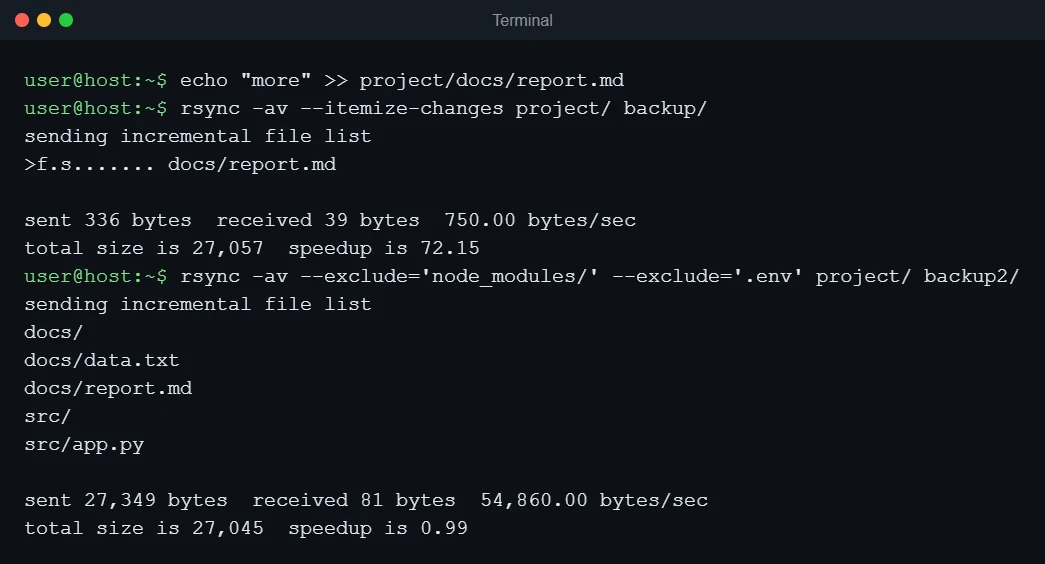
After editing one file, add --itemize-changes. rsync reports only the file that changed. In >f.s....... the > means the file was sent, f means it is a regular file, and s means its size changed.
echo "more" >> project/docs/report.md
rsync -av --itemize-changes project/ backup/
Step 4: Exclude folders and files you do not need
Dependency folders and secrets usually do not belong in a general backup. Add one --exclude per pattern, writing the folder name with a trailing slash:
rsync -av --exclude='node_modules/' --exclude='.env' project/ backup2/In the output below, neither node_modules/ nor .env was copied. Excluding .env keeps credentials out of the backup, but it also means they are not backed up, so store them somewhere safe on purpose.
Step 5: Mirror deletions, but preview them first
By default rsync never deletes anything in the destination. If you want the backup to match the source exactly, add --delete. Always combine it with -n first:
rm project/src/app.py
rsync -avn --delete project/ backup/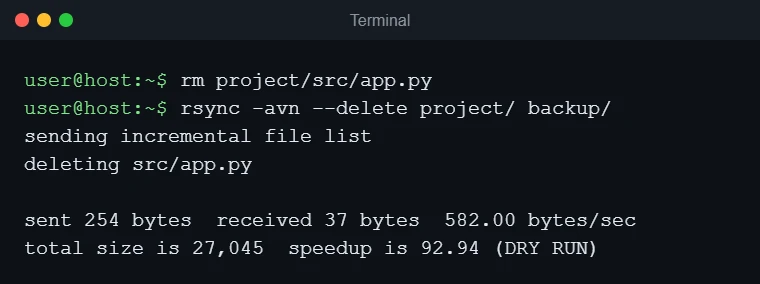
The dry run reports deleting src/app.py, which is the file removed from the source. Run it without n to apply the deletion.
Warning: --delete removes data. If you swap source and destination, or the source is an unmounted drive that looks empty, rsync will make the destination match an empty folder. Check the paths, preview with -n, and keep a second copy of anything important.
Step 6: Keep dated snapshots that share unchanged files
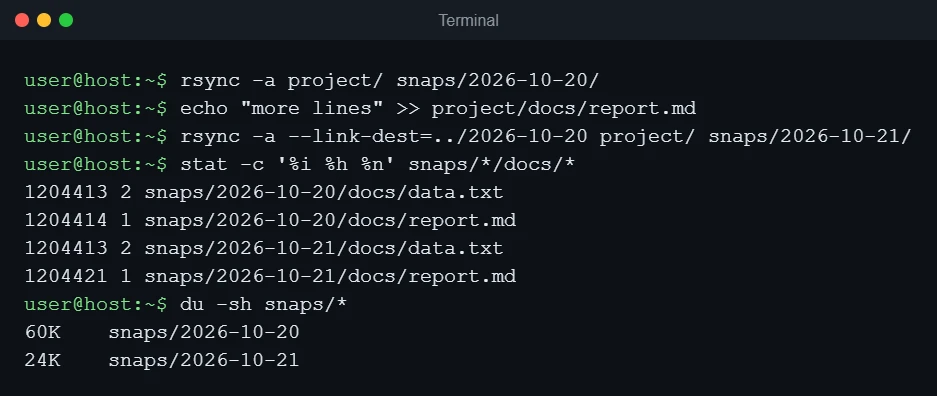
A mirror only holds the latest state. To keep one folder per day without storing every file again, use --link-dest and point it at the previous snapshot. A relative path is interpreted relative to the destination folder, so ../2026-10-20 refers to the earlier snapshot next to the new one.
rsync -a project/ snaps/2026-10-20/
echo "more lines" >> project/docs/report.md
rsync -a --link-dest=../2026-10-20 project/ snaps/2026-10-21/
stat -c '%i %h %n' snaps/*/docs/*
The stat output prints the inode number, the hard-link count and the file name. data.txt has the same inode (1204413) in both snapshots with a link count of 2, so it exists on disk once. report.md changed, so each snapshot holds its own copy. Both snapshot folders still look like complete backups when you browse them. The du figures are lower for the second snapshot (24K against 60K) because du counts each shared file only once.
Restore files from a backup
A restore is the same command with source and destination reversed. Preview it first, as always:
rsync -avn backup/docs/ restore/
rsync -av backup/docs/ restore/
Back up to another machine over SSH
Not run for this guide; syntax from rsync’s documentation. Add a remote path in the form user@host:/path and rsync uses SSH. Both machines need rsync installed, and key-based SSH login makes it usable in scripts. If the remote server is new, set up and secure SSH first with OpenSSH server on Ubuntu 24.04 and SSH hardening on Debian 13 and 12.
The easiest way to keep these commands short is an alias in ~/.ssh/config. Replace the address and user name with your own (203.0.113.10 is a documentation-only example address):
Host backupserver
    HostName 203.0.113.10
    User backupuser
    Port 22
Then use the alias as the host:
# push a local folder to the server
rsync -avz -e ssh project/ backupserver:/backups/project/

# pull from the server to this machine
rsync -avz -e ssh backupserver:/backups/project/ restore/
If you do not use an alias, the long form is -e "ssh -p 2222" for a non-default port and username@host:/path for the remote side.
Use -n on the first run here too.
Run it on a schedule
Not run for this guide. Once the command works by hand, put it in the user’s crontab (crontab -e) with absolute paths. This line runs at 02:00 every day. Our Debian crontab guide explains the five time fields.
0 2 * * * /usr/bin/rsync -a /home/user/project/ /mnt/backup/project/Do not add --delete to an unattended job until you have run the same command by hand with -n and trust both paths. Before relying on a destination drive, check that it has room; see how to check disk space on Debian 13 and 12.
Troubleshooting
| Symptom | Likely cause | What to do |
|---|---|---|
rsync: command not found |
rsync is not installed on this machine or on the remote one | Run sudo apt install rsync on both ends. |
| Files get copied again on every run | -r was used without -a, so timestamps are not preserved |
Use -a. |
A project folder appears inside backup/ |
The trailing slash after the source was left out | Use project/ to copy the contents. |
| Exit code 23: some files or attributes were not transferred | Some source files are unreadable | Read the error lines above the summary; fix permissions or run as a user that can read them. |
| Exit code 24: some source files vanished | Files were deleted while rsync was running | Usually harmless on a live folder; run it again. |
Permission denied (publickey) |
SSH key or user is wrong on the remote copy | Test with ssh user@host first. |
No space left on device |
The destination is full | Check with df -h and free space or use a larger drive. |
When rsync alone is not enough
rsync copies files; it does not version them (unless you use snapshots as in Step 6), does not encrypt the backup at rest, and cannot safely copy a running database by itself. Dump databases first and back up the dump. A backup that lives only on the same disk as the original is not a backup, so keep at least one copy on a different drive or machine.
Sources: rsync documentation (manual page), the Debian package archive for the versions in the table, and the test run described above.