
Last updated:
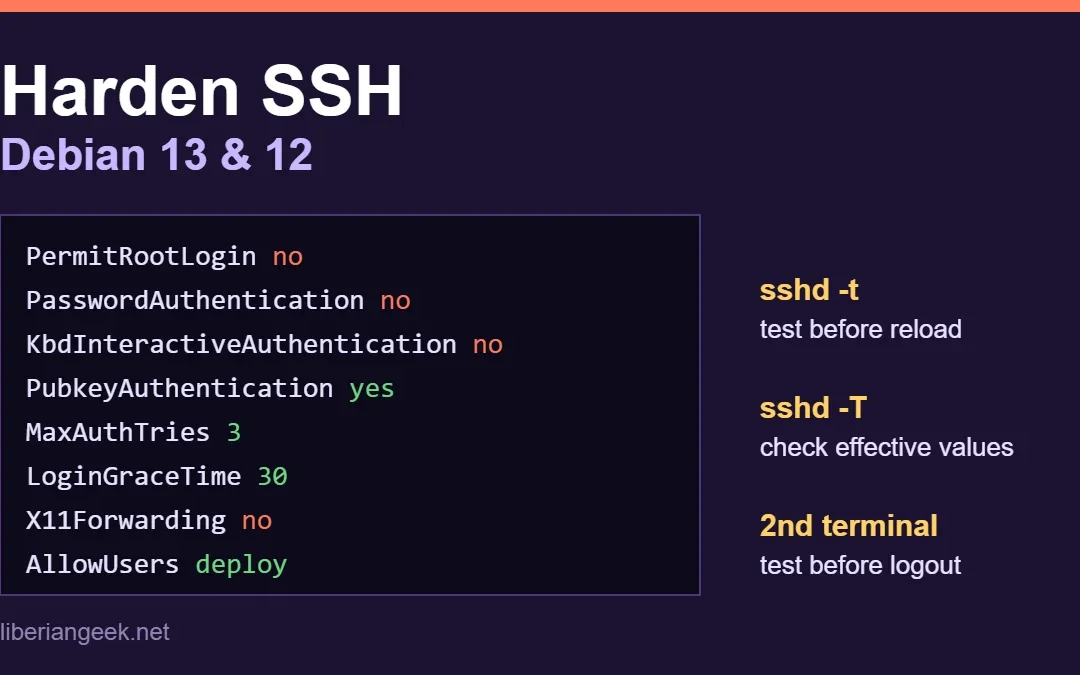
To harden SSH on Debian 13 (Trixie) or Debian 12 (Bookworm), put your settings in a drop-in file under /etc/ssh/sshd_config.d/: turn off root login and password logins, allow only the users who need access, and lower the login limits. Then check the syntax with sudo sshd -t and reload the service. The one rule that prevents lockouts: set up key login for a normal user and confirm it works in a second terminal before you disable passwords.
Quick answer. Create /etc/ssh/sshd_config.d/00-hardening.conf with the settings below, run sudo sshd -t, then sudo systemctl reload ssh. Keep your current session open and test a new login before you close it.
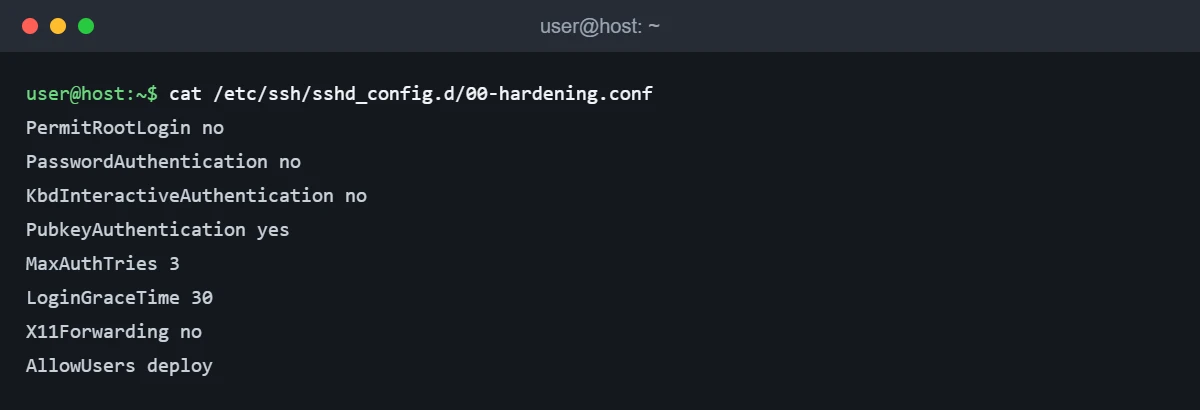
PermitRootLogin no
PasswordAuthentication no
KbdInteractiveAuthentication no
PubkeyAuthentication yes
MaxAuthTries 3
LoginGraceTime 30
X11Forwarding no
AllowUsers deploy
Replace deploy with your own user name. Package versions in the Debian archive (checked 6 Oct 2026): Debian 13 has openssh-server 1:10.0p1-7+deb13u4 and Debian 12 has 1:9.2p1-2+deb12u10. The screenshots in this guide were captured on Ubuntu 24.04 with OpenSSH 9.6p1, because the commands and directives are the same OpenSSH features; they were not captured on a Debian host, and exact default values can differ between releases, so check your own with sudo sshd -T (step 1). This is one step in our Debian server security checklist, which shows the order to apply them in.
What each setting does
| Setting | What it does | Risk if misconfigured |
|---|---|---|
PermitRootLogin no |
Blocks direct SSH logins as root; you log in as a normal user and use sudo |
Lockout if no other user can use sudo |
PasswordAuthentication no |
Only SSH keys are accepted, so password guessing stops working | Lockout if no working key is installed |
KbdInteractiveAuthentication no |
Closes the keyboard-interactive path, which can otherwise still ask for a password through PAM | None for key-only access |
MaxAuthTries 3 |
Disconnects after 3 failed attempts in one connection | Users with many keys in an agent may hit the limit |
LoginGraceTime 30 |
Drops connections that do not authenticate within 30 seconds | Very slow links may time out |
X11Forwarding no |
Disables forwarding of graphical applications | Breaks remote GUI apps over SSH |
AllowUsers deploy |
Only the listed users may log in over SSH | Lockout if the list is wrong or empty of valid users |
Before you start
Make sure you have a way back in that does not use SSH: a provider web console, VNC or physical access. Also make sure you have a non-root account with sudo rights; if not, enable sudo for a user on Debian first. If a firewall is active, SSH must stay allowed in it; see the UFW setup guide for Debian 13 and 12.
Step 1: Check the version and your current settings
Run these on the server. sshd -T prints the settings the server is actually using after all configuration files are merged, which is more reliable than reading the files by eye.
ssh -V
sudo sshd -T | grep -E '^(permitroot|password|maxauth|x11f|logingr|pubkeyauthentication)'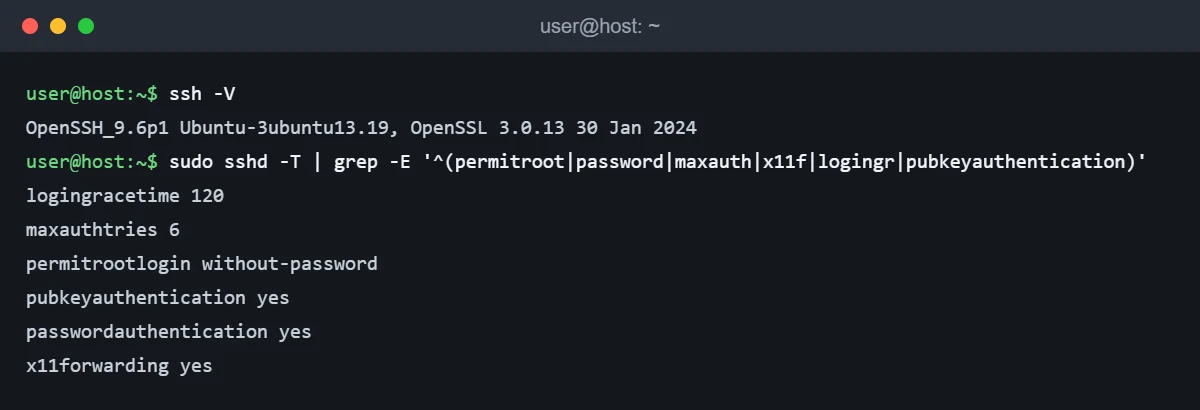
On the Ubuntu test machine the defaults allowed password logins, allowed 6 attempts per connection and gave 120 seconds to log in. Your Debian values may differ, which is exactly why you check first.
Step 2: Create a key and install it
On your own computer (the client, not the server), create an Ed25519 key pair. Set a passphrase when asked, because the key file is the only thing protecting access once passwords are off.
ssh-keygen -t ed25519 -C "laptop-2026"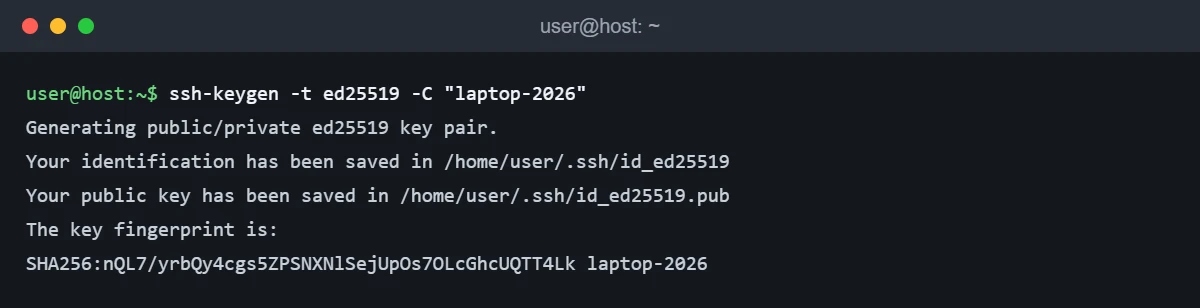
Copy the public key to the server user you will keep using (deploy here), then open a new terminal and confirm the key works without a password prompt for the account:
ssh-copy-id deploy@your-server-ip
ssh deploy@your-server-ip
If ssh-copy-id is not available on your client, append the contents of id_ed25519.pub to ~/.ssh/authorized_keys on the server, with ~/.ssh set to mode 700 and authorized_keys to mode 600. SSH ignores the key file when its permissions are too open. Do not continue until this login works.
Step 3: Write the hardening drop-in file
Debian and Ubuntu’s default /etc/ssh/sshd_config starts with Include /etc/ssh/sshd_config.d/*.conf, so files in that directory are read first. For each setting, the first value found wins. That is why this guide names the file 00-hardening.conf, and why editing only the main file can fail silently (see the precedence check in step 6).
sudo nano /etc/ssh/sshd_config.d/00-hardening.confPaste the settings from the quick answer, changing AllowUsers to your user:
Step 4: Test the syntax before touching the service
sshd -t checks the configuration without restarting anything. It prints nothing and exits 0 when the file is valid.
Stuck at this step? Ask us, it is free and include the exact error.
sudo sshd -t && echo "config OK"
sudo sshd -T | grep -E '^(permitroot|password|kbdinter|maxauth|x11f|logingr|pubkeyauthentication|allowusers)'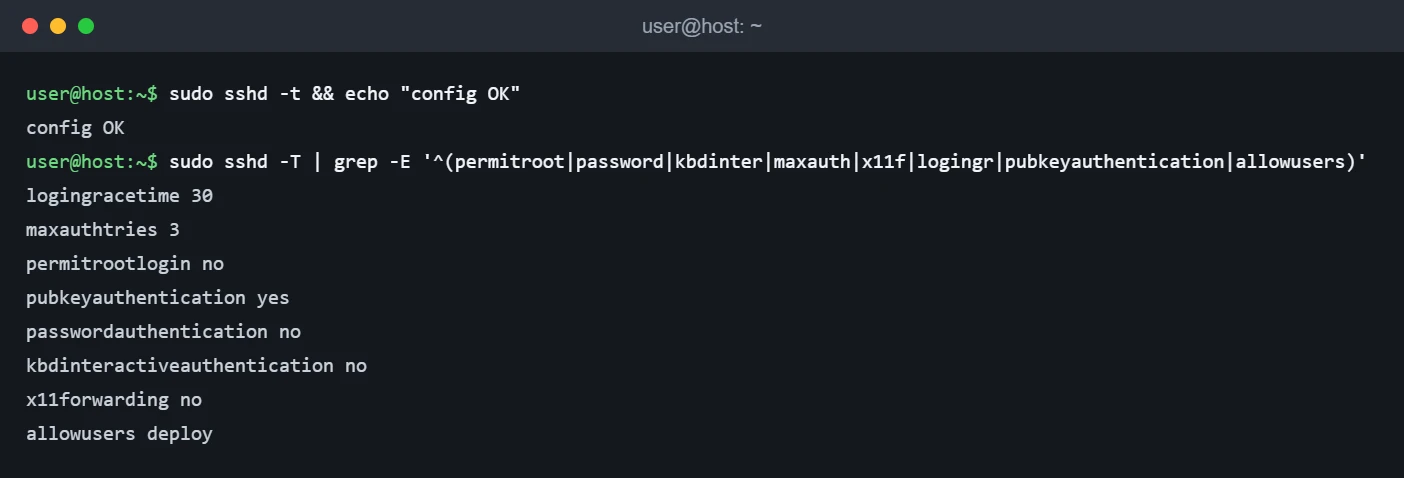
A typo is caught here instead of at restart time. With MaxAuthTries three in the file, sshd -t refuses it and names the file and line:

Step 5: Reload and test from a second terminal
sudo systemctl reload sshUse reload rather than restart. Existing sessions stay connected, so you keep a working shell if something is wrong. The service is named ssh on Debian and Ubuntu (sshd also works as an alias on current releases). Keep the old session open, then open a new terminal and log in as your normal user with the key. Also confirm that root and password logins are now refused:
ssh deploy@your-server-ip
ssh root@your-server-ip
ssh -o PubkeyAuthentication=no deploy@your-server-ip
The second and third commands should end with Permission denied. Only close your original session after the first command succeeds.
Step 6: Confirm nothing else overrides your settings
Some cloud images ship their own file in sshd_config.d, for example 50-cloud-init.conf setting PasswordAuthentication yes. Because the first value wins and files are read in alphabetical order, a lower-numbered name beats a higher-numbered one. In this test, the hardening file named 60- lost to a 50- file, and sshd -T showed password logins still enabled:
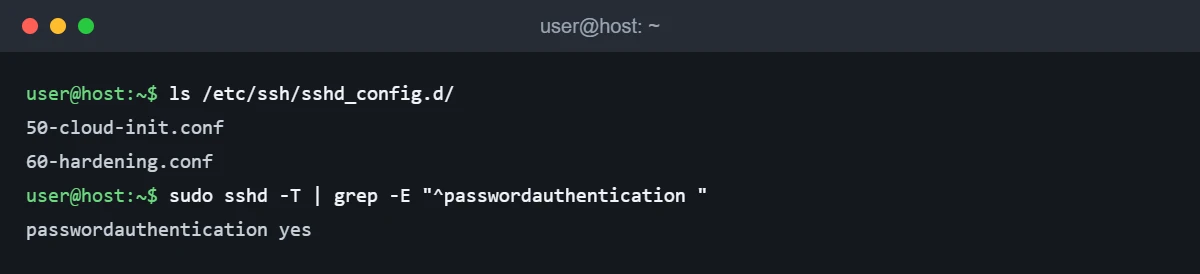
So always finish with sudo sshd -T | grep passwordauthentication, and rename or remove the conflicting setting if it does not say no.
Undo the change
If you can still reach the server, remove the file and reload:
sudo rm /etc/ssh/sshd_config.d/00-hardening.conf
sudo sshd -t && sudo systemctl reload ssh
If you are locked out, use the provider console or physical access, log in locally, and run the same commands.
Troubleshooting
| What you see | Likely cause | What to check |
|---|---|---|
Permission denied (publickey) |
The key is not installed for that user, wrong key offered, or bad permissions | Check ~/.ssh (700) and authorized_keys (600); try ssh -v; read sudo journalctl -u ssh -n 50 on the server |
| A user can log in as root or with a password even after the change | Another file in sshd_config.d set the value first |
Run sudo sshd -T and check file names with ls /etc/ssh/sshd_config.d/ |
Bad configuration option or integer value invalid |
Typo or wrong value in a directive | sudo sshd -t prints the file and line |
| A listed user still cannot log in | User missing from AllowUsers, or not spelled exactly |
Add the user (space-separated) and re-test |
| Connection refused after a restart | The service failed to start, or the firewall blocks port 22 | sudo systemctl status ssh, then your firewall rules |
FAQ
Is it safe to disable password authentication?
Yes, as long as key login works first, you have console access as a fallback, and you protect the private key with a passphrase. The risk is lockout, not weaker security.
Should I change the SSH port?
Changing the port reduces noise in the logs but does not make SSH meaningfully safer, and it can interfere with firewall rules. This guide leaves it at 22; focus on keys and access limits first.
Does reloading SSH disconnect me?
No. Reloading re-reads the configuration for new connections while existing sessions stay open, which is why the guide tests in a second terminal.