
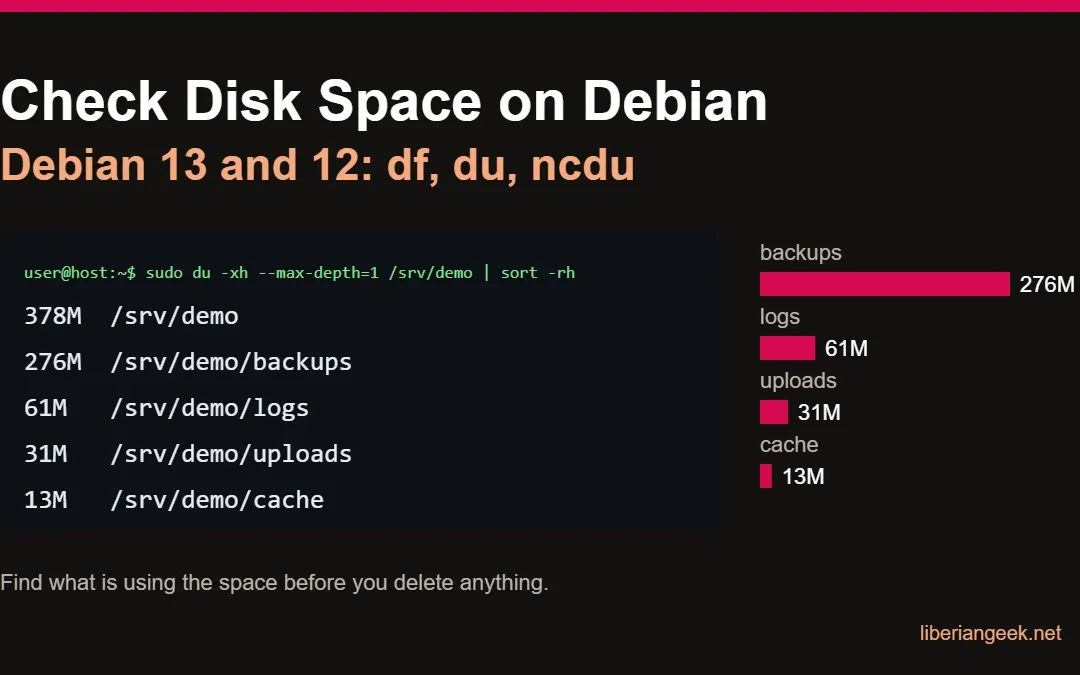
To check disk space on Debian 13 (Trixie) or Debian 12 (Bookworm), run df -hT to see how full each filesystem is, then sudo du -xh --max-depth=1 / | sort -rh | head to see which top-level directory is using it. Repeat the du command one level deeper until you find the culprit. This guide covers both commands, ncdu, inode exhaustion, and the case where df says the disk is full but du cannot find the files.
Quick answer
| Question | Command |
|---|---|
| How full is each filesystem? | df -hT |
| Am I out of inodes (file slots)? | df -i |
| Which directory is biggest? | sudo du -xh --max-depth=1 / | sort -rh | head -15 |
| Which files are bigger than 100 MB? | sudo find / -xdev -type f -size +100M -exec ls -lh {} + |
| Interactive browser | sudo apt install ncdu then sudo ncdu -x / |
| Disk “full” but nothing big found | sudo lsof +L1 (deleted files still held open) |
Versions and what is installed by default
df and du are part of GNU coreutils, which is installed on every Debian system. ncdu and lsof are optional packages. Versions below come from the Debian archive (madison query, 13 Oct 2026).
| Package | Debian 13 (trixie) | Debian 12 (bookworm) | Provides |
|---|---|---|---|
| coreutils | 9.7-3 | 9.1-1 | df, du, ls, truncate |
| ncdu | 1.22-1 | 1.18-0.2 | Interactive disk usage browser |
Step 1: See which filesystem is full with df
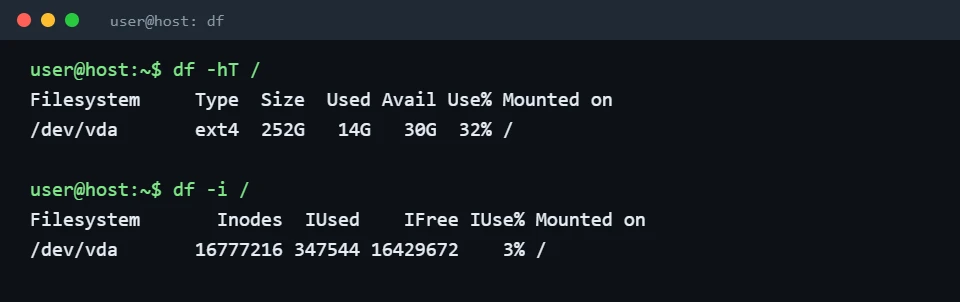
df -hT
df -i
-h prints human-readable sizes, -T adds the filesystem type, and -i switches from blocks to inodes. Every file and directory uses one inode, so a disk can be “full” because it ran out of inodes even when plenty of gigabytes are free.
| Column | Meaning | Watch for |
|---|---|---|
| Use% | Share of blocks used | Above 90% on / or /var deserves attention |
| IUse% | Share of inodes used (df -i) |
100% means no new files can be created |
| Mounted on | Where the filesystem is attached | Separate mounts such as /var or /home fill up independently |
Ignore tmpfs and udev lines. They live in memory, not on disk.
Step 2: Find the biggest directories with du
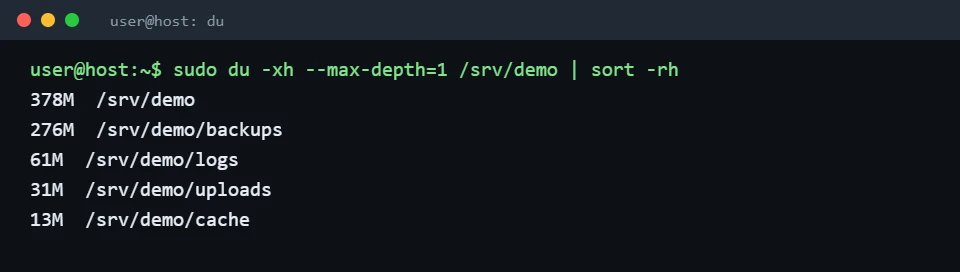
sudo du -xh --max-depth=1 /var | sort -rh | head -15-x keeps du on one filesystem so it does not wander into other mounts, --max-depth=1 prints one level, and sort -rh puts the largest first. Use sudo so permission errors do not hide directories. Run it on / first, then on the largest result, and repeat. The demo below uses a test directory, /srv/demo.
Step 3: List individual large files
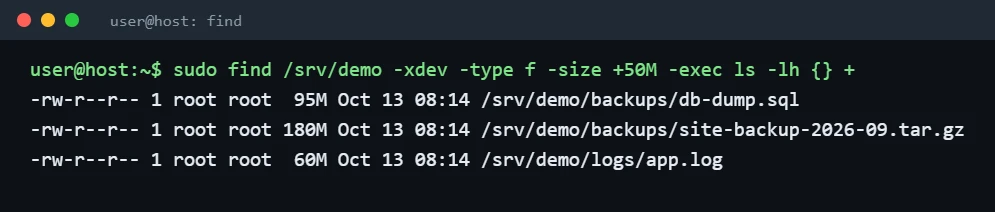
sudo find /var -xdev -type f -size +50M -exec ls -lh {} +Change +50M to +500M or +1G on a large server. The output shows size, owner, date and path, which usually tells you whether the file is a log, a backup or something an application created.
Browse interactively with ncdu
sudo apt install ncdu
sudo ncdu -x /
ncdu scans once, then lets you move through directories with the arrow keys; press ? for its key list and q to quit. It can delete the selected item with d, so read the confirmation prompt carefully. The package installed (version 1.19 on the Ubuntu 24.04 test machine) but the interactive screen was not captured, so there is no screenshot of it here.
Common causes and safe cleanup
| Where space goes | How to check | Safe action |
|---|---|---|
| Downloaded packages | sudo du -sh /var/cache/apt |
sudo apt clean |
| Old, unused packages and kernels | apt -s autoremove (simulation) |
Review the list, then sudo apt autoremove --purge |
| systemd journal | journalctl --disk-usage |
sudo journalctl --vacuum-size=500M |
| Large log file | sudo ls -lh /var/log |
Empty it with sudo truncate -s 0 /var/log/FILE.log instead of deleting it |
| Backups and dumps | Step 2 and 3 above | Move them off the server, then delete the local copy |
Warning: do not run rm -rf on a directory you have not identified. Application data under /var/lib (databases, containers, mail) is not disposable. Take a backup first and confirm the application is not using the files. The truncate command was tested on a demo file in the sandbox, which went from 99,614,720 bytes to 0; the apt and journalctl cleanups were not run for this guide, except that apt -s autoremove simulated cleanly on the test machine. Free space matters before big changes: upgrading Debian 12 to Debian 13 needs spare room in /var and /, and unattended-upgrades can be set to remove unused packages automatically so the problem does not return.
When df says full but du cannot find the files
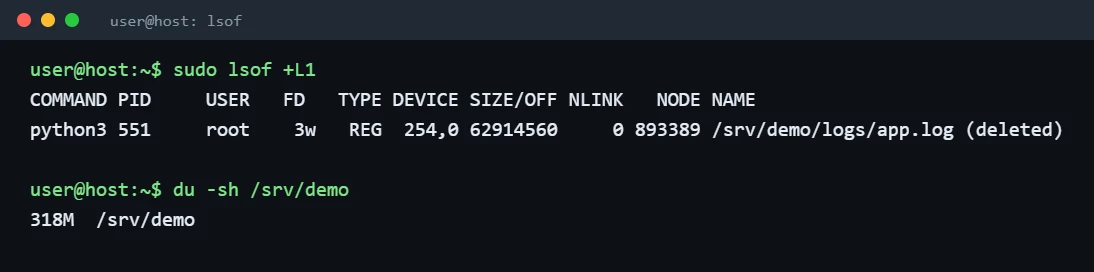
If you delete a large file while a program still has it open, the name disappears but the space is not freed until that program closes it or restarts. du no longer counts the file, df still does. List such files with:
sudo lsof +L1The NLINK column is 0 and the name ends with (deleted). Restart the owning service (for example sudo systemctl restart SERVICE) and the space returns. If lsof is missing, install it with sudo apt install lsof.
When you run out of inodes
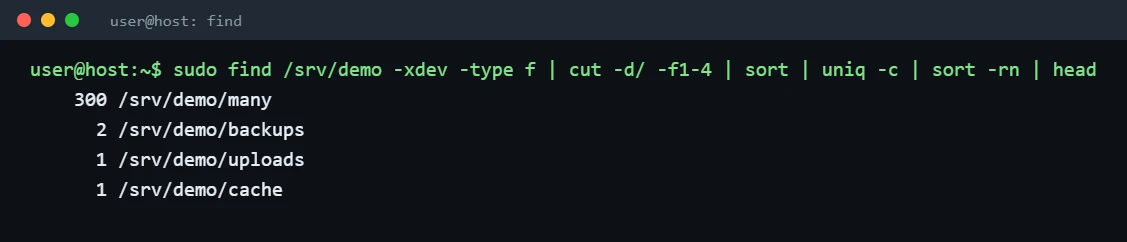
If df -i shows IUse% at or near 100%, the disk contains millions of tiny files, often session files, mail queues or cache entries. Count files per directory to find them:
sudo find /var -xdev -type f | cut -d/ -f1-3 | sort | uniq -c | sort -rn | headChange -f1-3 to -f1-4 to go one level deeper. The screenshot uses -f1-4 on the demo directory, which has 300 empty files in one folder.
Troubleshooting
| Symptom | Likely cause | Fix |
|---|---|---|
No space left on device but df -h shows free space |
Inodes exhausted, or a quota | Run df -i and use the inode steps above |
du total is much smaller than df Used |
Deleted-but-open files, or other mounts hidden under a directory | sudo lsof +L1; check df -h for separate mounts |
Permission denied in du output |
Running without root | Use sudo. See how to enable sudo on Debian 13 and 12 |
du / takes very long |
It scans every mount, including network shares | Add -x and target /var, /home or /srv instead |
| Space comes back after reboot only | Deleted files held by a long-running process | Restart that service rather than rebooting |
Disk usage is one part of keeping a server healthy. The Debian server security checklist covers the other habits, from firewall to automatic updates.