

Last updated:
On Debian 13 and Debian 12, the root user has unrestricted access to the entire system. For security reasons, it is better to use a regular user account and grant it elevated privileges through sudo only when needed. The sudo keyword lets you run individual commands with root-level access without logging into the root account directly or leaving a privileged session open.
This guide covers four methods to enable sudo on a user account in Debian 13 and Debian 12: using the usermod command, using adduser, editing the /etc/sudoers file with visudo, and using the graphical Users Settings panel.
Quick Answer
Switch to root with su -, install sudo if it is missing, add the user to the sudo group, then log out and back in as that user:
su -
apt install sudo
usermod -aG sudo username
exit
Replace username with the account name. Group membership is read at login, so the user must log out and log in again (or reconnect over SSH). Then confirm it works: sudo whoami should print root.
Why sudo is sometimes missing: the Debian installer only installs sudo and gives the first user sudo rights when you leave the root password empty. If you set a root password during installation, sudo is not set up and you have to follow the steps below. This is described in the Debian 13 installation guide (section 6.3.2.1).
| Release | sudo | adduser | passwd (usermod, gpasswd) |
|---|---|---|---|
| Debian 13 (trixie) | 1.9.16p2-3+deb13u2 | 3.152 | 1:4.17.4-2 |
| Debian 12 (bookworm) | 1.9.13p3-1+deb12u4 | 3.134 | 1:4.13+dfsg1-1+deb12u2 |
The screenshots in this guide were taken on Debian 12 with GNOME. The commands are the same on Debian 13. The verification and troubleshooting commands added in this update were run in a sandbox on Ubuntu 24.04 (sudo 1.9.15p5), not on a Debian 13 machine.
How to Enable Sudo on a User Account on Debian 13 and 12
Method 1: Using the usermod Command
The usermod command modifies user account properties, including group membership. Use it to add an existing user to the sudo group from the root account.
Step 1: Switch to the root user:
su -
Step 2: Add the user to the sudo group. Replace testuser with the actual username:
usermod -aG sudo testuser
Step 3: Check the membership. The new group only applies to new logins, so log out and back in as testuser (or open a fresh login shell with su - testuser) before using sudo. The newgrp sudo command in the screenshot only starts a shell with the new group for the current session; it is not needed if you log in again:
newgrp sudogroups testuser
Method 2: Using the adduser Command
The adduser command creates new users and manages group memberships. Use it to create a new user and add them directly to the sudo group in one workflow:
adduser newdeb
adduser newdeb sudo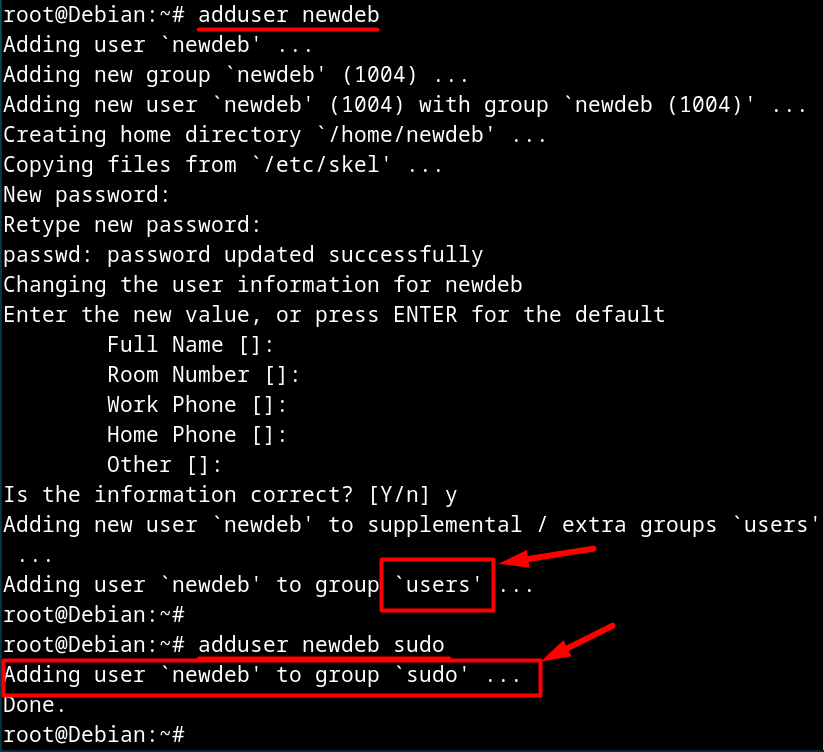
Confirm that the user now appears in the sudo group:
getent group sudo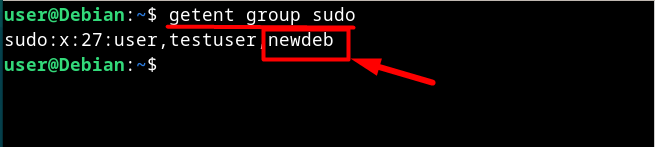
To add an existing user (one already on the system) to the sudo group, use:
sudo adduser newuser sudo
To remove a user from the sudo group with adduser’s counterpart:
sudo deluser newuser sudoMethod 3: Editing the /etc/sudoers File
The /etc/sudoers file controls which users and groups can use sudo and what commands they can run. Always edit it with visudo, which opens a temporary copy and validates syntax before saving, preventing errors that could lock you out of the system. Add a line in the format username ALL=(ALL:ALL) ALL to grant full sudo access. If the user has no sudo rights yet, run it as root (su -, then visudo):
sudo visudo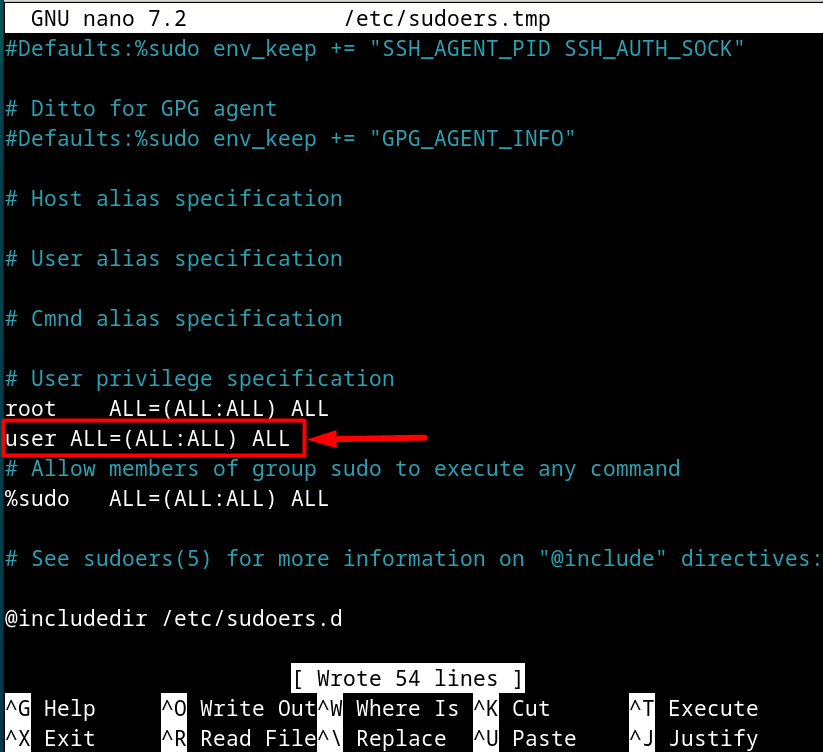
After adding the entry, press Ctrl + S then Ctrl + X to save and exit (these are nano shortcuts; nano is the default editor on most Debian installs). This also resolves the “User is not in the sudoers file” error. Verify the groups assignment:
groups newdeb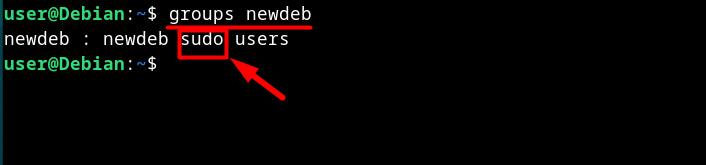
Cleaner option: instead of editing the main file, put the rule in its own file under /etc/sudoers.d/. Debian’s default /etc/sudoers already includes that directory, and a separate file is easier to remove later:
sudo visudo -f /etc/sudoers.d/newdeb
sudo visudo -c
visudo -c checks every sudoers file and prints parsed OK for each one. A broken rule shows a line like syntax error with the line number, which you should fix before closing your root shell.
Method 4: Using the Users Settings (GUI)
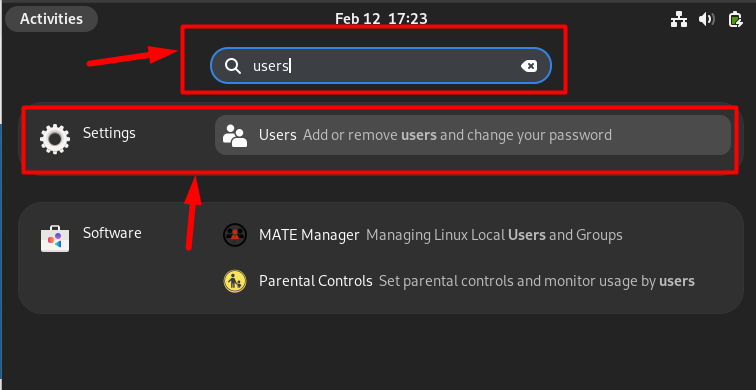
Debian with the GNOME desktop includes a graphical Users Settings panel for managing accounts. Open the Activities search and search for Users:
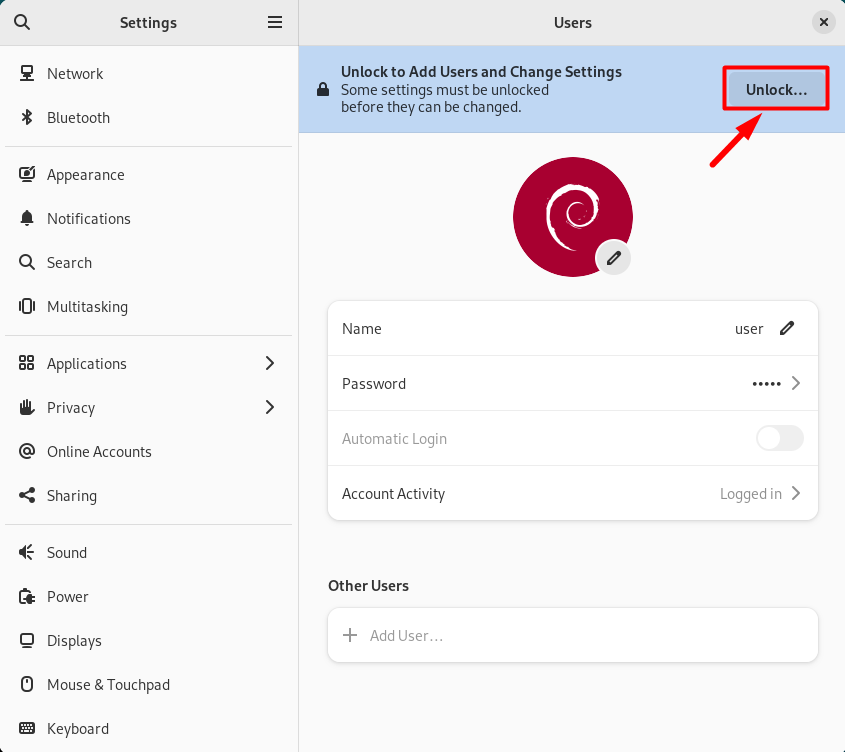
Click Unlock and enter your password to enable account management:
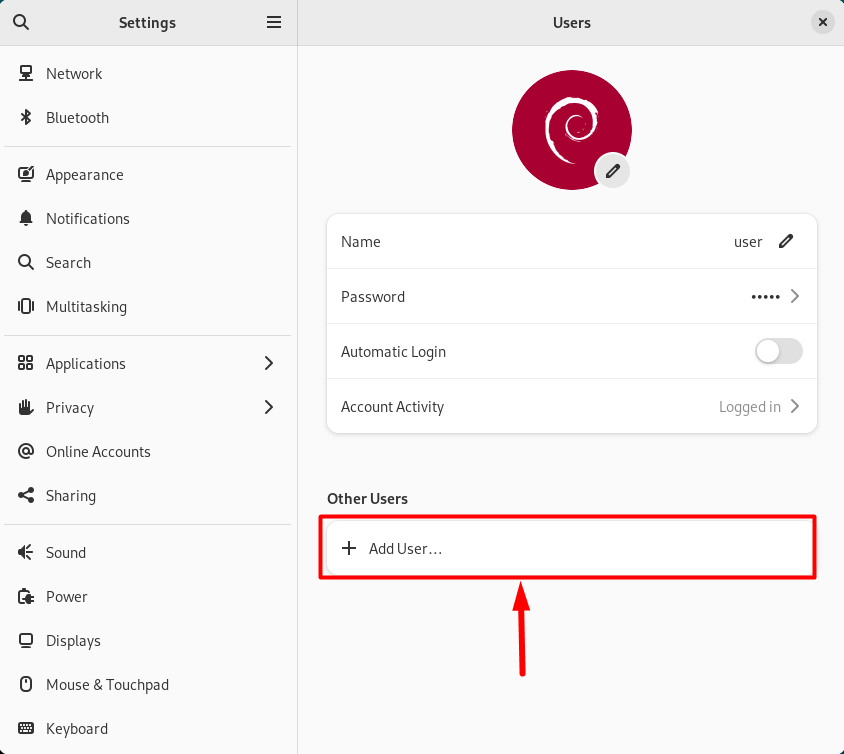
Click Add User to open the new user creation wizard:
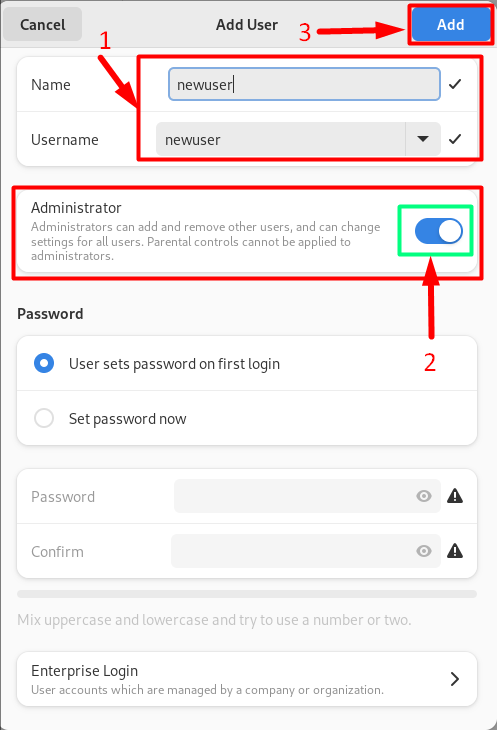
Fill in the user’s details and toggle Administrator to on before clicking Add. Administrator accounts have sudo privileges automatically. You must have sudo privileges yourself to manage other users through this panel.
How to Disable Sudo on a User Account
To revoke sudo access from a user, run this command as root and replace testuser with the username:
gpasswd -d testuser sudo
deluser testuser sudo does the same job. If you granted access with a file in /etc/sudoers.d/, delete that file instead. Sessions that are already logged in keep the old group list until the user logs out, so end them if access must stop immediately.
Verify Sudo Access
| Command | What it tells you |
|---|---|
id -nG username |
Lists the user’s groups; sudo must be in the list |
getent group sudo |
Lists every member of the sudo group |
sudo -l -U username (as root) |
Shows the rules sudo will apply, for example (ALL : ALL) ALL |
sudo whoami (as the user) |
Prints root when sudo works |
Troubleshooting
| Error or symptom | Cause and fix |
|---|---|
username is not in the sudoers file |
The user is not in the sudo group yet, or has not logged in again since being added. Add the group as root, then log out and back in. |
sudo: command not found |
sudo is not installed (common when a root password was set during installation). Run su - and then apt install sudo. |
groups shows sudo but sudo still fails |
The current session started before the change. Log out completely (or reconnect over SSH) and try again. |
syntax error after editing sudoers |
Run visudo -c as root to find the line, then fix it with visudo. Keep a root shell open until the check passes. |
usermod: group 'sudo' does not exist |
Unusual on Debian; the group comes from the base system. Check with getent group sudo and install the sudo package. |
Once a sudo user works, you can stop logging in as root over SSH; see how to harden SSH on Debian 13 and the Debian server security checklist for the next steps.
Once sudo is configured, you can use it to install VirtualBox on Debian, schedule system tasks with Debian crontab, or build and install Debian packages from source.