
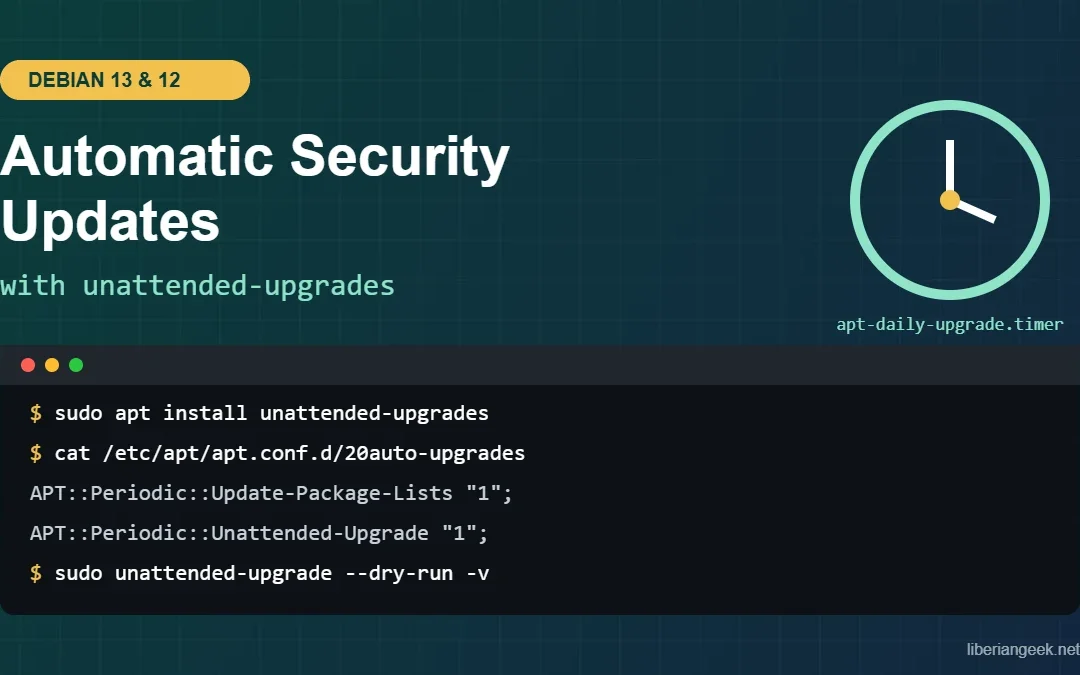
Quick answer: On Debian 13 (Trixie) and Debian 12 (Bookworm), install the unattended-upgrades package. On a normal non-interactive install it turns itself on by writing /etc/apt/apt.conf.d/20auto-upgrades with both values set to "1". Debian’s default policy installs updates from the security archive and from stable point releases. Put your own settings (reboot time, email, exclusions) in a separate drop-in file instead of editing 50unattended-upgrades, then test with sudo unattended-upgrade --dry-run -v.
sudo apt update
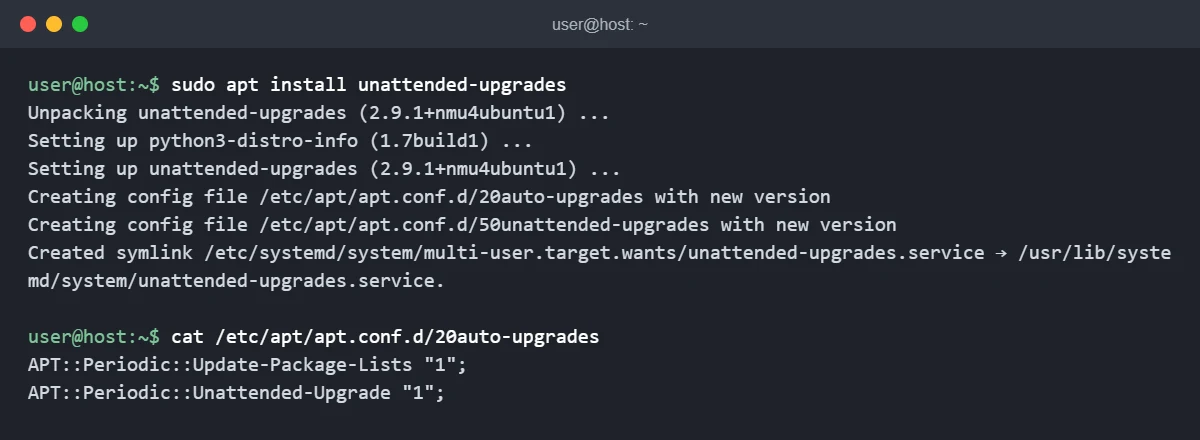
sudo apt install unattended-upgrades
cat /etc/apt/apt.conf.d/20auto-upgrades
sudo unattended-upgrade --dry-run -v
This guide applies to Debian 13 and Debian 12 servers and desktops. Debian 13 ships unattended-upgrades 2.12 and Debian 12 ships 2.9.1+nmu3 (versions from the Debian archive, checked 9 October 2026). The default update policy in both versions is the same. Automatic updates work best alongside the other basics of a Debian server: a UFW firewall, hardened SSH settings and Fail2Ban. This is one step in our Debian server security checklist, which shows the order to apply them in.
How this was tested: the screenshots below are real output captured on Ubuntu 24.04 with unattended-upgrades 2.9.1+nmu4ubuntu1, the Ubuntu build of the same upstream release Debian 12 uses. The Debian defaults described here (origin patterns, the enable question, the timers) were read from the Debian 13 package source, not assumed. The one visible difference on Debian is the “Allowed origins” line, which lists Debian archives instead of Ubuntu ones.
What gets updated automatically (and what does not)
On Debian, three pieces work together. The apt-daily.timer and apt-daily-upgrade.timer systemd timers come with apt itself. /etc/apt/apt.conf.d/20auto-upgrades switches the daily jobs on. /etc/apt/apt.conf.d/50unattended-upgrades decides which packages are allowed to update.
| Piece | What it does | Default on Debian 13 and 12 |
|---|---|---|
apt-daily.timer |
Refreshes package lists (and downloads updates if configured) | Runs at 06:00 and 18:00 with a random delay of up to 12 hours |
apt-daily-upgrade.timer |
Runs unattended-upgrade to install updates |
Runs at 06:00 with a random delay of up to 60 minutes |
20auto-upgrades |
Turns list updates and unattended upgrades on or off | Both "1" after a normal install |
50unattended-upgrades |
Which origins are allowed, exclusions, reboot and mail options | Debian security updates and stable point-release updates |
The packaged Origins-Pattern block on both releases is:
Unattended-Upgrade::Origins-Pattern {
        "origin=Debian,codename=${distro_codename},label=Debian";
        "origin=Debian,codename=${distro_codename},label=Debian-Security";
        "origin=Debian,codename=${distro_codename}-security,label=Debian-Security";
};
On Debian 13, ${distro_codename} becomes trixie, so the system gets updates from trixie-security (labelled Debian-Security) and from the trixie suite itself, which is what changes when Debian publishes a point release such as 13.7. The trixie-updates suite (codename trixie-updates), backports and any third-party repository are not included unless you add them. Because the patterns use the codename instead of “stable”, a Debian 12 machine is never moved to Debian 13 automatically. Major upgrades are still a manual job; see how to upgrade Debian 12 to Debian 13.
Requirements
- Debian 13 or Debian 12 with working APT sources. If you are not sure your sources are right, check them against our Debian 13 sources.list and deb822 guide. The security archive must be present or there is nothing to install automatically.
- A user with
sudo, or a root shell. - systemd running as init (the default). The timers are systemd units.
Step 1: Install unattended-upgrades
Many Debian installs already have it. Check first:
dpkg -l unattended-upgradesA line starting with ii means it is installed. If not, install it:
sudo apt update
sudo apt install unattended-upgrades
Debian asks the debconf question “Automatically download and install stable updates?” only at low priority, and its default answer is yes. That means a normal apt install does not stop to ask anything: the package writes 20auto-upgrades with both settings on and installs 50unattended-upgrades.
Step 2: Confirm automatic updates are switched on
cat /etc/apt/apt.conf.d/20auto-upgradesYou should see:
APT::Periodic::Update-Package-Lists "1";
APT::Periodic::Unattended-Upgrade "1";
If the file is missing or shows "0", turn it on through debconf, which is the cleanest way because the package keeps track of the file:
sudo dpkg-reconfigure -plow unattended-upgradesAnswer Yes. Answering No writes the same file with both values set to "0", which is also how you switch automatic updates off later.
Next, check that the timers exist and are scheduled:
systemctl list-timers 'apt-daily*'Both apt-daily.timer and apt-daily-upgrade.timer should show a time in the NEXT column. If one is missing, enable it with sudo systemctl enable --now apt-daily-upgrade.timer (or apt-daily.timer).
Step 3: Add your own settings in a drop-in file
Leave the packaged 50unattended-upgrades alone. If you edit it, future package updates will ask you to merge their new version with your changes. APT reads every file in /etc/apt/apt.conf.d/ in name order, so a file called 52unattended-upgrades-local is read after the packaged one and its single values win. Lists such as Package-Blacklist are added to, not replaced.
sudo nano /etc/apt/apt.conf.d/52unattended-upgrades-localA sensible server starting point:
// Local overrides: keep the packaged 50unattended-upgrades untouched
Unattended-Upgrade::Remove-Unused-Kernel-Packages "true";
Unattended-Upgrade::Remove-Unused-Dependencies "true";
Unattended-Upgrade::Automatic-Reboot "true";
Unattended-Upgrade::Automatic-Reboot-Time "03:30";
Unattended-Upgrade::Mail "root";
Unattended-Upgrade::MailReport "only-on-error";| Setting | What it does | Think about |
|---|---|---|
Remove-Unused-Kernel-Packages |
Removes old, automatically installed kernel packages | Already the default in the packaged file; set it explicitly so the intent is visible. Keeps /boot from filling up |
Remove-Unused-Dependencies |
Runs the equivalent of apt-get autoremove after upgrading |
Off by default; only removes packages marked as automatically installed |
Automatic-Reboot |
Reboots without asking when /var/run/reboot-required exists after the run |
Causes downtime. Leave it "false" if you cannot accept an unplanned restart |
Automatic-Reboot-Time |
Delays that reboot to a set time | The default is "now" |
Automatic-Reboot-WithUsers |
Whether to reboot while users are logged in | Defaults to true when automatic reboot is on |
Mail / MailReport |
Emails a report (always, only-on-error or on-change) |
Needs a working mail setup and a package that provides mailx |
Package-Blacklist |
Python regular expressions for packages that must never update automatically | Patterns match from the start of the package name |
Check that APT actually reads your values:
sudo apt-config dump | grep -E "^Unattended-Upgrade::(Remove|Automatic|Mail)"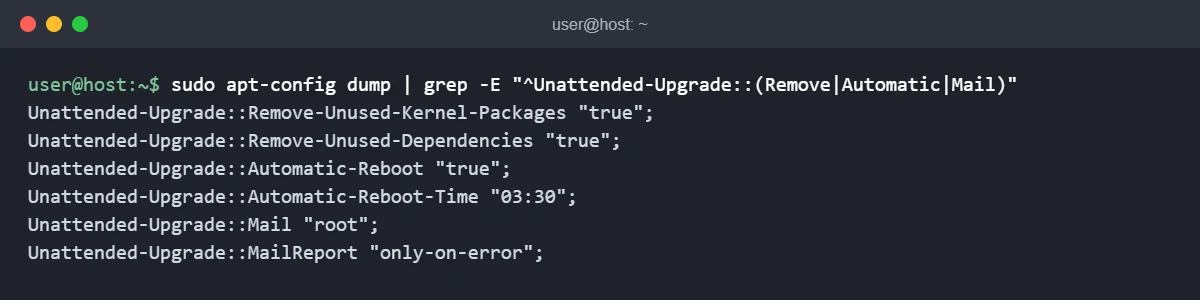
A syntax mistake, such as a missing semicolon, makes apt-config dump (and every apt command) print an error naming the file and line. Fix it before you leave the server.
Exclude packages you want to update by hand
Add a blacklist to the same drop-in file. This example keeps every package whose name starts with libreoffice- out of automatic updates:
Unattended-Upgrade::Package-Blacklist {
    "libreoffice-";
};
On servers this is more often a database server or a package you have pinned for an application. Use $ to stop a pattern matching longer names: "libc6$" matches libc6 but not libc6-dev. Packages you have put on hold with sudo apt-mark hold are also left alone.
Step 4: Test with a dry run
sudo unattended-upgrade --dry-run -vA dry run goes through the full decision process and prints what it would install, without changing anything. Read three lines in particular: “Allowed origins are” (what your policy permits), “Initial blacklist” (your exclusions) and “Packages that will be upgraded”.
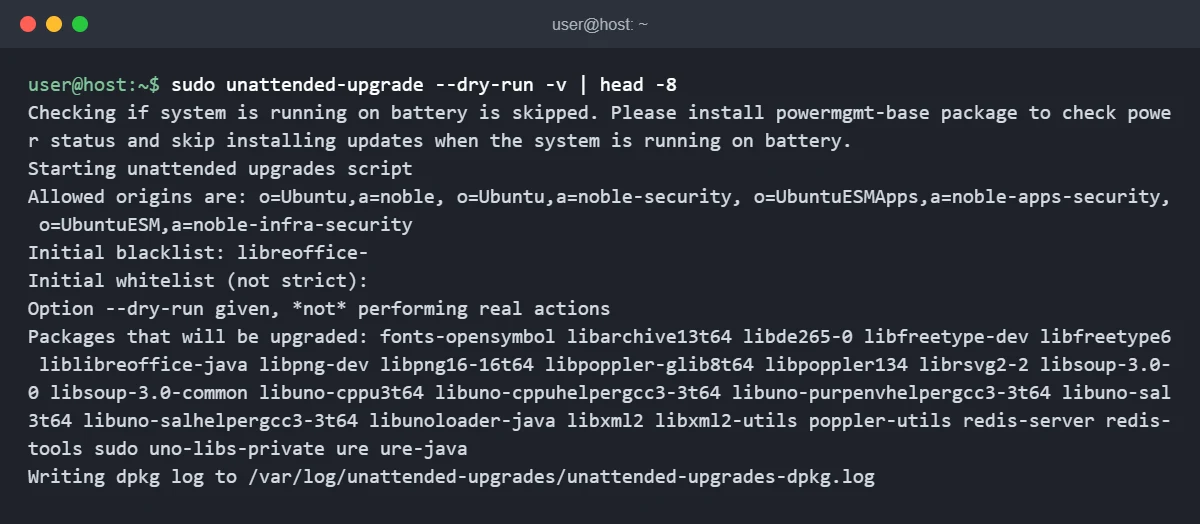
For more detail, including why each package was or was not picked, add --debug. The output is long, so send it to a pager: sudo unattended-upgrade --dry-run --debug 2>&1 | less.
If you want the real run now instead of waiting for the timer, drop --dry-run:
Stuck at this step? Ask us, it is free and include the exact error.
sudo unattended-upgrade -vStep 5: Check what it did
Each run writes to two log files:
sudo tail -n 30 /var/log/unattended-upgrades/unattended-upgrades.log
sudo tail -n 30 /var/log/unattended-upgrades/unattended-upgrades-dpkg.log
The first records the decisions (origins, blacklist, which packages). The second holds the dpkg output, which is where you look when a package failed to configure.
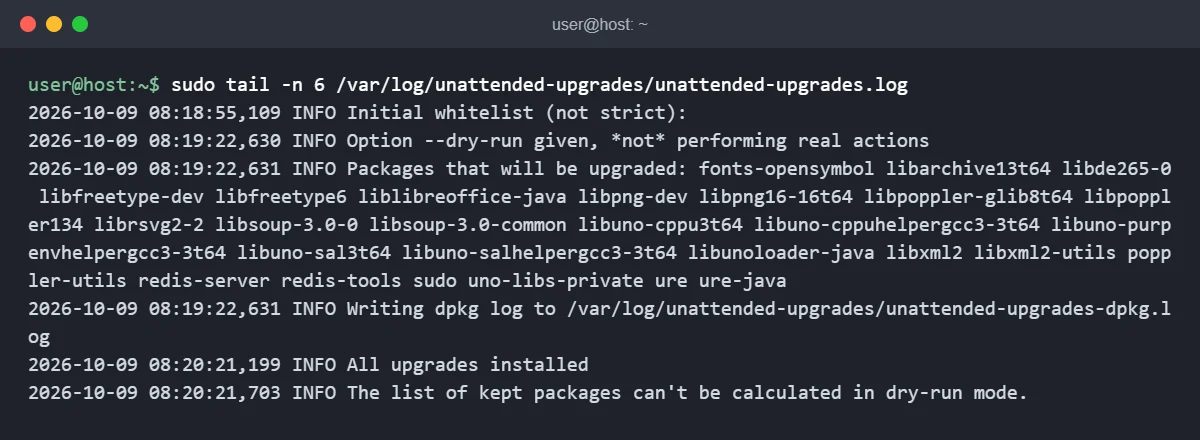
The systemd side is in the journal:
journalctl -u apt-daily.service -u apt-daily-upgrade.service --since "2 days ago"To see if a run left the system waiting for a reboot, check for the flag file:
ls -l /var/run/reboot-required“No such file or directory” means no reboot was requested. Kernel updates only take effect after a reboot either way; our guide to updating the kernel on Debian shows how to compare the running and installed kernels.
Optional: allow more origins
To also take updates from trixie-updates (packages such as timezone data that need to change before the next point release), add a pattern in your drop-in file:
Unattended-Upgrade::Origins-Pattern {
        "origin=Debian,codename=${distro_codename}-updates";
};
Because this is a list, it is added to the packaged patterns rather than replacing them. For a third-party repository, find its exact values first:
apt-cache policy | grep -B1 -A1 "o="Each release line shows fields such as o= (origin), a= (suite), n= (codename) and l= (label). Copy them exactly into a new pattern, and only do this for vendors you trust to publish safe updates, because their packages will then install without you looking. Run the dry run again afterwards and confirm the new origin appears in “Allowed origins are”.
Troubleshooting
| Symptom | Likely cause | Fix |
|---|---|---|
| Nothing ever installs, log file is empty or missing | 20auto-upgrades missing or set to "0", or the timers are disabled |
Run sudo dpkg-reconfigure -plow unattended-upgrades, then systemctl list-timers 'apt-daily*' |
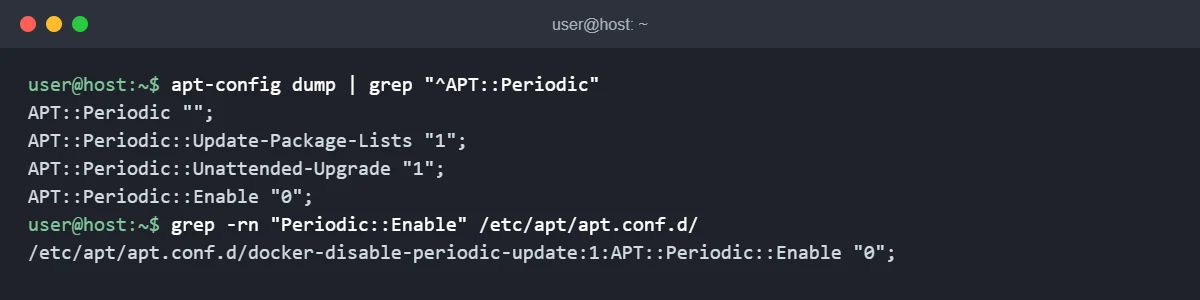
| Settings look right but the daily jobs never run | Another file sets APT::Periodic::Enable "0" (some container and cloud images do this) |
Find it with grep -rn "Periodic::Enable" /etc/apt/apt.conf.d/ (see the screenshot below) |
Dry run says no packages, but apt list --upgradable shows some |
The pending updates come from an origin that is not allowed (for example -updates, backports or a vendor repository) |
Expected behaviour. Add the origin only if you want it automatic |
| A package you excluded still updates | The pattern does not match from the start of the name, or a typo | Check “Initial blacklist” in the dry run output |
APT errors mention 52unattended-upgrades-local |
Syntax error, usually a missing ; or brace |
Fix the line named in the error, then rerun apt-config dump |
| Log mentions dpkg was interrupted | A previous run or manual upgrade was stopped halfway | Run sudo dpkg --configure -a, then sudo apt -f install |
| No email arrives | No mail transfer agent or mailx provider installed |
Install and test a mail setup first, or use the log files instead |
| Server rebooted at an odd time | Automatic-Reboot is on with the default time "now" |
Set Automatic-Reboot-Time, or turn automatic reboot off |
Risks and how to roll back
Debian’s stable and security updates are conservative, which is why automatic installation is a reasonable default for most servers. The real risks are an unplanned reboot (only if you enable it), a service restarting during an update, and a vendor repository you allowed shipping a breaking change. Keep normal backups or VPS snapshots regardless.
To switch automatic updates off without uninstalling anything:
sudo dpkg-reconfigure -plow unattended-upgradesAnswer No. To undo only your own changes, delete your drop-in file and check again with apt-config dump:
sudo rm /etc/apt/apt.conf.d/52unattended-upgrades-localIf an automatic update broke something, /var/log/unattended-upgrades/unattended-upgrades-dpkg.log and /var/log/apt/history.log show which versions changed and when, which tells you what to downgrade or hold.
FAQ
Is unattended-upgrades enabled by default on Debian 13?
If the package is installed, usually yes. Its debconf default is to enable automatic updates, so installing it without answering any question writes 20auto-upgrades with both values set to "1". Whether the package is present after installation depends on how the system was installed, so check with dpkg -l unattended-upgrades.
Does it install all updates or only security updates?
On Debian, security updates plus the updates that arrive with stable point releases (the label=Debian pattern). It does not take -updates, backports or third-party repositories unless you add them.
Will it upgrade Debian 12 to Debian 13?
No. The patterns use the codename (bookworm or trixie), so the release stays the same.
When does it run?
apt-daily-upgrade.timer fires at 06:00 with a random delay of up to an hour, after apt-daily.timer has refreshed the package lists. Both timers use Persistent=true, so a run that was missed while the machine was off happens after the next boot.
Does it work with Docker or other vendor repositories?
Not by default. Add an Origins-Pattern line for the vendor only if you want those packages to update without review. For Docker in particular, an engine update restarts the Docker daemon, which also stops running containers unless the daemon’s live-restore option is enabled.