

Quick answer: run sudo ss -tulnp. It lists every TCP and UDP port that is listening on your Debian machine, the address it is bound to and the program that owns it. ss is part of the iproute2 package that a standard Debian 13 or Debian 12 install already includes, so nothing needs to be installed. To check what other machines can actually reach, scan the server from another computer with nmap.
“Open port” can mean three different things, and mixing them up is the most common reason people get confusing answers:
| Question | What answers it | Command |
|---|---|---|
| Is a program waiting for connections on this port? | The listening sockets on the server | sudo ss -tulnp |
| Which program and service is it? | The process ID behind the socket | sudo ss -tlnp 'sport = :22', sudo lsof -i :22 |
| Does the firewall let traffic in? | The firewall rules | sudo ufw status verbose or sudo nft list ruleset |
| Can another machine really connect? | A scan from outside the server | nmap -p 22,80,443 SERVER_IP (from another host) |
This guide covers all four for Debian 13 (trixie) and Debian 12 (bookworm). The tools and package versions are:
| Tool | Debian package | Installed by default? | Debian 13 version | Debian 12 version |
|---|---|---|---|---|
ss |
iproute2 |
Yes (standard install) | 6.15.0-1 | 6.1.0-3 |
lsof |
lsof |
No: sudo apt install lsof |
4.99.4+dfsg-2 | 4.95.0-1 |
nmap |
nmap |
No: sudo apt install nmap |
7.95+dfsg-3 | 7.93+dfsg1-1 |
netstat (legacy) |
net-tools |
No | 2.10-1.3 | 2.10-0.1+deb12u2 |
How the examples were made: the screenshots are real output, captured in a test sandbox running Ubuntu 24.04 with iproute2 6.1.0 and lsof 4.95.0 (the same upstream versions Debian 12 ships) and nmap 7.94. Three test services were running: the SSH server on port 22, and two small Python web servers, one on port 8000 for all interfaces and one on port 8080 bound to 127.0.0.1 only. The commands and output format are the same on Debian 13 and 12; only your port list will differ.
Step 1: List listening ports with ss
Run this as a normal user to see which ports are listening:
ss -tuln| Option | Meaning |
|---|---|
-t |
TCP sockets |
-u |
UDP sockets |
-l |
Only listening sockets (servers waiting for connections) |
-n |
Show port numbers instead of service names (22, not ssh) |
-p |
Show the process that owns each socket (needs sudo for other users’ processes) |
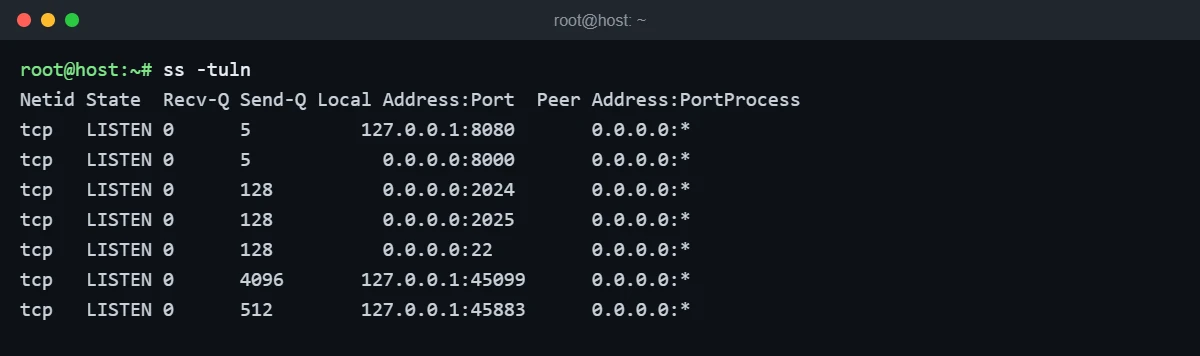
The column that matters most is Local Address:Port. The address tells you who can reach the port:
| Local address | Who can connect |
|---|---|
0.0.0.0:PORT |
Any IPv4 address on the machine, so the network can reach it unless a firewall blocks it |
[::]:PORT or *:PORT |
All IPv6 addresses (and often IPv4 too) |
127.0.0.1:PORT or [::1]:PORT |
Only programs on the same machine. Not reachable from the network |
A specific IP, e.g. 192.0.2.10:PORT |
Only connections to that one address |
In the screenshot, port 8000 is bound to 0.0.0.0 and port 8080 to 127.0.0.1. Both are “listening”, but only 8000 is exposed to the network. That difference shows up clearly in the nmap scan in Step 4.
Step 2: Find which program is using a port
Add -p and run the command with sudo, otherwise the Process column stays empty for services that run as root or another user. To look at a single port, add a filter:
sudo ss -tulnp
sudo ss -tlnp 'sport = :22'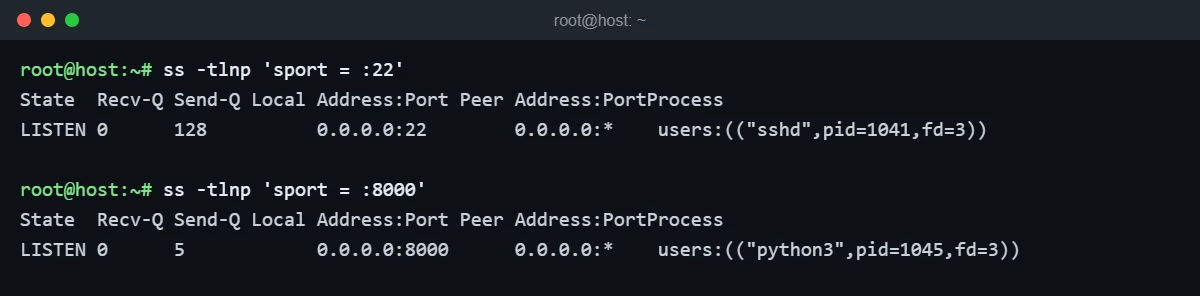
The users:(("sshd",pid=1041,fd=3)) part is the program name and its process ID. On a Debian server, the next step is usually to find the systemd service that started it. systemctl status accepts a PID and shows the unit that the process belongs to (this step was not run in the sandbox, which does not use systemd):
systemctl status 1041Step 3: Use lsof as a second opinion
lsof gives the same information in a different layout and is handy when you already know the port number. Install it first on a minimal Debian system:
sudo apt install lsof
sudo lsof -nP -iTCP:8080 -sTCP:LISTEN
ps -p PID -o pid,user,comm,args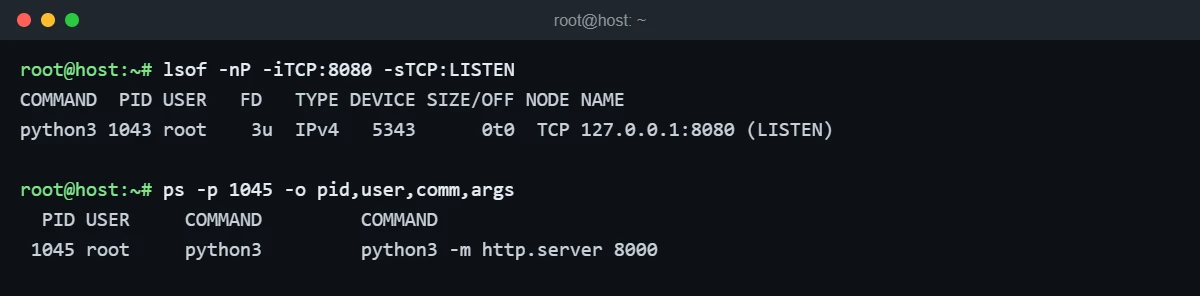
-n and -P skip host and port name lookups, -iTCP:8080 limits the output to that port and -sTCP:LISTEN keeps only listening sockets. Use the PID from the second column with ps to see exactly how the program was started.
Step 4: Check which ports are reachable from outside
A listening port is not automatically reachable. The bind address and the firewall both decide that. The reliable test is to scan the server from another machine. Only scan servers you own or are allowed to test:
sudo apt install nmap
nmap -p 22,8000,8080 SERVER_IP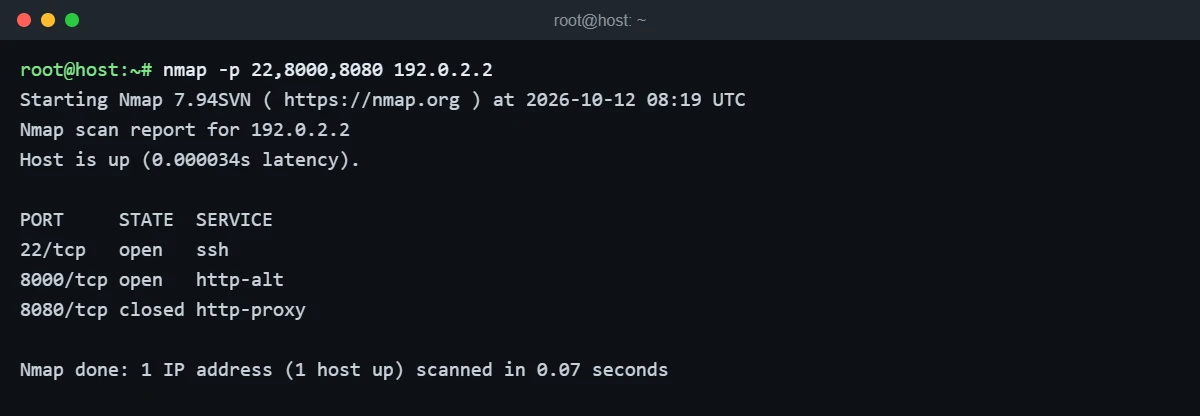
nmap reports each port as open (something accepted the connection), closed (the host answered but nothing listens there for this address) or filtered (no answer, usually a firewall dropping the packets). Without -p, nmap checks the 1,000 most common TCP ports; add -p- to scan all 65,535, which takes longer.
Listening vs allowed by the firewall
If you use UFW, compare the listening ports with the firewall rules. A port that listens on 0.0.0.0 but is not allowed in UFW shows as filtered from outside. Setup and rule management are covered in the UFW firewall guide for Debian 13 and 12.
sudo ufw status verbose| ss shows | Firewall | Result from another machine |
|---|---|---|
0.0.0.0:80 |
Port 80 allowed | open |
0.0.0.0:3306 |
Port 3306 not allowed (default deny) | filtered |
127.0.0.1:3306 |
Any | closed or filtered, never reachable |
| Nothing on port 443 | Port 443 allowed | closed |
How to close an open port
Closing a port means stopping whatever listens on it, or keeping it from listening on public addresses. Pick the option that fits; none of these were run in the sandbox, so check the exact service name with systemctl status PID first.
| Goal | What to do |
|---|---|
| You do not need the service at all | sudo systemctl disable --now SERVICE (for example apache2), or remove the package |
| The service is only used locally (database, cache) | Set its bind or listen address to 127.0.0.1 in its config file, then restart it |
| The service must run but only some IPs may reach it | Keep it listening and restrict access with a firewall rule |
| You are connected over SSH | Do not stop ssh or block port 22 unless you have console access; see hardening SSH on Debian 13 instead |
After any change, run sudo ss -tulnp again to confirm the port is gone or bound to 127.0.0.1.
What about netstat?
netstat -tulnp gives a similar list but belongs to the old net-tools package, which Debian no longer installs by default. If you prefer it, see how to install netstat on Debian, which also has a table mapping netstat options to ss.
Troubleshooting
| Problem | Cause and fix |
|---|---|
| Process column is empty | You ran ss without sudo. Use sudo ss -tulnp. |
ss: command not found |
Very minimal images can lack iproute2. Install it with sudo apt install iproute2. |
| Service runs but the port is not in the list | It may have failed to bind. Check sudo systemctl status SERVICE and sudo journalctl -u SERVICE -n 50 for errors such as “Address already in use”. |
Address already in use when starting a service |
Another program holds the port. Find it with sudo ss -tlnp 'sport = :PORT' and stop it or change one of the ports. |
| Port listens on 0.0.0.0 but nmap says filtered | A firewall drops the traffic: UFW/nftables on the server, or your VPS provider’s cloud firewall. |
| nmap from the server itself says open, but outside says filtered | Scanning from the same machine bypasses most external filtering. Always test from another host. |
Checking open ports is one item on the Debian server security checklist, together with SSH hardening, a firewall, Fail2Ban and automatic security updates.