

Last updated:
Quick answer: netstat is not installed by default on Debian 13 (Trixie) or Debian 12 (Bookworm). It comes from the legacy net-tools package, so run sudo apt install net-tools. For listening ports you do not need to install anything on most systems: ss -tulpn (from iproute2) shows the same information and is the maintained replacement.
sudo apt update
sudo apt install net-tools
netstat -V
sudo netstat -tulpn
This guide covers Debian 13 and Debian 12. According to the Debian archive (checked 10 October 2026), Debian 13 ships net-tools 2.10-1.3 and iproute2 6.15.0-1, and Debian 12 ships net-tools 2.10-0.1+deb12u2 and iproute2 6.1.0-3. The netstat options below behave the same on both. The screenshots were taken on Debian 12.
netstat or ss: which one should you use?
The net-tools package (netstat, ifconfig, route) is no longer developed upstream, and Debian does not install it by default. ss and ip from iproute2 are normally already present on a standard Debian install, although a minimal container image may not include them. Use netstat when you are following an older tutorial or script that expects it. Use ss for new work. I ran the ss, netstat, ip route, ip -s link and nstat commands below on an Ubuntu 24.04 test machine to confirm the options are accepted; I did not run them on a Debian host in this session.
| What you want | netstat (net-tools) | Modern equivalent |
|---|---|---|
| Listening TCP and UDP ports with process names | sudo netstat -tulpn |
sudo ss -tulpn |
| All sockets, no name lookups | netstat -an |
ss -an |
| Routing table | netstat -r |
ip route |
| Interface statistics | netstat -i |
ip -s link |
| Socket summary | netstat -s (per-protocol counters) |
ss -s (socket totals), nstat (counters) |
Common problems
| Symptom | Cause | Fix |
|---|---|---|
netstat: command not found |
net-tools is not installed |
sudo apt install net-tools, then open a new shell or run hash -r |
The PID/Program name column shows - |
Without root you can only see your own processes | Run sudo netstat -tulpn or sudo ss -tulpn |
| Output is slow to appear | netstat is resolving host names through DNS |
Add -n to skip name resolution |
netstat -t prints only a header |
There are no established TCP connections, only listeners | Add -a (netstat -at) to include listening sockets |
To check whether the hosts behind those connections are reachable, pair this with the ping command on Debian, and use nslookup for DNS checks. If you are exposing a port, review your UFW firewall rules as well.
How to Install the “netstat” Utility on Debian 13 and 12
The “netstat” command comes bundled in the “net-tools” package. To install the “netstat” utility, use the below-stated command to install it:
sudo apt install net-tools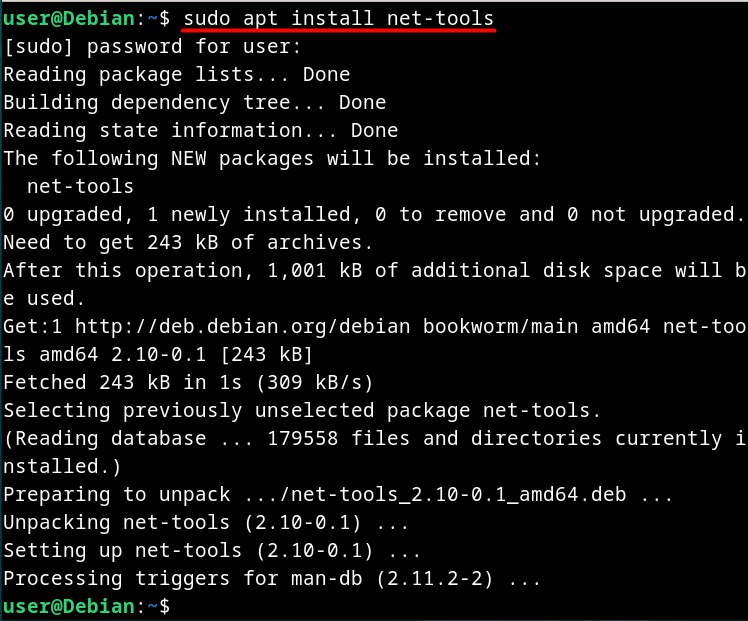
To verify the installation of the “netstat” utility on Debian 12, use the following command:
netstat -V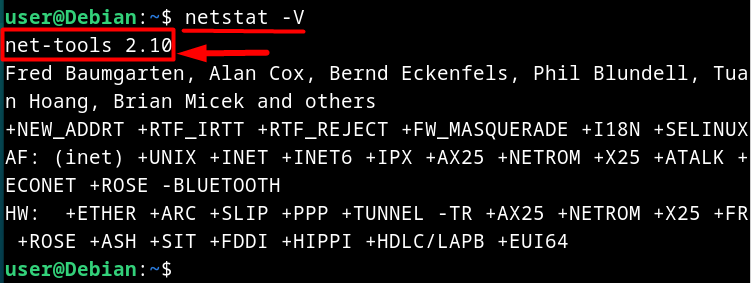
If the output of the above command is “bash: /usr/bin/netstat: No such file or directory” or “netstat: Command not found”; it means that the “net-tools” command is not installed.
How to Use the “netstat” Utility on Debian 13 and 12
Let’s view the flags of the “netstat” utility before understanding it via the examples. To view a list of flags/options of the “netstat”, run:
netstat -h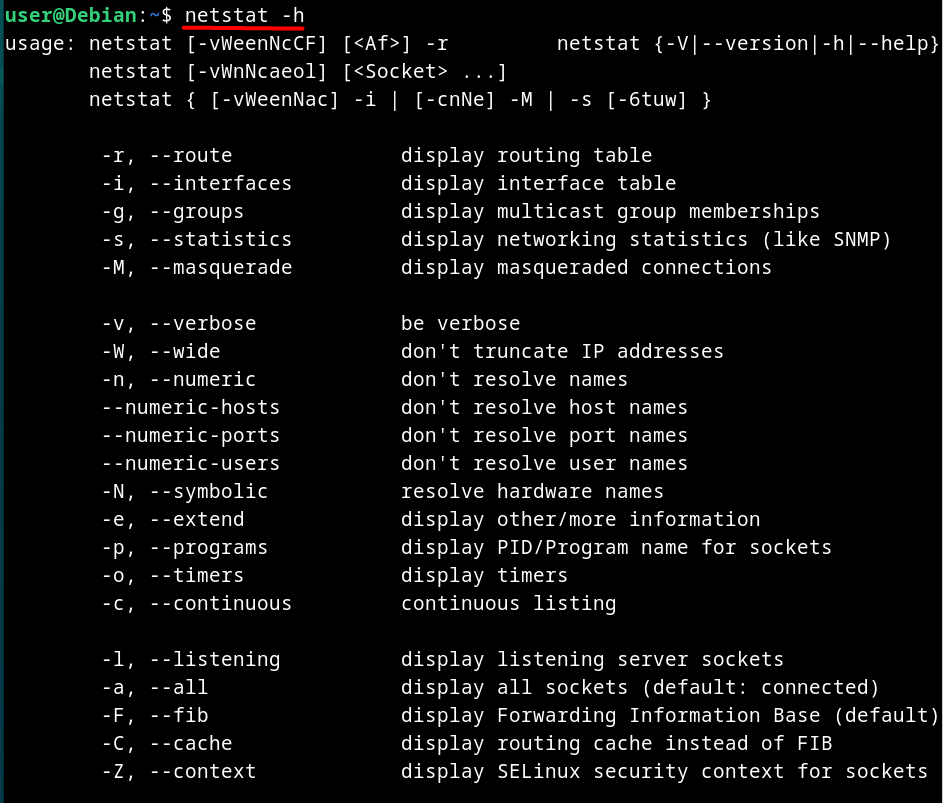
Let’s understand the above flags using the examples.
Example 1: View All Active and Listening Sockets
To view a list of all active and listening sockets on Debian 12 using the “netstat” command, execute the below command:
netstat -a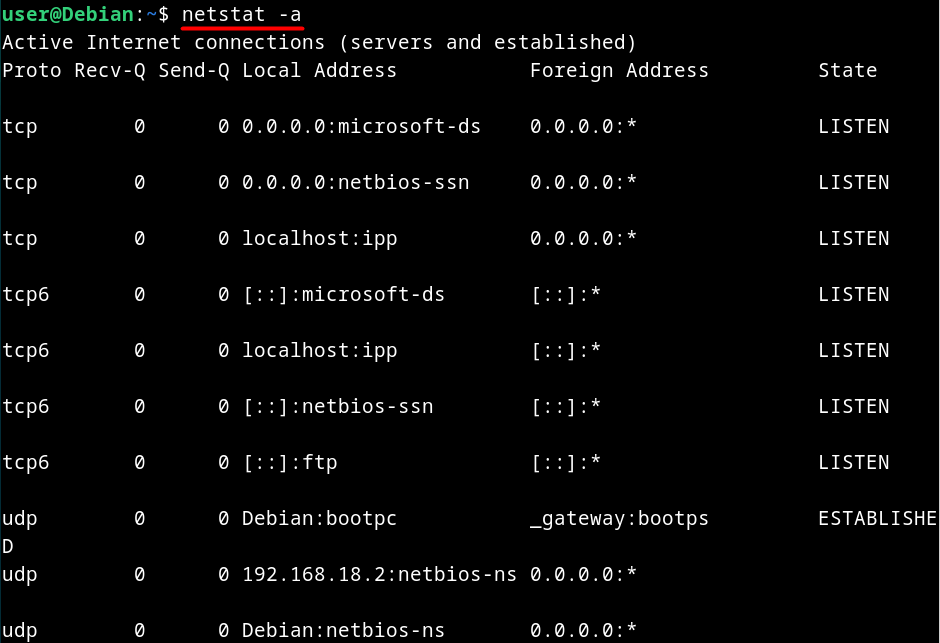
The above output shows,
- The “Proto” or “Protocol” tells which protocol is being used by the socket.
- The “Recv-Q” shows the number of queued bytes waiting to be received.
- The “Send-Q” shows the number of queued bytes waiting to be sent.
- The “Local Address” displays the local IP address.
- The “Foreign Address” displays the IP address of the remote system that is connected to the current system.
- The “State” defines the state of the port.
Example 2: View Only TCP Connections
To get a list of the active connections that use the “TCP”, use the following command:
netstat -t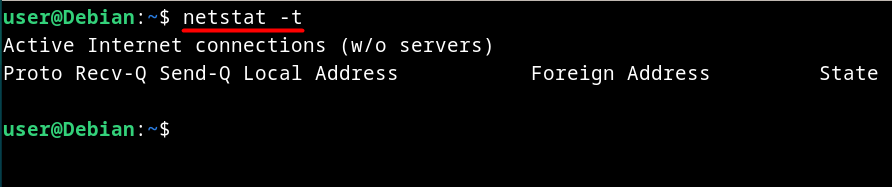
The above output is empty because there is no active TCP connection.
To get a list of “Listening TCP Connections”, use:
netstat -at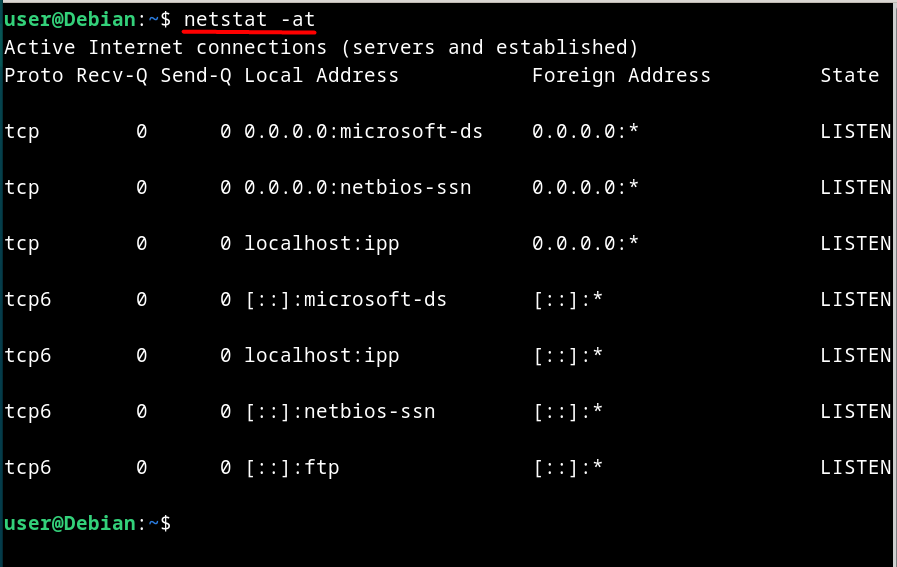
Example 3: View Only UDP Connections
To output the list of connections that use the “UDP”, use the below command:
netstat -u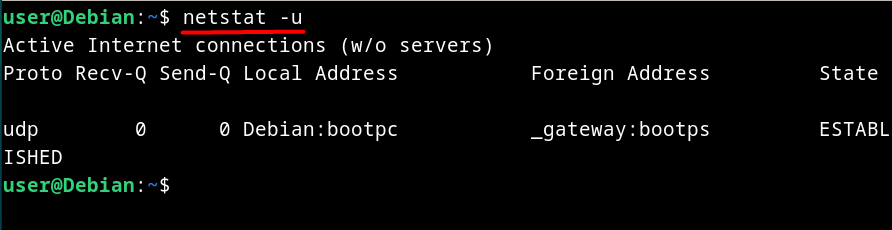
To list the “Active Connections” that use the “UDP”, execute:
netstat -au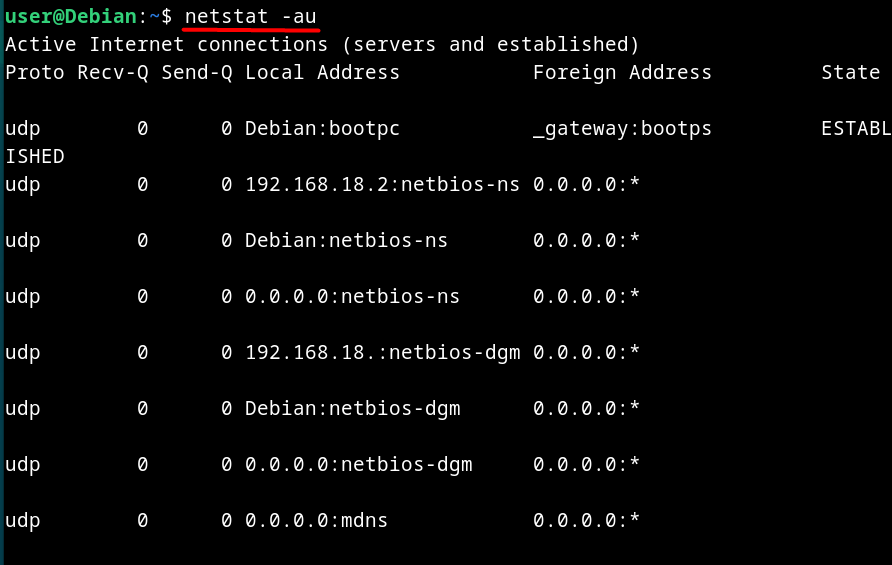
Example 4: View IP Addresses Without Resolving Hostnames
The “Resolve Hostname” points to the process that associates the hostnames with the IP addresses; for full forward and reverse lookups you would use a DNS tool such as nslookup on Debian 12. To view the IP addresses without resolving the hostname, run:
netstat -n
Example 5: List Programs Associated With the Connections
To list the programs or applications along with their path and PID associated with the connections, use:
netstat -p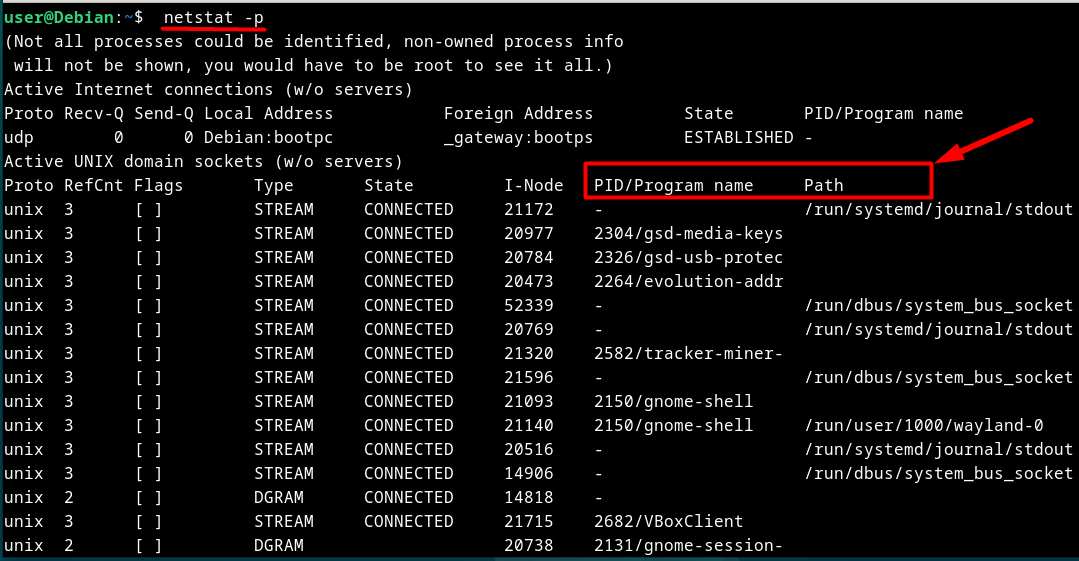
Example 6: View the Kernel IP Routing Table
The “Kernel IP Routing Table” is the map using which the router determines how to forward the packages. To view it, use the following command:
netstat -r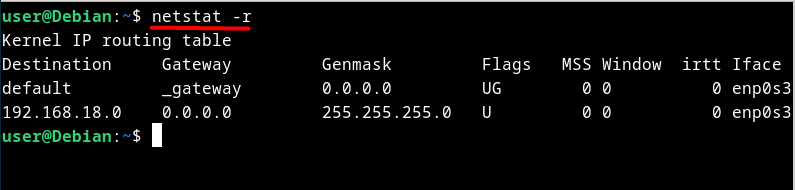
Example 7: View the Statistics of the Configured Interfaces
The “Kernel Interface table” refers to the currently configured network interfaces. If you want one of these interfaces to keep a fixed address, you can set up a static IP address on Debian 12. To view the list and statistics of the currently configured network interfaces, execute the following command:
netstat -i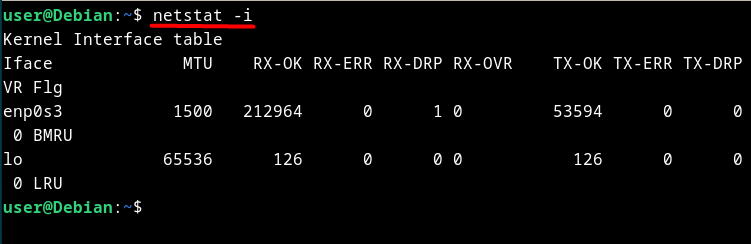
Alternatives for the “netstat” Utility on Debian 13 and 12
Since the “netstat” utility is officially depreciated, there are some alternatives that display more refined and informative network statistics. The alternatives for the “netstat” utility on Debian 12, include the following:
The “ss” Command
Linux being the open-source OS allows the developer community to build more user-friendly utilities. One such utility is the “ss” command. The “ss” command lets you view the network statistics in a more sophisticated way than the “netstat” command. It comes pre-installed on Debian 12; however, if it is not, install it via the below command:
sudo apt install iproute2The syntax of using the “ss” command is as follows:
ss [OPTIONS]
ss [OPTIONS] [FILTER]
To list options and understand their usage, use the following command:
ss -h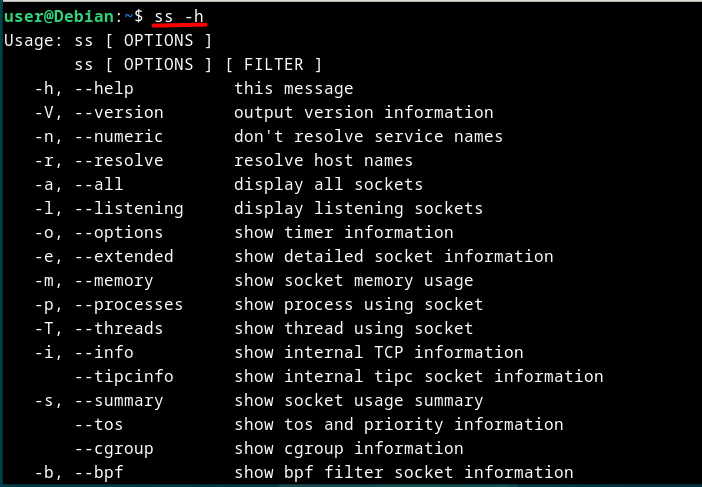
The “iftop” Command
To monitor the network traffic more effectively, the “iftop” command introduces itself as the replacement for the “netstat” command. It is not pre-installed on Debian 12. To install the “iftop” command on Debian 12, execute the below-mentioned command:
sudo apt install iftop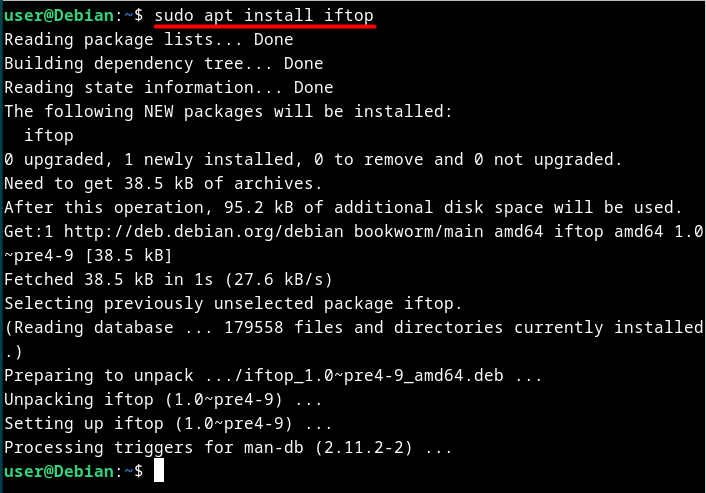
The syntax of the “iftop” command is as follows:
sudo iftop [OPTIONS]To get a list of options, run the below-stated command:
sudo iftop -h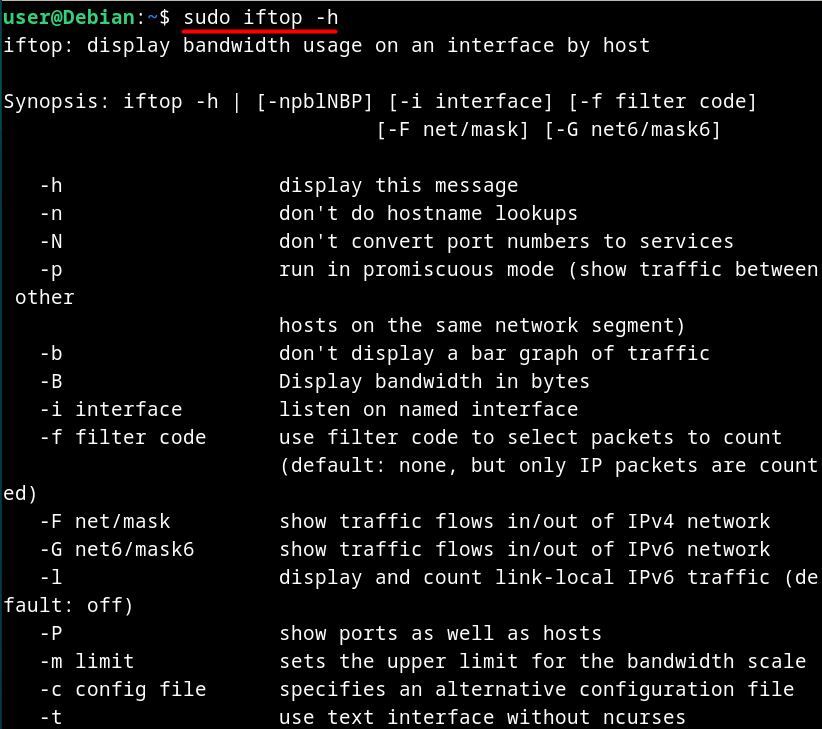
Note: The “iftop” command runs with “sudo” privileges and gives the error “iftop: command not found” if run without “sudo”.
The “tcpdump” Command
With the recent developments in the world of Linux, the “tcpdump” command emerged as the replacement for the “netstat” command. It captures and analyzes the network packets, which provide valuable information for network administrators to fix the issues in the network.
The “tcpdump” command is not pre-installed on Debian 12. To install it, use the following mentioned command:
sudo apt install tcpdump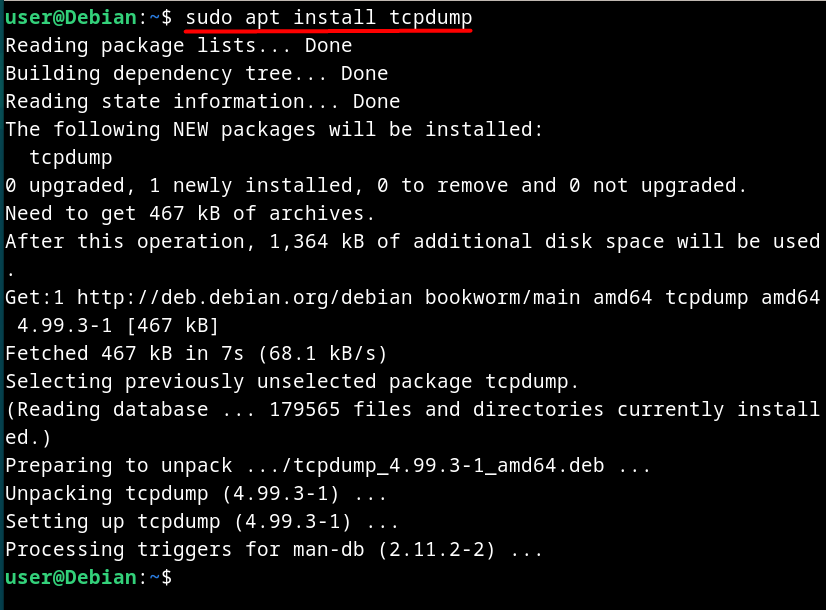
The syntax of the “tcpdump” command is as follows:
tcpdump [OPTIONS]To explore the options/flags for the “tcpdump” command, use:
tcpdump -h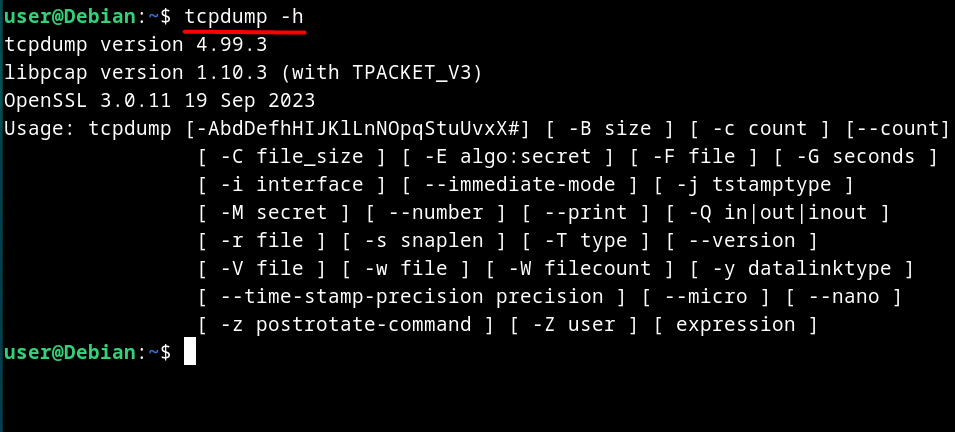
Note: The “tcpdump” command requires “sudo” privileges to run.
That’s all about installing the “netstat” command on Debian 13 and 12.
Final Words
The “netstat” command is a legacy command-line utility that allows network administrators to analyze active connections, ports, and much more. To install it on newer Debian-based distributions, install the “net-tools” package.
The “netstat” is now officially depreciated and is no longer maintained or developed. However, the Linux developers propose using the “ss”, “iftop” and “tcpdump” commands to analyze the network with more efficiency. This guide has discussed installing and using the “netstat” command on Debian 12 and shed light on its alternatives as well.
Related guides
Continue with these related Liberian Geek tutorials for the same topic area: