
Last updated:
Quick answer: UFW (Uncomplicated Firewall) is a front end for the Linux packet filter that lets you open and close ports with short commands. On Debian 13 (Trixie) and Debian 12 (Bookworm) the safe order is: install it, allow SSH first, allow the other services you run, then enable it. If you enable it before allowing SSH over a remote connection, you can lock yourself out of the server.
sudo apt update
sudo apt install ufw
sudo ufw allow 22/tcp
sudo ufw enable
sudo ufw status verbose
This guide applies to Debian 13 and Debian 12 with sudo access (see how to enable sudo for a user on Debian if you need it). I checked the package versions against the Debian package archive and the commands against the ufw manual page. The screenshots below are real output from running these commands with ufw 0.36.2 on Ubuntu 24.04, the same upstream version that Debian 13 and 12 package; I did not run them on a Debian machine, so small differences in wording are possible. This is one step in our Debian server security checklist, which shows the order to apply them in.
| Item | Debian 13 (Trixie) | Debian 12 (Bookworm) |
|---|---|---|
| ufw package version in the archive | 0.36.2-9 | 0.36.2-1 |
| Installed by default | No | No |
| State right after install | Inactive until you run ufw enable |
Inactive until you run ufw enable |
| Default policy once enabled | Deny incoming, allow outgoing, deny forwarded | Same |
Before you start: avoid locking yourself out
UFW denies all incoming connections once it is enabled. If you are connected over SSH and have not allowed your SSH port, your session may continue for a moment, but new connections will be refused. Keep these rules in mind:
| Risk | What to do |
|---|---|
| SSH not allowed before enabling | Run sudo ufw allow 22/tcp first, or the port you actually use |
| SSH on a custom port | Allow that port, for example sudo ufw allow 2222/tcp. Check yours with sudo ss -tlnp | grep sshd |
| Only console access (VPS panel) as a fallback | Confirm you can open the provider’s web console before you change firewall rules |
| Cloud firewall in front of the server | UFW and your provider’s firewall are separate; a port must be open in both |
Step 1: Install UFW
sudo apt update
sudo apt install ufw
Check that it is installed and still inactive:
sudo ufw statusExpected output on a fresh install:
Status: inactive
Step 2: Allow SSH first
sudo ufw allow 22/tcpThis rule is added to the rule files but does not filter traffic until UFW is enabled. If the openssh-server package is installed it provides an application profile, so sudo ufw allow OpenSSH also works; list available profiles with sudo ufw app list.
To make it harder to brute-force SSH, you can use limit instead of allow. According to the ufw manual, it normally allows the connection but denies an address that attempts 6 or more connections within 30 seconds:
sudo ufw limit 22/tcpStep 3: Set the default policies
These are already the defaults, but setting them explicitly documents your intent:
sudo ufw default deny incoming
sudo ufw default allow outgoing
Step 4: Open the ports your services need
Allow only what you actually run. For example, for a web server (see how to install and configure Nginx on Debian):
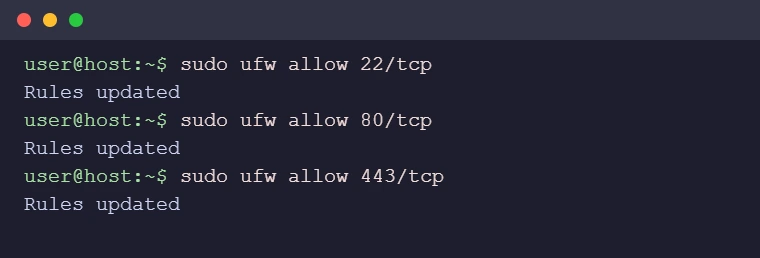
sudo ufw allow 80/tcp
sudo ufw allow 443/tcp
Each command prints Rules updated when the rule is added:
| Goal | Command |
|---|---|
| Allow one port (TCP only) | sudo ufw allow 8080/tcp |
| Allow a port range (protocol is required) | sudo ufw allow 6000:6010/tcp |
| Allow a port only from one IP address | sudo ufw allow from 203.0.113.10 to any port 22 proto tcp |
| Allow a port only from a subnet | sudo ufw allow from 192.168.1.0/24 to any port 3306 proto tcp |
| Block a port explicitly | sudo ufw deny 23/tcp |
| Allow a service by name from /etc/services | sudo ufw allow http |
The addresses above are documentation examples; replace them with your own. Restricting a database port such as 3306 to your own subnet is far safer than opening it to the whole internet.
Step 5: Enable UFW and verify
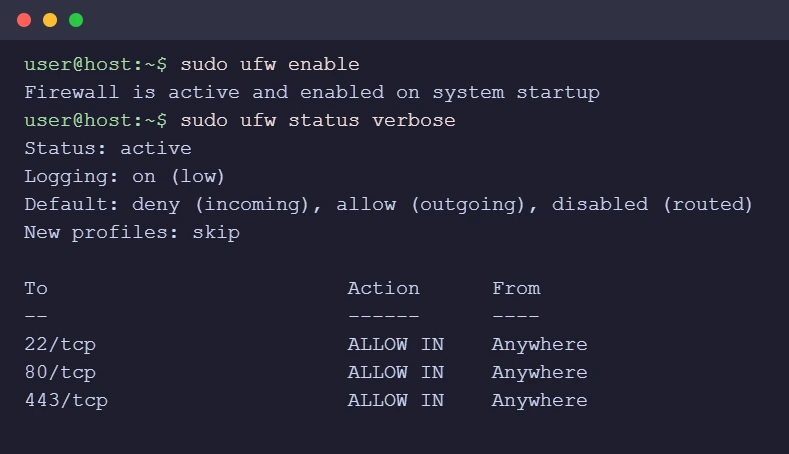
sudo ufw enableWhen you run this over SSH, UFW asks for confirmation because it may disrupt existing connections. Answer y only after you have allowed SSH. Then check the result:
Stuck at this step? Ask us, it is free and include the exact error.
sudo ufw status verboseOutput after enabling and checking the status (yours will match the rules you added):
Before you close your current session, open a second SSH session to confirm that new connections still work. If they do not, fix the rule from the first session.
The test machine had no IPv6, so no (v6) lines appear above. On a host with IPv6 enabled, each rule is listed a second time with (v6), because IPv6 support is controlled by IPV6=yes in /etc/default/ufw. Leave it on unless you have disabled IPv6 on the machine.
Manage rules
| Task | Command |
|---|---|
| List rules with numbers | sudo ufw status numbered |
| Delete a rule by number | sudo ufw delete 3 |
| Delete a rule by its definition | sudo ufw delete allow 80/tcp |
| Show the rules as you originally added them | sudo ufw show added |
| Turn logging on or change level | sudo ufw logging medium (off, low, medium, high, full) |
| Turn the firewall off | sudo ufw disable |
| Reset to installation defaults | sudo ufw reset (disables UFW and removes all rules) |
Example of listing rules with numbers, deleting rule 3, and listing again:
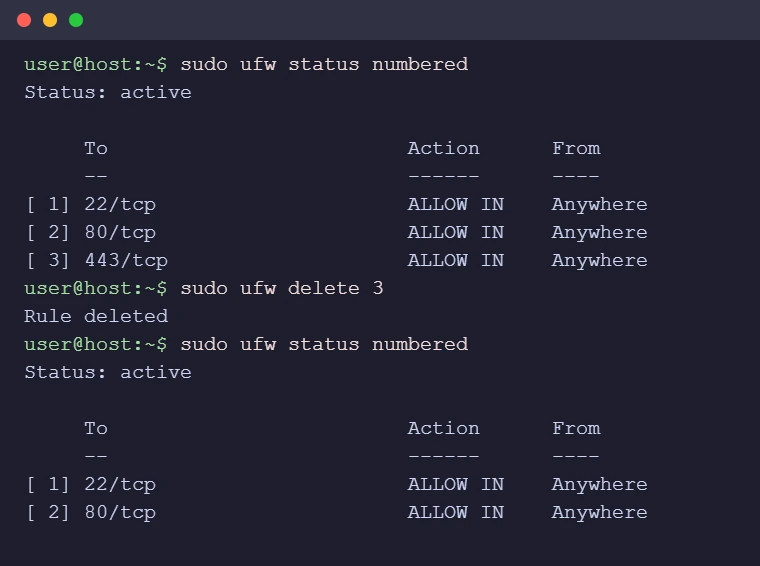
Rule numbers change after you delete one, so run sudo ufw status numbered again before each deletion. UFW logs go to the system log; on Debian you can read them with sudo journalctl -k | grep UFW (this assumes the kernel messages are in the journal, which is the default with systemd).
Docker and UFW do not mix automatically
If you run Docker on the same server, be aware that the Docker documentation states that published container ports are routed before the firewall rules apply, effectively ignoring UFW. A port published with -p 8080:80 can be reachable even when UFW has no rule for it. Bind published ports to localhost (for example -p 127.0.0.1:8080:80) or review Docker’s packet filtering documentation before relying on UFW for container ports.
Troubleshooting
| Problem | Likely cause | Fix |
|---|---|---|
ufw: command not found |
Package not installed, or /usr/sbin not in PATH for your user |
sudo apt install ufw; run it as sudo ufw ... |
| Locked out of SSH after enabling | SSH was not allowed first | Use the provider’s web console or physical access, then run sudo ufw allow 22/tcp (or sudo ufw disable) |
| A port is allowed but the service is unreachable | Service not listening, bound to localhost, or a cloud firewall is blocking it | Check with sudo ss -tlnp, then the provider firewall |
| Rule not applied | UFW is inactive | sudo ufw status should say active; run sudo ufw enable |
Rules vanished after reset |
Reset removes all rules by design | Re-add them; keep a copy of sudo ufw show added output |
FAQ
Is UFW installed by default on Debian 13?
No. Install it with sudo apt install ufw. It stays inactive until you run sudo ufw enable.
Should I use UFW or nftables on Debian?
UFW is a simpler front end for basic allow and deny rules. If you need advanced filtering or want to manage nftables directly, use nftables, but do not run two firewall managers that both rewrite the rules.
Does UFW start automatically after a reboot?
Yes, once you have enabled it with sudo ufw enable, it is configured to start with the system. You can confirm after a reboot with sudo ufw status.
Can I upgrade from Debian 12 to 13 with UFW running?
The rules are stored in /etc/ufw and normally carry over. Follow the Debian 12 to Debian 13 upgrade guide and check sudo ufw status verbose afterwards.