
Last updated:
The Microsoft Store is Windows 11’s built-in hub for downloading apps, games, movies, and entertainment content. Microsoft redesigned the Store for Windows 11 with faster navigation (about 35% quicker than the old Windows Store), improved search and filtering, better security checks, and a larger catalog that now includes Win32 apps and Android apps via the Amazon Appstore partnership.
What’s in the Windows 11 Microsoft Store
The Store is organized into several categories, each with its own dedicated section in the left sidebar.
- System customization — themes, wallpaper changers, and desktop tools to personalize Windows beyond the built-in settings.

- Social media and communication — apps like Facebook, Messenger, Twitter, and Reddit.

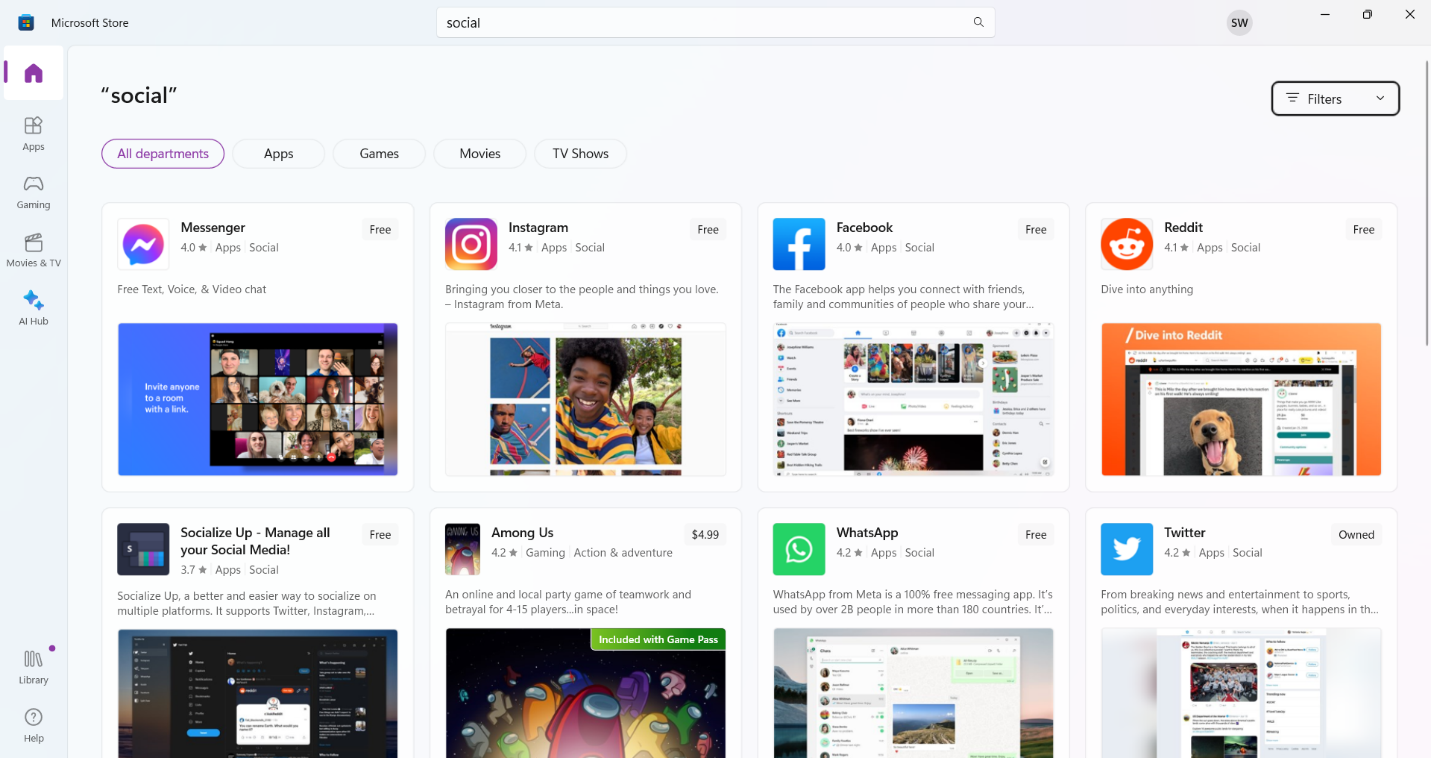
- Entertainment — streaming apps like Netflix, Disney+, Hulu, and Xbox. The Store also has a dedicated Movies & TV section with purchasable and rentable content.


- Productivity and creative tools — Microsoft 365 (Word, Excel, PowerPoint), Adobe Photoshop, Canva, and PDF editors. You can also find utility apps like Dark Notepad for a dark-mode text editor that works on both Windows 10 and 11.

- Gaming — Microsoft has partnered with Amazon, so the Store includes Android games alongside Windows titles. The Gaming section is split by casual, classic, featured, and Xbox Game Pass categories.

- Platform improvements — navigation between pages is 35% faster than the old Store. The updated search engine categorizes results with ratings, and the security layer has been tightened to protect privacy. Note that built-in Windows system tools like the Local Group Policy Editor are not distributed through the Store — those ship with Windows itself.
Update Microsoft Store to the Latest Version
If you’re on an older Store build, updating is done from within the app itself.
Open the Microsoft Store from the taskbar or Windows search bar:

Click the three-dot menu (ellipsis) in the top-right corner of the Store and select Downloads and Updates:

Click Get Updates to check for and install any pending app or Store updates:

How to Open Microsoft Store on Windows 11
There are six ways to open the Microsoft Store on Windows 11: Start Menu, Windows search, Run command, Command Prompt or PowerShell, taskbar pin, or a desktop shortcut. Pick whichever fits your workflow.
1. Open Microsoft Store via Start Menu
Click the Windows icon on the taskbar to open the Start Menu:

Look for the Microsoft Store tile in the Pinned apps section and click it:

If it’s not pinned, click All apps in the top-right corner of the Start Menu:

Scroll through the alphabetical list to find Microsoft Store under “M” and click it:

2. Open Microsoft Store via Windows Search Bar
Click the search bar on the taskbar (or press Windows + S), type Microsoft Store, and click the top result:

3. Open Microsoft Store via Run Command
Press Windows + R to open the Run dialog, type ms-windows-store: and click OK:

4. Open Microsoft Store via Command Prompt or PowerShell
Open Command Prompt or PowerShell (search for either in the taskbar search box), then run:
| start ms-windows-store: |

The same command works in both Command Prompt and PowerShell — the Store opens immediately after pressing Enter.
5. Open Microsoft Store via Taskbar Pin
Pinning the Store to the taskbar gives you one-click access without opening the Start Menu. First, open the Microsoft Store via any method above so you can access it from the Start Menu:

Right-click the Microsoft Store icon and select Pin to Taskbar:

The Microsoft Store icon now appears permanently on the taskbar:

6. Open Microsoft Store via Desktop Shortcut
You can drag the Microsoft Store from the All Apps list directly to the desktop to create a shortcut — similar to how you can add the This PC icon to the desktop.
Open the Start Menu, click All apps, and find Microsoft Store in the list:

Drag the Microsoft Store icon from the All apps list onto the desktop. The shortcut appears and launches the Store with a single click: