
Last updated:
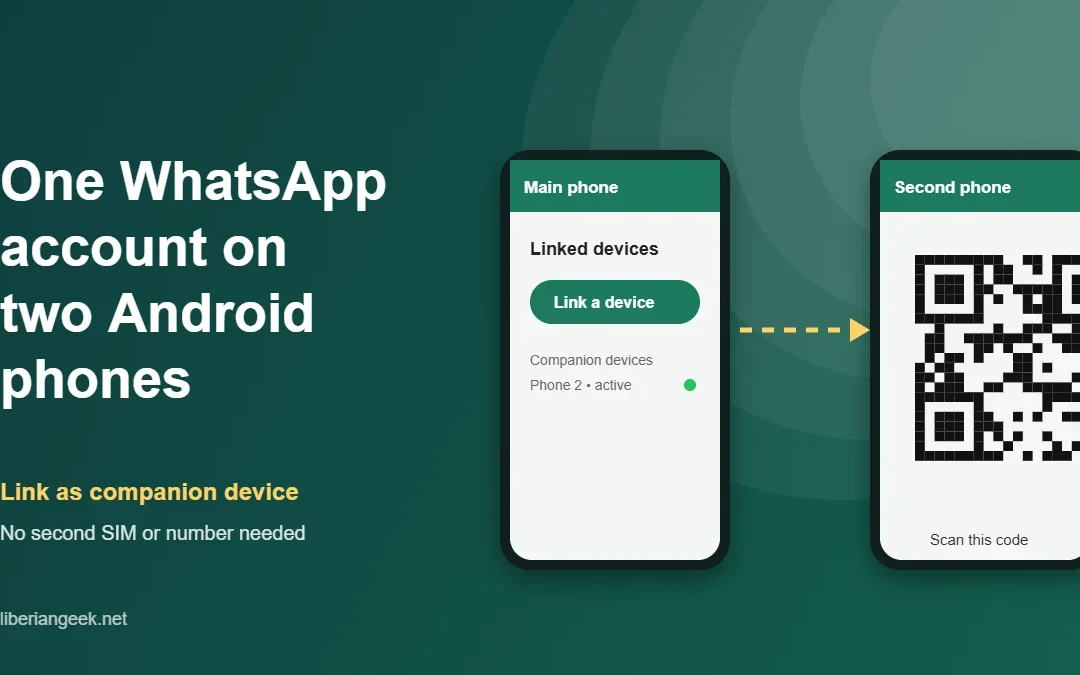
Quick answer: Open WhatsApp on the second phone, tap the three-dot menu and choose Link as companion device. On your main phone, go to Linked devices → Link a device and scan the QR code shown on the second phone. Both phones now run the same account.
This is a built-in WhatsApp feature called companion mode, so you do not need a second SIM, a cloned app, or any workaround. Your chat history syncs across both phones and messages stay end-to-end encrypted.
What companion mode does and does not do
Before linking anything, it helps to know the boundaries. People usually hit one of these limits and assume something is broken.
- Up to four companion devices can be linked to one account at a time. That total covers phones, tablets, browsers and desktop apps together.
- One primary phone. The device where your number was originally registered stays in charge. Companions are linked to it, not to each other.
- Chats sync both ways. Send from either phone and the conversation appears on both.
- Encryption is preserved. Linked devices keep end-to-end encryption, so this is not a security downgrade.
- 14 days of inactivity ends the session. If your primary phone stays offline for two weeks, linked devices log out automatically.
- Older chats may not fully appear. A newly linked device syncs recent history rather than the entire archive.
Before you start
- Both phones need a reasonably recent version of WhatsApp. Update from the Play Store first if you have not in a while.
- Both need an active internet connection during linking.
- You need physical access to both phones at the same time, since one scans a code shown on the other.
Method 1: Link the phone with companion mode (recommended)
This is the official route and the one you should use. It takes under a minute.
Step 1: Open Linked devices on your primary phone
On the phone that already has your account, tap the three-dot menu, open Linked devices, then tap Link a device. Your phone may ask you to confirm with your fingerprint, face or PIN.

Step 2: Choose “Link as companion device” on the second phone
Install WhatsApp on the second Android phone and open it. Instead of entering a phone number, tap the three-dot menu and select Link as companion device. A QR code appears.
If you cannot find that option, the app is out of date. Update it from the Play Store and reopen it.

Step 3: Scan the code and wait for the sync
Point your primary phone’s scanner at the QR code on the second phone. Once it registers, the second phone begins pulling in your chats. Give it a minute or two on a slow connection.

That is the whole process. Both phones now send and receive on the same account.
Which approach should you use?
| Companion mode | WhatsApp Web in a browser | Third-party app | |
|---|---|---|---|
| Official | Yes | Yes | No |
| Full app on the phone | Yes | No | No, a wrapper |
| Encryption intact | Yes | Yes | Depends on the app |
| Works when primary is offline | Yes, up to 14 days | Yes, up to 14 days | Varies |
| Privacy risk | None beyond normal use | None beyond normal use | Real, see below |
| Best for | A second phone you use daily | Occasional desktop access | Rarely the right choice |
Method 2: Third-party WhatsApp Web apps
There are Play Store apps, such as Whats Web, that wrap WhatsApp Web in a mobile shell so a second phone can display your chats. It works, and it existed before companion mode did.
A word of caution before you install one. These apps sit between you and WhatsApp, and you are trusting an unknown developer with access to a live messaging session. Permissions and data handling vary enormously, and some of these wrappers have poor privacy practices. Since companion mode now does the same job officially and for free, there is very little reason to take that risk. Use this method only if companion mode is genuinely unavailable on your device.
Step 1: Install and open the app
Install the WhatsApp Web app from the Play Store on the second phone and open it. Choose Whats Web to continue, and a QR code appears.

Step 2: Scan from your primary phone
Open Linked devices on your main phone and scan the code, exactly as in Method 1. Your chats then load inside the third-party app.

How to unlink a device
Whether you are selling the second phone or just tidying up, removing a linked device takes seconds. On your primary phone open Linked devices, tap the device you want to remove, then tap Log out.

It is worth opening this screen occasionally. If you see a device you do not recognise, log it out immediately and change your two-step verification PIN.
What about WhatsApp Business?
You cannot link a personal WhatsApp account to WhatsApp Business as a companion device. The two are separate apps with separate accounts.
You can, however, link companion devices to a WhatsApp Business account itself, using the same Linked devices flow. That is how teams share one business number across several phones.

Troubleshooting
| Problem | Likely cause | Fix |
|---|---|---|
| No “Link as companion device” option | Outdated WhatsApp version | Update WhatsApp from the Play Store and reopen it |
| QR code will not scan | Dim screen or dirty camera lens | Raise brightness on the second phone, clean the lens, hold steady |
| Second phone logged out on its own | Primary phone offline for 14 days | Open WhatsApp on the primary phone, then link again |
| Old chats missing on the new phone | Normal, only recent history syncs | Check the full archive on your primary phone |
| Cannot link a fifth device | Four-device limit reached | Log out a device you no longer use, then retry |
| Messages slow to appear | Weak connection on either device | Switch to Wi-Fi and leave both phones online briefly |
Frequently asked questions
Do I need a second SIM or phone number?
No. The second phone uses your existing account and never asks for a number of its own.
Can the other person see who replied?
No. Messages appear from your account regardless of which linked device sent them.
Will my primary phone need to stay on?
Not constantly. Companion devices work independently, but your primary phone must come online at least once every 14 days to keep the links alive.
Does this work between Android and iPhone?
Yes. Companion mode is cross-platform, so an iPhone can act as a companion to an Android primary and vice versa.
Is it safe?
Companion mode is safe, official and encrypted. The risk lies with third-party wrapper apps, not with the built-in feature.