
Last updated:
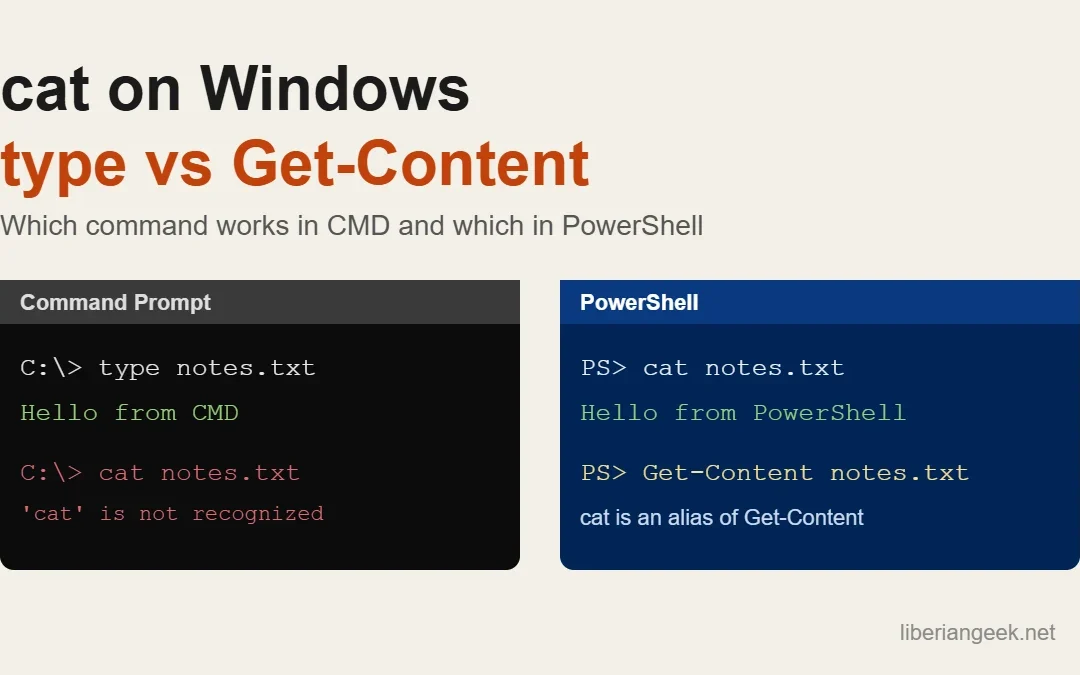
Quick answer: in PowerShell, cat file.txt works as-is, because cat is a built-in alias for the Get-Content cmdlet. In Command Prompt (cmd.exe) there is no cat; use type file.txt instead. Both print a text file to the screen, and both can combine several files into one.
| Task | Command Prompt (cmd.exe) | PowerShell |
|---|---|---|
| Show a file | type file.txt |
cat file.txt or Get-Content file.txt |
| Show it one screen at a time | more file.txt |
Get-Content file.txt | more |
| First 10 lines | No built-in option | Get-Content file.txt -TotalCount 10 |
| Last 10 lines | No built-in option | Get-Content file.txt -Tail 10 |
| Follow a growing log file | No built-in option | Get-Content app.log -Wait -Tail 10 |
| Combine files into one | type a.txt b.txt > all.txt |
Get-Content a.txt, b.txt | Set-Content all.txt |
| Search inside a file | findstr "word" file.txt |
Select-String "word" file.txt |
The commands in this guide come from the Microsoft documentation for Get-Content and type. If you are looking for the Linux version of cat, note that PowerShell’s cat is only an alias, so Linux options such as cat -n do not work; use the PowerShell equivalents in the table.
Use cat in PowerShell
Open Windows PowerShell or PowerShell 7 and pass a file name or full path. Quote the path if it contains spaces:
cat <file-name or path-to-file>
Combine files with cat
To join the text of several files, list them separated by commas and redirect the output. The command below appends the contents of file.txt and file1.txt to Output.txt, then displays it:
cat file.txt,file1.txt >> Output.txt
cat Output.txt
Careful: >> appends, so running the command twice duplicates the text. Use a single > to overwrite the output file instead. In PowerShell 7 the redirection operators write UTF-8 without a BOM; Windows PowerShell 5.1 uses a different default, so for text you plan to reuse, Out-File -Encoding utf8 or Set-Content -Encoding utf8 gives you control over the encoding. To bundle the combined output for sharing, you can zip and unzip files from the Windows command line.
Use type in Command Prompt
Command Prompt has no cat command. The closest match is type, which prints the contents of a file:
type <file-name or path-to-file>
Combine files with type
type accepts several file names separated by spaces, and > sends the result to a new file:
type File.txt File1.txt > NewFile.txt
type NewFile.txt
type prints everything at once, so for a long file pipe it to more (type file.txt | more) and press Space for the next page. type is also an alias of Get-Content in PowerShell, but there the file names must be separated by commas, not spaces.
Use Get-Content in PowerShell
Get-Content is the real cmdlet behind cat, gc and type in PowerShell. Running Help cat opens its help page. Open a file with:
Get-content file.txt
To combine files with it:
Get-content file.txt, file1.txt > New.txt
Get-content New.txt
Useful Get-Content options
| Option | What it does | Example |
|---|---|---|
-TotalCount 5 |
Reads only the first 5 lines (aliases: -First, -Head) |
Get-Content file.txt -TotalCount 5 |
-Tail 5 |
Reads only the last 5 lines (alias: -Last) |
Get-Content file.txt -Tail 5 |
-Wait |
Keeps the file open and prints new lines as they are added; stop with Ctrl+C | Get-Content app.log -Wait -Tail 10 |
-Raw |
Returns the whole file as one string instead of one object per line | Get-Content file.txt -Raw |
Troubleshooting
| Message or problem | Cause | Fix |
|---|---|---|
‘cat’ is not recognized as an internal or external command |
You are in Command Prompt, which has no cat |
Use type, or start PowerShell |
Cannot find path ... because it does not exist |
Wrong file name or folder | Check the name with dir or Get-ChildItem, or use the full path |
| Strange characters or spaced-out letters in the combined file | Source files use different encodings | Combine with Set-Content -Encoding utf8 and re-check the result |
| Output shows a path with spaces split in two | Path not quoted | Wrap it in quotes: cat "C:\My Files\notes.txt" |
FAQ
Is there a cat command in Windows?
Only in PowerShell, where cat is an alias of Get-Content. Command Prompt does not include it; use type.
What is the Windows equivalent of cat?
type in Command Prompt and Get-Content in PowerShell.
How do I show only the first or last lines of a file in Windows?
In PowerShell, use Get-Content file.txt -TotalCount 10 for the first lines and Get-Content file.txt -Tail 10 for the last lines. Command Prompt has no built-in option for either.