
Last updated:
When an application freezes on Windows, the system stops responding to that window — making it difficult to switch tasks or continue working normally.
You can force quit a frozen app using the Alt+F4 shortcut, Task Manager, the Taskkill command, or the Windows 10 Settings app — all without rebooting. If apps freeze repeatedly, it is worth running the sfc command on Windows to fix corrupt files.
Quick Answer
Select the frozen app, then press Alt+F4. If that fails, open Task Manager with Ctrl+Shift+Esc, right-click the unresponsive app, and click End Task.
How to Force Quit Applications on Windows
Method 1: Force Quit Using the Alt+F4 Keyboard Shortcut
Alt+F4 is the fastest way to close any active window. Click the frozen app to focus it, or use Alt+Tab to select it, then press Alt+F4 to kill it.
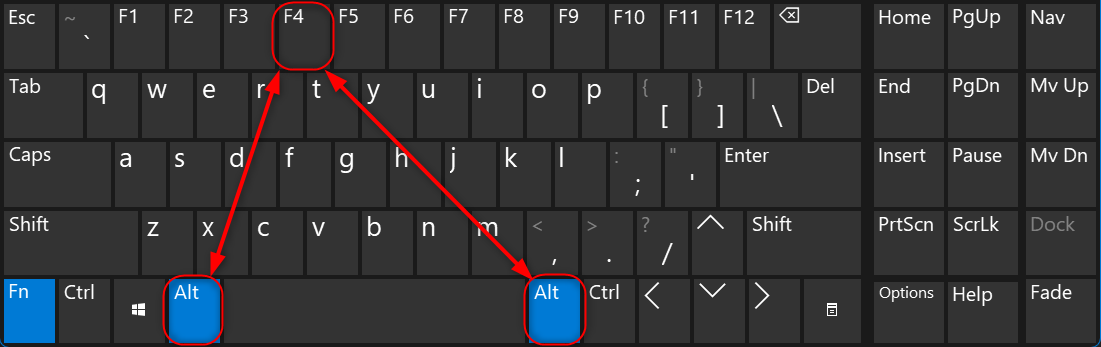
If the app is fully frozen, Alt+F4 may not respond at all. In that case, use Task Manager or Taskkill — they bypass the application’s own close handler entirely.
Method 2: Force Quit Using Task Manager
Task Manager is the most reliable method for killing unresponsive applications — it directly terminates the process regardless of the application’s state.
Open Task Manager with Ctrl+Shift+Esc, find the frozen app in the Processes list, right-click it, and select End Task to force close it immediately.
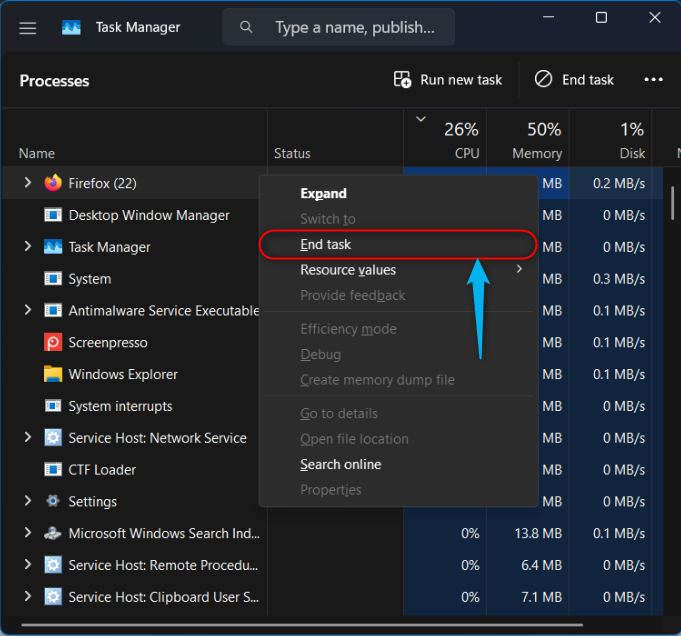
Tip: You can also click the frozen app once in Task Manager to select it, then click the End Task button in the bottom-right corner — no right-click needed.
Method 3: Force Quit Using the Windows 10 Settings App
In Windows 10, the Settings app can terminate apps that aren’t responding — this is useful for Store apps or apps that won’t show up properly in Task Manager.
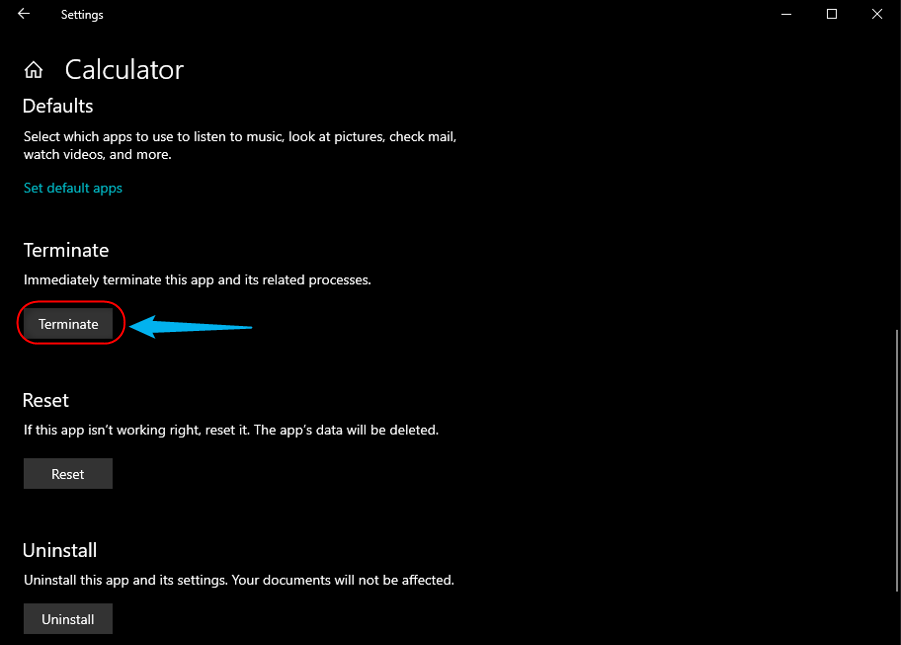
Press Win+I to open Settings, navigate to Apps, click the app you want to close, then select Advanced options to see the Terminate button.

Click Terminate to instantly kill the app. Note: this option is only available in Windows 10 — the Windows 11 Settings app removed the Terminate button from this menu.
Method 4: Force Quit Using the Taskkill Command
The taskkill command lets you kill any process by its name or Process ID (PID) — the most powerful option, especially for processes that don’t appear in Task Manager.
Step 1: Open Command Prompt or PowerShell as administrator from the Windows Start menu.

Step 2: Run tasklist to see all running processes. Find the target app, and note its PID (Process ID) from the second column.
tasklist
Step 3: Kill the process by PID. The /F flag forces termination immediately — without it, Windows sends a polite close signal the frozen app may ignore.
taskkill /PID 14324 /F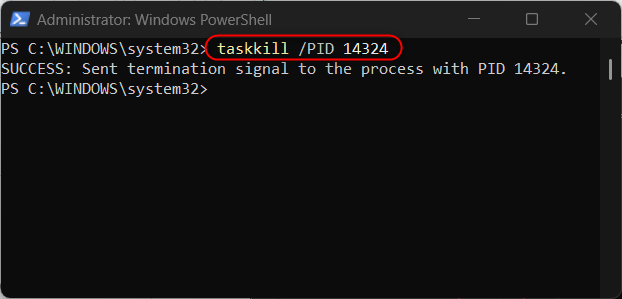
You can also kill by image name (the .exe filename) instead of PID. Use the /F flag here too — this kills all instances of mspaint at once.
taskkill /IM mspaint.exe /F
For a full reference on Taskkill flags, see our Taskkill Command guide which covers all available switches and options.
Last resort: If the entire system stops responding and none of the above methods work, hold the Power button for 5 seconds to force a shutdown — you will lose any unsaved data. After a forced shutdown it is wise to use chkdsk in Windows to fix disk errors, since Windows marks the drive as dirty.
When to Use Each Method
Use Alt+F4 for mildly unresponsive apps that are still partially functional — it sends a normal close signal before the OS needs to intervene.
Use Task Manager for most frozen apps — it’s visible even when the main desktop is unresponsive and lets you kill processes without typing any commands.
Use Taskkill /F when Task Manager itself is slow or when you need to automate process termination in a script — it forces immediate termination with no prompts.
Use the Settings App (Windows 10) for Microsoft Store apps behaving unexpectedly — it also resets the app’s background state, which a plain kill does not do.
Related Guides
These Windows guides cover system diagnostics and performance tools you may need when dealing with unresponsive processes or slow system behavior.