
Last updated:
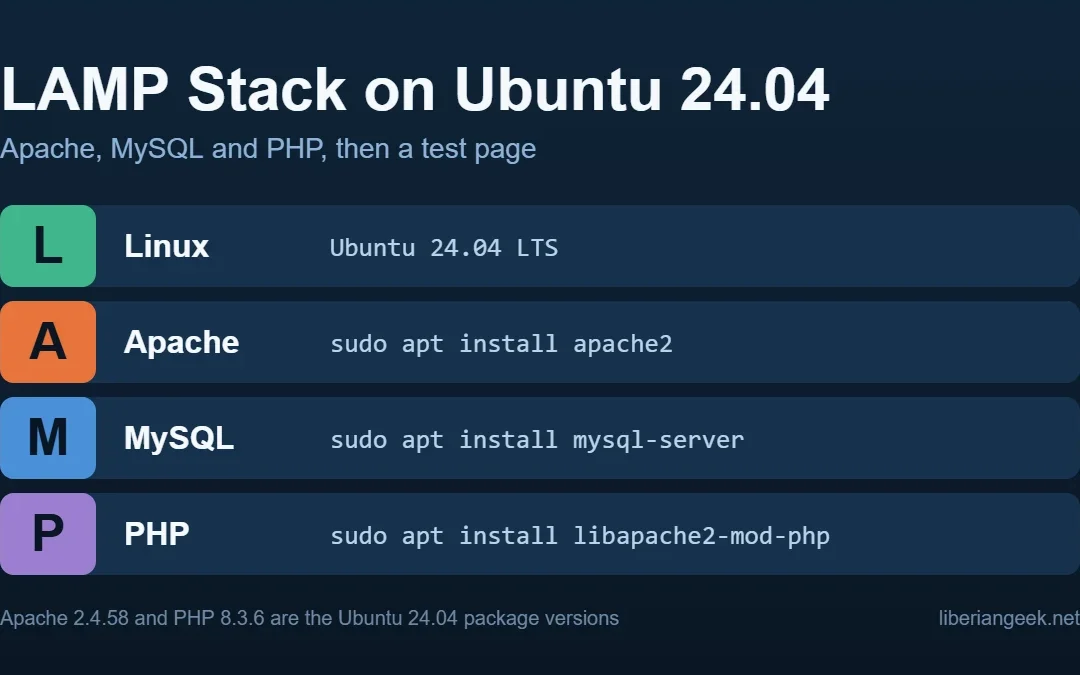
LAMP stack stands for Linux, Apache, MySQL, and PHP, a widely used combination for hosting and developing dynamic websites on Ubuntu servers.
This guide walks through installing each LAMP component on Ubuntu 24.04, creating a test PHP page, configuring phpMyAdmin, and testing MySQL.
Quick Answer
Install Apache (sudo apt install apache2), PHP (sudo apt install libapache2-mod-php -y), and MySQL (sudo apt install mysql-server) in sequence.
Then install phpMyAdmin (sudo apt install phpmyadmin), restart Apache, and open localhost/phpmyadmin in Firefox to confirm the stack is running. The phpMyAdmin on Ubuntu 24.04 guide covers the installer dialogs, a dedicated admin user and an extra password gate in more detail.
How to Install LAMP Stack on Ubuntu 24.04
Step 1: Install Apache
Run the command below in Terminal to install the Apache web server from Ubuntu’s apt repository. Press Y if prompted to confirm the installation.
sudo apt install apache2
Step 2: Test the Apache Server
Open Firefox and enter localhost in the address bar. The Apache default welcome page confirms the server is installed and listening on port 80.

Step 3: Install PHP
After confirming Apache is running, install the PHP module for Apache. The -y flag accepts all prompts automatically so no interaction is needed.
sudo apt install libapache2-mod-php -y
Step 4: Restart Apache
Restart Apache after installing PHP so the server loads the new module. The command exits silently if successful, which is the expected behavior.
sudo systemctl restart apache2
Step 5: Configure PHP
Create a PHP test file in the Apache web root to confirm PHP is working correctly. The gnome-text-editor command opens it in a GUI text editor.
sudo gnome-text-editor /var/www/html/phpinfo.php
Add the line below to the phpinfo.php file and save it. Opening localhost/phpinfo.php in Firefox will then display a full PHP configuration page.
<?php phpinfo() ?>
Enter the URL below in Firefox to verify PHP is configured correctly. A PHP information page confirms the integration between Apache and PHP.
localhost/phpinfo.php
Step 6: Verify PHP Version
Run the command below in Terminal to display the PHP version installed on Ubuntu 24.04. The output includes the version number and build date. Note this number, because you need it for the PHP extension packages in the next step.
php -v
Step 7: Install MySQL
Install MySQL server from the Ubuntu repository. Press Y to confirm when prompted. MySQL provides the database layer for the LAMP stack. If you prefer PostgreSQL instead, see how to install PostgreSQL (psql) on Ubuntu 24.04.
sudo apt install mysql-server
Step 8: Install MySQL Client and PHP Extensions
Install the MySQL client and the PHP-MySQL extension for your PHP version. The extension allows PHP scripts to connect to the MySQL database.
sudo apt install mysql-client
Install php8.3-mysql to link PHP with MySQL. Adjust the version number to match the PHP version you noted in Step 6 if it differs from 8.3.
sudo apt install php8.3-mysqlAlso install php8.3-curl, which enables PHP to make HTTP requests. Replace 8.3 with your installed PHP version if the version number differs.
sudo apt install php8.3-curl
Step 9: Verify MySQL
Check the MySQL service status with systemctl to confirm it is active and running. A green active (running) status confirms the installation succeeded.
sudo systemctl status mysql
Step 10: Install phpMyAdmin
Install phpMyAdmin to manage MySQL databases through a web interface. During setup, select apache2 when prompted for the web server to configure.
sudo apt install phpmyadmin
On the configuration screen, select the apache2 option and press Enter to confirm. Accept the automatic database configuration on the next screen.


Enter a password for the phpMyAdmin database user and confirm it. Keep this password as you will need it to log in to the web interface.

Restart Apache after the phpMyAdmin installation, then open localhost/phpmyadmin in Firefox to confirm the web interface is accessible.
sudo systemctl restart apache2
localhost/phpmyadmin
To find the phpMyAdmin credentials, open the config file below. The file shows the username and password assigned during the setup process. On a public-facing server, it is also worth taking the time to change the root password in Ubuntu 24.04 so the system account is not left on a default secret.
sudo gnome-text-editor /etc/phpmyadmin/config-db.php

Enter these credentials on the phpMyAdmin login page in Firefox and click Log in to access the database management interface.


How to Create a Custom Web Page with LAMP
Use the LAMP stack to host dynamic multi-page websites by creating HTML files in the Apache web root directory at /var/www/html.
Step 1: Create an HTML Page
Create an HTML file in the web root using gnome-text-editor. Add basic HTML markup, save the file, then visit localhost/filename.html in Firefox.
sudo gnome-text-editor /var/www/html/mywebpage.html
<!Doctype html>
<html>
<head>
<title>Installing the Lamp Stack on Ubuntu 24.04</title>
</head>
<body>
<h1>This is the first page</h1>
</body>
</html>
localhost/mywebpage.html
How to Fix phpMyAdmin 404 Error
If localhost/phpmyadmin returns a 404 error, Apache is not loading the phpMyAdmin configuration. The usual cause is that apache2 was not selected in the installer; running sudo a2enconf phpmyadmin and then sudo systemctl reload apache2 enables it (see the phpMyAdmin install guide). The manual Include directive below also works.
Step 1: Edit apache2.conf
Open the Apache main configuration file in gnome-text-editor. Append the Include line for phpMyAdmin at the bottom of the file and save.
sudo gnome-text-editor /etc/apache2/apache2.confInclude /etc/phpmyadmin/apache.confStep 2: Restart Apache and MySQL
Restart Apache and MySQL after editing the configuration. Return to localhost/phpmyadmin in Firefox to confirm the 404 error is resolved.
sudo systemctl restart apache2sudo /etc/init.d/mysql restart
How to Test MySQL Integration with PHP
Test that PHP can connect to MySQL by creating a database, a user, and granting permissions, then logging in from a new MySQL session.
Step 1: Open MySQL Shell
Run sudo mysql to open the MySQL interactive shell with root privileges. The shell accepts SQL commands for database administration.
sudo mysql
Step 2: Create a Database and User
Create a new database, then create a user with a password and grant that user full access to that same database. The database name must match in both the CREATE DATABASE and GRANT lines, so the example below uses DB1 throughout:
CREATE DATABASE DB1;
CREATE USER 'user1'@'%' IDENTIFIED BY 'password';
GRANT ALL ON DB1.* TO 'user1'@'%';
FLUSH PRIVILEGES;
The FLUSH PRIVILEGES line tells MySQL to reload the grant tables so the new permissions take effect immediately in the current session.
Step 3: Verify Database Access
Exit the root shell, then log in as the new user with sudo mysql -u user1 -p. Run SHOW DATABASES to verify the user can see the database.
sudo mysql -u user1 -p
SHOW DATABASES;When LAMP Stack Is the Right Tool
LAMP stack is the right tool when you need to run PHP-based applications like WordPress, Drupal, or Laravel on an Ubuntu server or local machine. To administer that server remotely, first install OpenSSH Server on Ubuntu 24.04.
For projects using Node.js, Python, or other stacks, Apache and MySQL can still serve as the underlying infrastructure alongside those runtimes.