
Last updated:
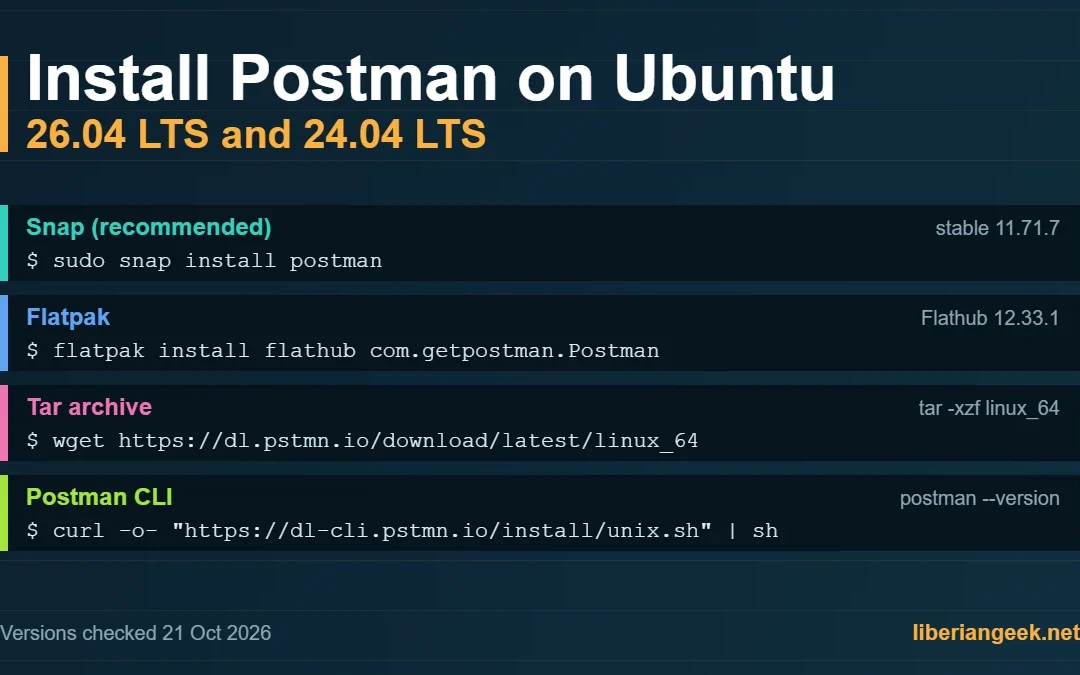
Postman is an API client for building, sending and testing HTTP requests. On Ubuntu 26.04 LTS and 24.04 LTS the simplest route is the Snap package that Postman recommends in its own documentation: sudo snap install postman. This guide also covers Flatpak, the tar archive, App Center and the terminal-only Postman CLI, with a version check and uninstall steps for each. If you only need quick command-line requests without a GUI, curl on Ubuntu 26.04 and 24.04 covers similar ground.
Quick answer
Run sudo snap install postman, then start it with snap run postman or from the Activities overview. Use Flatpak or the tar archive instead if you want a newer build than the Snap channel currently offers. The Postman CLI is a separate, terminal-only tool.
| Source | Version seen on 21 Oct 2026 | Notes |
|---|---|---|
| Snap Store, stable channel | 11.71.7 (amd64 and arm64) | Published by Postman, Inc. (verified publisher), strict confinement. This channel was last updated on 1 Dec 2025. |
| Flathub, com.getpostman.Postman | 12.33.1 | Latest release listed in the Flathub app metadata (x86_64). |
| Tar archive from dl.pstmn.io | Not checked | The “latest” download; you update it by downloading again. |
The Snap and Flathub builds were on different major versions (11 and 12) when checked, so the package you choose decides which Postman release you get. Postman’s own documentation recommends Snap because it bundles the libraries the app needs.
How this guide was checked: versions come from the Snap Store API and the Flathub app metadata on 21 October 2026; install steps come from Postman’s official documentation; Flatpak availability comes from the Ubuntu 26.04 archive (flatpak 1.16.6-1, universe). The commands were not re-run on a 26.04 machine for this update, and the screenshots were captured on Ubuntu 24.04.
How to Install Postman on Ubuntu 26.04 and 24.04
Choose one of the methods in the table. Methods 1 to 4 install the desktop app; Method 5 installs the CLI.
| Method | Install Command | Auto-updates | Notes |
|---|---|---|---|
| Snap | sudo snap install postman |
Yes | Recommended; sandboxed |
| Flatpak | sudo flatpak install flathub com.getpostman.Postman |
Via Flatpak | Requires Flathub setup first |
| Tar package | wget + tar + ./Postman |
No | Manual PATH setup needed |
| App Center | GUI only | Yes | No terminal required |
| Postman CLI | curl -o- "..." | sh |
No | Terminal-only API testing |
Method 1: Install Postman Using Snap (Recommended)
A Snap in Linux refers to a package that contains all the libraries and other dependencies required to install the package. It also hosts the Postman. To install Postman with Snap on Ubuntu 26.04 or 24.04, run:
sudo snap install postman
To update the snap-based Postman installation on Ubuntu 24.04, run the following command:
sudo snap refresh postman
You can launch the Snap-based Postman from the Activities or via the Terminal using:
snap run postmanCheck the installed version and channel with:
snap list postmanDo not start Postman with sudo. Postman’s documentation warns that files it creates will then have permission problems.
Method 2: Install Postman on Ubuntu Using the Flatpak
The Flatpak is among the most popular ways that developers use to distribute their software on Linux distros. Among these softwares, Postman also exists. To install Postman with Flatpak on Ubuntu 26.04 or 24.04, follow these steps:
Step 1: Install Flatpak and Add the Flathub Repository
If the flatpak command is not found, install it first. The package is in the universe repository (version 1.16.6-1 on Ubuntu 26.04):
sudo apt install flatpakThe Flathub repository is not configured by default. To add it, run the command below:
flatpak remote-add --if-not-exists flathub https://flathub.org/repo/flathub.flatpakrepo
The next command, shown in the screenshot, is optional. You can skip it, because Step 2 downloads whatever runtime Postman needs:
sudo flatpak install flathub
Step 2: Install Postman
Next, run the following command to install Postman from Flathub:
sudo flatpak install flathub com.getpostman.Postman
The Flatpak-based Postman can be run by executing the following command:
flatpak run com.getpostman.PostmanYou can update the Flatpak-based Postman via the below command:
sudo flatpak update --app com.getpostman.Postman
Method 3: Install Postman on Ubuntu Using the Tar File
The tar archive is a portable copy of the app that you unpack into your home folder. It does not update itself, so repeat the download when you want a newer version. Follow these steps:
Step 1: Download the Postman Tar File
Run the following command to download Postman’s official tar archive (64-bit Intel/AMD). It is saved as linux_64, the name used in Postman’s documentation; the screenshot below shows the older file name linux.
wget https://dl.pstmn.io/download/latest/linux_64
Step 2: Extract the Postman Tar File
Now, use the following command to extract the download Postman’s tar file:
tar -xzf linux_64
Step 3: Run Postman
After extracting the Postman’s Tar file, navigate to the extracted directory (Postman) and then launch the Postman:
cd Postman
./Postman
By using the above approach, you must provide the full path to the Postman executable or use the cd command to navigate. However, you add the Postman’s directory to the PATH variable to make it readily executable. This is the same PATH approach used when you install Go on Ubuntu 24.04 from a tarball. To do that, open the ./bashrc file using:
nano ~/.bashrcIn the bashrc file, add the following and replace the path with the Postman folder’s path:
export PATH="/home/user/Postman:$PATH"
Now trigger the changes in the .bashrc file by running the below command:
source ~/.bashrcAfter adding the Postman to the PATH variable, you can directly launch it from the Terminal.
Requirements: Postman’s documentation asks for openssl to be installed and for read/write access to ~/.config, and says not to start Postman with sudo.
Uninstall: remove the extracted folder with rm -rf Postman, run from the folder that contains it (check with ls first; no sudo is needed because you extracted it as your own user), and delete the PATH line you added to ~/.bashrc.
Method 4: Install Postman Via the App Center
App Center is a front end for the Snap Store, so it installs the same snap as Method 1. To install it, search for “postman” select the version, and Install it, as seen below:

Method 5: Install Postman CLI
The Postman CLI runs collections from a terminal or CI job and does not need the desktop app. Install it with Postman’s current install script:
curl -o- "https://dl-cli.pstmn.io/install/unix.sh" | sh
Postman’s documentation says this script installs to /usr/local/bin when that folder is writable without sudo (as it is for root), and otherwise to $HOME/.local/bin, so on a normal desktop account the binary lands in ~/.local/bin/postman. The script does not ask for sudo. It may also add that folder to your shell startup file; open a new terminal if postman is not found. The screenshot above shows the earlier script name and was captured on Ubuntu 24.04. If you already use Node.js, npm install -g postman-cli is an alternative.
Because curl ... | sh runs whatever the server returns, you can download the script, read it, and then run it:
curl -o postman-cli-install.sh "https://dl-cli.pstmn.io/install/unix.sh"
less postman-cli-install.sh
sh postman-cli-install.sh
To launch the CLI version of Postman, run the “postman“ command (in lower case):
postmanCheck the installed version with postman --version. If you also installed the desktop app as a Snap, both programs use the name postman; type -a postman lists every match in the order your shell finds them.

To remove a CLI installed as a normal user (the default location), run the command below. If it was installed as root or with --system, the binary is in /usr/local/bin instead, so run sudo rm /usr/local/bin/postman. The screenshot below shows the older command.
rm ~/.local/bin/postman
How to Uninstall Postman From Ubuntu 26.04 and 24.04
Remove Postman with the same tool you used to install it.
To uninstall the Flatpak-based Postman, execute:
flatpak uninstall com.getpostman.Postman
For uninstalling the Snap-based postman, run the below command:
sudo snap remove postman
If you are using the App Center-based Postman installation, you can uninstall it by opening the App Center, selecting Manage, and clicking on the Postman app. Next, use the three vertical dots and hit the Uninstall button:

Troubleshooting
| Problem | Likely cause | What to do |
|---|---|---|
snap: command not found |
Snap support is not installed | Install the snapd package with apt, or use Flatpak or the tar archive instead. |
flatpak: command not found |
Flatpak is not installed by default | Run sudo apt install flatpak, then add the Flathub repository. |
| The tar build does not start or shows odd errors | Missing openssl or no access to ~/.config |
Install openssl and check that your user can read and write ~/.config, as Postman’s documentation requires. |
| Permission errors after a first launch with sudo | Postman was started as root | Start it as your normal user. Check ownership with ls -ld ~/.config. |
postman opens the wrong program |
The Snap app and the CLI share a command name | Run type -a postman and call the one you want by its full path. |
| Snap shows an older version than Flathub | The two stores publish separately | Check snap list postman, or switch to Flatpak or the tar archive for a newer release. |
Postman app or Postman CLI?
Install the Postman desktop app when you want a graphical workspace for collections, environments, authentication, and API response inspection.
Install Postman CLI when you need to run collections or API tests from Terminal, scripts, or CI workflows — the same environments where you would install AWS CLI on Ubuntu 24.04. Many developers use both: the app for building requests and the CLI for repeatable test runs.
Sources
Checked on 21 October 2026: Install Postman and Install the Postman CLI in the Postman documentation, the Snap Store listing for the postman snap, the Flathub listing for com.getpostman.Postman, and the flatpak package in the Ubuntu 26.04 archive.