
A swap file gives Debian 13 extra room when RAM runs out. Without swap, the kernel’s out-of-memory killer can end a busy process, such as a database or a PHP worker, with no warning. This guide is for anyone running Debian 13 “trixie” on a small VPS, a home server, or a desktop that has no swap partition. You will create a swap file, make it permanent, tune how eagerly the kernel uses it, and learn how to resize or remove it. It also covers zram, which keeps compressed swap in RAM instead of on disk.
Quick answer. Check for existing swap, create a 2 GiB file with mkswap --file, turn it on, and add it to /etc/fstab so it comes back after a reboot.
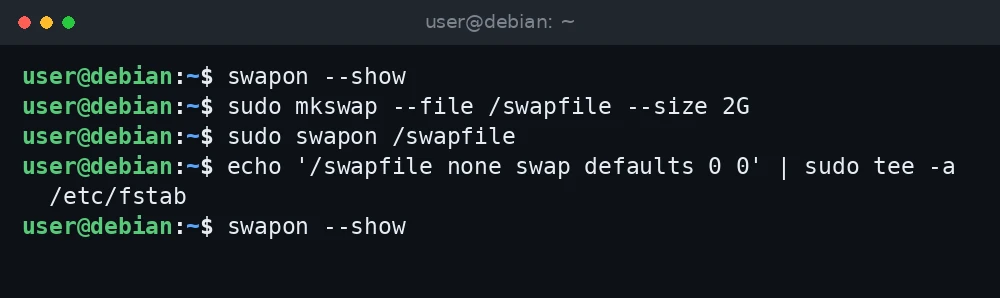
swapon --show
sudo mkswap --file /swapfile --size 2G
sudo swapon /swapfile
echo '/swapfile none swap defaults 0 0' | sudo tee -a /etc/fstab
swapon --show
What was verified and what was not. The commands, paths and defaults in this guide were checked against the Debian 13 man pages for mkswap, swapon and sysctl.d, the Debian 13 release notes, the Debian Wiki ZRam page and the Linux kernel documentation. Package versions (systemd 257, zram-tools 0.3.7) were read from APT on a Debian 13 (trixie) server on 3 November 2026. The commands were not run for this guide, so confirm each step on your own system before you rely on it.
Step 1: Check for existing swap
Many cloud images ship with no swap at all, while a desktop install may already have a swap partition. Check first so you do not add a second swap area by accident.
swapon --show
free -h
If swapon --show prints nothing, the system has no active swap. In free -h, the Swap: line shows the total size and how much is used.
Example output on a server with no swap:
               total        used        free      shared  buff/cache   available
Mem:           1.9Gi       612Mi       284Mi        12Mi       1.2Gi       1.3Gi
Swap:             0B          0B          0B
Also check free disk space with df -h /. A swap file takes its full size on disk right away. For more detail on reading these numbers, see our guides on checking memory usage and checking disk space on Debian 13.
Step 2: Choose a size
There is no single right size. For a small VPS with 1 to 4 GiB of RAM, a swap file of 1 to 2 GiB is a common starting point that gives the system a buffer during memory spikes. If you want hibernation on a laptop, swap must be at least as large as RAM, and hibernating to a swap file needs extra setup that this guide does not cover.
Keep one Debian 13 change in mind. The trixie release notes say /tmp is now stored in memory (tmpfs) by default, with a limit of up to 50% of RAM. Large files written to /tmp use memory and can be pushed to swap, so a server that writes big temporary files may benefit from a little more swap.
Step 3: Create the swap file
A swap file must have no holes. The swapon man page explains that the kernel writes to the file directly, without help from the filesystem, so files created with cp or truncate are rejected. There are three ways to create it.
Option A: mkswap –file (recommended on Debian 13)
Debian 13 ships util-linux 2.41, and its mkswap can create the file for you. The man page says --file creates a swap file “with the appropriate file permissions and populated blocks on disk”, and since 2.41 it also sets the nocow attribute so the file works on Btrfs.
sudo mkswap --file /swapfile --size 2GThis single command allocates the space, sets the permissions and writes the swap signature. If you use it, skip to Step 4.
Option B: fallocate (fast, but not on every filesystem)
sudo fallocate -l 2G /swapfile
sudo chmod 600 /swapfile
sudo mkswap /swapfile
fallocate reserves space almost instantly. The catch is in the swapon man page: preallocated files “may be interpreted as files with holes too depending of the filesystem”. It also notes that preallocated swap files are supported on XFS since Linux 4.18. On Btrfs, a plain fallocate file will not work because swap files there need the nocow attribute. If swapon later reports holes, delete the file and use Option A or C.
Option C: dd (slowest, most portable)
sudo dd if=/dev/zero of=/swapfile bs=1M count=2048 status=progress
sudo chmod 600 /swapfile
sudo mkswap /swapfile
The swapon man page calls dd with /dev/zero “the most portable solution”. It writes every block, so it takes longer on slow disks. count=2048 with bs=1M gives 2 GiB.
Whichever option you pick, the file must be readable and writable only by root. That is what chmod 600 does. A world-readable swap file could expose memory contents to other users.
Step 4: Turn the swap file on
sudo swapon /swapfile
swapon --show
Example output:
NAME      TYPE SIZE USED PRIO
/swapfile file   2G   0B   -2
The swap is active now, but it will not survive a reboot until you add it to /etc/fstab.
Step 5: Make it permanent in /etc/fstab
Back up the file first, then add one line:
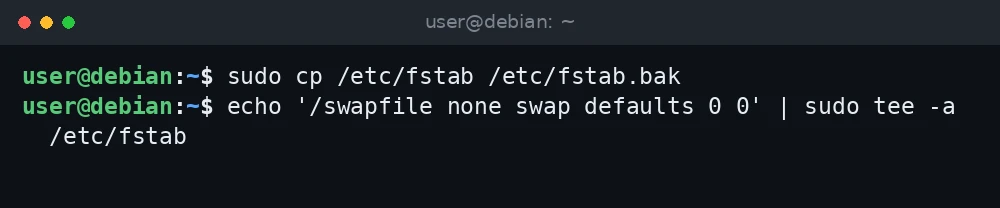
sudo cp /etc/fstab /etc/fstab.bak
echo '/swapfile none swap defaults 0 0' | sudo tee -a /etc/fstab
Test the entry without rebooting. Turn the swap off, then ask swapon -a to enable everything listed in fstab:
sudo swapoff /swapfile
sudo swapon -a
swapon --show
If /swapfile shows up again, the fstab line is correct.
Step 6: Tune swappiness
vm.swappiness controls how readily the kernel moves memory pages to swap compared with dropping file cache. The kernel documentation describes it as a value between 0 and 200, with a default of 60. Lower values make the kernel prefer to keep application memory in RAM. Many server admins use 10 to 20 for disk-based swap. There is no universal best value; the kernel docs say the optimal value depends on the workload.
Check the current value:
Stuck at this step? Ask us, it is free and include the exact error.
cat /proc/sys/vm/swappinessTo change it permanently, use a file in /etc/sysctl.d/. This matters on Debian 13: the release notes state that systemd-sysctl no longer reads /etc/sysctl.conf, and recommend local settings in /etc/sysctl.d/*.conf instead.
echo 'vm.swappiness=10' | sudo tee /etc/sysctl.d/99-swappiness.conf
sudo sysctl --system
cat /proc/sys/vm/swappiness
Step 7: Resize or remove the swap file
Resize
You cannot grow an active swap file in place. Turn it off, recreate it at the new size, and turn it back on. Make sure you have enough free RAM to hold what is currently in swap before you run swapoff.
sudo swapoff /swapfile
sudo rm /swapfile
sudo mkswap --file /swapfile --size 4G
sudo swapon /swapfile
swapon --show
The fstab line stays the same because the path did not change.
Remove
sudo swapoff /swapfile
sudo nano /etc/fstab      # delete the /swapfile line
sudo rm /swapfile
Remove the fstab line before you delete the file. A leftover entry that points to a missing file causes an error at boot.
Alternative: zram with zram-tools
zram creates a compressed block device in RAM and uses it as swap. It needs no disk space and is much faster than disk swap, at the cost of some CPU time for compression. It suits machines with slow storage or SD cards. Debian 13 ships zram-tools 0.3.7.
sudo apt update
sudo apt install zram-tools
The settings live in /etc/default/zramswap. The Debian Wiki example sets the compression algorithm and the share of RAM to use. Open the file, uncomment the lines, and set them like this:

ALGO=zstd
PERCENT=60
Then restart the service and check the device:
sudo systemctl restart zramswap
sudo zramctl
swapon --show
You can keep a disk swap file next to zram. Give zram a higher priority so the kernel fills it first; the file in /etc/default/zramswap has comments describing the available options. For zram, the kernel documentation notes that swappiness values above 100 can make sense because in-memory swap is faster than filesystem I/O. Debian also packages systemd-zram-generator as a second option; do not run both tools at once.
Troubleshooting
swapon: /swapfile: skipping – it appears to have holes.
The file was created with fallocate on a filesystem that treats preallocated space as holes, or it was copied. Run sudo rm /swapfile and recreate it with mkswap --file or dd.
swapon: /swapfile: insecure permissions 0644, fix with: chmod 0600 /swapfile
The swap file is readable by other users. Run sudo chmod 600 /swapfile and make sure root owns it with sudo chown root:root /swapfile.
swapon: /swapfile: swapon failed: Invalid argument
This usually means the filesystem does not support the file as created. On Btrfs, the file needs the nocow attribute; mkswap --file sets it on new files. On NFS, the swapon man page warns that swap may not work at all. Some container-based VPS plans (for example OpenVZ or LXC) do not allow the guest to enable swap; check with your provider.
swapon: /swapfile: read swap header failed
The file has no swap signature. Run sudo mkswap /swapfile, then sudo swapon /swapfile.
Swap is gone after a reboot
The fstab line is missing or has a typo. Check it with grep swap /etc/fstab, then test with sudo swapon -a, which reports errors in the file.
FAQ
Is a swap file slower than a swap partition?
On modern kernels with ext4 or XFS, the difference is small for normal use. A file is easier to resize and needs no repartitioning, which is why it is the usual choice on a VPS.
Does Debian 13 create swap during installation?
The guided partitioning in the Debian installer usually creates a swap partition. Cloud and VPS images often have none. Always check with swapon --show rather than assuming.
Should I set swappiness to 0?
A value of 0 does not disable swap. The kernel documentation says that at 0 the kernel will not start swapping until free and file-backed pages drop below a zone’s high watermark. Most people are better served by a low value such as 10.
Can I use zram and a swap file together?
Yes. Give zram the higher priority so it is used first, and the disk file acts as overflow.