
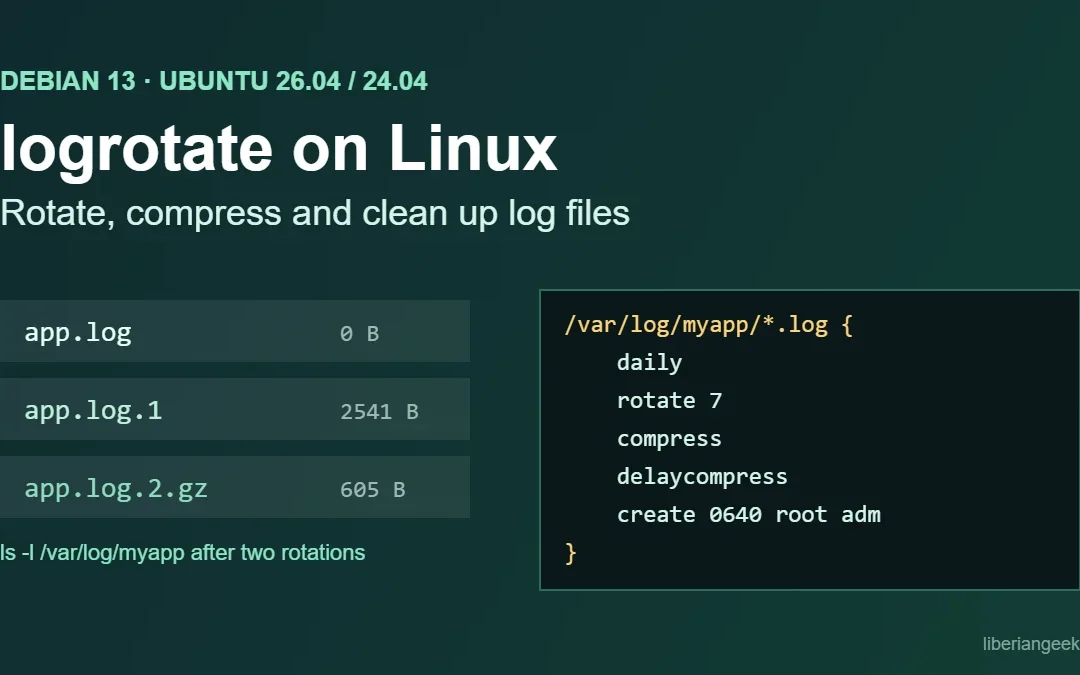
Quick answer: logrotate is already installed on Debian 13, Debian 12 and Ubuntu 26.04/24.04 and runs once a day from logrotate.timer. To rotate your own log, create a file in /etc/logrotate.d/ (for example /etc/logrotate.d/myapp) with a block such as /var/log/myapp/*.log { daily rotate 7 compress delaycompress missingok notifempty create 0640 root adm }, check it with sudo logrotate -d /etc/logrotate.d/myapp, and test a real rotation with sudo logrotate -vf /etc/logrotate.d/myapp.
Log files that are never rotated eventually fill the disk, and a full / or /var is one of the most common reasons a small VPS or WordPress server stops working. logrotate solves this by renaming the current log, starting a fresh one, compressing old copies and deleting the oldest ones on a schedule. This guide shows how logrotate is set up on Debian and Ubuntu servers, how to write a config for your own application, how to test it without waiting a day, and how to fix the errors you are most likely to see.
Versions this guide applies to
The configuration syntax is the same on every release below. The main differences are the package version and one line in the default /etc/logrotate.conf.
| Release | logrotate package | su root adm in /etc/logrotate.conf |
|---|---|---|
| Debian 13 (trixie) | 3.22.0-1 | No |
| Debian 12 (bookworm) | 3.21.0-1 | No |
| Ubuntu 26.04 LTS | 3.22.0-1build1 | Yes (added by Ubuntu’s packaging) |
| Ubuntu 24.04 LTS | 3.21.0-2build1 | Yes |
Package versions were checked in the Debian archive (madison) and on Launchpad for Ubuntu. The terminal screenshots in this article were captured on Ubuntu 24.04 with logrotate 3.21.0. The directives and output format are the same in 3.22.0.
How logrotate runs on Debian and Ubuntu
The Debian package (which Ubuntu builds from) installs these files:
| File | What it does |
|---|---|
/usr/lib/systemd/system/logrotate.timer |
Runs logrotate.service daily (OnCalendar=daily) with up to 1 hour of random delay (RandomizedDelaySec=1h). Persistent=true means a run missed while the server was off happens after the next boot. |
/usr/lib/systemd/system/logrotate.service |
Runs /usr/sbin/logrotate /etc/logrotate.conf with low CPU and I/O priority and with ProtectSystem=full. |
/etc/cron.daily/logrotate |
A fallback for systems without systemd. It exits immediately when /run/systemd/system exists, so on a normal server only the timer runs logrotate. |
/etc/logrotate.conf |
Global defaults (weekly, rotate 4, create) and include /etc/logrotate.d. |
/etc/logrotate.d/ |
One file per package or application (apt, dpkg, nginx, apache2, mariadb and so on). This is where your own config goes. |
/var/lib/logrotate/status |
The state file: the last time each log was rotated. |
To see when the timer last ran and when it runs next, use the commands below. Note that these two commands were not captured in the screenshots, because the test environment does not run systemd.
systemctl list-timers logrotate.timer
systemctl status logrotate.service
If the last run failed, the reason is in the journal: journalctl -u logrotate.service. See the journalctl guide for Debian 13 for filtering by time and priority.
The default /etc/logrotate.conf on Debian 13 contains these active lines (Ubuntu adds su root adm after weekly):
weekly
rotate 4
create
include /etc/logrotate.d
Step 1: Make sure logrotate is installed
It is installed by default on Debian and Ubuntu server images. On a minimal container or a stripped-down image, install it with:
sudo apt update
sudo apt install logrotate
logrotate --version
Step 2: Write a config for your application log
The example below rotates every .log file in /var/log/myapp/. Replace the path with your application’s log directory. Create the file with sudo nano /etc/logrotate.d/myapp and add:
/var/log/myapp/*.log {
    daily
    rotate 7
    missingok
    notifempty
    compress
    delaycompress
    create 0640 root adm
}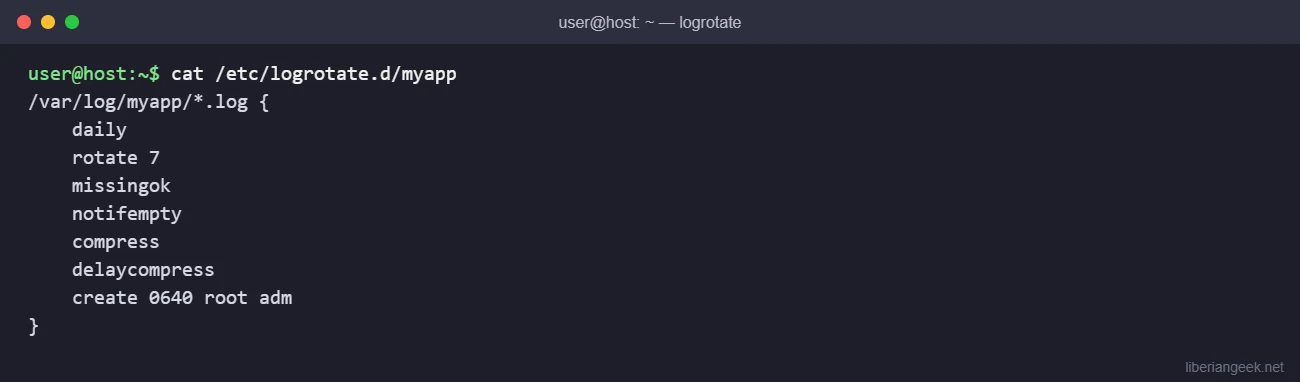
What each line does:
| Directive | Meaning |
|---|---|
daily |
Rotate once a day. Alternatives: weekly, monthly, yearly. |
rotate 7 |
Keep 7 old copies. The 8th oldest is deleted at the next rotation. With daily, that is about a week of history. |
missingok |
Do not report an error if the log file does not exist. |
notifempty |
Do not rotate an empty log. |
compress |
Compress rotated copies with gzip (.gz). |
delaycompress |
Leave the most recent rotated copy (.1) uncompressed until the next run. This helps when a program may still write to the old file for a short time, and it keeps yesterday’s log readable with plain less or grep. |
create 0640 root adm |
After renaming the log, create a new empty file with this mode, owner and group. Use the user your application runs as (for example www-data for nginx or PHP-FPM). |
A few more directives you will often need:
| Directive | Use it when |
|---|---|
size 100M |
You want rotation by size only. It replaces the time interval (daily/weekly) rather than adding to it. |
maxsize 100M |
You want daily (or weekly) rotation, but also rotation earlier when the file grows past 100 MB. Because the timer runs once a day, the size is only checked once a day unless you schedule logrotate more often. |
maxage 30 |
Delete rotated copies older than 30 days. |
dateext |
Name old copies with a date (app.log-20261112) instead of a number. |
copytruncate |
The program cannot reopen its log file. logrotate copies the log and then truncates the original in place. A few lines written between the copy and the truncate can be lost, and create has no effect. |
sharedscripts + postrotate … endscript |
The program must be told to reopen its log (for example reload a service). With sharedscripts, the script runs once per block instead of once per file. |
su user group |
The log directory is writable by a non-root group. See the troubleshooting section. |
Step 3: Check the config with a dry run
The -d (debug) option reads the config and prints what logrotate would do, without changing any file:
sudo logrotate -d /etc/logrotate.d/myapp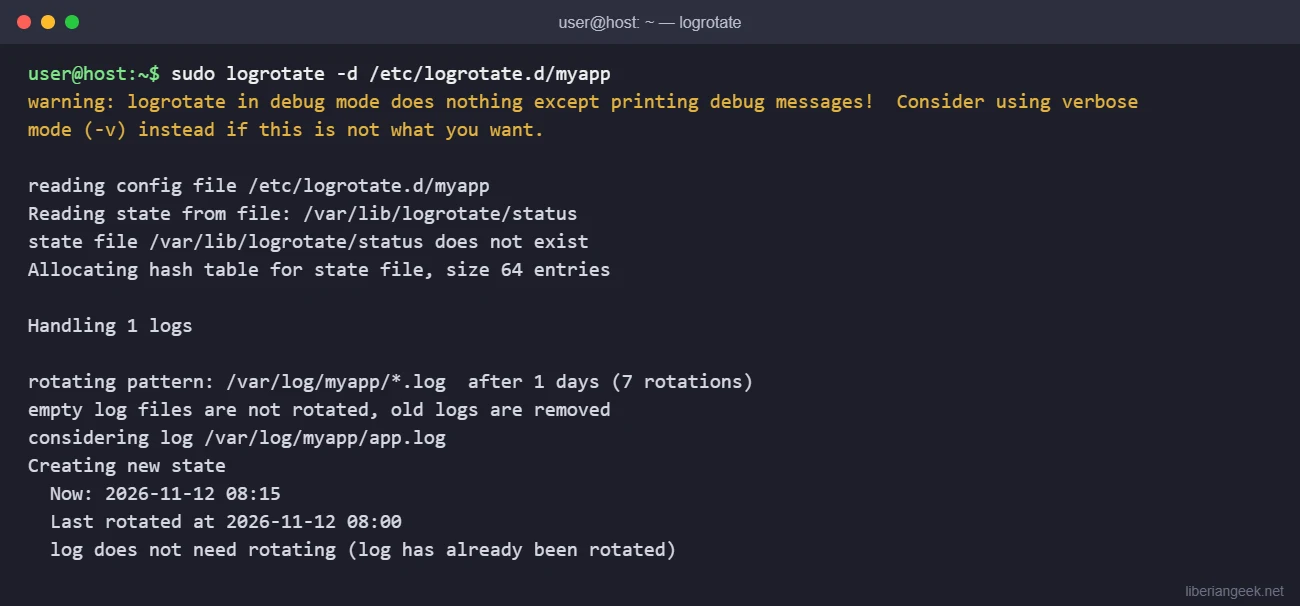
The line log does not need rotating is normal for a new config. logrotate has no state for this file yet, so it creates a state entry and waits for the next daily interval. A syntax error would appear here as an error: line with the file name and line number.
To check every config at once (the same set the timer uses), run sudo logrotate -d /etc/logrotate.conf. Look for lines that start with error:.
Step 4: Force a rotation to test it
Use -f (force) to rotate now, even though the interval has not passed, and -v (verbose) to see each step:
sudo logrotate -vf /etc/logrotate.d/myapp
ls -l /var/log/myapp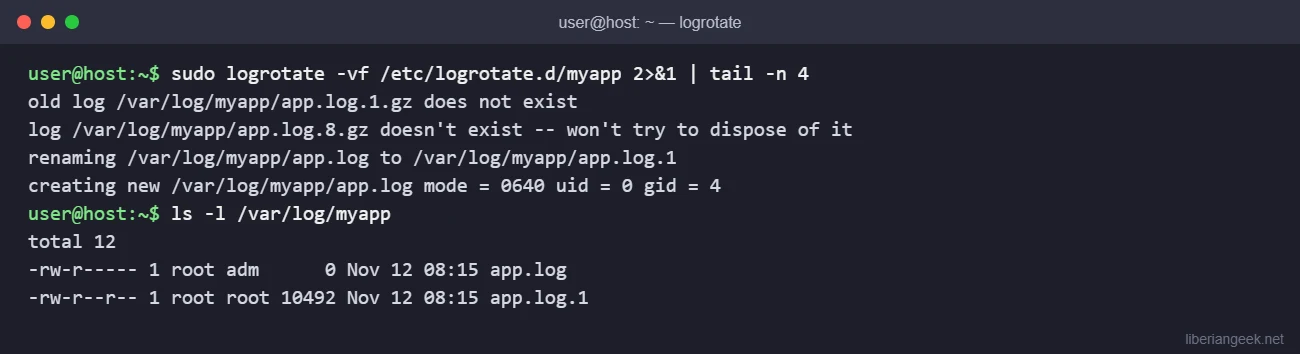
The current app.log was renamed to app.log.1, and a new empty app.log was created with mode 0640 and group adm (gid 4). app.log.1 is not compressed yet because of delaycompress.
Run the rotation a second time to see compression and the state file:
sudo logrotate -f /etc/logrotate.d/myapp
ls -l /var/log/myapp
zcat /var/log/myapp/app.log.2.gz | head -n 3
sudo grep myapp /var/lib/logrotate/status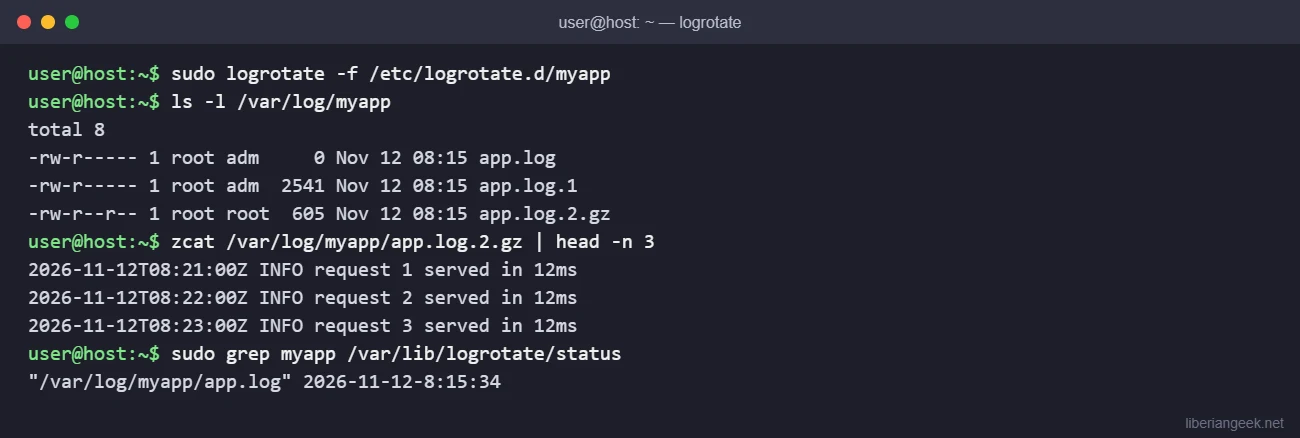
The older copy is now app.log.2.gz, and zcat confirms it still contains the original lines. Use zcat, zgrep or zless to search compressed logs without unpacking them. The tail command guide covers following the live app.log while you test.
Testing on a production server: -f really rotates the logs, and with rotate 7 it can push the oldest copy out of the retention window and delete it. Force a single file in /etc/logrotate.d/, not the whole /etc/logrotate.conf, and copy any old logs you need before testing.
Stuck at this step? Ask us, it is free and include the exact error.
Step 5: Reload the application after rotation (when needed)
Many programs keep their log file open. After logrotate renames the file, they keep writing to app.log.1 until they reopen it. There are two ways to handle this.
Option 1: tell the program to reopen its logs with a postrotate script. This is the approach Debian’s own nginx package uses. Its /etc/logrotate.d/nginx on Debian 13 (nginx 1.26.3) is:
/var/log/nginx/*.log {
	daily
	missingok
	rotate 14
	compress
	delaycompress
	notifempty
	create 0640 www-data adm
	sharedscripts
	prerotate
		if [ -d /etc/logrotate.d/httpd-prerotate ]; then \
			run-parts /etc/logrotate.d/httpd-prerotate; \
		fi \
	endscript
	postrotate
		invoke-rc.d nginx rotate >/dev/null 2>&1
	endscript
}
For your own systemd service, the postrotate line is usually systemctl reload myapp.service (only if the service defines a reload action) or a signal the program documents, such as systemctl kill -s HUP myapp.service. Check your application’s documentation; sending the wrong signal can stop it. If you created the unit yourself, see how to create a systemd service on Debian 13 for adding an ExecReload= line.
/var/log/myapp/*.log {
    daily
    rotate 7
    missingok
    notifempty
    compress
    delaycompress
    create 0640 myapp myapp
    sharedscripts
    postrotate
        systemctl reload myapp.service >/dev/null 2>&1 || true
    endscript
}
Option 2: if the program has no way to reopen its log, replace create with copytruncate. It works with any program but can lose a few lines during each rotation, so prefer option 1 when the program supports it.
Where logs live on a typical web server
Most packages already ship a logrotate file, so you only need your own config for logs that no package manages.
| Log | Rotated by | Action needed |
|---|---|---|
/var/log/nginx/*.log |
/etc/logrotate.d/nginx |
None. Edit rotate 14 if you need longer history. |
/var/log/apache2/*.log |
/etc/logrotate.d/apache2 |
None. |
/var/log/apt/, /var/log/dpkg.log |
/etc/logrotate.d/apt, dpkg |
None. |
| systemd journal | journald itself, not logrotate | Set SystemMaxUse= in journald.conf or run journalctl --vacuum-size=. |
Custom app or script logs (for example a backup script writing /var/log/backup.log) |
Nothing until you add a config | Add a file in /etc/logrotate.d/. |
Logs under /home or a site directory (for example a WordPress debug.log) |
Nothing by default | Add a config, or turn the logging off when you are done debugging. |
If a disk is already filling up, find the large files first with the steps in how to check disk space on Debian 13 and 12, then add a rotation rule for whatever is growing.
Troubleshooting logrotate
“parent directory has insecure permissions”
logrotate refuses to rotate logs in a directory that is world-writable or writable by a group other than root, because a user in that group could otherwise trick root into writing somewhere else. The fix is to tell logrotate which user and group to use for that block with the su directive, or to remove group write permission from the directory if it is not needed.
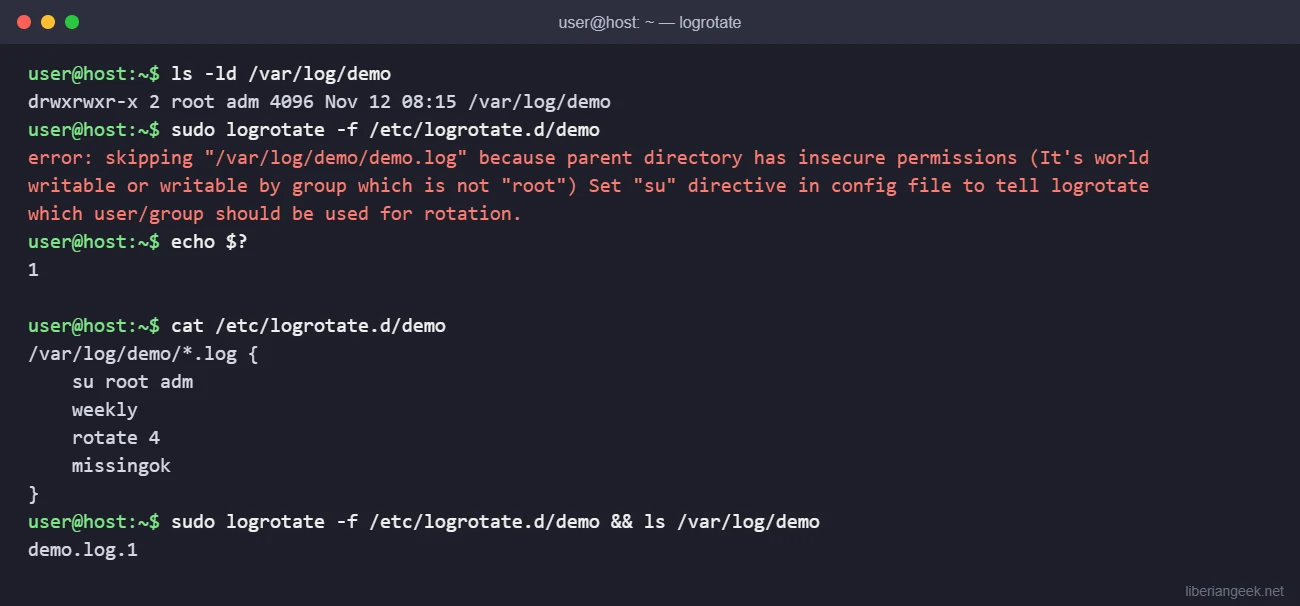
Notice that demo.log was not recreated in the second run. The test ran the /etc/logrotate.d/demo file on its own, so the global create from /etc/logrotate.conf did not apply and the block has no create line of its own. When the timer runs the full /etc/logrotate.conf, the global defaults do apply. To get the same result in both cases, put create (and on Debian, su if needed) inside your own block.
“unknown option” or “error: … line N”

A misspelled directive is reported as an error and that line is skipped, but the rest of the block still runs, so the log may be rotated without compression or retention limits. Always run logrotate -d after editing a config. Other common syntax problems: a missing closing }, a postrotate without endscript, and two config files that match the same log (logrotate reports a duplicate log entry error).
Other problems
| Symptom | Likely cause | Fix |
|---|---|---|
Log never rotates; -d says “log does not need rotating” |
The interval has not passed since the time stored in /var/lib/logrotate/status. |
Normal. Wait for the next run or test with -f. |
Old file keeps growing after rotation (app.log.1 gets bigger) |
The program still has the old file open. | Add a postrotate reload or use copytruncate. |
| Disk space not freed after old logs are deleted | A process still holds a deleted file open. | Find it with sudo lsof +L1 (lsof package) and restart that service. |
Works with sudo logrotate -f but fails from the timer |
logrotate.service uses ProtectSystem=full, so it cannot modify logs under /etc or /usr. |
Keep logs under /var/log or another writable path. Check journalctl -u logrotate.service for the exact error. |
| New log has the wrong owner and the app cannot write to it | Wrong user/group in create. |
Set create 0640 appuser appgroup to match the user the service runs as. |
| Size-based rule rotates late | The timer runs once a day, so size/maxsize are only checked daily. |
Run logrotate more often for that file, for example from a separate timer or cron job. |
If you need the size check more than once a day, you can run one config file from cron, for example hourly: 0 * * * * /usr/sbin/logrotate /etc/logrotate.d/myapp. The Debian crontab guide explains where to put the line, and the cron expression generator helps check the schedule. Keep in mind that running a single file this way skips the global defaults from /etc/logrotate.conf, as shown above.
Undo or disable a rotation rule
Your own config is a single file, so rolling back is simple: move it out of /etc/logrotate.d/ (for example sudo mv /etc/logrotate.d/myapp /root/myapp.logrotate.bak) and logrotate will ignore that log from the next run. Rotated copies that already exist stay where they are. Before editing a config that a package installed, such as /etc/logrotate.d/nginx, make a copy outside /etc/logrotate.d/. Do not leave backup copies inside that directory. logrotate skips some backup-style names (a copy named myapp.bak is ignored “because of *.bak pattern match”), but a copy named myapp.old is read as a second config and fails with duplicate log entry for /var/log/myapp/app.log.
FAQ
Do I need to restart anything after adding a file to /etc/logrotate.d?
No. logrotate reads its config files each time it runs, so the new file is used at the next daily run.
What time does logrotate run?
The timer uses OnCalendar=daily (midnight) with a random delay of up to one hour. systemctl list-timers logrotate.timer shows the exact next run on your server.
What is the difference between rotate and maxage?
rotate 7 keeps a fixed number of old copies. maxage 30 removes copies older than 30 days. You can use both; whichever removes a file first wins.
Does logrotate handle the systemd journal?
No. The journal in /var/log/journal is managed by systemd-journald and its own size limits. logrotate only handles plain text log files listed in its configs.
For more Debian server guides, see the Debian 13 guides hub.