Skype is one of the very first VoIP platforms owned by Microsoft to introduce free video and voice calls on the Internet. Skype allows its users to voice call, video call, send instant messages, and transfer files. Individuals and organizations use Skype to communicate with other members and share files. Skype is a cross-platform application, available for all operating systems, including Ubuntu Linux. Skype does not come pre-installed on Ubuntu, but you can install it by following this article.
This guide covers five installation methods for Ubuntu 24.04: apt repository, deb file, Snap, Flatpak, and the App Center GUI. Each method suits a different workflow, so pick the one that matches how you manage software on your system. Uninstall steps for each method are included at the end.
Quick Answer
The fastest way to install Skype on Ubuntu 24.04 is through the Snap package manager:
sudo snap install skypeLaunch it with snap run skype. If you prefer the apt method, run sudo apt install -y skypeforlinux after updating your packages. For a graphical install, open App Center, search for Skype, and click Install.
How to Install Skype on Ubuntu 24.04
Method 1: Install Skype on Ubuntu using Apt Repository
You can install Skype on Ubuntu via the apt package manager, which installs packages from the official repository. The apt method will install Skype’s stable version on Ubuntu. Read the instructions below to install Skype on Ubuntu 24.04.
Step 1: Update System Packages
To install Skype on Ubuntu from the apt repository, always make sure to update and upgrade system packages first by running the below command:
sudo apt update && sudo apt upgrade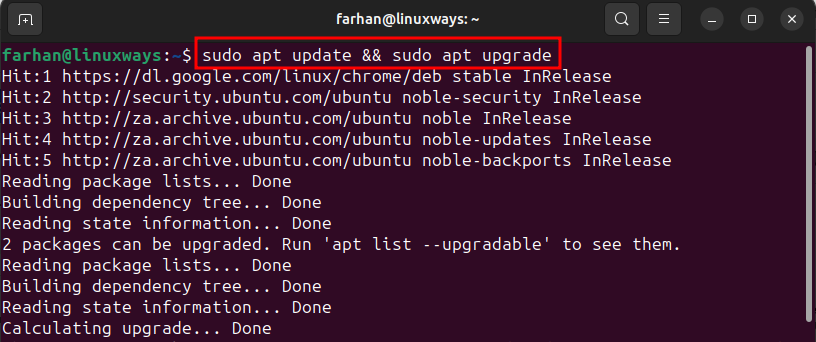
Step 2: Install Skype on Ubuntu 24.04
Once the system packages are up-to-date, execute the below command to install Skype on Ubuntu 24.04 using the apt repository:
sudo apt install -y skypeforlinux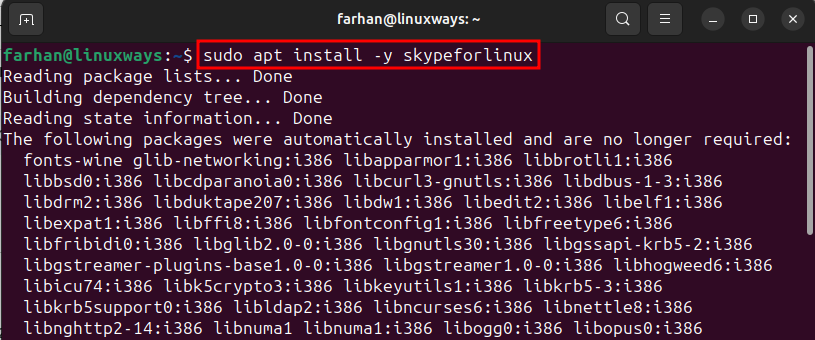
Step 3: Launch Skype
You can open Skype on Ubuntu 24.04 by running this command:
skypeforlinux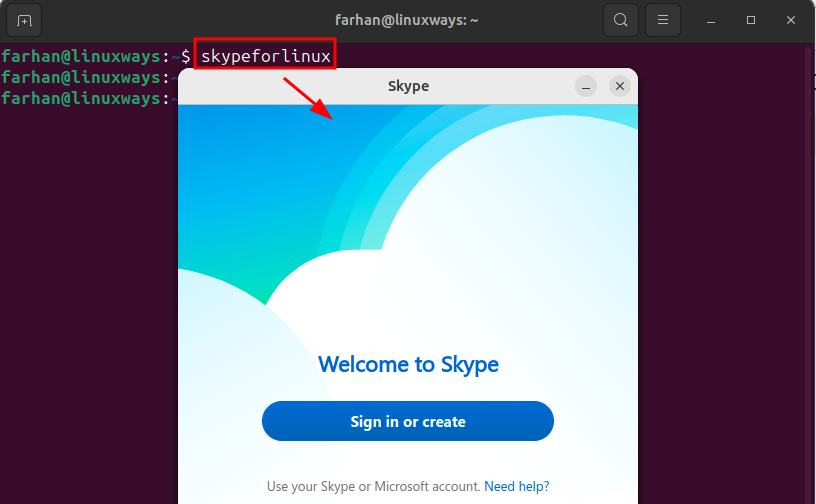
Method 2: Install Skype on Ubuntu through Deb File
The most prominent and official method that installs the latest version of Skype on Ubuntu 24.04 is through the deb file. The deb file of Skype can be found in its official repository. The deb format is the same packaging standard used when you want to build your own Debian packages from source. To install Skype via deb file, check the following instructions.
Step 1: Download Skype Deb File
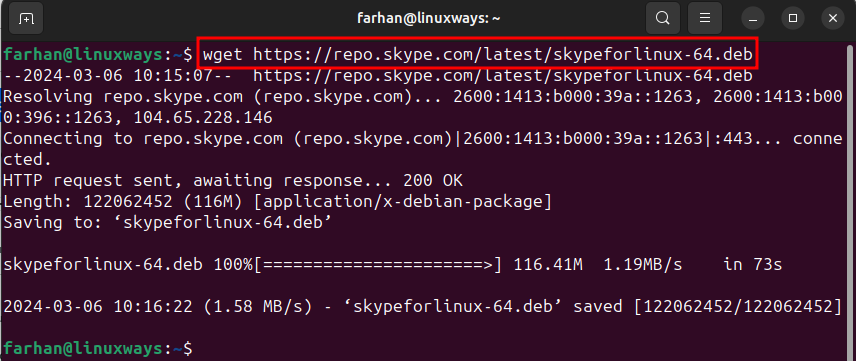
First, download the deb package of Skype on Ubuntu from the official repository by providing the deb file link to the wget utility, as shown below:
wget https://repo.skype.com/latest/skypeforlinux-64.debNote: You must have the 64-bit Ubuntu version installed on your machine to run this Skype version:
Step 2: Install Skype on Ubuntu
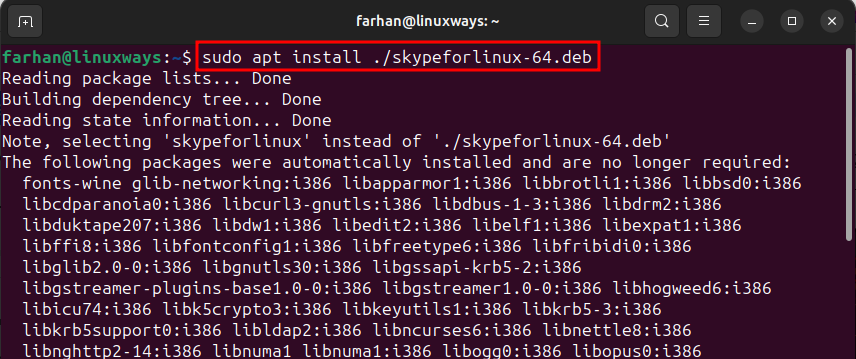
Once the deb file is downloaded, use the apt command alongside the install command and provide the deb file path to begin the Skype installation on Ubuntu 24.04:
sudo apt install ./skypeforlinux-64.debNormally, the downloaded files are stored in the Downloads folder, unless you change it manually:
Step 3: Launch Skype
To launch Skype on Ubuntu 24.04, run this command:
skypeforlinux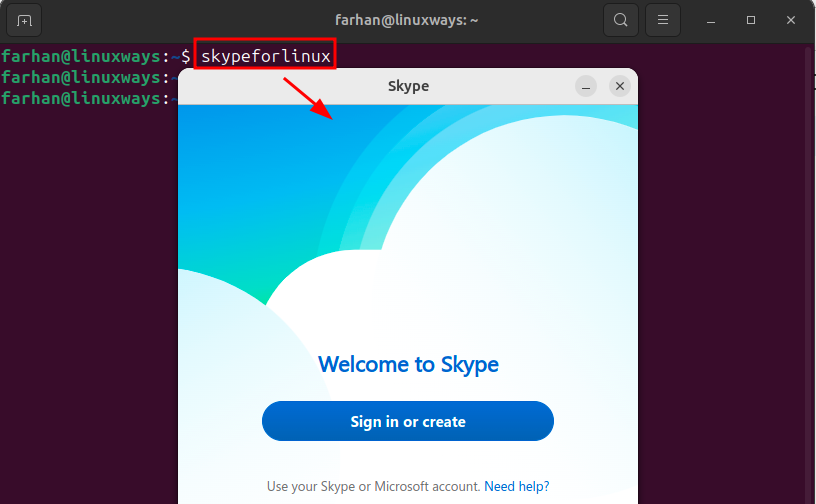
Method 3: Install Skype on Ubuntu using Snap Package Manager
Another method to install Skype on Ubuntu 24.04 is through the Snapcraft store, which guarantees the latest and most stable version of Skype. Snap also gives you access to other popular browsers like the Chromium web browser. Check the following steps to install Skype on Ubuntu 24.04.
Step 1: Install Snapd on Ubuntu
If the snap utility is not installed on the system, run this command to install it:
sudo apt install -y snapd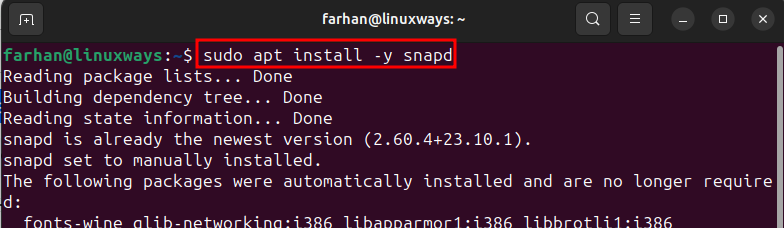
Step 2: Install Skype
Once the Snap package manager is installed, run this command to install Skype on Ubuntu 24.04:
sudo snap install skype
Step 3: Launch Skype
After installing Skype, launch it on Ubuntu via Snap using this command:
snap run skype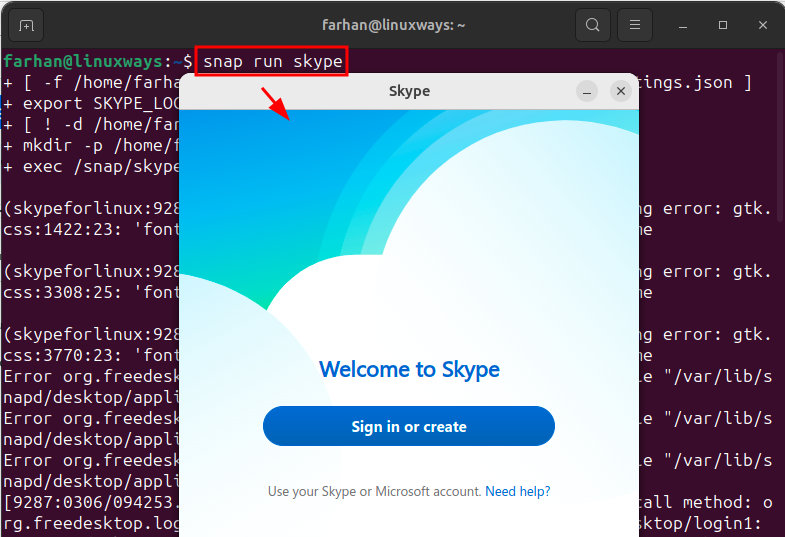
Method 4: Install Skype on Ubuntu from Flatpak Repository
Installing Skype on Ubuntu 24.04 is also possible via the Flatpak repository. Flatpak hosts every version of an application, allowing users to install whichever version they want. If you manage data science tools on Ubuntu, you can use the same Flatpak workflow to install Anaconda on Ubuntu 24.04. Read the stepwise instructions below to install Skype on Ubuntu 24.04.
Step 1: Install Flatpak
By default, Flatpak does not come pre-installed on Ubuntu. To install the Flatpak utility on Ubuntu, run this command:
sudo apt install -y flatpak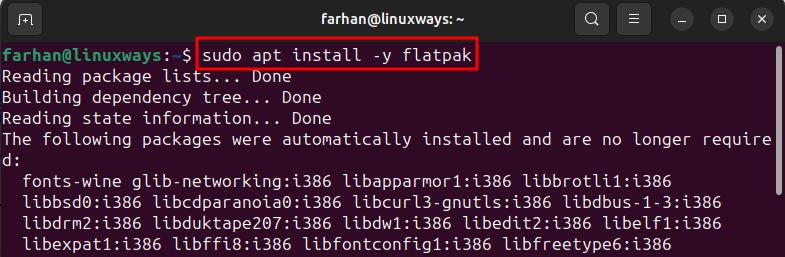
Step 2: Add Flatpak Remote Repository to the System
After installing Flatpak, add its remote repository to the Ubuntu system by executing this command:
sudo flatpak remote-add --if-not-exists flathub https://flathub.org/repo/flathub.flatpakrepoAdding a remote repository to the system will allow you to install applications from the Flatpak repository:

Step 3: Install Skype on Ubuntu 24.04
Now run this command to install Skype on Ubuntu via the Flatpak repository:
flatpak install flathub com.skype.Client -yNote: Skype installed through Flatpak may only appear in the applications list once the session is restarted.
Step 4: Launch Skype
You can launch Skype on Ubuntu 24.04 via Flatpak using this command:
flatpak run com.skype.Client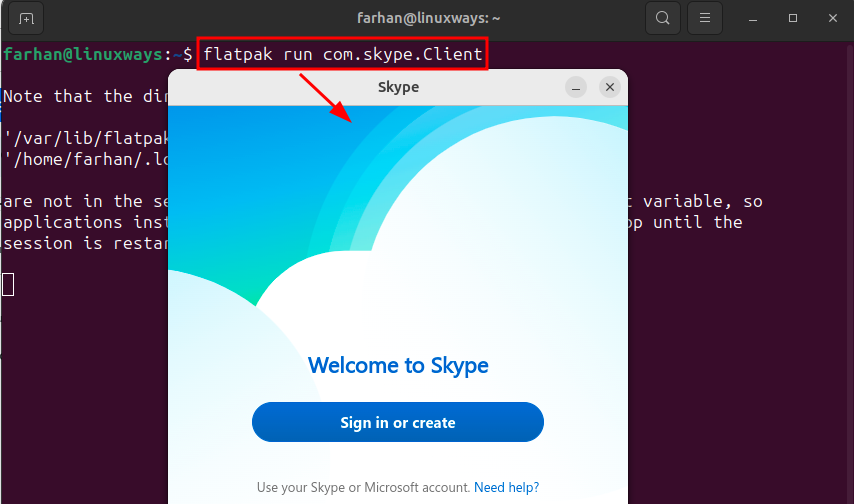
Method 5: Install Skype on Ubuntu via App Center (GUI)
The simplest method to install Skype on Ubuntu 24.04 is through the App Center. To install Skype on Ubuntu using App Center, follow the given steps.
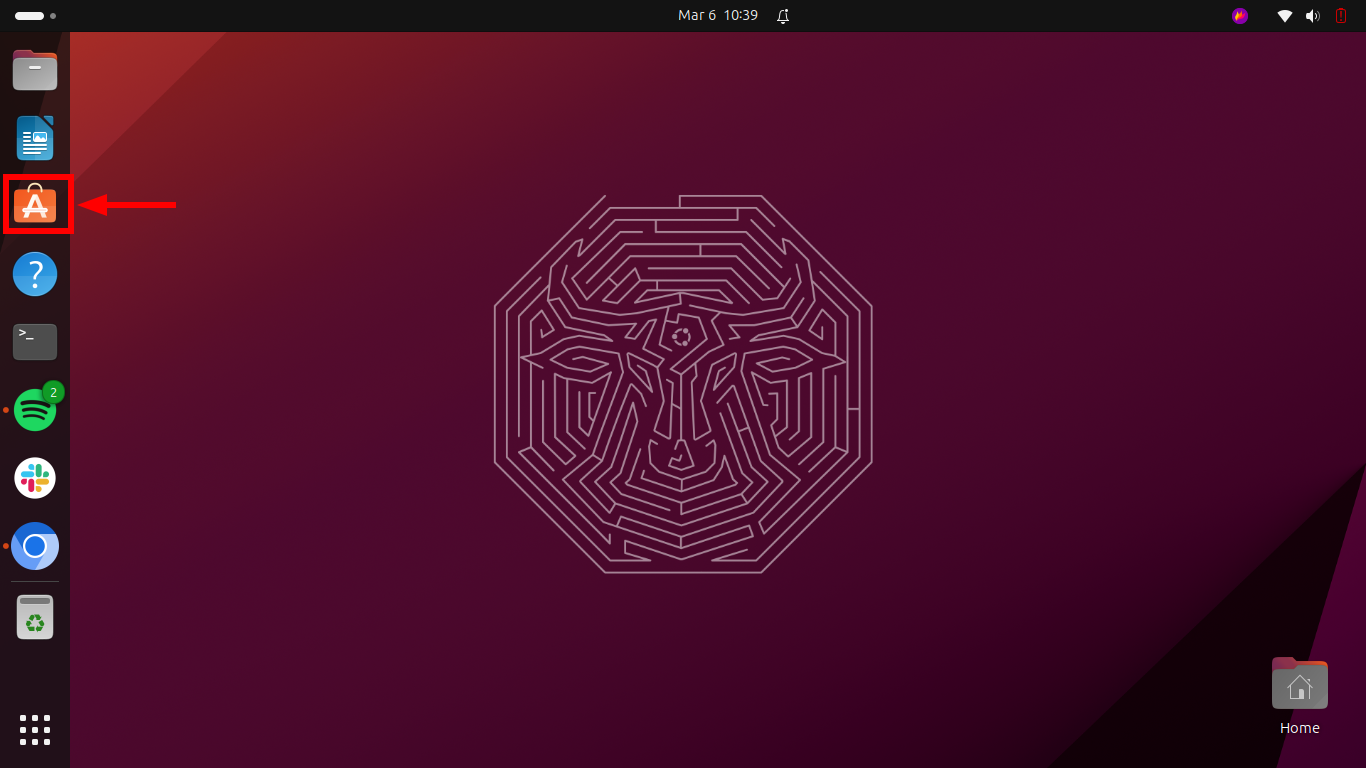
Step 1: Launch App Center
First, open the App Center application from the dock:
Step 2: Search for Skype
Once the App Center is launched, search and open the Skype application:

Step 3: Install Skype
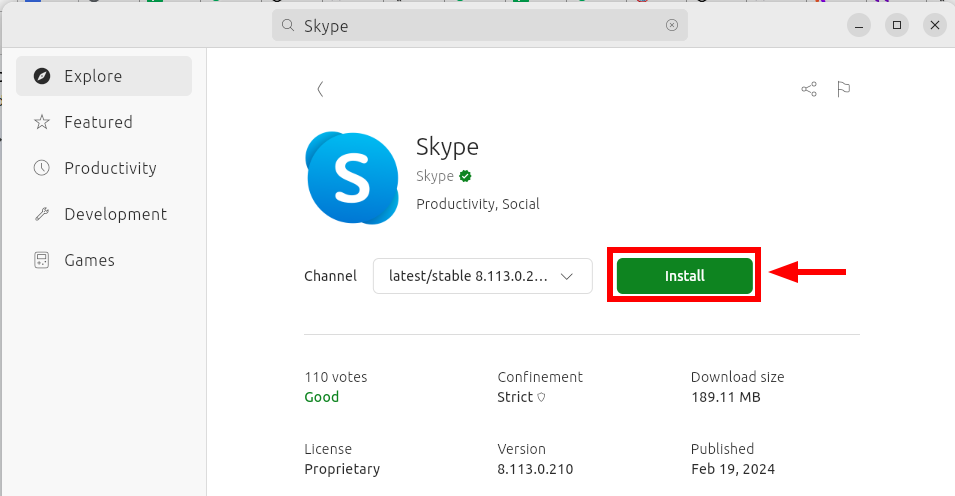
Click on the Install button to install Skype on Ubuntu:
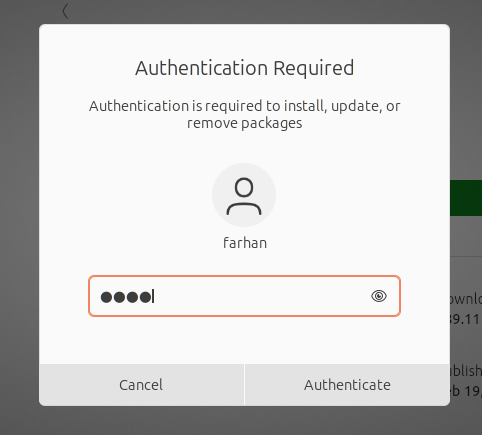
Enter the user credentials to authenticate the installation of Skype:
Step 4: Launch Skype
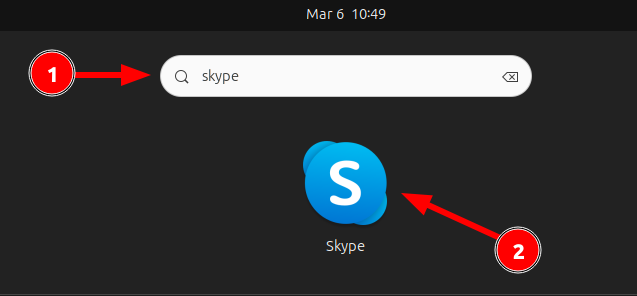
Once Skype is installed, press Windows + A to list all applications, search for Skype, and launch it:
How to Uninstall Skype from Ubuntu 24.04
You can remove Skype from Ubuntu through the apt package manager, Snap package manager, and Flatpak repository. Check the given methods to remove Skype from Ubuntu.
Method 1: Uninstall Skype from Ubuntu using Apt Package Manager
To uninstall Skype from Ubuntu 24.04 using the apt package manager, execute this command:
sudo apt remove -y skypeforlinux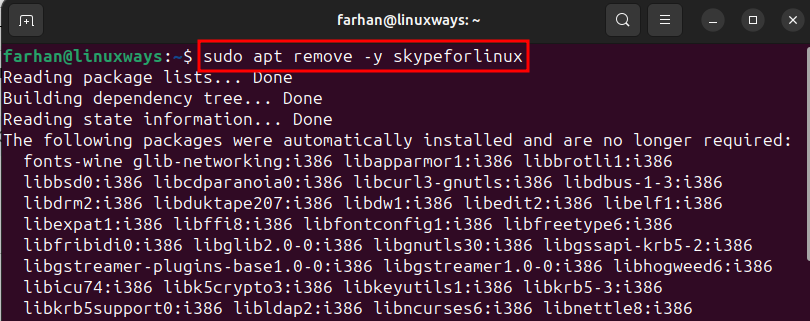
Method 2: Uninstall Skype from Ubuntu using Snap Package Manager
You can remove Skype from Ubuntu through Snap by running this command:
sudo snap remove skype
Method 3: Uninstall Skype from Ubuntu using Flatpak Repository
To remove Skype from Ubuntu 24.04 via Flatpak, run this command:
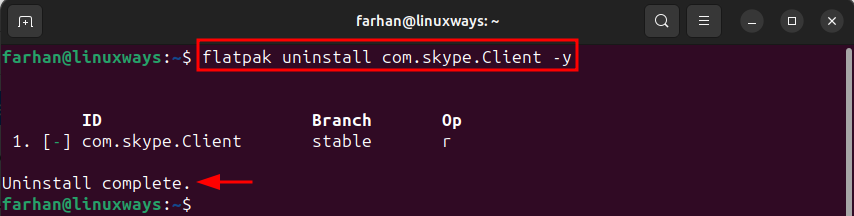
flatpak uninstall com.skype.Client