
winget, the Windows Package Manager, can update most of the desktop apps on your PC with one command. This guide shows how to list available updates, upgrade everything with winget upgrade --all, include apps with unknown versions, run upgrades silently, keep a specific app on its current version with winget pin, refresh sources, fix “winget is not recognized”, and schedule the job. It works on Windows 11 and on Windows 10 version 1809 or later.
Quick answer. Open Terminal and run winget upgrade to see what can be updated, then winget upgrade --all to update it all. Add --include-unknown to also try apps whose installed version winget cannot read, and --silent plus the two --accept flags to avoid prompts.
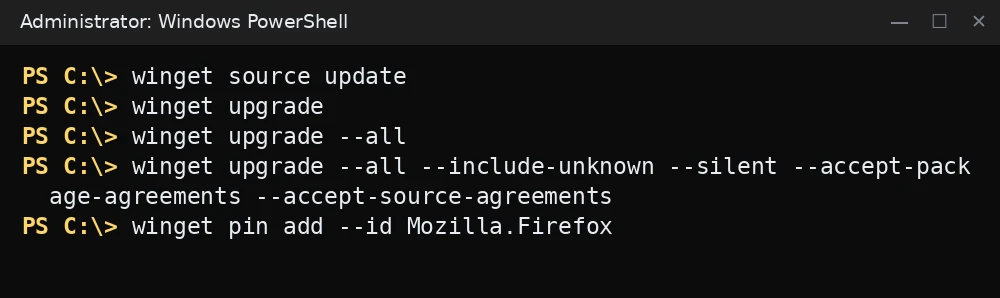
winget source update
winget upgrade
winget upgrade --all
winget upgrade --all --include-unknown --silent --accept-package-agreements --accept-source-agreements
winget pin add --id Mozilla.Firefox
What was verified and what was not. Every command and option here was checked against Microsoft Learn: the winget overview, the upgrade, pin and source command references, and the schtasks reference. The commands were not run for this guide, and package IDs such as Mozilla.Firefox are examples. Confirm the IDs and options on your own PC with winget upgrade --help.
Step 1: Check that winget is installed
winget ships as part of App Installer, a system component that the Microsoft Store keeps up to date on Windows 10 and 11. Open Windows Terminal, PowerShell or Command Prompt and run:
winget --versionIf you get a version number, you are ready. If you get “not recognized”, jump to the Troubleshooting section.
Step 2: Refresh sources and see what can be updated
- Update the package sources so winget knows about the latest versions:
winget source update - List the apps that have an update available. Running
upgradewith no arguments changes nothing:winget upgrade
Example output:
Name               Id                   Version   Available  Source
--------------------------------------------------------------------
Mozilla Firefox    Mozilla.Firefox      131.0     132.0      winget
7-Zip              7zip.7zip            23.01     24.08      winget
2 upgrades available.
The Id column is what you use in later commands. winget update is an alias of winget upgrade, so both work.
Step 3: Upgrade one app or all apps
- Upgrade a single app by its ID.
-e(--exact) matches the ID exactly:winget upgrade --id 7zip.7zip -e - Upgrade every app in the list:

Commands for this step: Step 3: Upgrade one app or all apps winget upgrade --all-rand--recurseare aliases of--all. - Include apps whose current version winget cannot determine:
winget upgrade --all --include-unknownMicrosoft notes that some apps do not report a version, so winget cannot tell whether a newer one exists. Without
-u(--include-unknown), those apps are skipped. Because winget cannot compare versions for these apps, run this option when you have time to check the results.

Some apps, especially browsers and chat apps, must be closed before they can be updated. Close them first or the installer may fail or ask you to close them.
Step 4: Run upgrades without prompts
These options are useful for unattended runs and scripts:
| Option | What it does |
|---|---|
-h, --silent |
Runs the installer in silent mode and hides its UI. |
--accept-package-agreements |
Accepts package license agreements without a prompt. |
--accept-source-agreements |
Accepts source agreements without a prompt. |
--disable-interactivity |
Turns off winget’s own interactive prompts. |
--include-pinned |
Also upgrades packages with a non-blocking pin. |
--scope user or machine |
Limits the upgrade to per-user or machine-wide installs. |
-o, --log |
Writes a log to the file you name. |
A full unattended command looks like this:
winget upgrade --all --silent --accept-package-agreements --accept-source-agreements --disable-interactivitySilent mode depends on each installer. A few installers still show a window or ask for input even with --silent.
Step 5: Run as administrator or not
Microsoft explains the difference this way. In a normal window, an app that needs elevation shows a UAC prompt during its install; if you decline, that app fails. In an Administrator window, you will not see those prompts and machine-wide apps update without stopping.
For a manual update, a normal window is fine; accept the UAC prompts as they appear. For a hands-off run, open Terminal as administrator (right-click Start, then Terminal (Admin)). Only do this when you trust the packages being installed.
Step 6: Exclude an app with winget pin
Sometimes you need to stay on a version, for example a tool your work depends on. winget has three kinds of pins:
- Pinning (default): the app is skipped by
winget upgrade --allbut can still be upgraded by name. - Blocking: the app is not upgraded at all until you remove the pin, unless you use
--force. - Gating: the app can only move within a version range, such as
1.2.*.
winget pin add --id Mozilla.Firefox            # skip in --all
winget pin add --id Mozilla.Firefox --blocking # block all upgrades
winget pin add --id Microsoft.PowerToys --version 0.70.*   # gate to 0.70.x
winget pin list
winget pin remove --id Mozilla.Firefox
A pin only controls winget. The app can still update itself through its own updater.
Stuck at this step? Ask us, it is free and include the exact error.
Step 7: Schedule winget upgrades
You can run the upgrade on a schedule with Task Scheduler. This creates a weekly task that runs on Sunday at 12:00 under your account. Run it from an elevated Command Prompt if you keep /rl HIGHEST:
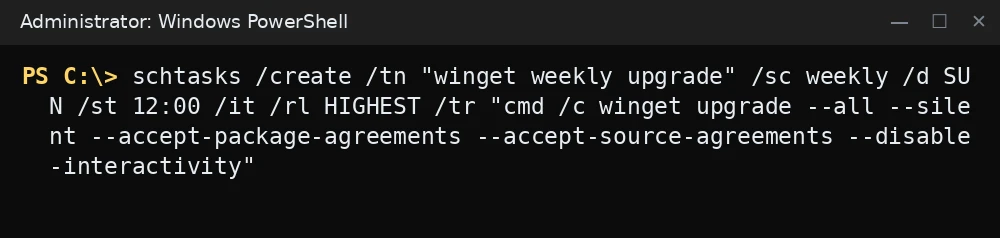
schtasks /create /tn "winget weekly upgrade" /sc weekly /d SUN /st 12:00 /it /rl HIGHEST /tr "cmd /c winget upgrade --all --silent --accept-package-agreements --accept-source-agreements --disable-interactivity"Notes before you rely on it:
- The schtasks reference says that if
/trhas no path, it assumes the program is in System32. That is why the command starts withcmd /c, which findswingetthrough your normal PATH. /itruns the task only while your account is signed in. Microsoft notes that winget is registered for a user after that user signs in, so run the task under your own account, not SYSTEM./rl HIGHESTruns it with your highest privileges so machine-wide apps can update without UAC prompts. Leave it out to run with limited rights; apps that need elevation will then fail.- Test it once with
schtasks /run /tn "winget weekly upgrade"and check that your apps updated. - Remove it later with
schtasks /delete /tn "winget weekly upgrade".
Troubleshooting
“‘winget’ is not recognized as an internal or external command”
In PowerShell the message reads “The term ‘winget’ is not recognized as the name of a cmdlet”. Work through these fixes:
- Check your Windows version with
winver. winget needs Windows 10 version 1809 (build 17763) or later. - On a new PC or new user account, winget is registered in the background after the first sign-in. Microsoft gives this PowerShell command to request the registration:
Add-AppxPackage -RegisterByFamilyName -MainPackage Microsoft.DesktopAppInstaller_8wekyb3d8bbwe - Install or update App Installer from the Microsoft Store, then open a new terminal window.
- Windows Sandbox does not include winget or the Store. Microsoft documents installing the
Microsoft.WinGet.Clientmodule and runningRepair-WinGetPackageManagerthere.
“No installed package found matching input criteria.”
The name or ID did not match. Run winget list to find the exact ID, then use --id with -e.
An app keeps appearing in the upgrade list
Some apps report a version that does not match the version in the winget repository, or update themselves outside winget. Upgrade it once with --id. If it still shows up, pin it or update it with its own updater.
Source errors or stale results
Run winget source update. If sources are broken, an elevated winget source reset --force restores the default sources (msstore, winget and winget-font) and removes any custom ones, so add those back afterwards.
Upgrade fails for one app
Close the app and try again. Add --verbose-logs and open the log folder with winget --logs to see the installer error. If a process will not close, see how to use taskkill. Network errors may need a check of your connection; see how to use ipconfig.
FAQ
Does winget upgrade –all update Microsoft Store apps?
winget includes the msstore source, so some Store apps can appear in the list. The Store also updates its own apps, so you may not see them often.
Does winget update Windows itself?
No. winget handles applications. Use Windows Update for the operating system and drivers.
Is –include-unknown safe?
It is a documented option, but winget cannot read the installed version of those apps, so it cannot tell whether you already have the latest one. Run it manually the first time and check the results before adding it to a scheduled task.
How do I stop a pinned app from blocking –all?
A default pin is simply skipped. Use winget upgrade --all --include-pinned to include it, or winget pin remove --id to delete the pin.
Related guides
- How to repair Windows 11 with DISM and SFC
- How to use the SFC command on Windows
- How to use the taskkill command in Windows
- How to use the ipconfig command on Windows