
A systemd service lets Debian 13 start your script or application at boot, restart it when it crashes, run it as a limited user, and send its output to the journal. This guide walks through writing a unit file in /etc/systemd/system, choosing the right Type=, setting a user and environment variables, enabling the service, reading its logs, and using a timer instead of cron. It is for admins and developers who have a program that should run on its own.
Quick answer. Create /etc/systemd/system/myapp.service with [Unit], [Service] and [Install] sections, run sudo systemctl daemon-reload, then sudo systemctl enable --now myapp. Check it with systemctl status myapp and journalctl -u myapp.
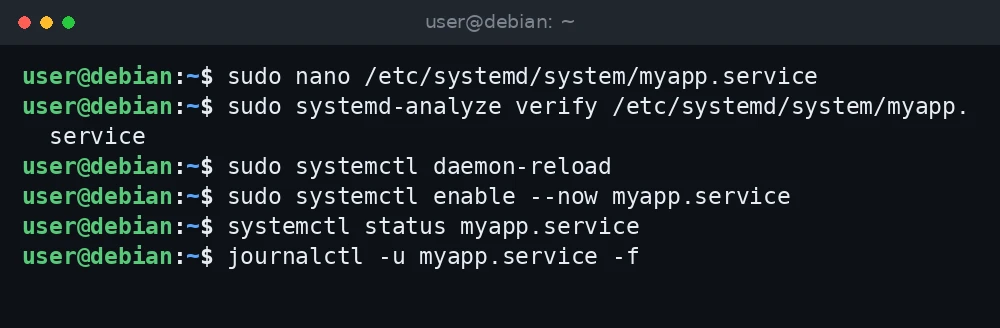
sudo nano /etc/systemd/system/myapp.service
sudo systemd-analyze verify /etc/systemd/system/myapp.service
sudo systemctl daemon-reload
sudo systemctl enable --now myapp.service
systemctl status myapp.service
journalctl -u myapp.service -f
What was verified and what was not. The directives and defaults below were checked against the Debian 13 manual pages for systemd.service(5), systemd.exec(5), systemd.time(7) and systemd.timer(5) on manpages.debian.org and the systemd documentation on freedesktop.org. Debian 13 ships systemd 257. The commands and unit files were not run for this guide, so test them on your own system and check man systemd.service if something behaves differently.
Step 1: Prepare the program and a service user
This example runs a small Python web app at /opt/myapp/app.py. Replace the paths with your own.
- Create a system user with no login shell, so the service does not run as root:
sudo useradd --system --no-create-home --shell /usr/sbin/nologin myapp - Give that user the program directory:
sudo chown -R myapp:myapp /opt/myapp - Run the program once by hand as that user to make sure it works:
sudo -u myapp /usr/bin/python3 /opt/myapp/app.pyStop it with
Ctrl+C. If it fails here, it will fail under systemd too.
Step 2: Write the unit file
Your own units go in /etc/systemd/system/. Files installed by packages live in /usr/lib/systemd/system/; do not edit those. Create the file:
sudo nano /etc/systemd/system/myapp.serviceAdd this content:
[Unit]
Description=My example web app
After=network-online.target
Wants=network-online.target

[Service]
Type=exec
User=myapp
Group=myapp
WorkingDirectory=/opt/myapp
Environment="APP_PORT=8080"
EnvironmentFile=-/etc/default/myapp
ExecStart=/usr/bin/python3 /opt/myapp/app.py
Restart=on-failure
RestartSec=5

[Install]
WantedBy=multi-user.target
What each section does:
- [Unit] holds the description and ordering.
After=network-online.targetwithWants=asks systemd to start the app after the network is up. - [Service] says how to run the program.
ExecStart=must start with an absolute path or a plain command name without slashes. Use the absolute path; it avoids surprises. - [Install] is used by
systemctl enable.WantedBy=multi-user.targetstarts the service at normal boot.
Step 3: Choose the right Type=
| Type | Use it when |
|---|---|
simple |
The default when ExecStart= is set. systemd treats the service as started as soon as the process is forked. |
exec |
Long-running programs. The systemd.service manual recommends it over simple because errors such as a missing binary are reported when you start the unit. |
notify |
The program supports sd_notify and sends READY=1 when it is ready. Many daemons document this. |
oneshot |
A script that does a job and exits, such as a backup. Add RemainAfterExit=yes if the unit should stay “active” after the script finishes. |
forking |
Old-style daemons that fork into the background. The manual discourages it in favor of notify or dbus. |
If your program stays in the foreground, use exec. Do not add & or a daemon flag to make it go to the background.
Step 4: User, restart and environment settings
User=andGroup=set the account the process runs as. If you set onlyUser=, that user’s default group is used.Restart=on-failurerestarts the service when it exits with a non-zero code, is killed by a signal, or hits a timeout or watchdog. The default isRestart=no.RestartSec=is the wait before a restart. The default is 100ms, which can cause rapid restart loops; 5 seconds is a calmer choice.- Restarts are rate limited by
StartLimitIntervalSec=andStartLimitBurst=in the[Unit]section. If the service fails too often in a short time, systemd stops trying.
Environment= sets variables in the unit itself. Put quotes around the whole assignment if the value has spaces, for example Environment="GREETING=hello world". Variables are not expanded inside these strings.
EnvironmentFile= reads variables from a file, one KEY=value per line. Lines starting with # or ; are ignored. The - before the path means “skip the file if it does not exist”. Values from the file override values set with Environment=. Keep secrets such as API keys there and lock the file down:
sudo nano /etc/default/myapp
sudo chmod 600 /etc/default/myapp
# /etc/default/myapp
APP_PORT=8080
API_TOKEN=change-meStep 5: Check, load and enable the service
- Check the unit file for mistakes:

Commands for this step: Step 5: Check, load and enable the service sudo systemd-analyze verify /etc/systemd/system/myapp.serviceNo output usually means no problems were found. It also warns if the
ExecStart=binary is missing. - Tell systemd to read the new or changed file. Do this after every edit:
sudo systemctl daemon-reload - Enable it at boot and start it now in one step:
sudo systemctl enable --now myapp.service - Check the state:
systemctl status myapp.serviceLook for
Active: active (running).

Other everyday commands:
sudo systemctl restart myapp
sudo systemctl stop myapp
sudo systemctl disable myapp
systemctl is-enabled myapp
systemctl cat myapp
To change a setting without touching the main file, use sudo systemctl edit myapp. It creates a drop-in in /etc/systemd/system/myapp.service.d/ and reloads systemd for you.
Step 6: Read the service logs
Anything the program prints to standard output or standard error goes to the journal:
journalctl -u myapp -f
journalctl -u myapp -b -p err
journalctl -u myapp --since "10min ago"
Python buffers output when it is not attached to a terminal, so log lines may appear late. Run it with python3 -u or set Environment="PYTHONUNBUFFERED=1". For more filters see how to use journalctl on Debian 13.
Step 7: Use a timer instead of cron
A timer starts a service on a schedule. You need two files with the same base name. First the job:
# /etc/systemd/system/backup.service
[Unit]
Description=Nightly backup

[Service]
Type=oneshot
ExecStart=/usr/local/bin/backup.sh
Then the timer:
Stuck at this step? Ask us, it is free and include the exact error.

# /etc/systemd/system/backup.timer
[Unit]
Description=Run backup every night

[Timer]
OnCalendar=*-*-* 02:30:00
Persistent=true

[Install]
WantedBy=timers.target
OnCalendar= uses the systemd.time calendar format; shorthands such as daily and weekly also work. Persistent=true runs a missed job after the machine boots if it was off at the scheduled time. Enable the timer, not the service:
sudo systemctl daemon-reload
sudo systemctl enable --now backup.timer
systemctl list-timers
systemd-analyze calendar "*-*-* 02:30:00"
Timers log to the journal and show the last and next run in systemctl list-timers. Cron is still fine for simple jobs; see our Debian crontab guide. For what to put in the backup script, see rsync backups on Debian and Ubuntu.
Troubleshooting
“status=203/EXEC”
The systemd.exec manual describes exit code 203 (EXIT_EXEC) as a failed execve call, most likely a missing or non-accessible executable. Check that the path in ExecStart= exists, that a script is executable (sudo chmod +x /usr/local/bin/backup.sh), that a script’s first line is a valid shebang such as #!/bin/bash, and that the service user can read the file and every directory above it.
“status=200/CHDIR”
Changing to WorkingDirectory= failed. The directory is missing or the service user cannot enter it.
“status=217/USER”
systemd could not find or switch to the user in User=. Check the spelling and that the account exists with id myapp.
“Unit myapp.service could not be found.” or changes are ignored
Make sure the file name ends in .service and sits in /etc/systemd/system/, then run sudo systemctl daemon-reload. systemd does not notice edits until you reload.
“Start request repeated too quickly.”
The service crashed several times in a row and hit the start rate limit. Read journalctl -u myapp -b to find the real error, fix it, then run sudo systemctl reset-failed myapp and start it again.
Service starts by hand but not at boot
Check systemctl is-enabled myapp. If it is enabled, the program may need the network or a mounted disk that is not ready yet. Add the right After= and Wants= lines, or RequiresMountsFor=/path for a mount point.
FAQ
Should I put my unit in /etc/systemd/system or /lib/systemd/system?
Use /etc/systemd/system. Package files live under /usr/lib/systemd/system and are replaced on upgrade. Files in /etc take priority.
Do I need daemon-reload after every change?
Yes, after editing a unit file by hand. systemctl edit reloads for you.
Can a normal user run a service without root?
Yes. Put the unit in ~/.config/systemd/user/ and use systemctl --user. User services stop when the user logs out unless lingering is enabled with sudo loginctl enable-linger username.
How do I remove a service completely?
Run sudo systemctl disable --now myapp, delete /etc/systemd/system/myapp.service and any myapp.service.d folder, then run sudo systemctl daemon-reload.