
When Windows 11 shows odd errors, updates fail, or built-in apps crash, damaged system files are a common cause. DISM repairs the component store that Windows uses as its source of clean files, and SFC then uses that store to fix the system files themselves. This guide covers the three DISM health checks, how to use a Windows 11 ISO as a repair source when Windows Update cannot help, the right order with sfc /scannow, how to read CBS.log and dism.log, and fixes for common errors such as 0x800f081f.
Quick answer. Open Terminal as administrator, run DISM /Online /Cleanup-Image /RestoreHealth, wait for it to finish, then run sfc /scannow. If DISM fails with 0x800f081f, mount a matching Windows 11 ISO and point DISM at its install.wim with /Source and /LimitAccess.
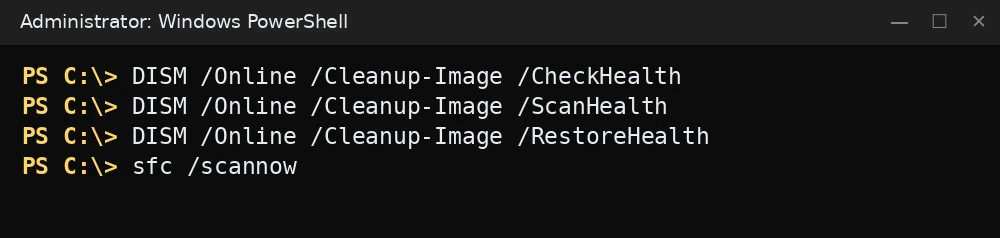
DISM /Online /Cleanup-Image /CheckHealth
DISM /Online /Cleanup-Image /ScanHealth
DISM /Online /Cleanup-Image /RestoreHealth
sfc /scannow
What was verified and what was not. The commands, options and log paths here were checked against Microsoft Learn (“Repair a Windows Image”, “Configure a Windows Repair Source”, the DISM servicing and image management command references, “Fix Windows Update corruptions and installation failures”) and the Microsoft Support article on the System File Checker. The commands were not run for this guide. Results depend on your build and the damage on your PC, so confirm each step on your own system.
Before you start
- Open an elevated window: right-click Start and choose Terminal (Admin), or search for Command Prompt and choose Run as administrator. DISM and SFC refuse to run without admin rights.
- Stay connected to the internet. By default,
/RestoreHealthdownloads replacement files from Windows Update. - Plug in a laptop. A scan can take a long time, and you should not close the window while it runs.
- If the drive itself may be failing, check it first with CHKDSK. File repair does not help on a dying disk.
Step 1: Run the three DISM checks
DISM has three health options. They do different things:
| Option | What it does | Changes anything? |
|---|---|---|
/CheckHealth |
Checks whether the image has already been flagged as corrupted and whether it can be repaired. Fast. | No |
/ScanHealth |
Scans the component store for corruption. Takes several minutes. | No |
/RestoreHealth |
Scans for corruption and repairs it automatically. | Yes |
- Quick check:
DISM /Online /Cleanup-Image /CheckHealthMicrosoft says this reports whether the image is healthy, repairable or non-repairable.
- Full scan:
DISM /Online /Cleanup-Image /ScanHealth - Repair:
DISM /Online /Cleanup-Image /RestoreHealth
You can go straight to /RestoreHealth, since it scans too. The first two are useful when you only want to know if something is wrong.
Example output of a successful repair:
[==========================100.0%==========================]
The restore operation completed successfully.
The operation completed successfully.
Step 2: Run SFC after DISM
Microsoft’s System File Checker article tells you to run DISM first and SFC second, because DISM provides the files SFC needs for its repairs. In the same elevated window, run:

sfc /scannowDo not close the window until verification reaches 100%. You will see one of these messages:
| SFC message | What to do |
|---|---|
| Windows Resource Protection did not find any integrity violations. | Nothing. System files are fine. |
| Windows Resource Protection found corrupt files and successfully repaired them. | Restart. Details are in CBS.log. |
| Windows Resource Protection found corrupt files but was unable to fix some of them. | Run DISM /RestoreHealth again (with a source if needed), then SFC again. Check CBS.log for the file names. |
| Windows Resource Protection could not perform the requested operation. | Microsoft suggests running SFC in Safe Mode and checking that the PendingDeletes and PendingRenames folders exist under %WinDir%WinSxSTemp. |
For more SFC options, see our SFC command guide.
Step 3: Use a Windows 11 ISO as the repair source
If Windows Update is broken or blocked, /RestoreHealth cannot download clean files. You can give DISM local files instead.
- Download a Windows 11 ISO from Microsoft that matches your installed version and language. Microsoft’s repair source guidance says the source should be at the same or a newer update level than the PC, otherwise repair can fail. Check your version with
winver. - Mount the ISO: right-click it in File Explorer and choose Mount. Note the drive letter, for example
E:. - Look in
E:sourcesforinstall.wim. Some ISOs containinstall.esdinstead. - List the editions in the image and note the index for your edition (Home, Pro and so on):
DISM /Get-ImageInfo /ImageFile:E:sourcesinstall.wimExample output (shortened):
Index : 6 Name : Windows 11 Pro - Run the repair with that file and index.
/LimitAccessstops DISM from contacting Windows Update:

Commands for this step: Step 3: Use a Windows 11 ISO as the repair source DISM /Online /Cleanup-Image /RestoreHealth /Source:Wim:E:sourcesinstall.wim:6 /LimitAccessThe
Wim:prefix and the:6index at the end are required when the source is a .wim file. - Run
sfc /scannowagain when DISM finishes.

Microsoft also documents using the Windows folder of another working PC with the same version as a source, for example /Source:servernamec$windows /LimitAccess. If you give several /Source values, DISM uses the first location where it finds the files.
Step 4: Read CBS.log and dism.log
Two logs record what happened:
C:WindowsLogsCBSCBS.log(%windir%LogsCBSCBS.log) holds SFC results and the detailed results of DISM repairs.C:WindowsLogsDISMdism.logis DISM’s own log. Microsoft describes it as a secondary log that points to CBS.log for details.
CBS.log is large. Microsoft’s SFC article gives this command to pull out only the SFC lines and save them to your desktop:
findstr /c:"[SR]" %windir%LogsCBSCBS.log >"%userprofile%Desktopsfcdetails.txt"Open sfcdetails.txt and look at the most recent date and time. Files that could not be repaired are listed with the reason. For DISM, search CBS.log for the word Summary; the block below it shows the operation result, how much corruption was detected and how much was repaired.
Stuck at this step? Ask us, it is free and include the exact error.
Troubleshooting
“Error: 0x800f081f The source files could not be found.”
Microsoft lists 0x800F081F as CBS_E_SOURCE_MISSING: DISM could not find the files it needs. Fixes, in order:
- Make sure Windows Update works and the PC is online, then retry plain
/RestoreHealth. - Use a matching ISO as shown in Step 3. Check that the index matches your edition and that the ISO is not older than your installed build.
- If the ISO only has
install.esd, note that Microsoft’s repair source documentation covers theWim:format. Try a different ISO that containsinstall.wim. - Install the latest cumulative update if you can, then run DISM again.
DISM sits at one percentage for a long time
Many users report the progress bar pausing at points such as 62.3% for a long time. Microsoft does not document a specific stall point, but it does say the scan and repair take several minutes, and on slow disks it can take much longer. Leave it running. Check that the disk is busy in Task Manager. If nothing happens for a very long time, restart, then run the command again.
“Error: 740 Elevated permissions are required to run DISM.”
The window is not elevated. Close it and open Terminal or Command Prompt with Run as administrator.
“Error: 87 The parameter is incorrect.”
This usually means a typo. Every option needs a space before its slash: DISM /Online /Cleanup-Image /RestoreHealth, not /Online/Cleanup-Image. Also check the /Source:Wim:path:index format.
“You must be an administrator running a console session in order to use the sfc utility.”
SFC also needs an elevated window. Reopen the terminal as administrator.
SFC still reports files it cannot fix
Run DISM /RestoreHealth with a fresh, matching ISO, restart, and run sfc /scannow again. If the same files keep failing, check the disk, then consider an in-place repair upgrade or Reset this PC with your data backed up.
FAQ
Should I run SFC or DISM first?
DISM first, then SFC. That is the order in Microsoft’s own instructions.
Is DISM RestoreHealth safe?
It is a built-in Microsoft tool that only replaces damaged Windows component files with clean ones. It does not touch your personal files. A backup is still wise before any repair.
Do I need an internet connection?
For a plain /RestoreHealth, yes, because Windows Update is the default repair source. With /Source and /LimitAccess, DISM can work offline from an ISO.
How often should I run these commands?
Only when you see problems such as failed updates, crashing system apps or errors that point to damaged files. There is no need to run them on a schedule.