
Last updated:
The PC Health Check app is a free Microsoft tool that scans your computer’s hardware and reports whether your system meets the minimum requirements for Windows 11. It checks your processor model, RAM, available storage, TPM 2.0 support, Secure Boot capability, and display specifications, then gives you a pass or fail result with a breakdown of any items that do not qualify.
If your PC passes the check, you can upgrade to Windows 11 through Windows Update. If it does not pass, you can continue using Windows 10 and still achieve much of the Windows 11 look, as covered in our guide on making Windows 10 look like Windows 11.
Quick Answer
Download PC Health Check from Microsoft’s official link or from Uptodown, Softonic, or FileHorse if the link is unavailable. Run the installer, accept the license agreement, click Install, then Finish. Open PC Health Check and click Check Now. The app displays whether your PC meets Windows 11 requirements and lists any hardware that does not qualify.
How to Test Your PC for Windows 11 Compatibility
Download PC Health Check
Download the PC Health Check app directly from Microsoft’s official download link:
https://aka.ms/GetPCHealthCheckApp
Alternative Download Sources
If the official Microsoft link is temporarily unavailable, you can download PC Health Check from these third-party sources:
Install PC Health Check
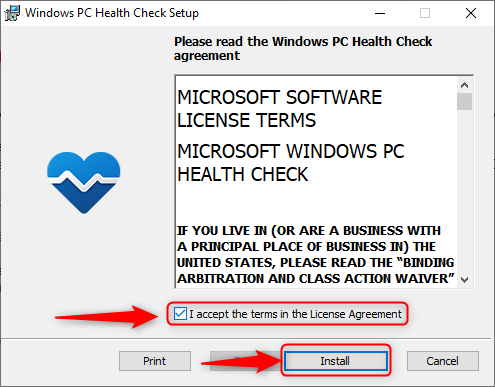
Run the downloaded installer and accept the license agreement, then click Install to begin:
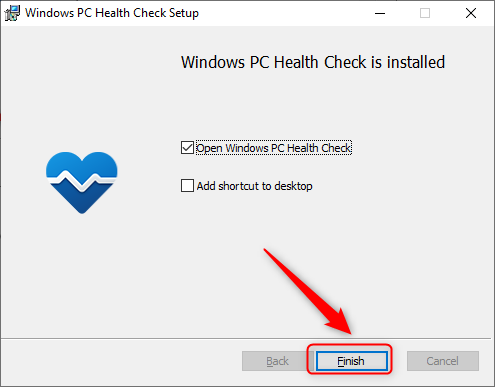
Click Finish to complete the installation:
Run the Compatibility Test
Open PC Health Check from the Start menu and click Check Now to run the Windows 11 compatibility test. The app scans your CPU, RAM, storage, TPM, Secure Boot, and display in seconds and returns a pass or fail result. PC Health Check also surfaces pending Windows updates — if Windows Update is failing to download updates, our guide on restarting Windows Update-related services can help resolve that separately.
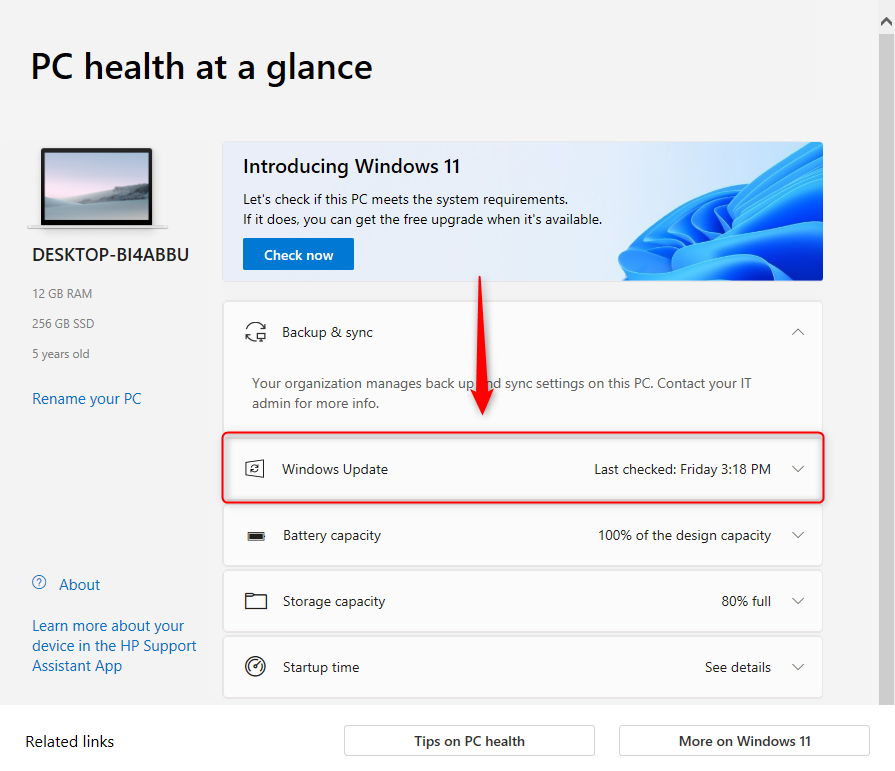
If your PC fails, the result lists the specific requirements your hardware does not meet, so you know exactly what would need to change before upgrading.
Check Windows 11 Compatibility Without the App
You can manually compare your system specs against Microsoft’s published requirements without installing any software. Open Settings > System > About to see your processor, RAM, and storage. To check TPM status, press Win+R, type tpm.msc, and check the listed version. For Secure Boot, access your UEFI firmware settings through Settings > Update and Security > Recovery > Advanced Startup. Secure Boot and TPM 2.0 are also required for Windows Security on Windows 10 to function fully, so verifying them is worthwhile regardless of whether you plan to upgrade.
Windows 11 Requirements
| Requirements | |
| Processor | 1 gigahertz (GHz) or faster with 2 or more cores on a compatible 64-bit processor or System on a Chip (SoC) |
| Memory | 4 gigabytes (GB) or more |
| Storage | Minimum 64 GB or more of available storage space |
| System Firmware | UEFI, Secure Boot capable |
| TPM | Trusted Platform Module (TPM) version 2.0 |
| Graphics Card | Compatible with DirectX 12 or later with WDDM 2.0 driver |
| Display | High definition (720p) display, 9 inches or greater diagonally, 8 bits per color channel |
| Internet connection | Internet connectivity is required to perform updates and to download and use some features |
If your system meets all these requirements but PC Health Check still flags your device as incompatible, verify that TPM 2.0 and Secure Boot are enabled in your UEFI firmware settings, as they are often disabled by default on older motherboards.