
Last updated:
The ping command is a built-in Windows network tool that sends test packets to a destination and reports whether it replied, how long it took, and how many packets were lost. It uses ICMP and runs directly in Command Prompt with no installation required.
This guide covers every practical ping variation on Windows, from basic domain checks to continuous monitoring, IP pings, and custom packet sizes. If ping succeeds but the connection is still slow, use the tracert command on Windows to find the slow hop.
Quick Answer
Open Command Prompt and run ping google.com to test your connection. You will see reply time in milliseconds, bytes sent, TTL, and a packet loss summary. Add -t to ping continuously; press Ctrl+C to stop.
Run ping /? in Command Prompt to see every available flag:
ping /?On successful execution, the above command displays all the flags that can be used with the ping command on Windows. These flags are used to get the specific details from the network interaction or ping for a certain amount of time:

How to Ping a Website or Domain
You can type the server’s name like “google.com” or “microsoft.com” with the ping command to get the server’s response. To do so, simply execute the stated command with the below-mentioned syntax:
ping google.comRunning the above command displays the response from the Google server with the bytes, time, and TTL. The details retrieved after the execution of the stated command are listed below:
- It displays the reply from the server’s IP address as highlighted in the following screenshot with the number of bytes.
- The bytes show the data sent by the server in each ICMP packet which is generally in 32/64.
- The time shows the response time from the server to get the data. It shows the time taken by the server to get the query from the source to give the response back to the source.
- TTL or Time To Live suggests the travel routes of the packet before getting to the dead state. It is the lifetime of the packet with the path of the packet taken through the routers.
- The Ping statistics contain general information on the success rate as in what percentage of packets are successfully sent and received.
- The Approximate round trip suggests the maximum, minimum, and average time for the packets:

How to Ping an IP Address
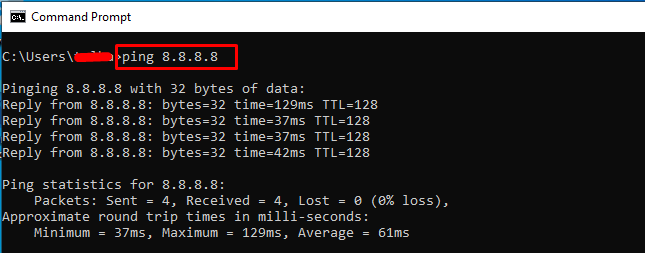
You can also type the IP address of the server instead of the server’s name to ping it as mentioned in the following code block. To find your own machine’s address first, run the ipconfig command in Windows:
ping 8.8.8.8The 8.8.8.8 is the Google DNS server IP address, so the above command also pings the Google server:
How to Ping Localhost
Replace the IP address with the localhost to execute the ping command as written below. This command gets the response from the localhost which doesn’t let the packets pass through any physical network interface. However, it simply lets the packets pass through the virtual network called the loopback interface:
ping localhostExecute the above command to get the response from the “localhost” using the loopback IP address(::1) as displayed in the following screenshot:

Continuous Ping with the -t Flag
Here, we use the “-t” flag with the ping command to get the response packets from the Google server constantly. To stop getting the response packets from the server, you need to terminate the command by pressing “Ctrl + c” from the keyboard:
ping google.com -tExecuting the above command retrieves a stream of packets received from the Google server which shows the constant connection:

Play a Beep Per Reply Using /a
We can also use /a flag with the ping command to get the audible beep with each packet received by executing the following command:
ping /a google.com
Set Packet Count and Size with /n and /l
The following command contains 2 additional flags: “/n” and “/l” with the ping command to the Google server. The “/n” flag suggests the number of packets which is determined by the number after the flag. The “/l” flag suggests the size of the data in the packet using the number or size following the flag:
ping /n 10 /l 500 google.comExecuting the above command sends 10 packets of size 500 bytes as mentioned in the following screenshot:

Note: There are multiple other flags like -r, -j, -c, and others to control the sending and receiving of packets to and from the server. This enables the user to control the communication with factors like the number of packets, response time, data in each packet, etc. For a full picture of the machine running these tests, use the systeminfo command in Windows.