
Last updated:
On Debian 13 (Trixie) and Debian 12 (Bookworm), ping is provided by the iputils-ping package. Install it with sudo apt install iputils-ping and test it with ping -c 4 debian.org. Minimal server and container images often ship without it, which is why you may see ping: command not found.
| Debian release | Package | Version in the Debian archive (checked 6 Oct 2026) |
|---|---|---|
| Debian 13 (Trixie) | iputils-ping |
3:20240905-3 |
| Debian 12 (Bookworm) | iputils-ping |
3:20221126-1+deb12u1 |
ping sends ICMP echo requests to a host and reports how long each reply takes, so it tells you whether a machine is reachable and how much packet loss there is. It does not prove that a specific service such as a website or SSH is working. To see the path packets take, install and use traceroute on Debian. The screenshots in this guide come from the original Debian 12 version of the article; the command descriptions below were checked against the Debian ping(8) manual page for Trixie, and sample output was not re-captured on Debian 13.
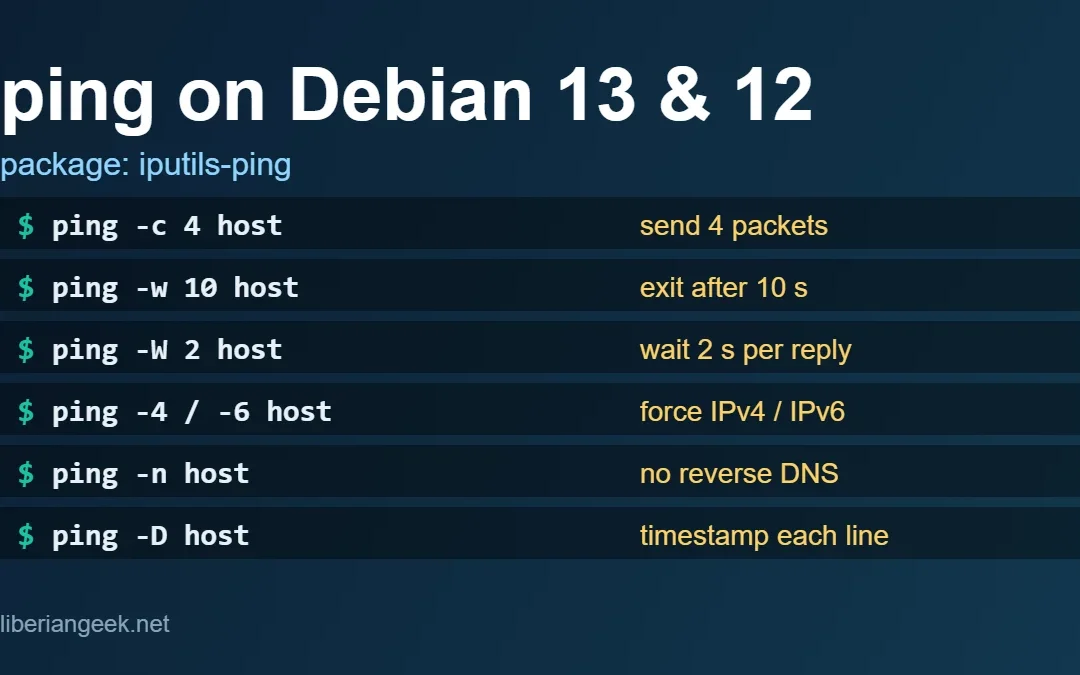
Common options at a glance:
| Goal | Command |
|---|---|
| Send exactly 4 packets | ping -c 4 host |
| Wait 3 seconds between packets | ping -i 3 host |
| Stop after 10 seconds in total | ping -w 10 host |
| Wait at most 2 seconds for each reply | ping -W 2 host |
| Force IPv4 or IPv6 | ping -4 host / ping -6 host |
| Show numbers only (skip reverse DNS) | ping -n host |
| Print a timestamp before each line | ping -D host |
How to Install ping on Debian 13 and 12
You can install the “ping” command via the following methods:
- The Default Repository
- The .deb Package
The above methods are illustrated below:
Method 1: Install the “ping” Command Via the Default Repository
The “ping” command is officially available in the default repositories of many Linux distributions, including the Debian-based distributions. Run the following command. It installs the version that your Debian release packages (see the table above):
sudo apt install iputils-ping -y
To verify the installation and view the “ping” command’s version, run:
ping -V
Method 2: Install a Downloaded .deb Package (Not Recommended)
Use this only if you need a specific build and cannot use apt. The example below, and its screenshots, use the 20210202-1 build, which is older than what Debian 12 and 13 ship (see the table above), so installing it by hand would downgrade ping, and the file may no longer be available at that address. On a normal system, use Method 1. To download a current file, find iputils-ping on packages.debian.org for your release instead. Download the file first:
$ wget http://ftp.de.debian.org/debian/pool/main/i/iputils/iputils-ping_20210202-1_amd64.deb
Then install the downloaded file with dpkg:
sudo dpkg -i iputils-ping_20210202-1_amd64.deb
How to Use ping on Debian 13 and 12
Before understanding the use of the “ping” command, let’s go through its syntax:
ping [options] <destination>Here:
- The “ping” invokes the “ping” command.
- The “[options]” are the flags that you can use to get the desired results from the “ping” command.
- The “<destination>” specifies the IP address of the remote hostname to ping.
To view a complete list of useable options for the “ping” command, view the help page using the below command:
ping -h
Let’s understand the above flags via the following examples:
Example 1: Check the Reachability of a Specific Host
The “ping” command allows you to determine whether the specified host is reachable. For instance, below is a command to check if “google.com” is reachable or not:
ping google.com
In the above output:
- The “icmp_seq=1” represents the first sequence of the reply from the remote device or system.
- The “ttl” shows the time during which the packet remains inside the network before being discarded by the router.
- The “time” refers to the time (in milliseconds) that a network takes to initiate a request and receive a response. It is lower for good networks.
- The “packet loss” indicates the packets not reaching the target potentially due to connectivity issues.
Example 2: Specify the Number of Packets to Send
By default, ping keeps sending packets until you press Ctrl + C. The -c option stops it after a set number. This command sends four packets to google.com and prints the summary (no sudo is needed):
ping -c 4 google.com
Example 3: Specify the Time Interval Before the Next Packet is Sent
To quickly assess the responsiveness or check for immediate internet connection modifications, you can specify the time interval before the “ping” command sends the next packet. The following command sends a packet after every “three seconds” to “google.com”. It is currently only limited to IPv4:
ping -i 3 google.com
Example 4: Specify the Time to Live for the “ping” Command
The “Time to Live” (TTL) is the maximum number of network hops a packet may pass through before a router discards it. For instance, the below command limits the packet to “2 hops” before it is discarded:
ping -t 2 google.comNote: To stop the “ping” command from sending more packets, press the “Ctrl + C” buttons.
Example 5: Reverse DNS Names and Numeric Output
When you ping an IP address, ping tries a reverse DNS lookup and may print a hostname next to the address. Add -n to skip that lookup and print numbers only, which also avoids delays when DNS is slow. For full forward and reverse lookups, install nslookup on Debian. Note that -a is not a hostname option: it makes ping beep on each reply.
ping -n 1.1.1.1Example 6: Combine a Packet Count with an Interval
The default interval between packets is 1 second. Only the superuser can set an interval below 2 milliseconds. Combine -c and -i like this:
ping -c 3 -i 7 www.facebook.com
In the above command:
- The “-c 3” sets the number of packets to be sent to “3”.
- The “-i 7” sets the wait time before the next packet is sent to “7 seconds”.
Example 7: “ping” Your Router
To check that your router is reachable, ping your default gateway. Debian 13 does not install ifconfig by default, so read the gateway from the routing table instead. The address after via is your gateway (see also how to get your IP address on Debian 13 and 12):
ip route show defaultThen ping that address:
ping <Your-Default-Gateway-Address>Example 8: Force the “ping” to Use IPv6 or IPv4
Use -6 to force IPv6 and -4 to force IPv4. This is useful when a hostname has both address types and you want to test one of them:
ping -6 -c 4 google.com
ping -4 -c 4 google.com
Example 9: Change Packet Size
By default ping sends 56 data bytes, which becomes a 64-byte ICMP message once the 8-byte ICMP header is added. With -s 60 you send 60 data bytes, so each reply is 68 bytes:
ping -s 60 google.com
Example 10: Stop After a Set Time (-w) or Limit the Wait per Reply (-W)
The two options are easy to confuse. -w sets a deadline: ping exits after that many seconds no matter how many packets were sent or received. -W sets how long to wait for each individual reply. This command runs for 5 seconds and then exits:
ping -w 5 google.com
Example 11: Add Timestamp With the Output
To print a Unix timestamp before each line, use -D. To print a readable date instead, pipe the output through a loop:
ping -D -c 3 www.google.com
ping www.google.com | while read line; do echo "$(date): $line"; done
Example 12: Flood a Network
Flood ping (-f) sends packets as fast as replies come back and prints a dot for each request. Run it only against hosts and networks you own or administer, for a short time, because it can saturate a link and may be treated as an attack by the network owner:
sudo ping -f -c 1000 <your-own-host>Remove ping From Debian 13 and 12
Run the following command to remove the iputils-ping package installed earlier:
sudo apt -y autoremove iputils-pingIf you want to remove all configuration files while removing the “ping” command, use the below-stated command:
sudo apt -y purge iputils-pingTroubleshooting ping Errors
| What you see | Likely cause | What to check |
|---|---|---|
ping: command not found |
iputils-ping is not installed (common on minimal and container images) |
sudo apt install iputils-ping |
Temporary failure in name resolution |
DNS is not working, not necessarily the network | Ping an IP such as 1.1.1.1. If that works, check /etc/resolv.conf and your DNS settings |
Network is unreachable |
No route to the destination | Run ip route show default and check the interface is up |
Destination Host Unreachable |
The local network or router cannot reach the address | Ping your gateway first, then check the cable, Wi-Fi or VM network mode |
| 100% packet loss but the site opens in a browser | ICMP is blocked by a firewall or the host is configured not to reply | Check firewall rules on both ends; many servers drop ICMP on purpose |
ping: socket: Operation not permitted |
The user may not create ICMP sockets (typical in containers) | Run with sudo, or see the privileges section of man ping (CAP_NET_RAW) |
Exit codes help in scripts: 0 means replies were received, 1 means none were, and 2 means another error occurred. These error strings are the common ones for current iputils; wording can differ slightly between versions.
FAQ
Is ping installed by default on Debian 13 and 12?
On a desktop install it usually is, but minimal server and container images often omit it. Check with ping -V; if the command is missing, install iputils-ping.
Why does ping work for an IP address but not a domain name?
That points to DNS. The network path is fine, but the name is not being resolved. Our guide to dig on Debian shows how to test DNS directly.
Does a failed ping mean the server is down?
Not always. Firewalls frequently block ICMP while the web or SSH service works normally. Test the actual service port as well.