
Last updated:
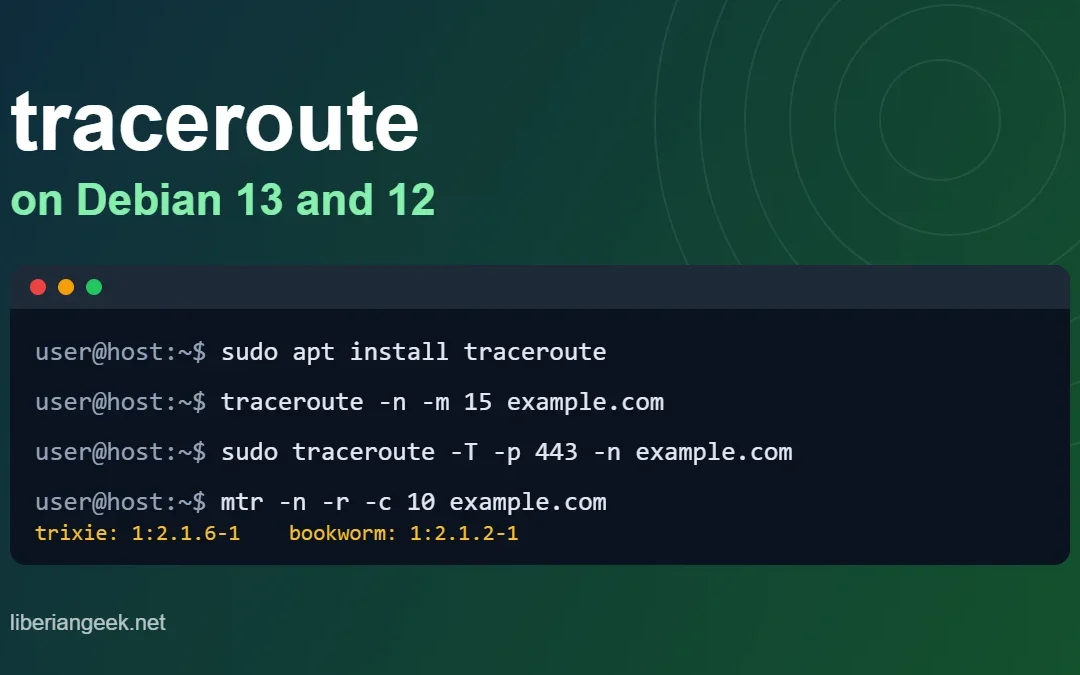
Quick answer: traceroute is not installed by default on Debian. Run sudo apt update && sudo apt install traceroute, confirm it with traceroute --version, then trace a path with traceroute -n example.com. The same commands work on Debian 13 (trixie) and Debian 12 (bookworm).
traceroute shows each router (hop) that packets pass on the way from your Debian machine to a destination. It helps you find where a connection slows down or stops, and it complements ping and DNS tools such as nslookup and dig.
| Debian release | Package | Version in the Debian archive (checked 12 Oct 2026) |
|---|---|---|
| Debian 13 (trixie) | traceroute |
1:2.1.6-1 |
| Debian 12 (bookworm) | traceroute |
1:2.1.2-1 |
The screenshots below were taken on Debian 12, which is why they show version 2.1.2. The commands and options are the same on Debian 13. The extra command examples I added in this update (the table of options and the alternatives) were run in a sandbox on Ubuntu 24.04 with traceroute 2.1.5, not on Debian 13 itself.
Installing Traceroute on Debian 13 and 12
To install traceroute, update the APT package index and then install the package. The traceroute utility is shipped as its own traceroute package on Debian 13 and Debian 12 (it is not part of net-tools), so install it directly with the APT package manager. After that, use the traceroute command to check the route the packets take to reach the destination.
Step 1: Update APT Package
Start the process by updating the APT packages to get the latest version of the traceroute tool from the repository:
sudo apt update
Step 2: Install Traceroute
Now install the traceroute tool directly from the APT repository with the following command:
sudo apt install traceroute
Note: The legacy net-tools package provides utilities such as ifconfig and netstat, but it does not include traceroute. Install the traceroute package as shown above rather than net-tools.
Step 3: Success
After installing the traceroute tool on Debian, simply validate its success by executing the following command:
traceroute --versionThe output names the installed version. The screenshot was captured on Debian 12 (version 2.1.2); Debian 13 installs version 2.1.6:

Also, check the path where the tool is installed on the system using the following command:
which traceroute
Now, that you have successfully installed the tool on your system, let’s get to its use with multiple options in the following section:
How to Use Traceroute on Debian
To use the traceroute tool on the Debian, simply use the following syntax with multiple options provided by the tool. The options are used to control the usage of the tool and extract the specific information using it from the arguments like IP address or hostname. The following code block is the syntax for using the traceroute command or tool on the Debian:
traceroute -options argumentsThe traceroute tool is used to check the connectivity of the network using the argument destination server in the above command. There are about 34 different options offered by the tool to change the working of the command to extract the output differently.
To get the options with the description of the command, simply use the “–help” flag with the traceroute command:
traceroute --helpRunning the above command returns the details of the options available in the traceroute tool. Now, get the options with their descriptions to get the required output according to the requirement:

Using Host Name
Now, trace the route of the packets sent to the specific hostname like google.com or micrsoft.com with the following command:
traceroute google.comThe following screenshot displays the route of packets with the routers it took to reach the destination. The “192.178.24.174” is the destination address of “google” server with 30 hops to reach the destination using the “192.168.109.2” router:

Using IP Address
You can also use the IP address of the destination to check the path used by the packets to reach there with the following command. If you need to find your own address first, see how to get your IP address in Debian 12:
traceroute 8.8.8.8
Specify the Number of Hops
You can also limit the number of hops as it returns 30 hops by default to check the route of the packet. Limiting the hops explains the process of understanding the path quickly but you can also lose some information as well:
traceroute -m 10 google.comThe following screenshot displays the details of the packet within the 10 hops as it only took one router to reach the destination:

Set Wait Time for Response
You can also set the wait time for each reply using the “-w” flag with the number of seconds to set the time using the following command:
traceroute -w 3 google.com
Getting IP Address Information
You can also use the -n flag with the traceroute command to get the address of the hop numerically:
traceroute -n google.com
Trace Packet Using Gateway
By default, the traceroute uses the default gateway of Debian, however, you can change the gateway of the route using the following command. The “-g” flag asks the probe to travel through a specific gateway (IP source routing). Many routers on the internet drop such packets, so this option is mostly useful inside networks you control:
traceroute -g 192.168.10.1 google.com
Using Network Interface
The Debian machine can be configured with multiple network interfaces that can be used to check the route of the packet. If you want one interface to keep the same address every time, you can set up a static IP address on Debian 12. To get the network interface from the machine, simply use the following command:
ip aThe followings screenshot displays the network interfaces like “lo” and “ens33” with their IP addresses as displayed below:

Here, you can use the network interface extracted from the previous command with the “-i” flag to get the packet sent from the machine. The following command contains the network interface of the source file and the destination hostname:
sudo traceroute -i ens33 google.com
Here, we have used the traceroute tool using the command on the terminal with some of the options offered by the tool. You can use many other options with the destination address or hostname to extract the specific output related to packet tracing.
Bonus Tip: Uninstall the Traceroute
After using the traceroute tool, you can remove it from the system using the following command:
sudo apt remove traceroute
Alternative Option: Using “autoremove” Command
Another command to remove the traceroute tool is using the “autoremove” from the machine as mentioned below. This command is used to remove the configuration files that are attached to the tool in the system:
sudo apt autoremove tracerouteThat’s all about how to install and use traceroute on Debian 13 and Debian 12.
Useful traceroute options at a glance
By default traceroute sends UDP probes, which many firewalls drop. If the trace dies early, try a different probe type before assuming the network is broken. -I and -T usually need root, so prefix them with sudo.
| Option | What it does | Example |
|---|---|---|
-n |
Skip reverse DNS lookups, so the trace is faster and shows plain IPs | traceroute -n example.com |
-I |
Use ICMP echo probes instead of UDP | sudo traceroute -I -n 8.8.8.8 |
-T -p 443 |
Use TCP SYN probes to port 443, which often passes firewalls that block UDP and ICMP | sudo traceroute -T -p 443 -n example.com |
-m 15 |
Stop after 15 hops (default is 30) | traceroute -m 15 example.com |
-q 1 |
Send one probe per hop instead of three, for a quicker result | traceroute -q 1 example.com |
-w 2 |
Wait 2 seconds for each reply | traceroute -w 2 example.com |
-4 / -6 |
Force IPv4 or IPv6 | traceroute -6 example.com |
How to read the output
Each line is one hop: the hop number, the router (name or IP) and three round-trip times in milliseconds. A line of * * * means no reply came back for that hop. That is not always a fault, because many routers deliberately ignore traceroute probes.
| What you see | What it usually means |
|---|---|
A few * * * hops, then the destination answers |
Those routers do not reply to probes but still forward traffic. Not a problem. |
* * * on every hop after a certain point, destination never answers |
A firewall or router is blocking the probes. Retry with -I or -T -p 443. |
| Latency jumps at one hop and stays high afterwards | The slowdown starts at or just after that hop, often a long-distance link. |
| Latency is high at a single hop only | Usually that router is slow to answer probes; traffic through it may be fine. |
!H, !N or !X after a time |
The host or network is unreachable, or the traffic is administratively prohibited. |
Troubleshooting
| Problem | Cause and fix |
|---|---|
traceroute: command not found |
It is not installed on minimal Debian. Run sudo apt install traceroute. Check with command -v traceroute. |
Name or service not known |
DNS is failing, not the route. Test with an IP such as traceroute -n 8.8.8.8, then check name resolution with nslookup. |
| Only the first hop answers | A firewall may be dropping outgoing probes or replies. Check your rules (for example sudo ufw status; see the UFW guide for Debian 13) and try sudo traceroute -T -p 443 -n host. |
Hops show * * * but the website loads |
Normal. Routers are allowed to ignore probes; judge by whether the final hop answers. |
| Need a trace without root | Use tracepath host (package iputils-tracepath, version 3:20240905-3 on Debian 13, 3:20221126-1+deb12u1 on Debian 12). |
Alternatives: tracepath and mtr
tracepath works without root and also reports the path MTU. mtr combines ping and traceroute into one live view and is better for spotting intermittent packet loss. The Debian package is mtr-tiny (0.95-1.1 on Debian 13, 0.95-1 on Debian 12):
sudo apt install mtr-tiny
mtr -n -r -c 10 example.com
-r prints a report and exits, and -c 10 sends 10 probes per hop, so you get loss and latency statistics for each hop.
Conclusion
To install and use the traceroute on Debian, update the APT package and install the traceroute tool using the “apt install traceroute” command. After installation, simply use the tool with more than 34 options available with the destination address. These options are there to manipulate the output of the command according to your requirements.
Related guides
Continue with these related Liberian Geek tutorials for the same topic area: