
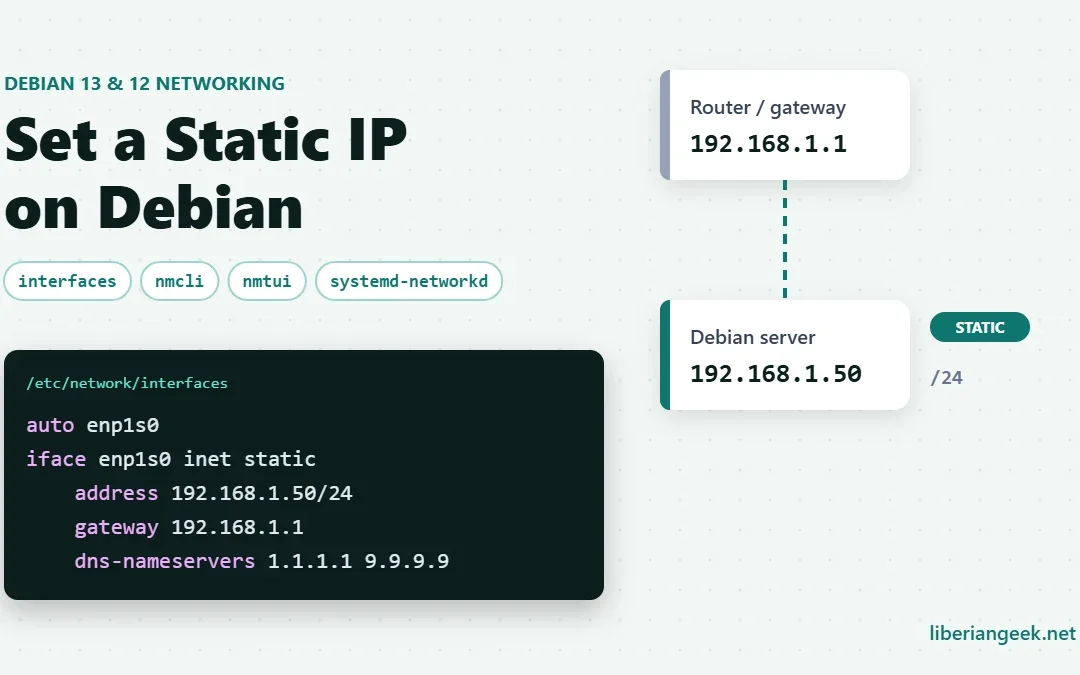
Last updated:
A static IP address keeps a Debian machine reachable at the same address after every reboot, which is what you want for a server, a NAS, a remote desktop host or anything you connect to by IP. You can check the address it has right now with our guide to finding your IP address on Debian.
The commands in this guide work the same way on Debian 13 “Trixie” and Debian 12 “Bookworm”. The part people get wrong is not the syntax. It is editing the configuration of a network manager that is not actually in charge of the interface, so the change does nothing, or worse, cuts off a remote server.
Quick answer
- Server or minimal install (no desktop): edit
/etc/network/interfaces, then runsudo systemctl restart networking. - Desktop install (GNOME, KDE, Xfce): NetworkManager is in charge. Use
nmcli,nmtuior the Settings app. - Either way: the gateway is your router’s address from
ip route, never the machine’s own address.
Step 0: Find out what manages your network
Debian ships two network configuration systems, and which one you have depends on how Debian was installed. Neither Debian 12 nor Debian 13 uses Netplan by default, so guides written for Ubuntu do not apply.
| Check | If you see this | Use |
|---|---|---|
systemctl is-active NetworkManager |
active |
Methods 2, 3 or 4 (NetworkManager) |
systemctl is-active NetworkManager |
inactive or “could not be found” |
Method 1 (/etc/network/interfaces) |
nmcli device status |
Your interface shows unmanaged |
It is defined in /etc/network/interfaces, so use Method 1, or remove it from that file to hand it to NetworkManager |
ls /etc/network/interfaces.d/ |
A file such as 50-cloud-init |
cloud-init generates your network config. Read the cloud and VPS section first |
By design, NetworkManager ignores any interface that is configured in /etc/network/interfaces. That rule explains most “my static IP did not apply” problems.
Before you start: collect four values
ip -br addr          # interface name and current address, e.g. enp0s3 192.168.18.22/24
ip route             # the line starting "default via" shows your gateway
cat /etc/resolv.conf # current DNS servers| Value | Example | Where it comes from |
|---|---|---|
| Interface name | enp0s3 |
ip -br addr |
| Static address and prefix | 192.168.18.50/24 |
An unused address in your subnet, ideally outside the router’s DHCP range |
| Gateway | 192.168.18.1 |
The default via address in ip route, which is your router |
| DNS servers | 192.168.18.1 or 1.1.1.1 9.9.9.9 |
Your router, your ISP, or a public resolver |
An easier alternative on home and office networks: create a DHCP reservation for the machine’s MAC address in your router. The machine keeps using DHCP but always receives the same address, and nothing on Debian needs to change.
Method 1: /etc/network/interfaces (servers and minimal installs)
This is the ifupdown system, the default for Debian server, minimal and netinst installs without a desktop, on both Debian 12 and Debian 13.
Working over SSH? A typo here can disconnect you. Use your provider’s web console, or make sure you have one available, before you apply the change.
Step 1: Back up the current file
sudo cp /etc/network/interfaces /etc/network/interfaces.bakIf anything goes wrong, restore it with sudo cp /etc/network/interfaces.bak /etc/network/interfaces and restart networking.
Step 2 (optional): Check that the address is not already in use
An address conflict causes intermittent drop-outs that are hard to trace. A quick ping scan with nmap shows which addresses answer on your subnet. Install it:
sudo apt install nmap -y
Check your interface name and subnet:
ip addr
In the test machine used for these screenshots, enp0s3 had received 192.168.18.22/24 from DHCP, so the subnet is 192.168.18.0/24. Scan it with:
sudo nmap -sn 192.168.18.0/24Any address in the scan results is taken. Older guides use -sP; that is the deprecated name for the same ping scan.

Step 3: Edit the interfaces file
sudo nano /etc/network/interfaces
Below the loopback lines, add a block for your interface. If there is already an iface enp0s3 inet dhcp line, replace it rather than adding a second definition:
auto enp0s3
iface enp0s3 inet static
    address 192.168.18.50/24
    gateway 192.168.18.1
    dns-nameservers 192.168.18.1 1.1.1.1
ip route instead, as in the code block above.Notes on the syntax:
address 192.168.18.50/24uses CIDR notation. The older form, a separatenetmask 255.255.255.0line, also works.dns-nameserversonly takes effect if theresolvconfpackage is installed. Without it, the line is ignored and you must putnameserverlines in/etc/resolv.confyourself. Install it withsudo apt install resolvconf.auto enp0s3brings the interface up at boot. Without it, the configuration only applies when you runifup.
Save with Ctrl + O, press Enter, then exit with Ctrl + X.
Step 4: Apply the change
The interfaces file belongs to the networking service, not NetworkManager, so restart that:
sudo systemctl restart networkingOn a remote machine, bounce only the one interface in a single command, so the connection is restored even though your session drops for a moment:
sudo ifdown enp0s3 && sudo ifup enp0s3If the interface already had a DHCP address, flush it first with sudo ip addr flush dev enp0s3, or simply reboot.
Step 5: Verify
ip -br addr show enp0s3
ip route
ping -c 3 debian.org
The interface should show your new address, ip route should show default via your router, and the ping should get replies. If pinging an IP such as 1.1.1.1 works but debian.org does not, the problem is DNS, not routing. Test it with nslookup or dig.
Method 2: nmcli (NetworkManager from the terminal)
Use this on any Debian install where NetworkManager is active, which includes every desktop install. It also works over SSH.
Step 1: Find the connection name
nmcli connection show
nmcli -t -f NAME connection show --active
On a default install the wired connection is usually called Wired connection 1.
Step 2, option A (simplest): switch the existing connection to a static address
sudo nmcli connection modify "Wired connection 1" \
  ipv4.method manual \
  ipv4.addresses 192.168.18.50/24 \
  ipv4.gateway 192.168.18.1 \
  ipv4.dns "192.168.18.1 1.1.1.1"
Step 2, option B: create a separate static profile
This keeps the DHCP profile untouched so you can switch back and forth:
sudo nmcli connection add type ethernet con-name static-lan ifname enp0s3 \
  ipv4.method manual ipv4.addresses 192.168.18.50/24 ipv4.gateway 192.168.18.1
Add DNS servers to the profile:
sudo nmcli connection modify static-lan ipv4.dns "192.168.18.1 1.1.1.1"
Step 3: Activate it
sudo nmcli connection up static-lan
Use "Wired connection 1" instead of static-lan if you took option A.
If activation fails or the device shows as unmanaged: the interface is also defined in /etc/network/interfaces, so NetworkManager is ignoring it. Remove or comment out that interface’s lines so the file contains only the loopback entries, then run sudo systemctl restart NetworkManager:
Step 4: Check the routing table
ip route
The default via line must point at your router.
Step 5 (optional): Remove a profile
To go back to DHCP with option B, delete the static profile and NetworkManager falls back to the original connection:
sudo nmcli connection delete static-lanRun ip route again to confirm the default route is back on the remaining connection. With option A, switch back with sudo nmcli connection modify "Wired connection 1" ipv4.method auto ipv4.addresses "" ipv4.gateway "".
Method 3: nmtui (a menu in the terminal)
nmtui gives NetworkManager a keyboard-driven menu. It is handy over SSH when you do not want to remember nmcli syntax.
Step 1: Open nmtui and choose “Edit a connection”
sudo nmtui
Step 2: Select the connection and choose Edit

Step 3: Set IPv4 to Manual and fill in the addresses
Change IPv4 CONFIGURATION from Automatic to Manual, then select Show to reveal the fields:
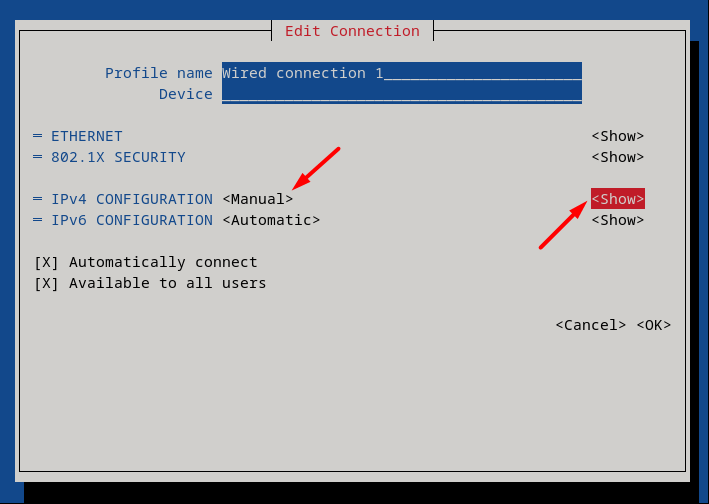
Enter the address with its prefix (192.168.18.50/24), the gateway (your router) and the DNS servers.
If nmtui lists the device but changes never take effect, check /etc/network/interfaces again. As with nmcli, the interface must not be defined there, so the file should look like this, with only the loopback lines:
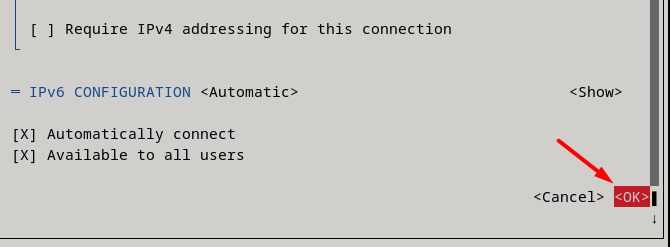
Step 4: Save
Scroll to the bottom and select <OK>:
Step 5: Reactivate the connection
Saved settings only apply when the connection is brought up again. From the nmtui main menu choose Activate a connection, then deactivate and reactivate it, or run:
sudo nmcli connection up "Wired connection 1"On a desktop, you can also do it from the panel: open the system menu in the top-right corner of GNOME, where the gear opens Settings.

Turning the wired connection off and on again from this menu reapplies the new settings.
Method 4: GNOME Settings (graphical)
Step 1: Open the wired connection settings
Click the network icon in the top-right corner, open the arrow next to Wired, and choose Wired Settings:

Click the gear icon next to your connection:

Step 2: Enter the static address
Open the IPv4 tab, choose Manual, and fill in the address, netmask (255.255.255.0 for a /24 network) and gateway. Turn off Automatic next to DNS and enter your DNS servers. Click Apply, then toggle the connection off and on.

Method 5: systemd-networkd (optional, for servers)
systemd-networkd is part of systemd on both Debian 12 and 13 but is disabled by default. Some administrators prefer it on headless servers. Only use it if you disable the other managers, because two managers configuring one interface will fight.
sudo nano /etc/systemd/network/10-static.network[Match]
Name=enp0s3
[Network]
Address=192.168.18.50/24
Gateway=192.168.18.1
DNS=192.168.18.1
DNS=1.1.1.1Then, from a console session rather than SSH, comment out the interface in /etc/network/interfaces and switch over:
sudo systemctl disable networking
sudo systemctl enable --now systemd-networkd
The DNS= lines only reach /etc/resolv.conf if systemd-resolved is installed and enabled. Otherwise, set DNS in /etc/resolv.conf directly.
Cloud servers and VPS: the cloud-init trap
On many cloud and VPS images, cloud-init writes the network configuration at boot, typically to /etc/network/interfaces.d/50-cloud-init. If you edit that file, your static IP can be overwritten on the next reboot.
- Most providers assign the public IP statically through DHCP already. Check before changing anything.
- To add a second address or take over the configuration permanently, stop cloud-init from managing networking by creating
/etc/cloud/cloud.cfg.d/99-disable-network-config.cfgcontainingnetwork: {config: disabled}, then write your own configuration. - Always keep the provider’s web console open while you test, and take a snapshot first.
What is different on Debian 13?
The static IP methods themselves are unchanged between Debian 12 and 13. A few related changes are worth knowing, especially if you upgraded from Debian 12 to Debian 13:
| Change in Debian 13 | What it means for a static IP |
|---|---|
Network interface names may change after upgrading, notably with the i40e driver or firmware that exposes the ACPI _SUN object |
A static config that names enp1s0 will not apply if the interface comes back as ens1. Check ip -br link and update the name. |
The ISC DHCP client is deprecated upstream; ifupdown can use dhcpcd-base instead |
Only matters for interfaces left on DHCP. Static configuration is unaffected. |
| NetworkManager 1.52 (Debian 12 ships 1.42) | The nmcli commands in this guide are the same on both. |
/etc/sysctl.conf is no longer read |
If you enabled IP forwarding there for a router or VPN, move the setting to /etc/sysctl.d/. |
Troubleshooting
| Symptom | Likely cause | Fix |
|---|---|---|
Address never changes after editing /etc/network/interfaces |
NetworkManager restarted instead of the networking service, or the old DHCP address is still attached |
sudo systemctl restart networking; flush with sudo ip addr flush dev enp0s3 or reboot |
| Static IP shows, but no internet at all | Wrong gateway, often the machine’s own address | Set gateway to the default via address from ip route |
Can ping 1.1.1.1 but not debian.org |
DNS not applied; dns-nameservers needs resolvconf |
sudo apt install resolvconf, or add nameserver lines to /etc/resolv.conf |
nmcli shows the device as unmanaged |
Interface also defined in /etc/network/interfaces |
Remove it from that file, then sudo systemctl restart NetworkManager |
| Static IP reverts after reboot on a VPS | cloud-init regenerates the configuration | Disable cloud-init network config as shown above |
| Network drops in and out | Another device has the same IP | Pick an address outside the DHCP range, or use a DHCP reservation |
networking.service fails to start |
Syntax error, or an interface name that does not exist | journalctl -u networking -b and check the name with ip -br link |
Frequently asked questions
Do these steps work on Debian 13 Trixie?
Yes. ifupdown, NetworkManager and systemd-networkd are configured the same way on Debian 12 and 13. The main Debian 13 difference is that interface names can change during an upgrade from 12.
Does Debian use Netplan?
Not by default. Netplan is available as a package, but standard Debian 12 and 13 installs use ifupdown or NetworkManager. If you find YAML files in /etc/netplan/, your image was customised by a provider or by cloud-init.
Should I use a static IP or a DHCP reservation?
On a network where you control the router, a DHCP reservation is simpler and avoids conflicts. Configure a static IP on the machine when you do not control DHCP, or for servers that must come up even if the DHCP server is down.
How do I go back to DHCP?
With ifupdown, change inet static to inet dhcp and delete the address lines. With NetworkManager, set ipv4.method auto and clear the address and gateway.