
Last updated:
Bluetooth is a short-range wireless technology built into every Windows 10 PC — letting you connect headphones, keyboards, mice, speakers, and smartphones without cables or dongles.
This guide covers two ways to enable Bluetooth on Windows 10, how to pair a device once it’s on, and three fixes when the Bluetooth toggle is missing from Settings. For other hardware checks, you can also check your graphics card in Windows 10.
Quick Answer
Click the Bluetooth tile in the Action Center (lower-right taskbar). Or go to Settings ? Devices ? Bluetooth & other devices and toggle Bluetooth to On.
How to Enable Bluetooth on Windows 10
Method 1: Enable Bluetooth via the Action Center
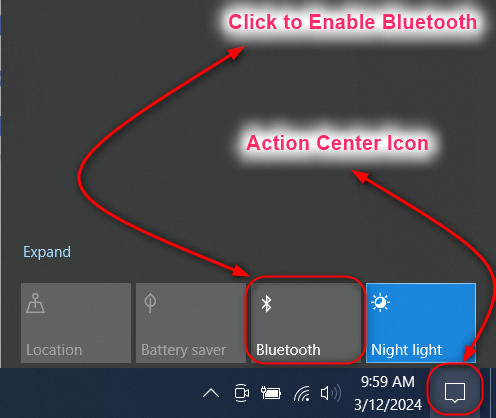
Click the Action Center icon (speech bubble) at the lower-right corner of the taskbar to expand it, then click the Bluetooth tile to toggle Bluetooth on immediately.
Method 2: Enable Bluetooth via Windows Settings
Press Win+I to open the Settings app, navigate to Devices ? Bluetooth & other devices, and toggle the Bluetooth switch to On at the top of the right pane.

How to Pair Bluetooth Devices on Windows 10
Once Bluetooth is on, open Settings ? Devices ? Bluetooth & other devices and click Add Bluetooth or other device to begin pairing a headset, keyboard, phone, or other peripheral.
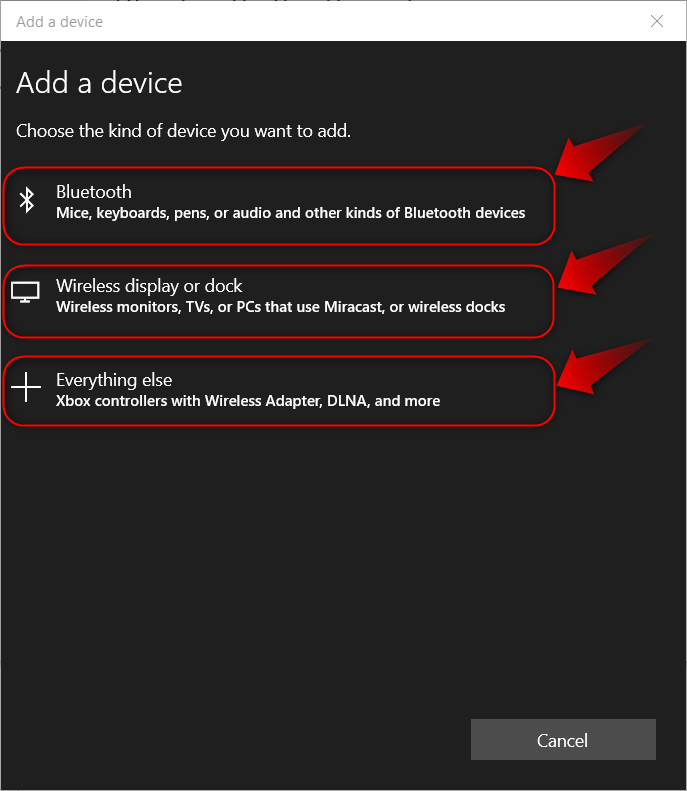
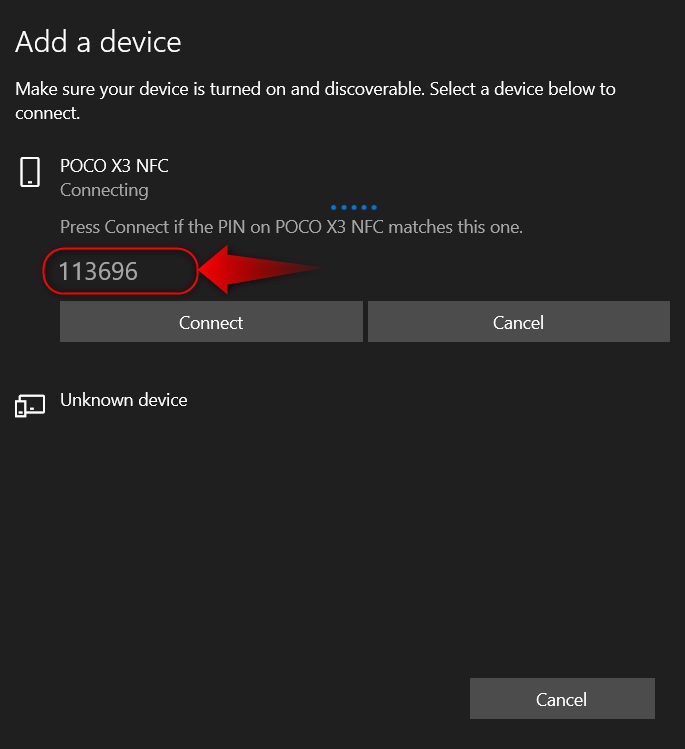
Select the device type from the dialog — choose Bluetooth for headphones, keyboards, or phones — then follow the prompts and confirm any PIN that appears on both devices. Pairing requires an administrator account, so you may first need to change the administrator on Windows.
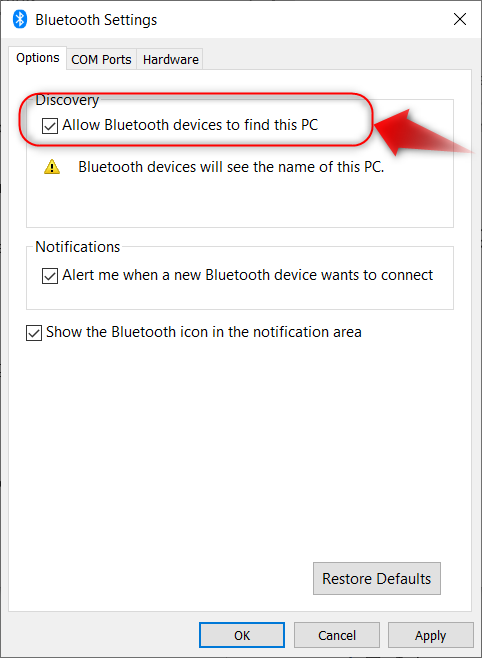
To make your PC discoverable to other devices, open More Bluetooth options from the Bluetooth settings page and check Allow Bluetooth devices to find this PC.

How to Fix the Bluetooth Toggle Missing on Windows 10
If the Bluetooth toggle is missing from Settings, the cause is usually an outdated or corrupt Bluetooth driver — these three fixes resolve the issue in most cases.
Method 1: Disable and Re-enable the Bluetooth Device
Open Device Manager, expand the Bluetooth section, right-click your Bluetooth adapter, and select Disable device — then right-click it again and select Enable device.
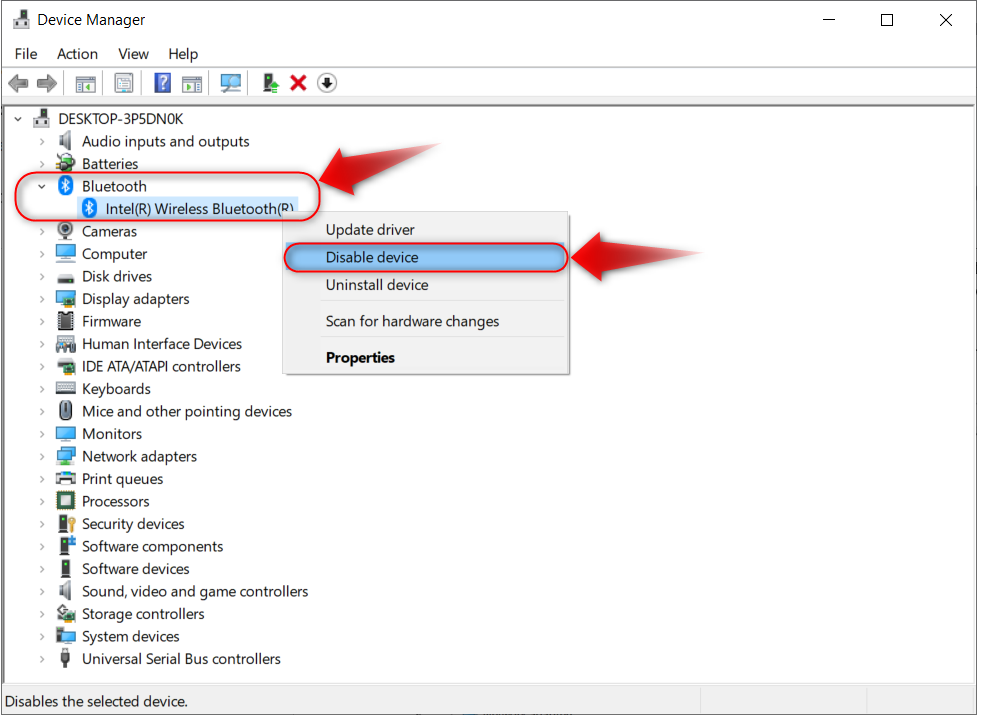
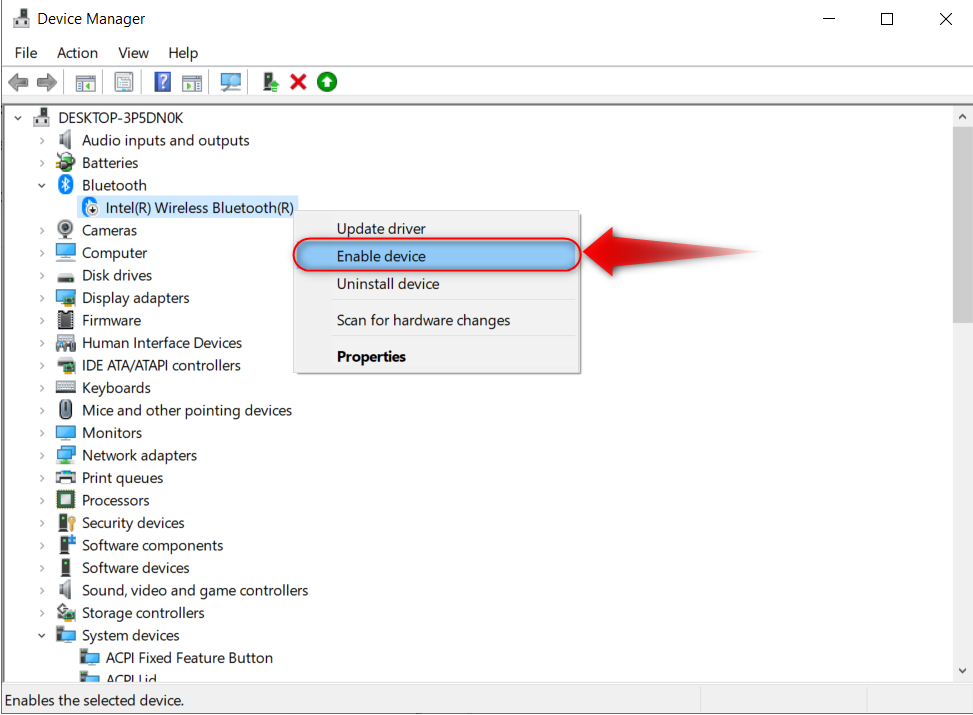
After re-enabling, open Settings ? Devices ? Bluetooth & other devices to confirm the toggle reappeared — restart your PC if it still doesn’t show.
Method 2: Update the Bluetooth Driver
Visit your PC manufacturer’s website (Dell, HP, Lenovo, etc.) and download the latest Bluetooth driver — Device Manager’s automatic update often reports drivers are current when newer ones exist.
After installing the updated driver, restart Windows — the Bluetooth toggle typically reappears in Settings once the correct driver is in place and recognized by the system.
Method 3: Reset BIOS to Default Settings
Some Windows 10 updates corrupt BIOS settings and cause the Bluetooth toggle to disappear — resetting BIOS to its defaults restores the toggle in most of these cases. If you are unsure how to reach the firmware screen, learn how to open the BIOS menu in Windows 11 first.
Go to Settings ? Update & Security ? Recovery and click Restart now under Advanced startup — this boots into WinRE where you can access UEFI Firmware Settings.

From WinRE, go to Troubleshoot ? Advanced Options ? UEFI Firmware Settings ? Restart to enter BIOS. Locate Load Setup Defaults or Load Optimized Defaults (label varies by manufacturer), apply it, and save the changes.
When Bluetooth Is the Right Connection
Use Bluetooth to connect keyboards, mice, headphones, and phones to your Windows 10 PC without occupying USB ports or requiring a separate wireless USB receiver dongle.
For large file transfers, use USB or a local network instead — Bluetooth’s real-world throughput is slower and less reliable than either for moving large amounts of data.
If Bluetooth drops frequently, open Device Manager, right-click your Bluetooth adapter, open Properties ? Power Management, and uncheck Allow the computer to turn off this device.
Related Guides
These Windows guides cover related hardware management and system settings tasks on Windows 10 and Windows 11.