
Last updated:
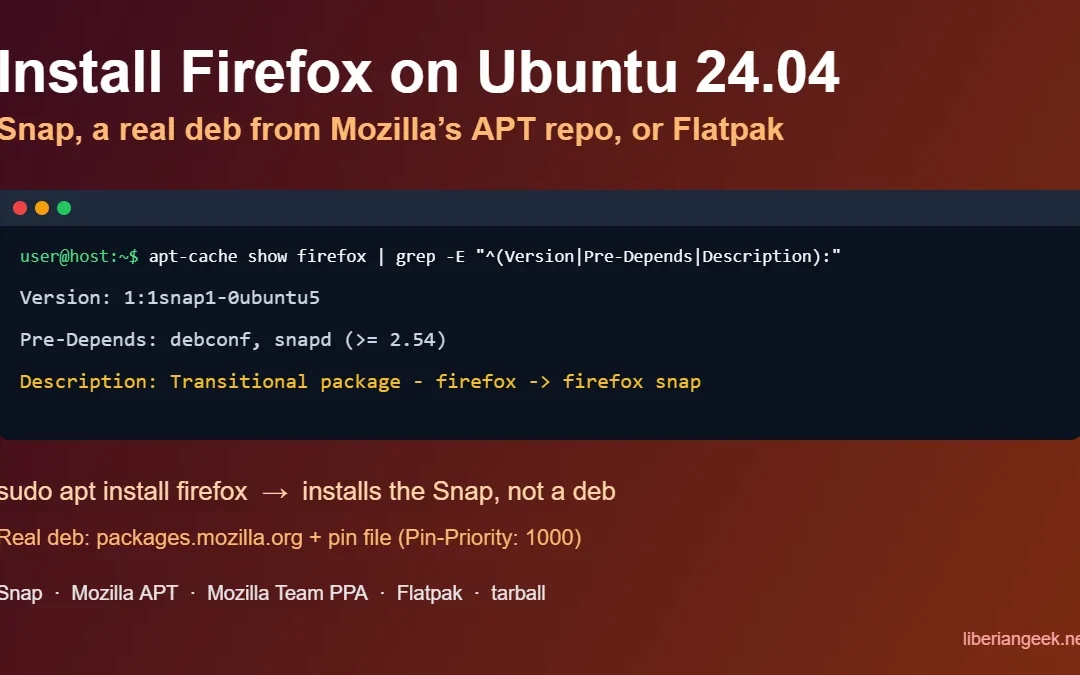
Firefox is already installed on a standard Ubuntu 26.04 or 24.04 desktop, as a Snap. If it is missing, run sudo snap install firefox. If you want a real .deb build instead of the Snap, use Mozilla’s own APT repository. Note that sudo apt install firefox from Ubuntu’s repository does not give you a deb: on both Ubuntu 26.04 and 24.04 the firefox package is a transitional package that installs the Snap. If you have just set up the system, for example after you install Ubuntu from USB, check what you already have before installing anything:
snap list firefox
apt-cache policy firefox| Method | What you get | Updates | Best for |
|---|---|---|---|
sudo snap install firefox or App Center |
Snap from Mozilla (Ubuntu’s default) | Automatic, via Snap | Most desktop users |
sudo apt install firefox (Ubuntu repository) |
Transitional package that installs the Snap (1:1snap1-0ubuntu5 on 24.04, 1:1snap1-0ubuntu9.1 on 26.04) |
Via Snap | Nothing extra; it is the Snap again |
| Mozilla APT repository | Real .deb from packages.mozilla.org |
With apt upgrade |
Users who want a deb and Mozilla builds |
| Mozilla Team PPA | Community-built .deb |
With apt upgrade |
Older setups already using the PPA |
| Flatpak (Flathub) | org.mozilla.firefox |
flatpak update |
Systems that already use Flathub |
Tarball in /opt |
Mozilla’s archive, unpacked by hand | Firefox’s built-in updater | Testing or a separate copy |
What was checked (8 Oct 2026). The transitional package was confirmed with apt-cache show firefox on Ubuntu 24.04 (version 1:1snap1-0ubuntu5, described as “Transitional package – firefox -> firefox snap”, pre-depends on snapd). The Mozilla APT repository and tarball steps follow Mozilla’s “Install Firefox on Linux” support article. The screenshots are from the original version of this guide.
Ubuntu 26.04 LTS (checked 26 Oct 2026). Launchpad lists the firefox source package in Ubuntu 26.04 (Resolute) with the description “Installs Firefox snap and provides some system integration”, and the firefox-locale-* packages are transitional packages for the Snap. So the Snap/APT behaviour is the same as on 24.04. The screenshots in this guide were taken on Ubuntu 24.04; the commands are identical on 26.04, but I did not run the Mozilla APT, PPA, Flatpak or tarball methods on a 26.04 machine.
| Ubuntu release | apt install firefox installs |
firefox package version |
How it was checked |
|---|---|---|---|
| 26.04 LTS (Resolute) | The Firefox Snap | 1:1snap1-0ubuntu9.1 (updates), 1:1snap1-0ubuntu8 (release) |
Launchpad package page, 26 Oct 2026 |
| 24.04 LTS (Noble) | The Firefox Snap | 1:1snap1-0ubuntu5 |
apt-cache show firefox on Ubuntu 24.04, 8 Oct 2026 |
How to Install Firefox on Ubuntu 26.04 and 24.04?
Each method is covered below. Pick one and avoid installing several builds at once: each keeps its own profile, so bookmarks and settings in one will not appear in another.
How to Install Firefox on Ubuntu 24.04 Using Snap Packet Manager?
Snap is a packet manager for downloading, installing, updating, or deleting packages in Linux OS. It was launched as an alternative to yum or apt package manager with similar and advanced functionality. The Snap packet manager first appeared in Ubuntu 16.04 LTS and has become an integral part of Linux distribution since then. Installing Firefox using the Snap involves one or two steps at most that are given as follows:
Step 1: Install Firefox
Provide the following command to the terminal to install Firefox on Ubuntu 24.04 using Snap packet manager and superuser privileges. Enter the password for the currently logged-in user to start downloading:
sudo snap install firefox
Step 2: Verify the Installation
To verify if Firefox has been successfully installed on Ubuntu 24.04, use the following command. It will return the version of Firefox installed on the system:
firefox --version
How to Uninstall Firefox on Ubuntu 24.04 Using Snap Packet Manager?
To uninstall the Firefox using the Snap packet manager, provide the following command to the terminal:
sudo snap remove firefoxFirefox will be removed from the system as verified by the “firefox –version” command:

How to Install Firefox on Ubuntu 24.04 Using APT Package Manager?
This is the command many guides give, so it is worth knowing what it does on Ubuntu 24.04. The firefox package in Ubuntu’s repository is a small transitional package: installing it makes sure snapd is present and installs the Firefox Snap. You end up with the same Snap as in the method above. For a real deb, skip to the Mozilla APT repository method below.
Step 1: Install Firefox
Use the following command in the terminal to install Firefox via the Apt package manager. Press “Y” for the prompts to continue downloading:
sudo apt install firefox
Step 2: Verify the Installation
For verification, click on “Apps” as indicated by the “1” in the below image. Search “Firefox” in the search bar and here, we can verify that the installation has been successful:

How to Uninstall Firefox on Ubuntu 24.04 Using Apt Package Manager?
For uninstalling Firefox, the following command is used in conjunction with the Apt package manager:
sudo apt autoremove firefox
After removing the APT package
Because the APT package only pulls in the Snap, check afterwards with snap list firefox. If Firefox is still listed and you want it gone, run sudo snap remove firefox.
Install the real Firefox deb from Mozilla’s APT repository
Mozilla publishes its own APT repository with .deb builds. These are the commands from Mozilla’s support article for Ubuntu 24.04 (Noble). The repository line has no Ubuntu release name in it (it uses the suite mozilla), so the same lines are what Mozilla documents for newer Ubuntu releases too; I have not run them on 26.04. Remove the Firefox Snap first, after exporting anything you need from its profile, so you do not run two copies:
sudo snap remove firefox
sudo install -d -m 0755 /etc/apt/keyrings
wget -q https://packages.mozilla.org/apt/repo-signing-key.gpg -O- | sudo tee /etc/apt/keyrings/packages.mozilla.org.asc > /dev/null
echo "deb [signed-by=/etc/apt/keyrings/packages.mozilla.org.asc] https://packages.mozilla.org/apt mozilla main" | sudo tee -a /etc/apt/sources.list.d/mozilla.list > /dev/null
Then tell APT to prefer Mozilla’s package over Ubuntu’s transitional one. Without this pin, APT can pick the Snap package again:
printf 'Package: *\nPin: origin packages.mozilla.org\nPin-Priority: 1000\n' | sudo tee /etc/apt/preferences.d/mozillasudo apt-get update
sudo apt-get install firefox
apt-cache policy firefoxapt-cache policy firefox should now show the candidate coming from packages.mozilla.org with priority 1000. I did not run this method in my test environment (it cannot reach packages.mozilla.org), so verify that line on your own system. To undo it, remove /etc/apt/sources.list.d/mozilla.list and /etc/apt/preferences.d/mozilla, run sudo apt-get update, and reinstall the Snap.
How to Install Firefox on Ubuntu 24.04 Using the Mozilla Team PPA (deb)
The Mozilla Team PPA is a community-maintained Launchpad archive that also provides Firefox as a deb. It is an alternative to Mozilla’s own repository above, not something to combine with it. Use one or the other.
Step 1: Install Mozillateam Package
The following command adds and installs the “Mozillateam” package to the repository which will help in installing Firefox to Ubuntu 24.04:
sudo add-apt-repository ppa:mozillateam/ppa
Step 2: Update Apt Repository
Use the given command to update the repository and refresh the packages within:
sudo apt update
Step 3: Open Text Editor
This command will open the file “mozilla” with the “nano text editor” in the root directory:
sudo nano /etc/apt/preferences.d/mozilla
Step 4: Save Changes
Add the following lines to the file “mozilla” and save the changes by pressing CTRL+X. Then, hit the “Y” button for the prompts and press “Enter” to exit this interface:
Package: firefox*
Pin: release o=LP-PPA-mozillateam
Pin-Priority:1001
Step 5: Do not use the one-line echo version
Skip this step if you created the file in step 4. The screenshot below shows a one-line echo command from the original version of this guide. It writes all three settings on a single line into a file named Mozilla, which is not a valid pin, so APT can still choose the Snap package. If you prefer one command instead of nano, this version writes the same three lines as step 4:
printf 'Package: firefox*\nPin: release o=LP-PPA-mozillateam\nPin-Priority: 1001\n' | sudo tee /etc/apt/preferences.d/mozillaIf you already ran the old command, delete the bad file with sudo rm /etc/apt/preferences.d/Mozilla.

Step 6: Install Firefox
The following command will install Firefox on Ubuntu 24.04 from the mozillateam PPA:
sudo apt install firefox
How to Install Firefox on Ubuntu 24.04 Using Flatpak?
Flatpak from Flathub houses thousands of packages and helps developers to achieve important functionalities for applications. The Flatpak enables the developers to deploy and publish their apps. The same approach installs media apps such as VLC on Ubuntu 24.04. The following steps demonstrate the installation of Firefox using Flatpak.
Step 1: Install Flatpak
Use the following command to install the Flatpak from the Apt package manager:
Stuck at this step? Ask us, it is free and include the exact error.
sudo apt install flatpak
Step 2: Add Remote Flathub Repository
This command adds the Flathub repository to install different packages from it. Firefox will be installed from the Flathub repository using Flatpak commands:
sudo flatpak remote-add --if-not-exists flathub https://flathub.org/repo/flathub.flatpakrepo
Step 3: Install Firefox
Flatpak will install Mozilla Firefox from the Flathub repository via the following command. Enter “Y” from the keyboard to continue installation:
flatpak install flathub org.mozilla.firefoxStep 4: Run Mozilla
After the installation of Mozilla Firefox, run Mozilla Firefox via the following command:
flatpak run org.mozilla.firefoxHere, Firefox is opened in Ubuntu 24.04 within the Virtual machine:

How to Uninstall Firefox on Ubuntu 24.04 Using Flatpak?
The Flatpak uninstalls Firefox via the following command:
sudo flatpak uninstall org.mozilla.firefoxHow to Install Firefox on Ubuntu 24.04 Using Mozilla’s Tarball?
The “wget” that refers to the term “web get” is a command-line tool that helps the users in downloading specified software to Ubuntu 24.04 by using the given URL. To install Firefox on Ubuntu 24.04 using wget utility, follow the given steps:
Step 1: Download the Firefox archive
Download the current Linux 64-bit (or ARM64) build from Mozilla’s Firefox download page into your Downloads folder. Mozilla’s current instructions use a .tar.xz archive. The screenshot below is from the original version of this guide and shows an old Firefox 116 .tar.bz2 link; do not reuse that pinned version, because it will not be the current, patched release.

Step 2: Extract the contents
Extract the archive. The capital J is for .xz files; use a lowercase j only for an old .tar.bz2 archive:
cd ~/Downloads
tar xJf firefox-*.tar.xz
Step 3: Move Package
The following command moves the Firefox to the “/opt” folder with administrative privileges:
sudo mv firefox /opt
Step 4: Create a link
The following command will create the link between the two specified paths. By creating this link, the user can execute Firefox from anywhere in the system via a one-line command:
sudo ln -s /opt/firefox/firefox /usr/local/bin/firefoxStep 5: Install Desktop Entry
Download Mozilla’s desktop entry so Firefox appears in the app menu. This URL was corrected on 8 Oct 2026: the address in the original version of this guide now returns a 404 error, and the one below (from Mozilla’s support article) returns the file:
sudo wget https://raw.githubusercontent.com/mozilla/sumo-kb/main/install-firefox-linux/firefox.desktop -P /usr/local/share/applications
Step 6: Run Firefox
To run Firefox, simply type the following command in the terminal and hit the “Enter” button:
firefox
Here, firefox is installed and opened in Ubuntu 24.04:

How to Uninstall Firefox on Ubuntu 24.04?
The following command removes (rm) the Firefox and all of its files recursively (-r):
sudo rm -r /opt/firefox
sudo rm /usr/local/bin/firefox /usr/local/share/applications/firefox.desktop
How to Install Firefox on Ubuntu 24.04 Using the App Center?
The App Center houses different software that can be installed on Ubuntu 24.04 through a GUI. The App Center works similarly to the Play Store which provides multiple software for downloading and installing. You can grab other browsers such as Google Chrome on Ubuntu 24.04 the same way.
Step 1: Open the App Center
To install Firefox using the App Center on Ubuntu 24.04, click on the highlighted “App Center” icon from the sidebar as shown below:

Step 2: Search the “Firefox”
In the search bar, type “Firefox” and click on it from the displayed results:
Step 3: Start Installation
From the given interface, click the “Install” button to begin the installation:

Step 4: Provide Password
Provide the password for the currently logged-in user and hit the “Authenticate” button:

Here, the installation has started as shown in the image attached below:

Step 5: Open the Browser
Tap the “Open” button to open the Firefox browser:

Firefox has been successfully installed and opened in Ubuntu 24.04:

Troubleshooting
| Problem | Cause | Fix |
|---|---|---|
sudo apt install firefox installed a Snap |
Ubuntu’s firefox package is a transitional Snap package |
Use Mozilla’s APT repository with the pin file shown above |
| APT still picks the Snap package after adding a repository | Missing or invalid pin file in /etc/apt/preferences.d/ |
Check apt-cache policy firefox; the pin file needs three separate lines |
wget for firefox.desktop returns 404 Not Found |
Old URL without /main/ |
Use the corrected URL in step 5 |
| A compression error when extracting | Wrong flag for the file type | xJf for .tar.xz, xjf for .tar.bz2 |
| Bookmarks missing after switching method | Snap, deb and Flatpak builds use separate profiles | Sign in to a Firefox account to sync, or export bookmarks before removing the old build |
For most people the Snap that Ubuntu ships is the simplest choice. Choose Mozilla’s APT repository if you specifically need a deb. Other desktop apps follow the same pattern, such as Google Chrome on Ubuntu 24.04 and VLC on Ubuntu 24.04.