

Gmail lets you mark any message as important so it surfaces in your Important folder and stands out from regular inbox clutter.
This guide covers how to mark incoming emails as important on Gmail desktop and in the Android app, plus a workaround for outgoing messages.
Quick Answer
On desktop: select the email, click the three-dot menu in the Gmail toolbar, and choose Mark as important to move it to the Important folder.
On Android: long-press the email to select it, tap the three-dot menu at the top right, and choose Mark as important from the list.
How to Mark Emails as Important in Gmail on Desktop
Step 1: Select the Email
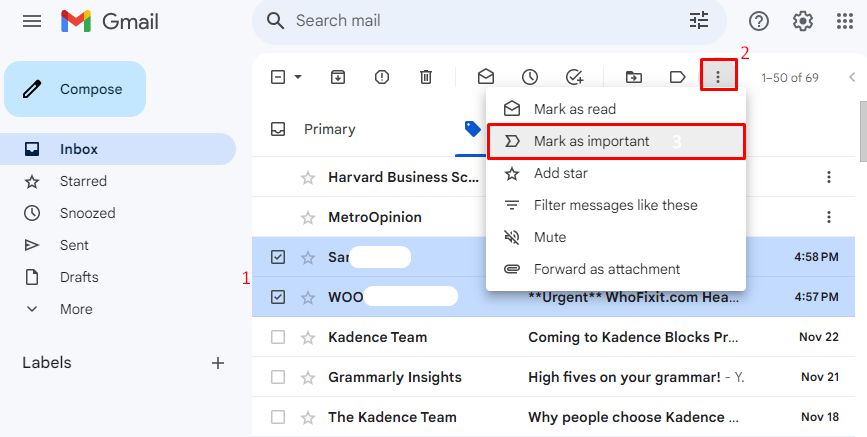
Check the checkbox to the left of the email in your inbox. You can select multiple emails to mark several as important at once.
Step 2: Open the Options Menu
Click the three vertical dots in the Gmail toolbar above your message list to open a dropdown of bulk actions for the selected emails.
Step 3: Choose Mark as Important
Select Mark as important from the dropdown. Gmail tags the email with a yellow importance marker and files it in your Important folder.
How to Mark Incoming Emails as Important in the Gmail App
Emails that arrive in your inbox from another sender are incoming emails. Use the steps below to mark them as important in the Gmail Android app.
Step 1: Select the Email
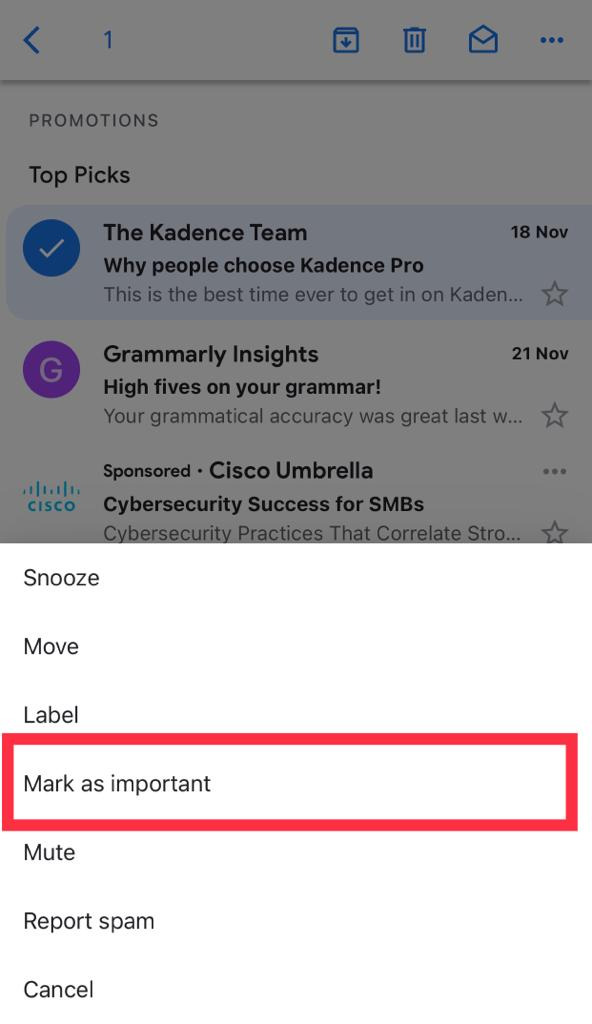
Launch the Gmail app and long-press the email you want to mark. Hold for one to two seconds until a blue checkmark appears on the email.

Step 2: Open More Options
Tap the three horizontal dots in the top-right corner of Gmail to open the options menu for the selected message.

Step 3: Mark as Important
Select Mark as important from the menu. Gmail moves the email to your Important folder and shows a confirmation toast at the bottom.
Step 4: Confirmation
A banner at the bottom reads 1 marked as important. The email now appears in your Important folder with a yellow importance marker.

How to Access Your Important Emails in Gmail
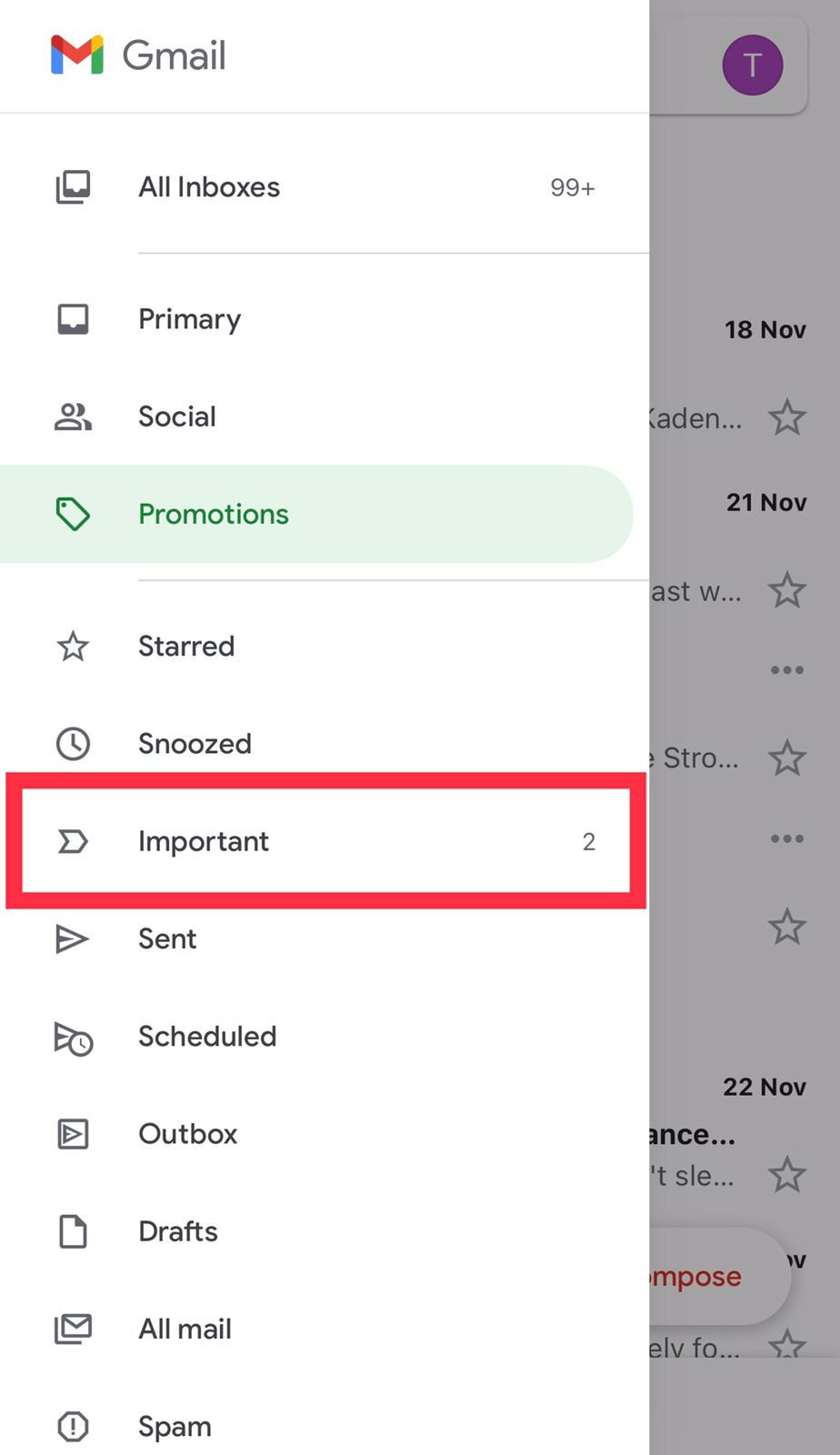
Open the Gmail sidebar by tapping the menu icon at the top left. From the folder list, tap Important to view all emails you have marked as important.

How to Mark an Outgoing Email as Urgent in Gmail
Gmail has no built-in flag for marking outgoing emails as urgent. The workaround is to include a priority keyword at the start of the subject line.
Use prefixes like URGENT, IMPORTANT, ACTION REQUIRED, CRITICAL, or DEADLINE [date] to signal urgency and make the email stand out in the recipient inbox.

When the Important Label Is the Right Tool
Use the Important label to flag emails that need action or follow-up, especially in a busy inbox with newsletters and automated messages mixed in.
For outgoing messages, subject-line keywords work better than any label since labels are a receiver-side feature that the sender cannot control.
Related Guides
- How to Change Root Password in Ubuntu 24.04
- How to Install NVIDIA Drivers on Ubuntu 24.04
- How to Install and Configure Nginx on Debian
- How to Install LAMP Stack on Ubuntu 24.04
FAQs
What is the difference between Starred and Important in Gmail?
Starred emails are messages you manually highlight for quick access, while Important emails are flagged automatically or manually based on Gmail’s priority system.
Can I mark an outgoing email as urgent in Gmail?
Gmail has no built-in urgent flag for outgoing messages. Add a subject prefix like URGENT: or ACTION REQUIRED to alert the recipient to the email’s priority.
Why does Gmail automatically mark some emails as important?
Gmail’s algorithm tracks your email habits, such as who you reply to and how quickly, to automatically predict which incoming messages matter most to you.
How do I remove the important tag from an email?
On desktop, click the yellow importance marker to toggle it off. On Android, tap the three dots on the selected email and choose Mark as not important.
Can I turn off Gmail’s automatic importance detection?
Open Settings, go to Inbox, and under Importance markers choose No markers. This disables automatic flagging but you can still mark emails manually.