
Ubuntu 26.04 LTS (Resolute Raccoon) is the next long-term support release after Ubuntu 24.04 LTS. This guide explains when Ubuntu offers the upgrade, how to prepare and back up, how to run it on a server with do-release-upgrade or on a desktop with Software Updater, what happens to PPAs and snaps, what to check afterwards, and what to do when you see “No new release found”. It is for anyone running 24.04 on a desktop, laptop, VPS or home server.
Quick answer. Back up your data, fully update 24.04, reboot if needed, then run sudo do-release-upgrade. On a desktop you can use Software Updater instead. The Ubuntu Release Team announced on 29 September 2026 that upgrades from 24.04 LTS to 26.04.1 LTS are enabled, so you do not need the -d flag.
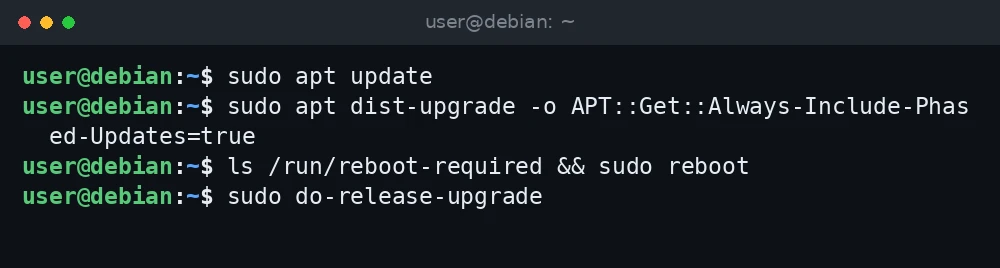
sudo apt update
sudo apt dist-upgrade -o APT::Get::Always-Include-Phased-Updates=true
ls /run/reboot-required && sudo reboot
sudo do-release-upgrade
What was verified and what was not. Release dates, the upgrade policy and the commands were checked against the Ubuntu 26.04 release notes on documentation.ubuntu.com, the Ubuntu Server and Ubuntu Desktop upgrade guides on ubuntu.com, the do-release-upgrade manual page on manpages.ubuntu.com, and the Ubuntu Release Team announcements on Ubuntu Discourse. The upgrade was not run for this guide. Read the release notes for your own setup and confirm each step on your own system.
When the upgrade is offered
Key facts from official Ubuntu sources:
| Item | Detail |
|---|---|
| Ubuntu 26.04 LTS release | 23 April 2026 |
| Codename | Resolute Raccoon |
| First point release, 26.04.1 | Announced 27 August 2026 |
| 24.04 to 26.04.1 upgrades enabled | Announced 29 September 2026 |
| Standard support | Into 2031 (Ubuntu lists standard security maintenance until May 2031); up to ten years with Ubuntu Pro (ESM) |
The Ubuntu Server guide explains the policy: you can only upgrade to the next LTS release, and upgrades from one LTS to the next are generally offered only after the first point release. That is why 24.04 users were not offered 26.04 in April. The 26.04.1 announcement added that the automatic offer would come a few weeks after the point release, and the Release Team then enabled it on 29 September 2026. Desktop notifications roll out gradually, so not every machine sees the offer on the same day.
If you run 22.04, the 26.04 release notes say you must first move to 24.04 LTS. You cannot skip an LTS.
To check whether your machine sees the new release without starting the upgrade, run:
do-release-upgrade -cThe -c option only checks and reports the result through its exit code and message.
Step 1: Back up first
A release upgrade replaces hundreds of packages. Both Ubuntu guides tell you to back up your data before you start. At a minimum:
- Copy your home folder and any data in
/srv,/var/wwwor similar to another disk or machine. See our rsync backup guide. - Save
/etcso you can compare config files later:sudo tar czf ~/etc-backup.tar.gz /etc, then copy the archive off the machine. - Dump databases with their own tools, for example
mysqldumporpg_dumpall. - On a VPS, take a provider snapshot if one is available. On a VM, take a VM snapshot. This is the fastest way back if something breaks.
Step 2: Prepare the system
- Install every update for 24.04, including phased updates. The Ubuntu Server guide notes that pending phased updates can block the release upgrade:
sudo apt update sudo apt dist-upgrade -o APT::Get::Always-Include-Phased-Updates=true - Reboot if the system asks for it:
ls /run/reboot-required && sudo reboot - Check free space. The upgrade downloads several gigabytes:
df -h / /boot - Make a list of your PPAs and third-party repositories, because they are disabled during the upgrade:
ls /etc/apt/sources.list.d/ - On a laptop, plug in the charger. On a remote server, make sure you have console access through your provider in case SSH drops.
Step 3: Upgrade a server with do-release-upgrade
- Start the upgrade:

Commands for this step: Step 3: Upgrade a server with do-release-upgrade sudo do-release-upgrade - Read the summary of packages to be installed, upgraded and removed, then confirm.
- Answer config file prompts. When a file you changed differs from the new package version, you can keep yours (
N, the default), install the maintainer’s version (Y), or view the differences (D). If you are unsure, keep yours and compare later using the/etcbackup. - Choose whether to remove obsolete packages. Ubuntu suggests removing them unless you have a reason to keep them.
- Reboot when asked. The upgrade is not finished until you do.

The upgrade is interactive and can take a long time, so do not leave it unattended.
Step 4: Upgrade a desktop with Software Updater
- Open Software Updater and install all pending updates. Restart if asked.
- Open Software Updater again. When it reports that Ubuntu 26.04 is available, click Upgrade.
- Follow the prompts: release notes, package summary, and a question about third-party packages.
- Icons and themes may change during the upgrade. That is normal.
- Restart when the upgrade completes.
If you prefer a terminal, sudo do-release-upgrade works on desktops too.
About -d and development releases
The -d (--devel-release) option upgrades to the development release. Before the official enablement, it was the only way to move from 24.04 to 26.04, and the 26.04.1 announcement mentioned it for people who did not want to wait. Now that the normal path is open, do not use it. The Ubuntu Server guide says it is not recommended for production, and the Desktop guide warns it is not supported and might break your system.
Step 5: PPAs, third-party repositories and snaps
Third-party repositories and PPAs are disabled during the upgrade. After it finishes:
- Check what is disabled:
ls /etc/apt/sources.list.d/ - For each repository, check on the vendor’s site that it supports 26.04 before you enable it again. On a desktop, use Software & Updates, Other Software tab. If that app is missing, install
software-properties-gtk. - For vendor apps such as Google Chrome, reinstall or re-enable the vendor repository using their current instructions. See installing Google Chrome on Ubuntu.
Snap packages come from the Snap Store, not from the Ubuntu archive. Once the system is up, refresh them and confirm they work:
snap list
sudo snap refresh
If you switched Firefox from the snap to a .deb build, check that your setup survived. See installing Firefox on Ubuntu.
Stuck at this step? Ask us, it is free and include the exact error.
Step 6: Post-upgrade checks
lsb_release -a          # should show Ubuntu 26.04
uname -r                # running kernel
systemctl --failed      # services that failed to start
sudo apt update && sudo apt full-upgrade
sudo apt autoremove
Example output of lsb_release -a:
Distributor ID: Ubuntu
Description:    Ubuntu 26.04.1 LTS
Release:        26.04
Codename:       resolute
Then test the things you actually use: websites, databases, Docker containers, VPN, printing, and any custom services. Compare important config files with your /etc backup and look for .dpkg-dist or .dpkg-old files left by config prompts.
Troubleshooting
“No new release found”
Check these in order:
- Your setting in
/etc/update-manager/release-upgrades. It should sayPrompt=ltson an LTS system that wants the next LTS. If it says anything else, edit the file and setPrompt=lts.
Commands for this step: Troubleshooting grep Prompt /etc/update-manager/release-upgrades - Pending updates. Run the full update from Step 2 and reboot, then try again.
- You may already be on 26.04. Check
lsb_release -a. - Desktop offers roll out gradually. You can start the upgrade from a terminal with
sudo do-release-upgradeat any time now that it is enabled.

A message asking you to install all available updates first
The upgrader refuses to start while 24.04 updates are pending. Run sudo apt update and the dist-upgrade command with phased updates included, reboot, and try again.
The upgrade stopped halfway
Do not reboot right away. Try to finish the package work:
sudo dpkg --configure -a
sudo apt -f install
sudo apt full-upgrade
Then reboot and run the checks in Step 6.
A service does not start after the upgrade
Run systemctl status name and journalctl -u name -b. The cause is often a config file kept from 24.04 that the new version no longer accepts. Compare it with the new .dpkg-dist file.
Rollback: what is realistic
Ubuntu’s upgrade guides describe no downgrade procedure, and you should not try to go back by editing sources and installing older packages. The realistic ways back are restoring a VM or VPS snapshot taken before the upgrade, or reinstalling 24.04 and restoring your data from backup. That is why Step 1 matters.
FAQ
Is it safe to upgrade now?
The upgrade path is officially enabled. Read the 26.04 release notes for known issues that affect your hardware or software first, and test on a non-critical machine if you manage several.
Can I upgrade from 22.04 directly to 26.04?
No. Upgrade 22.04 to 24.04 first, then 24.04 to 26.04.
How long does it take?
It depends on your connection, disk speed and installed packages. Plan for at least an hour and be present to answer prompts.
Do I have to upgrade?
No. Ubuntu’s release cycle page lists standard security maintenance for 24.04 LTS until May 2029, so you can plan the move. Check the current dates on ubuntu.com/about/release-cycle.