
On Debian 13 (trixie), system logs are collected by systemd-journald and read with journalctl. This guide shows how to follow logs live, filter them by service, time, priority and boot, read kernel messages, check that the journal is saved to disk, limit how much space it uses, and change journald settings safely with drop-in files. It is written for anyone who runs a Debian 13 server or desktop and needs to find out why something failed.
Quick answer. Run journalctl -u nginx -f to follow one service, journalctl -p err -b to see errors since the last boot, journalctl -k for kernel messages, and journalctl --disk-usage plus sudo journalctl --vacuum-size=500M to check and trim disk usage.
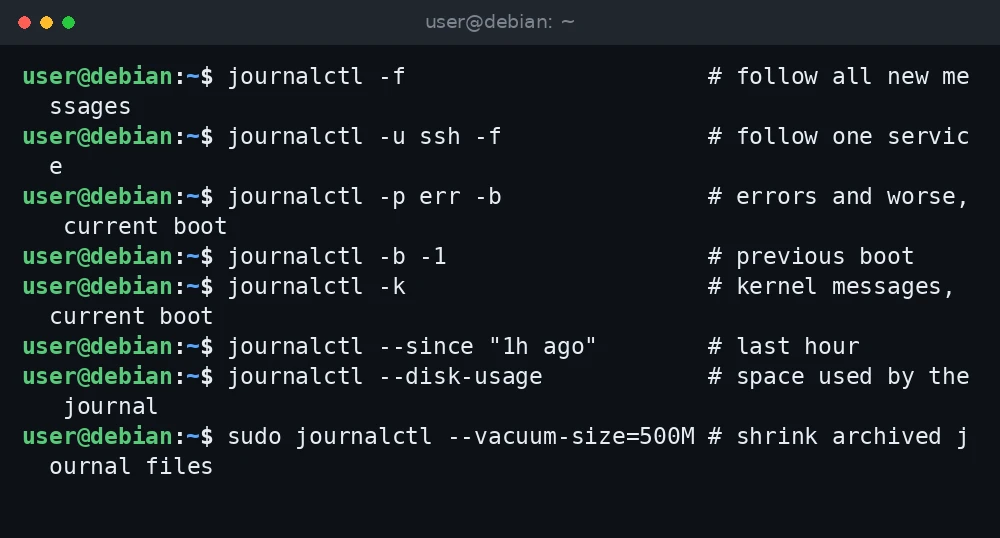
journalctl -f                      # follow all new messages
journalctl -u ssh -f               # follow one service
journalctl -p err -b               # errors and worse, current boot
journalctl -b -1                   # previous boot
journalctl -k                      # kernel messages, current boot
journalctl --since "1h ago"        # last hour
journalctl --disk-usage            # space used by the journal
sudo journalctl --vacuum-size=500M # shrink archived journal files
What was verified and what was not. The commands and defaults in this guide were checked against the Debian 13 manual pages for journalctl(1), journald.conf(5) and systemd.time(7) on manpages.debian.org, the Debian 12 and Debian 13 release notes, and the Debian systemd maintainers’ announcement on lists.debian.org. Debian 13 ships systemd 257. The commands were not run for this guide, so confirm the output and options on your own system with man journalctl.
How logging works on Debian 13
systemd-journald collects messages from the kernel, from services started by systemd, and from programs that write to syslog or to standard output. It stores them in binary journal files. You do not open these files with a text editor. You read them with journalctl.
Two facts matter on Debian 13:
- rsyslog is not installed by default. The Debian 12 release notes state that from bookworm, rsyslog is no longer installed by default, and the Debian 13 release notes do not change that. On a fresh Debian 13 install you will usually not find
/var/log/syslog. The journal is the main log. - The journal is persistent by default. Debian’s systemd package creates the directory
/var/log/journal. The default setting in journald.conf isStorage=auto, which means logs are written to disk when that directory exists and kept only in memory under/run/log/journalwhen it does not. Systems upgraded from older releases with non-default settings may still be volatile, so check (Step 6).
Step 1: Read the journal as your user
Root can read every log. A normal user sees only their own user journal unless they are in the systemd-journal or adm group. The journalctl manual lists systemd-journal, adm and wheel as groups that can read all journal files. To add your user to systemd-journal:
sudo usermod -aG systemd-journal $USERLog out and back in for the new group to take effect. Otherwise, prefix the commands in this guide with sudo.
Step 2: View and follow logs
- Show the whole journal, oldest first, in a pager:
journalctl - Jump to the end of the log (implies the last 1,000 lines):
journalctl -e - Show the last 50 lines without a pager:
journalctl -n 50 --no-pager - Follow new messages as they arrive, like
tail -f. PressCtrl+Cto stop:journalctl -f - Show newest entries first:
journalctl -r
Step 3: Filter by service, time and text
Filtering by unit is the most useful filter. Use the unit name that systemctl shows. On Debian the SSH server unit is ssh.service.
journalctl -u ssh
journalctl -u ssh -u cron --since today
journalctl -u nginx -f
Time filters accept absolute dates and relative values. The systemd.time(7) manual documents today, yesterday, now, values with a - prefix such as -30min, and spans with an ago suffix.
journalctl --since "2026-11-01 08:00" --until "2026-11-01 09:00"
journalctl --since yesterday --until today
journalctl --since "30min ago"
journalctl --since -2h
To search message text, use -g (--grep). An all-lowercase pattern is matched case-insensitively:
journalctl -u ssh -g "failed password"You can also match journal fields directly, for example a process ID or an executable path:
journalctl _PID=1234
journalctl /usr/sbin/sshdStep 4: Filter by priority and boot
Priorities run from 0 (emerg) to 7 (debug). Passing one level shows that level and everything more severe. A FROM..TO range is also accepted.
| Number | Name | Typical use |
|---|---|---|
| 0 | emerg | System is unusable |
| 1 | alert | Action needed immediately |
| 2 | crit | Critical conditions |
| 3 | err | Errors |
| 4 | warning | Warnings |
| 5 | notice | Normal but significant |
| 6 | info | Informational |
| 7 | debug | Debug messages |
journalctl -p err -b          # errors and worse since this boot
journalctl -p warning..err    # only warning and err
journalctl -u nginx -p err --since today
Boot filters need a persistent journal to reach back past the current boot.
journalctl --list-boots   # numbered list of recorded boots
journalctl -b             # current boot
journalctl -b -1          # previous boot
journalctl -b -1 -p err   # errors from the previous boot
If a server rebooted unexpectedly, journalctl -b -1 -e shows the last messages written before it went down.
Step 5: Kernel messages and output formats
journalctl -k (or --dmesg) shows kernel messages only. It implies the current boot, so combine it with -b -1 for the previous one.

journalctl -k
journalctl -k -b -1
journalctl -k -p warning
Useful output modes:
-o short-isoprints ISO 8601 timestamps, handy when you compare logs from several servers.-o catprints only the message text.-o jsonprints one JSON object per line for scripts.-xadds explanatory text from the message catalog where available.
journalctl -u cron -o short-iso -n 20
journalctl -u myapp -o cat --since today > myapp-today.txt
Step 6: Check that the journal is persistent
- Check whether the directory exists:
ls -ld /var/log/journal - Check whether more than one boot is recorded:
journalctl --list-bootsIf only boot
0appears after several reboots, logs are not being kept on disk. - To enable persistent storage explicitly, create a drop-in file (see Step 8) with:
[Journal]
Storage=persistent
With
Storage=persistent, journald creates/var/log/journalitself if needed. - Restart journald and move any in-memory data to disk:
sudo systemctl restart systemd-journald
sudo journalctl --flush
Step 7: Check disk usage and vacuum old logs
By default journald limits itself to 10% of the file system holding the journal and keeps at least 15% free, with each of those values capped at 4G. See how much space it uses now:
journalctl --disk-usageExample output:
Stuck at this step? Ask us, it is free and include the exact error.
Archived and active journals take up 312.0M in the file system.Vacuum options delete archived journal files only. Run --rotate first if you want the current files archived so they can be cleaned too.
sudo journalctl --rotate
sudo journalctl --vacuum-size=500M   # keep at most 500 MB
sudo journalctl --vacuum-time=2weeks # drop archives older than two weeks
sudo journalctl --vacuum-files=5     # keep at most 5 archived files
Vacuuming is a one-time cleanup. To set a permanent limit, use a drop-in file. For a wider look at what fills a disk, see the guide on checking disk space on Debian 13.
Step 8: Change journald settings with a drop-in
The journald.conf manual recommends drop-in files in /etc/systemd/journald.conf.d/ instead of editing the main file. Files there must end in .conf.
- Create the directory and file:
sudo mkdir -p /etc/systemd/journald.conf.d sudo nano /etc/systemd/journald.conf.d/50-limits.conf - Add your settings, for example:
[Journal] Storage=persistent SystemMaxUse=1G MaxRetentionSec=1monthSystemMaxUse=caps the total size of the journal on disk.MaxRetentionSec=deletes entries older than the given time; its default of 0 turns this off. - Restart journald to apply the change:

Commands for this step: Step 8: Change journald settings with a drop-in sudo systemctl restart systemd-journald - Confirm the new usage after some time with
journalctl --disk-usage.

Step 9: rsyslog or the journal?
For most Debian 13 systems the journal is enough. You may still want rsyslog if a tool expects plain text files such as /var/log/syslog or /var/log/auth.log, or if you forward logs to a central syslog server. Installing it is a normal package install:
sudo apt install rsyslogThe journal keeps working when rsyslog is installed. Keep in mind that both now store copies of the same messages, so plan disk space for both. If you upgraded from Debian 11 and still have rsyslog, the Debian 12 release notes suggest sudo apt-mark auto rsyslog followed by sudo apt autoremove if you no longer need it. If you are planning that upgrade, see how to upgrade Debian 12 to Debian 13.
Troubleshooting
“No journal files were found.” or “Hint: You are currently not seeing messages from other users and the system.”
Your user is not allowed to read the system journal. Run the command with sudo or add your user to the systemd-journal group as shown in Step 1, then log in again.
“Specifying boot ID or boot offset has no effect, no persistent journal was found.”
The journal is kept only in memory, so earlier boots are gone. Enable persistent storage as in Step 6. Logs from boots that already happened cannot be recovered.
/var/log/syslog does not exist
This is expected on a fresh Debian 13 install because rsyslog is not installed. Use journalctl, or install rsyslog if a tool really needs the text file.
The journal uses too much disk space
Run sudo journalctl --vacuum-size=500M for a quick cleanup and set SystemMaxUse= in a drop-in for a lasting limit. A service that logs in a tight loop will refill the journal fast, so find it with journalctl -b -n 200 and fix the service.
Journal file corruption warnings
After a crash or power loss, journalctl may skip damaged files. Check them with sudo journalctl --verify. Run sudo journalctl --rotate so journald starts fresh files.
FAQ
Where are the log files stored on Debian 13?
Persistent journal files are in /var/log/journal/, in a subdirectory named after the machine ID. Volatile logs are in /run/log/journal/ and are lost at reboot.
How do I see why a service failed to start?
Run systemctl status name.service for the last few lines, then journalctl -u name.service -b -e for the full context. Our guide on creating a systemd service on Debian 13 covers common service errors.
Can I delete everything in the journal?
You can remove archived files with sudo journalctl --rotate followed by sudo journalctl --vacuum-time=1s. Do this only if you are sure you do not need the logs, because they cannot be recovered afterwards.
Does journald forward to syslog by default?
No. The journald.conf manual for Debian 13 says that by default only forwarding to wall is enabled, and ForwardToSyslog= is off. Check man journald.conf and your rsyslog package documentation if you need a specific forwarding setup.
Related guides
- How to create a systemd service on Debian 13
- How to check disk space on Debian 13
- How to check CPU usage on Debian 13
- How to set up unattended upgrades on Debian 13
- How to upgrade Debian 12 to Debian 13