
Debian 13 (Trixie) ships PHP 8.4 in its main archive, so you can install it with APT and no extra repositories. This guide covers the command-line interpreter, PHP-FPM with nginx, PHP with Apache (both mod_php and FPM), the extensions WordPress needs, where php.ini lives and which settings people change most, plus the 502 Bad Gateway error that trips up most nginx setups. It is for anyone setting up a PHP site or app on a Debian 13 server with sudo access.
Quick answer. For nginx, install php8.4-fpm and the extensions you need, then point nginx at the socket /run/php/php8.4-fpm.sock.
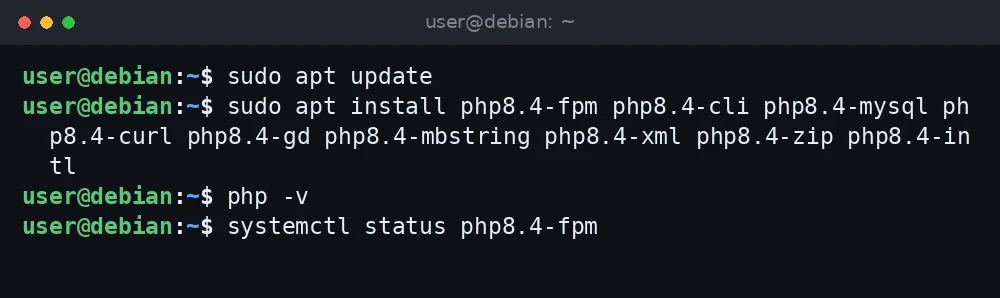
sudo apt update
sudo apt install php8.4-fpm php8.4-cli php8.4-mysql php8.4-curl php8.4-gd php8.4-mbstring php8.4-xml php8.4-zip php8.4-intl
php -v
systemctl status php8.4-fpm
What was verified and what was not. Package names, file paths and defaults in this guide were checked against Debian’s package pages and file lists (packages.debian.org), Debian’s PHP packaging files (sources.debian.org), the PHP manual (php.net), the nginx documentation (nginx.org) and the WordPress hosting handbook. Package versions were read from APT on a Debian 13 (trixie) server on 3 November 2026, and from packages.debian.org for PHP. The commands were not run for this guide, so confirm the results on your own system.
Which PHP packages to install
At the time of writing, packages.debian.org lists php8.4 8.4.27-1~deb13u1 for trixie. Security updates change the last part of that number. The package names you will use most are:
| Package | What it gives you |
|---|---|
php8.4-cli |
The php command for scripts, cron jobs and tools like Composer and WP-CLI |
php8.4-fpm |
The FastCGI process manager, used with nginx (and optionally Apache) |
libapache2-mod-php8.4 |
PHP built into Apache as a module (mod_php) |
php8.4 |
A metapackage that needs one of the three server packages above |
Be careful with plain sudo apt install php8.4. It depends on libapache2-mod-php8.4, php8.4-fpm or php8.4-cgi, and APT picks the first one it can, which can pull in Apache on a server where you wanted nginx. Install the exact packages you want instead.
Step 1: Install the PHP CLI
sudo apt update
sudo apt install php8.4-cli
php -v
You can list loaded extensions with php -m and find the CLI’s configuration file with php --ini.
Step 2: PHP-FPM with nginx
nginx does not run PHP itself. It passes PHP requests to PHP-FPM over a Unix socket. Install nginx and FPM (if you need nginx first, see how to install nginx on Debian):
sudo apt install nginx php8.4-fpm
sudo systemctl status php8.4-fpm
Debian’s FPM pool file is /etc/php/8.4/fpm/pool.d/www.conf. By default the pool listens on /run/php/php8.4-fpm.sock and runs as www-data. Confirm the socket path on your system:
grep '^listen' /etc/php/8.4/fpm/pool.d/www.conf
ls -l /run/php/
Create a site file such as /etc/nginx/sites-available/example.com. Debian’s nginx package includes snippets/fastcgi-php.conf, which sets up the FastCGI parameters for you:
server {
    listen 80;
    listen [::]:80;
    server_name example.com;

    root /var/www/example.com;
    index index.php index.html;

    location / {
        try_files $uri $uri/ /index.php?$args;
    }

    location ~ .php$ {
        include snippets/fastcgi-php.conf;
        fastcgi_pass unix:/run/php/php8.4-fpm.sock;
    }

    location ~ /.ht {
        deny all;
    }
}
The try_files ... /index.php?$args line is what WordPress pretty permalinks need. Enable the site, test and reload:
sudo mkdir -p /var/www/example.com
sudo ln -s /etc/nginx/sites-available/example.com /etc/nginx/sites-enabled/
sudo nginx -t
sudo systemctl reload nginx
Step 3: PHP with Apache
With Apache you can choose between mod_php and PHP-FPM. Use one, not both.
Option A: mod_php
sudo apt install apache2 libapache2-mod-php8.4mod_php needs Apache’s prefork MPM. Debian’s package script checks this and switches Apache from event to prefork during installation if needed. This is the simplest setup, but every Apache process carries PHP, which uses more memory under load.
Option B: PHP-FPM with Apache
sudo apt install apache2 php8.4-fpm
sudo a2enmod proxy_fcgi setenvif
sudo a2enconf php8.4-fpm
sudo systemctl reload apache2
The php8.4-fpm package installs /etc/apache2/conf-available/php8.4-fpm.conf but does not enable it on its own. That file sends .php requests to the FPM socket when mod_php is not loaded. If you are moving from mod_php to FPM, disable the module first with sudo a2dismod php8.4. FPM works with Apache’s event MPM, which you can switch back to with sudo a2dismod mpm_prefork and sudo a2enmod mpm_event, then restart Apache.
Step 4: Install common extensions for WordPress
The WordPress hosting handbook lists json, hash and mysqli as required, and recommends curl, dom, exif, fileinfo, imagick, intl, mbstring, openssl, xml and zip, among others. On Debian, several of these are built into php8.4-common. The rest come from these packages:
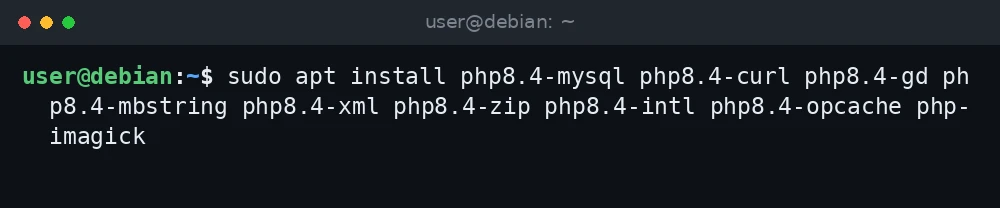
sudo apt install php8.4-mysql php8.4-curl php8.4-gd php8.4-mbstring php8.4-xml php8.4-zip php8.4-intl php8.4-opcache php-imagickphp8.4-mysql provides mysqli and PDO MySQL. php8.4-xml provides dom and related XML extensions. php-imagick is a small package that pulls in php8.4-imagick for Debian’s default PHP version. Restart FPM after adding extensions, or Apache if you use mod_php:
sudo systemctl restart php8.4-fpmYou also need a database. See how to install MariaDB on Debian 13.
Step 5: Find php.ini and change key settings
Debian keeps a separate php.ini for each server API:
/etc/php/8.4/cli/php.inifor thephpcommand/etc/php/8.4/fpm/php.inifor PHP-FPM/etc/php/8.4/apache2/php.inifor mod_php
Editing the CLI file does not change what your website sees. Rather than editing php.ini itself, you can put overrides in a small file in the matching conf.d directory, which survives package upgrades more cleanly. For FPM:
sudo nano /etc/php/8.4/fpm/conf.d/99-custom.iniupload_max_filesize = 64M
post_max_size = 72M
memory_limit = 256M
max_execution_time = 120The PHP manual’s built-in defaults are upload_max_filesize = 2M, post_max_size = 8M and memory_limit = 128M. post_max_size must be larger than upload_max_filesize, because the upload is part of the POST body. If you raise uploads, also check nginx’s client_max_body_size, which defaults to 1m according to the nginx documentation. Add it to the server block, for example client_max_body_size 64M;.
Stuck at this step? Ask us, it is free and include the exact error.
Apply the changes:
sudo systemctl restart php8.4-fpm
sudo nginx -t && sudo systemctl reload nginx
Step 6: Test with a phpinfo page, then remove it
Create a test file in the site’s document root:
echo '<?php phpinfo();' | sudo tee /var/www/example.com/info.phpOpen http://example.com/info.php in a browser. The page shows the PHP version, the Server API (for example “FPM/FastCGI”), the loaded php.ini path and your settings. That is the quickest way to confirm the right php.ini is in use.
This page reveals details about your server, so delete it as soon as you are done:

sudo rm /var/www/example.com/info.phpTroubleshooting
502 Bad Gateway from nginx
nginx could not talk to PHP-FPM. Check the nginx error log first:
sudo tail -n 20 /var/log/nginx/error.logA typical line contains connect() to unix:/run/php/php8.2-fpm.sock failed (2: No such file or directory). That means the fastcgi_pass path does not match the real socket. Configs copied from Debian 12 guides often still say php8.2. Compare it with ls /run/php/ and the listen line in www.conf, fix the path, then reload nginx.
If the socket path is right, make sure FPM is running with systemctl status php8.4-fpm. A (13: Permission denied) error points at socket ownership: the listen.owner and listen.group settings in www.conf must allow the nginx user, which is www-data on Debian.
The browser downloads the .php file instead of running it
No PHP handler is active. With nginx, the location ~ .php$ block is missing or in the wrong server block. With Apache and FPM, run a2enconf php8.4-fpm and a2enmod proxy_fcgi setenvif, then reload Apache.
413 Request Entity Too Large
This comes from nginx, not PHP. Raise client_max_body_size in the server block and reload nginx.
Your PHP installation appears to be missing the MySQL extension
WordPress shows this when mysqli is missing. Install php8.4-mysql and restart php8.4-fpm. Check with php -m | grep mysqli, keeping in mind the CLI and FPM load their own configuration.
Settings changes do not take effect
You edited the wrong php.ini, or did not restart the service. The phpinfo page shows which file is loaded. FPM needs systemctl restart php8.4-fpm; mod_php needs an Apache restart. Use sudo php-fpm8.4 -t to check the FPM configuration for syntax errors.
FAQ
Can I install PHP 8.3 or 8.5 on Debian 13?
Not from Debian’s own archive, which ships PHP 8.4 for trixie. Other versions need a third-party repository. That is a valid choice, but you then depend on that repository for security updates.
Should I use PHP-FPM or mod_php?
With nginx, FPM is the only option. With Apache, FPM is generally preferred for busy sites because it lets Apache use the event MPM and keeps PHP in its own pool of processes. mod_php is fine for small or simple setups.
How do I check which PHP version the website uses?
Use a temporary phpinfo page as in Step 6, or check which socket fastcgi_pass points to. The php -v command only shows the CLI version.
Where are PHP-FPM logs?
Service start and stop messages are in the journal: journalctl -u php8.4-fpm. See our journalctl guide. Errors from PHP scripts usually appear in the web server’s error log.