
Last updated:
Windows Spotlight is a built-in Windows feature that automatically downloads and displays rotating images from Bing on the lock screen. When it stops working, the lock screen shows a plain black background or a static image that never changes. The most common causes are a corrupted Spotlight cache, a registry value left in DevelopmentMode, or an outdated display adapter driver.
Before applying a fix, confirm Spotlight is enabled: open Settings, go to Personalization > Lock screen, and check that the Background dropdown is set to Windows Spotlight. If it is already set correctly and images are not updating, also verify that your internet connection is active, since Spotlight requires network access to download new images. Spotlight issues are separate from other Windows visual customization problems — if you also want to give your PC a broader Windows 11 appearance, see our guide on making Windows 10 look like Windows 11.
Quick Answer
Clear the Spotlight cache: open File Explorer, navigate to C:\Users\YOURUSERNAME\AppData\Local\Packages\Microsoft.Windows.ContentDeliveryManager_cw5n1h2txyewy, delete everything inside except the LocalState subfolder, then restart. If images still do not update, open Command Prompt as Administrator and run: reg add “HKEY_LOCAL_MACHINE\SYSTEM\CurrentControlSet\Services\DiagTrack” /v “Start” /t REG_DWORD /d 0, then restart. If neither works, update your display adapter driver through Device Manager.
How to Fix Windows Spotlight Lock Screen Not Working
Fix 1: Clear the Spotlight Cache
A corrupted cache in the ContentDeliveryManager folder prevents Spotlight from downloading and displaying new images. Clearing it forces Windows to rebuild the cache from scratch.
Open File Explorer and navigate to:
C:\Users\YOURUSERNAME\AppData\Local\Packages\Microsoft.Windows.ContentDeliveryManager_cw5n1h2txyewy
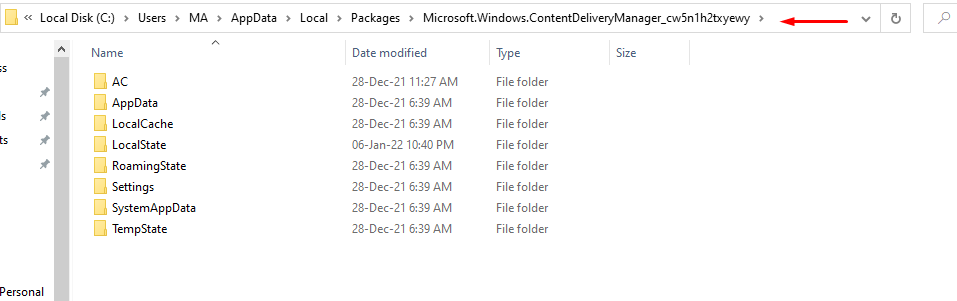
Delete all files and folders inside that directory except for the LocalState subfolder. Restart your computer and check whether Windows Spotlight is displaying new images on the lock screen.
Fix 2: Disable DevelopmentMode via Command Prompt
If Windows has a DevelopmentMode registry value set, Spotlight’s content delivery service may be blocked. Running a registry command resets the DiagTrack service to its normal startup state. Before editing the registry, confirm that Windows Security is active on your system to maintain protection during the change.
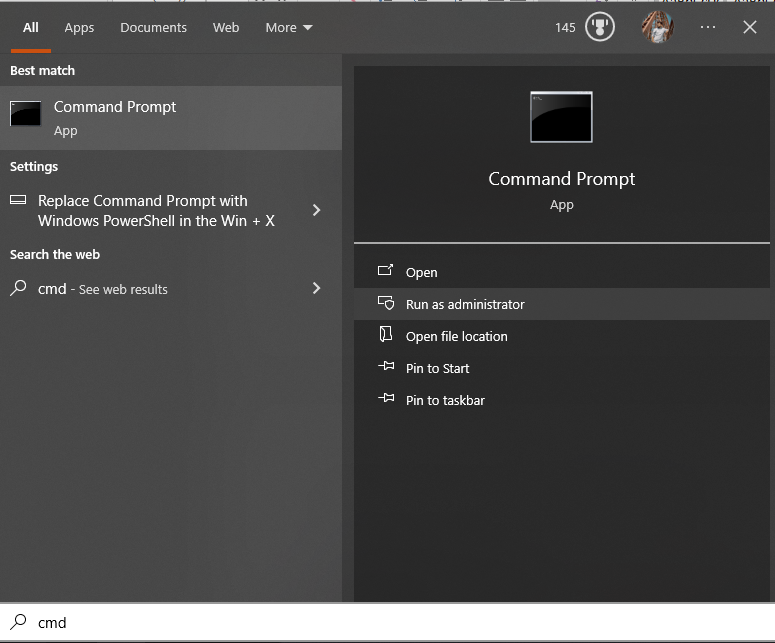
Open Command Prompt as Administrator:
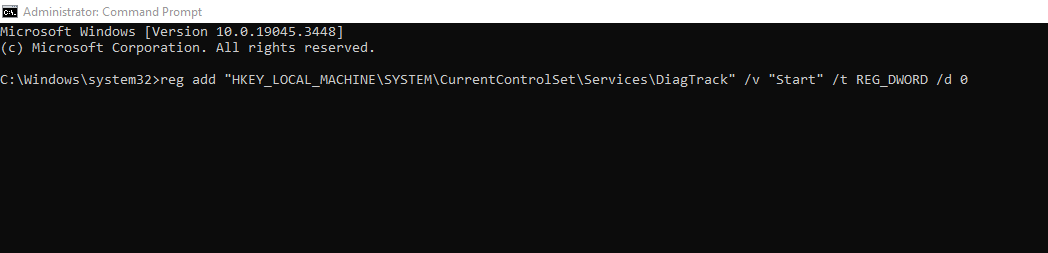
Enter the following command and press Enter:
reg add “HKEY_LOCAL_MACHINE\SYSTEM\CurrentControlSet\Services\DiagTrack” /v “Start” /t REG_DWORD /d 0
Restart your computer, then verify that Windows Spotlight is enabled in Lock Screen Settings and check the lock screen for new images.
Fix 3: Update Your Display Adapter Driver
An outdated or corrupted graphics driver can interfere with how Windows renders lock screen images. Updating the driver through Device Manager installs the latest version and may resolve Spotlight rendering failures. Up-to-date display drivers are also required if you plan to check your PC’s Windows 11 compatibility using the PC Health Check app.
Open Device Manager from the Start menu or by right-clicking the Start button:
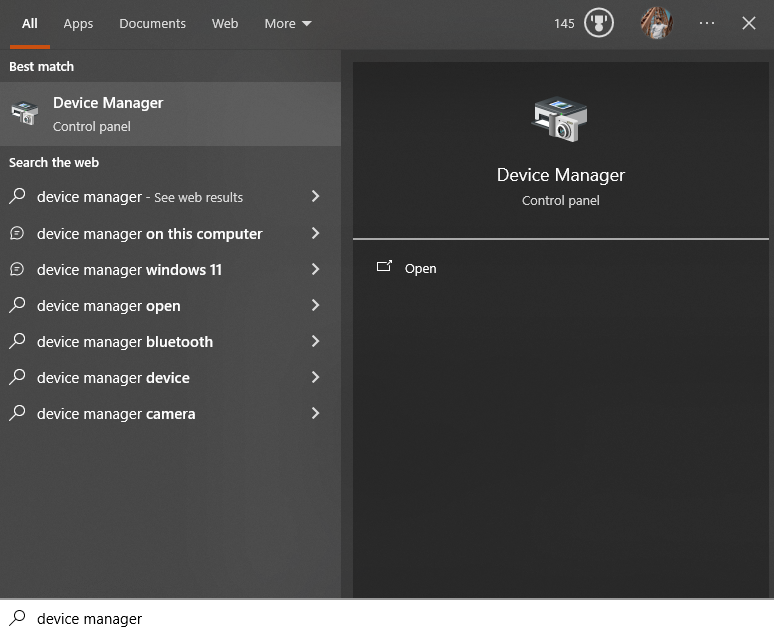
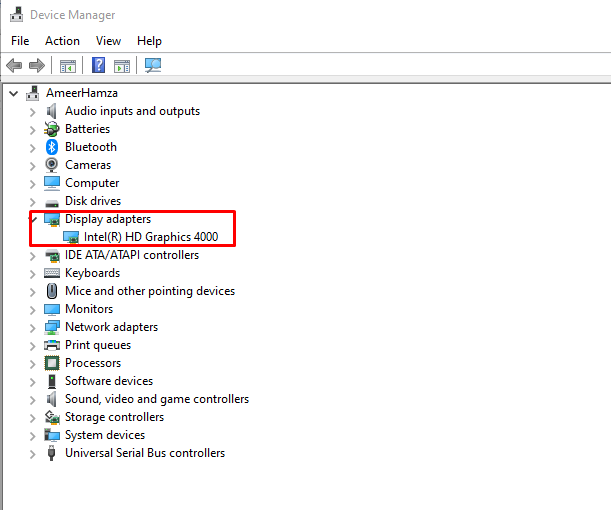
Expand the Display Adapters category to see your installed graphics hardware:
Right-click your display adapter and select Update Driver:
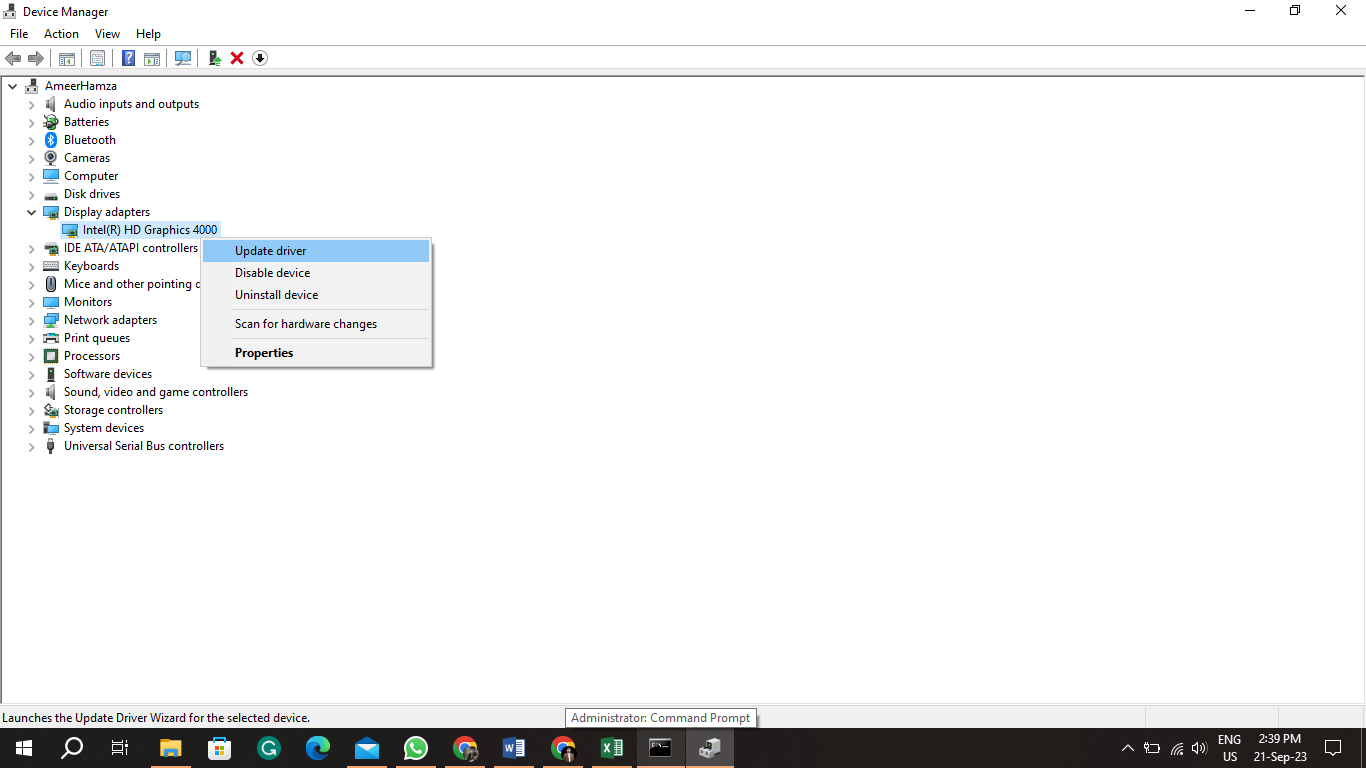
Follow the on-screen instructions to complete the driver update, then restart your computer. After the restart, lock your screen and wait a few minutes to see if Spotlight begins displaying updated images.