
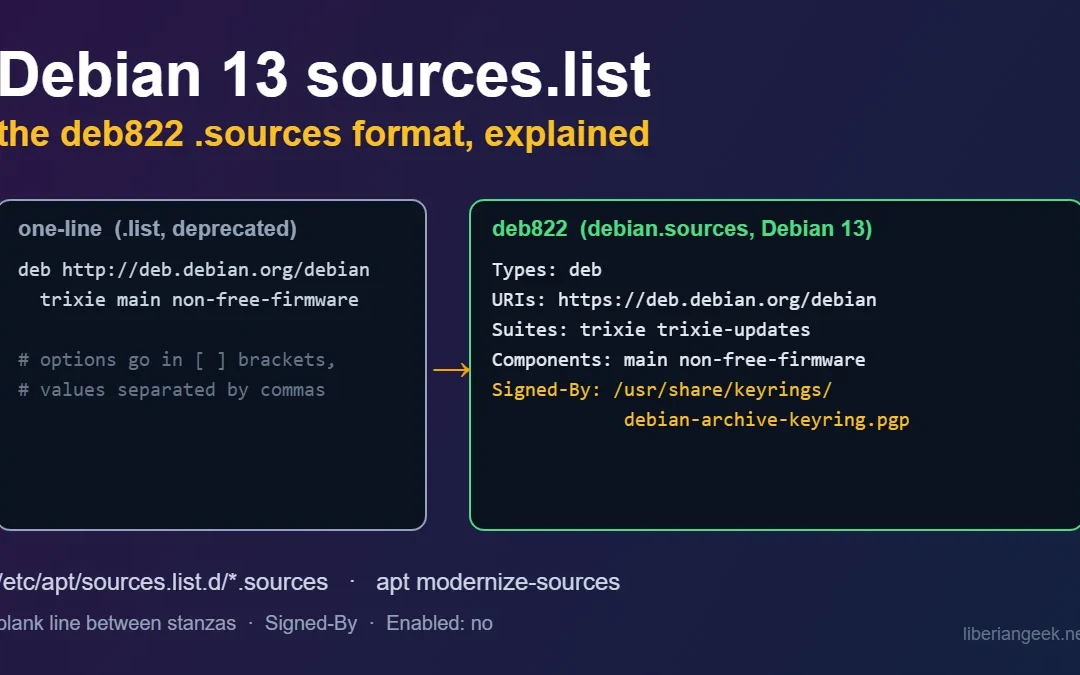
On Debian 13 (Trixie), APT repositories are configured in the deb822 format: one or more files ending in .sources under /etc/apt/sources.list.d/, with each repository written as a block of Field: value lines. The old one-line format in /etc/apt/sources.list still works, but the Debian 13 release notes describe the move to .sources files as the new way, and the APT manual says the one-line format is deprecated and will not be removed before 2029. This guide explains each field, shows how the two formats map to each other, and covers the mistakes that actually break apt update.
Quick answer. The standard Debian 13 repository file, taken from the official release notes, is /etc/apt/sources.list.d/debian.sources. After any change run sudo apt update, and use apt policy PACKAGE to confirm where a package will come from.
Types: deb
URIs: https://deb.debian.org/debian
Suites: trixie trixie-updates
Components: main non-free-firmware
Signed-By: /usr/share/keyrings/debian-archive-keyring.pgp

Types: deb
URIs: https://security.debian.org/debian-security
Suites: trixie-security
Components: main non-free-firmware
Signed-By: /usr/share/keyrings/debian-archive-keyring.pgp
What was verified and what was not. The example above and the notes about Signed-By paths and apt modernize-sources come from the Debian 13 release notes (the “Preparing APT sources files” and cleanup sections), and the field rules come from the sources.list(5) manual page. The release notes example writes the keyring as debian-archive-keyring.gpg and says that the .gpg name is now a compatibility link to the .pgp file, so this guide uses .pgp. I could not reach a Debian 13 machine from my test environment. Every behaviour screenshot below was captured on Ubuntu 24.04 with apt 2.8.3, against a small signed repository I built locally, in isolated APT directories so the real system configuration was untouched. Ubuntu 24.04 reads the same deb822 format, but that is not Debian 13, so confirm each step on your own server. I did not run apt modernize-sources, because that command is not in the older apt I tested with.
One-line format versus deb822
The same repository, written both ways, in the test repository I used:
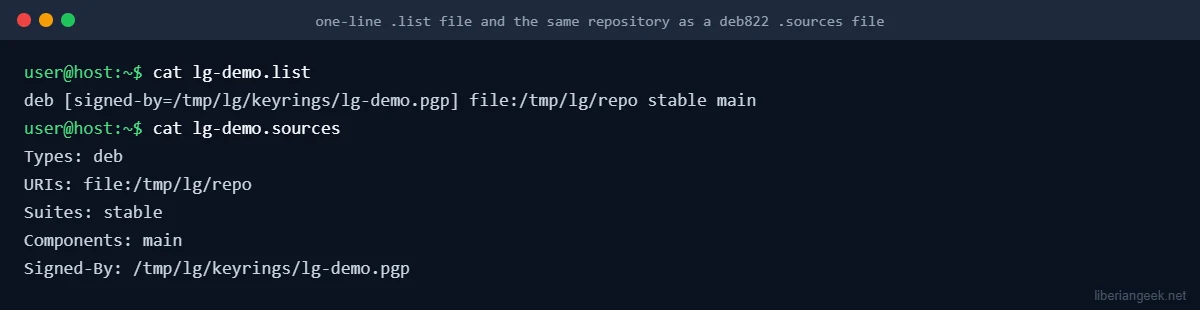
One-line format (.list) |
deb822 format (.sources) |
|---|---|
deb or deb-src at the start of the line |
Types: deb or Types: deb deb-src |
| The URL | URIs: |
The suite (trixie) |
Suites:, several allowed, separated by spaces |
| The components after the suite | Components:, separated by spaces |
Options in square brackets, such as [signed-by=...], with commas between values |
Separate fields such as Signed-By:, values separated by whitespace, not commas |
| One repository per line | One block per repository, blocks separated by an empty line |
The fields you will actually use
| Field | What it does | Notes |
|---|---|---|
Types |
Package type: deb for binary packages, deb-src for source packages |
Leave deb-src out unless you build from source |
URIs |
Where the repository lives | Several URIs may be listed; a local mirror uses file:/path |
Suites |
The release names to use | On Debian 13: trixie, trixie-updates on the main mirror and trixie-security on the security archive |
Components |
Which sections of the archive to use | The release notes example uses main non-free-firmware; add contrib or non-free only if you need them |
Signed-By |
The keyring file (or key fingerprint) allowed to sign this repository | Absolute path. The manual recommends /usr/share/keyrings for keyrings managed by packages and /etc/apt/keyrings for ones you manage yourself |
Enabled |
no turns the block off without deleting it |
Remove the field or set yes to turn it back on |
Architectures |
Limit which architectures are downloaded | If unset, APT uses every architecture it is configured for |
File names inside sources.list.d may contain only letters, digits, underscore, hyphen and dot, and the file must end in .sources (or .list for the old format). In my test, extra copies named lg-demo.sources.bak and old.list.save in the same directory were ignored: apt-get update fetched the repository once and printed no duplicate warning. That makes .bak a safe suffix for a backup you keep inside the directory, though copying it to your home directory is tidier.
Check what your server uses now
ls -l /etc/apt/sources.list /etc/apt/sources.list.d/
cat /etc/apt/sources.list.d/*.sources
grep -v '^#' /etc/apt/sources.list
Some servers have only sources.list, some only .sources files, and a server upgraded from Debian 12 (see the Debian 12 to Debian 13 upgrade guide) can have both. If a file still names bookworm after an upgrade, the release notes say there should be no sources entries pointing to bookworm, so fix it before the next apt upgrade.
Convert to deb822
Option 1: apt modernize-sources
The release notes say Debian 13 has a new apt modernize-sources feature that converts older configuration files. Run it as root and read what it proposes before agreeing:
sudo apt modernize-sourcesI could not run it (see the note near the top), so check the result yourself with the steps under “Verify the result”. Options written in square brackets in the old file are the most likely thing to need a manual look.
Option 2: write the file by hand
Back up first, because a broken sources file leaves you unable to install or update anything:
sudo mkdir -p /root/apt-sources-backup
sudo cp -a /etc/apt/sources.list /etc/apt/sources.list.d /root/apt-sources-backup/
sudo nano /etc/apt/sources.list.d/debian.sources
Paste the two blocks from the quick answer, with an empty line between them. Then move the old file out of the way so the repositories are not defined twice:
sudo mv /etc/apt/sources.list /root/apt-sources-backup/sources.list.old
sudo apt update
Use mv into your backup directory rather than deleting, so you can restore it. Leaving an empty sources.list is also fine.
Verify the result
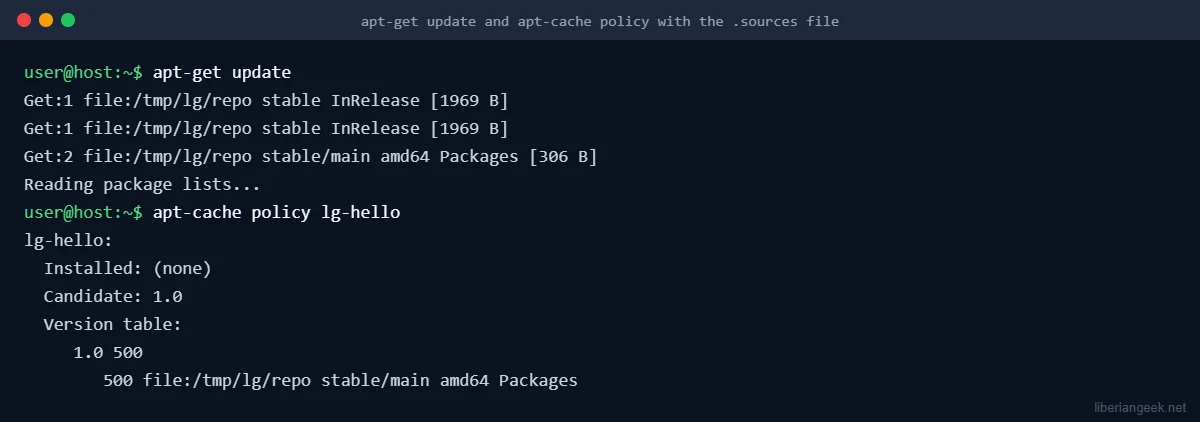
sudo apt update
apt policy PACKAGE_NAME
apt update should contact each URI and finish without E: or W: lines. apt policy shows the candidate version and which repository it comes from. This is what both looked like in my test repository, using a .sources file:
The mistakes that break apt update
The same repository in two files
If you create debian.sources but leave the old entries in sources.list, APT does not fail, but it warns that each target is configured multiple times. I reproduced it by putting the same repository in a .list and a .sources file:
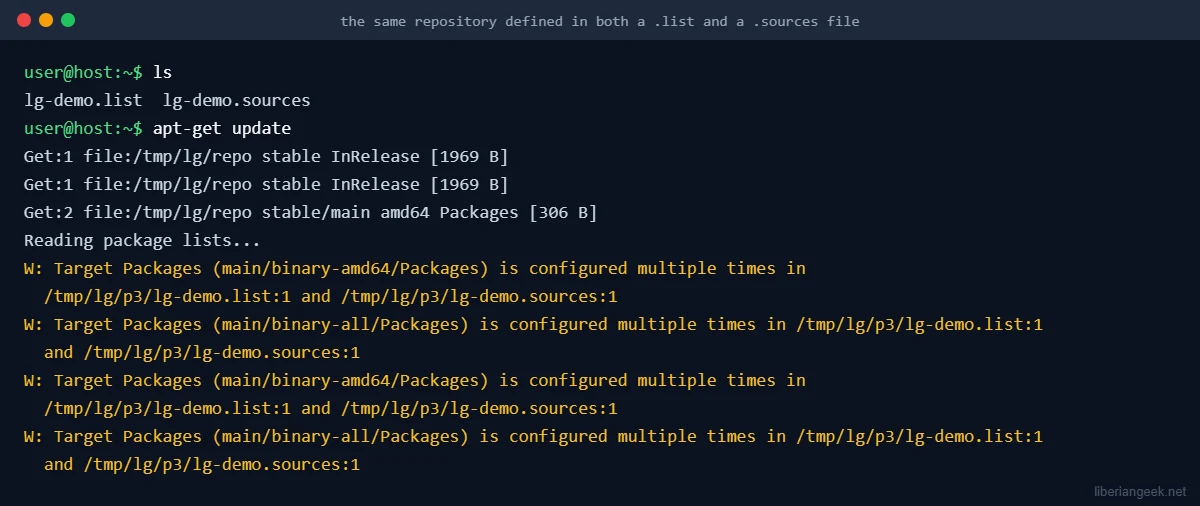
The warning names both files and line numbers, which tells you exactly which one to remove. Delete or move the old definition and run sudo apt update again.
Stuck at this step? Ask us, it is free and include the exact error.
NO_PUBKEY and “is not signed”
A repository whose signing key APT does not trust is refused. I removed the Signed-By line from the test file, with no matching key in the system keyrings, and apt update stopped with an error:
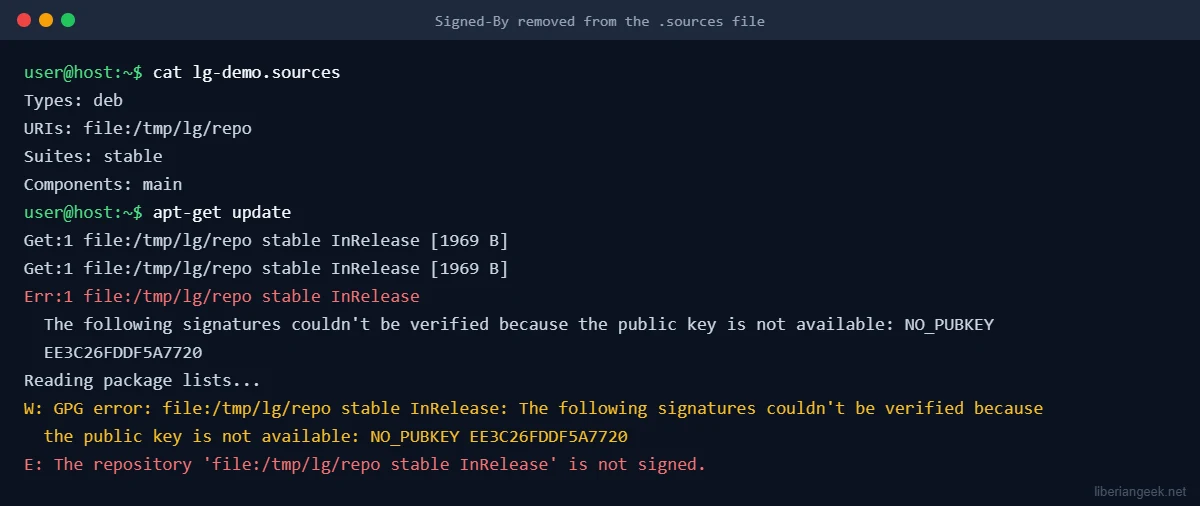
The fix is to give the block a Signed-By line that points to the repository’s keyring file, as in the working example above. Do not “fix” this by marking a repository as trusted without a key; that switches off the check that protects you from tampered packages. For a third-party repository, store its key under /etc/apt/keyrings (create it with sudo install -d -m 0755 /etc/apt/keyrings if it does not exist), download the key only from the vendor’s own documentation, and reference that path in Signed-By.
A missing blank line between blocks
This one is easy to miss because the file looks reasonable. Blocks are separated by an empty line. When I put two blocks together with no empty line, the second set of fields silently replaced the first, so only the second suite was used:
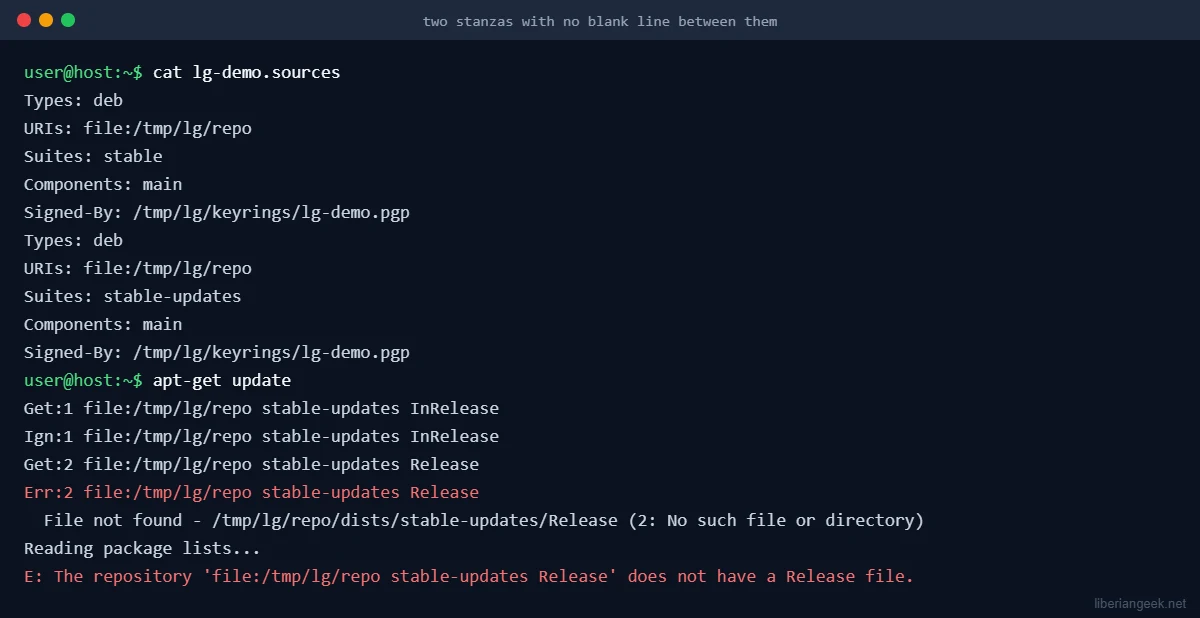
In my test, the suite stable-updates did not exist, so the error was visible. On a real Debian server the same slip could drop your main trixie suite or the security block without any error, so after editing a multi-block file, count the blocks and check apt policy for the repositories you expect.
Turn a repository off without deleting it
Add Enabled: no to a block. In my test, apt-get update then fetched nothing for that block and printed only Reading package lists.... To turn it back on, delete the line or set it to yes.
Types: deb
URIs: https://deb.debian.org/debian
Suites: trixie-backports
Components: main
Signed-By: /usr/share/keyrings/debian-archive-keyring.pgp
Enabled: no
That block is also a template for backports. The release notes say that after upgrading you may consider adding trixie-backports. I did not test the backports suite itself, and backported packages are only installed when you ask for them, for example with apt install -t trixie-backports PACKAGE. Keep it disabled until you need a specific newer package.
Roll back
sudo rm /etc/apt/sources.list.d/debian.sources
sudo cp -a /root/apt-sources-backup/sources.list.old /etc/apt/sources.list
sudo apt update
That restores the one-line file from the hand-made backup above. If you restore the old file, check that it contains trixie, not bookworm, on a server that has been upgraded.
Troubleshooting
| What you see | Likely cause | What to do |
|---|---|---|
Target ... is configured multiple times in ... .list:1 and ... .sources:1 |
Same repository defined in two files (reproduced above) | Remove the old entry, then run sudo apt update |
NO_PUBKEY and The repository ... is not signed |
No trusted key for that repository, often a missing or wrong Signed-By (reproduced above) |
Point Signed-By at the correct keyring file and check that the file exists |
does not have a Release file |
Wrong Suites or URIs, or two blocks merged by a missing blank line (reproduced above) |
Check the suite name and the empty line between blocks |
| Edited a file but nothing changes | The block is disabled with Enabled: no, or the file is not named *.sources |
Check the file name and the Enabled field |
| Packages still come from Debian 12 | An old file still points to bookworm |
grep -rn bookworm /etc/apt/ and fix every match |
When to leave the one-line file alone
If your server works and you manage it with older automation or a configuration tool that writes sources.list, you do not have to convert it today. The APT manual says the one-line format may eventually be removed, but not before 2029. Convert when you next touch the file, or when you add a new repository, and pair it with the other post-install work such as the UFW firewall setup and SSH hardening.
FAQ
Does Debian 12 understand .sources files?
The APT manual says the deb822 format has been supported since APT 1.1, so it predates Debian 12. The apt modernize-sources conversion command is described in the Debian 13 release notes, so do not expect it on Debian 12.
Can I keep both formats at the same time?
Yes, as long as no repository is defined in both. A duplicate produces the warning shown above.
Where should third-party repository keys go?
The APT manual recommends /etc/apt/keyrings for keyrings you manage yourself and /usr/share/keyrings for those installed by packages, and then naming the file in Signed-By.