

Quick answer: on Ubuntu 24.04, run sudo apt install phpmyadmin on a server that already has Apache, MariaDB and PHP. Answer Yes to the dbconfig-common question and tick apache2 with the Space bar. Then open http://your-server/phpmyadmin/. You cannot log in as root on a default Ubuntu MariaDB install, so create a separate admin user first (step 3) and put a password gate in front of the page (step 5).
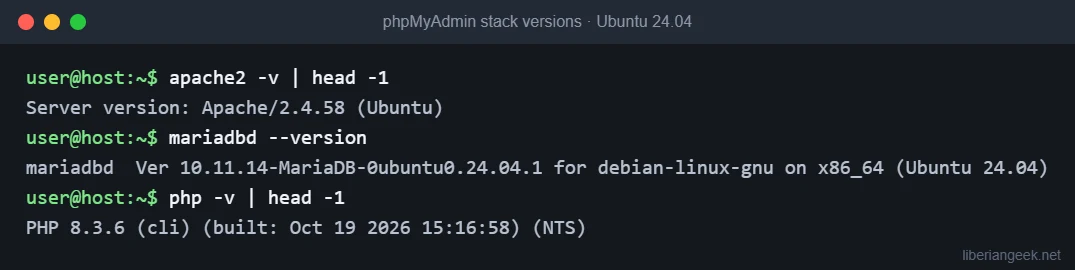
phpMyAdmin is a web interface for MariaDB and MySQL. This guide installs it from Ubuntu’s own repository on Ubuntu 24.04 LTS with the Apache web server, which is the simplest and most easily updated route. Everything below was run on Ubuntu 24.04.5; the exact versions are in the table. If you do not have the web server and database yet, set them up first with our LAMP stack on Ubuntu 24.04 guide.
What gets installed
| Component | Version on Ubuntu 24.04 | Where it comes from |
|---|---|---|
| Apache | 2.4.58 | apache2 package |
| MariaDB | 10.11.14 | mariadb-server package |
| PHP | 8.3.6 | php, libapache2-mod-php, php-mysql |
| phpMyAdmin | 5.2.1 (4:5.2.1+dfsg-3) |
phpmyadmin package, Ubuntu archive |
Ubuntu 26.04 LTS: the Ubuntu archive lists phpMyAdmin 4:5.2.3+dfsg-1 for 26.04 (checked on Launchpad). The steps are the same package-based flow, but I did not run them on 26.04, so check the package versions on your own system.
Do not expose phpMyAdmin carelessly. A login page at /phpmyadmin is found and attacked by automated scanners within hours of a server going public. Follow the hardening step, serve it over HTTPS, and never leave it open on a production server you do not need it on.
Step 1: Install Apache, MariaDB and PHP
Skip this if the LAMP stack is already running.
sudo apt update
sudo apt install apache2 mariadb-server php libapache2-mod-php php-mysql
Step 2: Install phpMyAdmin
sudo apt install phpmyadminThe installer shows a few text dialogs:
- Web server to reconfigure automatically: highlight
apache2and press Space so a star appears, then Enter. If you only press Enter, nothing is selected and the Apache configuration is not enabled (see the troubleshooting table). - Configure database for phpmyadmin with dbconfig-common: choose Yes. This creates the small
phpmyadmindatabase phpMyAdmin uses for its own settings. - Password for the phpmyadmin application user: set one or leave it empty to let the installer generate a random password. You will never type it again.
The screenshot below is the tail of the package output. It was captured in a container with the dialog answers preseeded, so the dialogs themselves are not shown, and the service-restart lines are omitted because that container has no systemd.
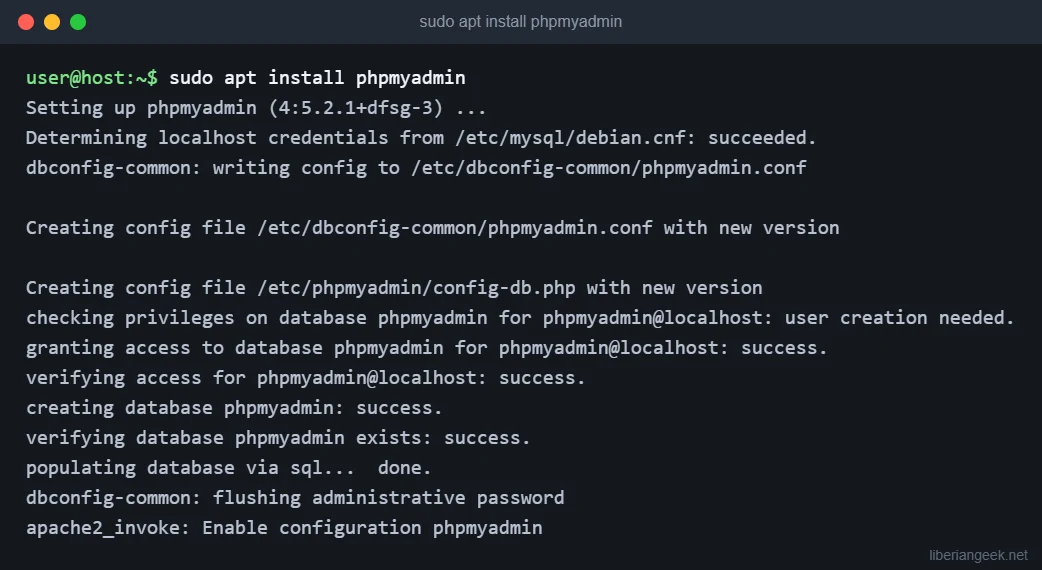
phpmyadmin configuration. Captured with preseeded answers.Confirm that Apache is serving it:
sudo apache2ctl configtest
curl -sI http://localhost/phpmyadmin/ | head -3
ls -l /etc/apache2/conf-enabled/phpmyadmin.conf
You should see Syntax OK, an HTTP/1.1 200 OK line, and a symlink in conf-enabled. The AH00558 warning about the server’s fully qualified domain name is harmless; it only means no global ServerName is set.
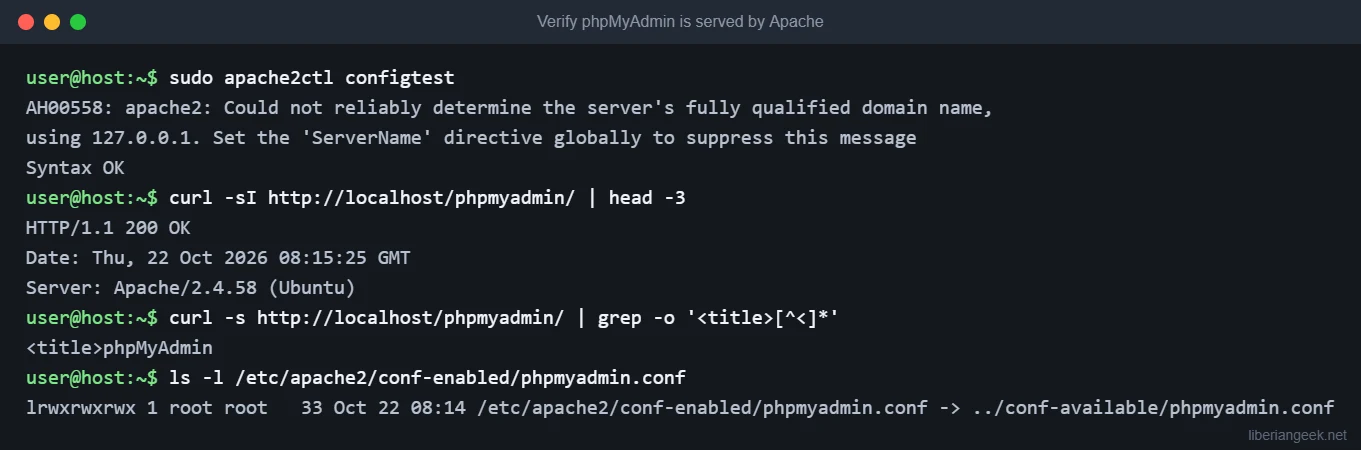
/phpmyadmin/ and the enabled configuration, captured on Ubuntu 24.04.5.Now browse to http://your-server-ip/phpmyadmin/. I did not capture the login page itself in this session, but you will see the standard phpMyAdmin login form there.
Step 3: Create an admin user (why root fails)
On Ubuntu, MariaDB’s root account authenticates through the Unix socket, which means it works for sudo mariadb in a terminal but cannot log in with a password from a web page. This is the grant on the test system:
sudo mariadb -e "SHOW GRANTS FOR 'root'@'localhost'\G"The output contains IDENTIFIED VIA mysql_native_password USING 'invalid' OR unix_socket: the password method is deliberately set to an invalid value, so only the socket works. Trying to sign in to phpMyAdmin as root therefore ends in an access-denied error. Do not “fix” this by giving root a password. Create a dedicated account instead:
sudo mariadb
CREATE USER 'pmaadmin'@'localhost' IDENTIFIED BY 'CHANGE_THIS_TO_A_LONG_PASSWORD';
GRANT ALL PRIVILEGES ON *.* TO 'pmaadmin'@'localhost' WITH GRANT OPTION;
FLUSH PRIVILEGES;
EXIT;
This gives pmaadmin full administrative rights, so treat its password like a root password. For a single application, grant rights on one database only (for example ON myapp.*) instead of *.*. Test the account from the terminal before you try the browser:
mariadb -upmaadmin -p -e "SHOW DATABASES;"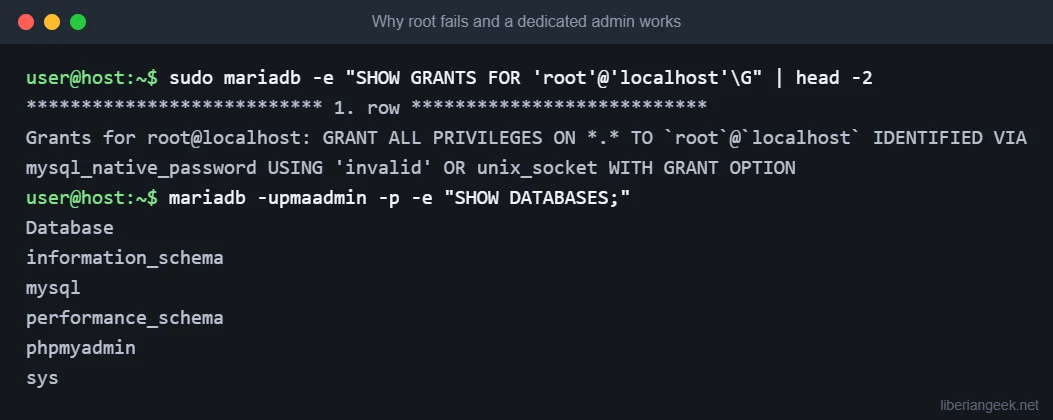
unix_socket, while the dedicated pmaadmin user logs in with a password. Captured on Ubuntu 24.04.5 (the output of the first command is wrapped at 92 characters).Step 4: Log in
Open http://your-server-ip/phpmyadmin/ and sign in with pmaadmin and the password you chose. The databases from the screenshot above, including phpmyadmin itself, appear in the left sidebar.
Step 5: Put a password gate in front of phpMyAdmin
An extra Apache login means an attacker must get through two passwords before reaching the phpMyAdmin form. Create the password file (htpasswd ships with Apache’s utilities) and a small configuration of your own. Keep it in a separate file so package upgrades never overwrite it:
sudo htpasswd -c /etc/phpmyadmin/.htpasswd pmagate
sudo nano /etc/apache2/conf-available/phpmyadmin-auth.conf
Put this in the file:
<Directory /usr/share/phpmyadmin>
    AuthType Basic
    AuthName "Restricted: phpMyAdmin"
    AuthUserFile /etc/phpmyadmin/.htpasswd
    Require valid-user
</Directory>
Enable it, test the syntax, and reload Apache:
sudo a2enconf phpmyadmin-auth
sudo apache2ctl configtest
sudo systemctl reload apache2
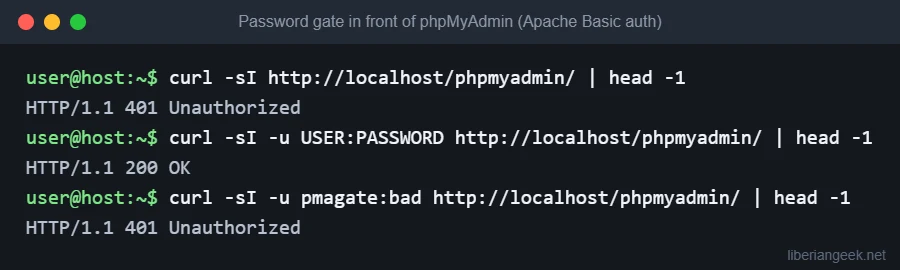
Check that the gate works. Without credentials you must get 401; with the right ones, 200:
curl -sI http://localhost/phpmyadmin/ | head -1
curl -sI -u pmagate:YOUR_PASSWORD http://localhost/phpmyadmin/ | head -1
If you still get 200 without credentials, the new configuration has not been loaded yet. Restart Apache with sudo systemctl restart apache2 and test again. In my test container, which has no systemd, a graceful reload by hand did not pick it up and a full stop and start did.
Basic authentication sends credentials in a way that is only protected on an HTTPS connection, so use it together with a TLS certificate on any server reachable from the internet. A firewall rule that limits ports 80 and 443 to your own addresses is stronger still. Our UFW setup guide is written for Debian, but the ufw commands are the same on Ubuntu.
Troubleshooting
| Symptom | Likely cause | Fix |
|---|---|---|
404 Not Found at /phpmyadmin |
apache2 was not ticked in the installer, so the configuration is not enabled | sudo a2enconf phpmyadmin then sudo systemctl reload apache2 |
| Access denied for user ‘root’@’localhost’ | MariaDB root uses unix_socket |
Create a dedicated user as in step 3 |
| “The mysqli extension is missing” | PHP MySQL module not installed | sudo apt install php-mysql, then reload Apache |
| Blank page or HTTP 500 | PHP or Apache error | Read the end of /var/log/apache2/error.log |
| Still 200 after adding the password gate | Apache has not loaded the new file | Run sudo apache2ctl configtest, then restart Apache |
Undo or remove phpMyAdmin
- Turn off only the password gate:
sudo a2disconf phpmyadmin-auththen reload Apache. - Turn off the phpMyAdmin page but keep the package:
sudo a2disconf phpmyadminthen reload Apache. - Remove it completely:
sudo apt purge phpmyadmin. The package offers to delete its ownphpmyadmindatabase; your application databases are not touched.
FAQ
Can I use the same steps with MySQL instead of MariaDB? The phpMyAdmin package is the same. The main difference is the database service and account setup. I only tested MariaDB here.
Is phpMyAdmin from the Ubuntu repository the newest version? No, it is the version Ubuntu packages for that release (5.2.1 on 24.04), with security fixes backported by Ubuntu. The advantage is that it updates with apt.
Do I need phpMyAdmin at all? Not for every server. If you only run one WordPress site, the command line (sudo mariadb) is enough and leaves one fewer login page to defend.