
Last updated:
Are you an Ubuntu user and want to install a Windows application but don’t want to install a complete Windows OS? Then, Wine can help you, but, wait it’s not that wine but it is an application that you can install on Ubuntu. Wine (stands for “Wine Is Not an Emulator”) is an application designed to install Windows applications on a Linux system. In other words, it is a compatibility layer used to install Windows applications on Linux. Wine is like an emulator but it is designed in a way to improve the system performance. For .NET Framework assemblies specifically, you may prefer to install Mono on Ubuntu 24.04 instead.
Quick answer
You can install Wine on Ubuntu 24.04 from Ubuntu’s repository or from WineHQ. The WineHQ method is often preferred when you need newer Wine packages, but it requires enabling 32-bit architecture and adding the WineHQ repository correctly.
How to Install Wine on Ubuntu 24.04
As from the title we can sense, that Wine does not come preinstalled, but it needs to be installed manually. Wine can be installed on Ubuntu using the default repository and the WineHQ repository.
Method 1: Install Wine on Ubuntu 24.04 from the Default Repository
The most straightforward and simple way to install Wine on Ubuntu is through the official apt repository. However, the official repository may not install the latest version of Wine. But, the official Ubuntu repository guarantees the stable wine version.
1.1. Check System Architecture
Check the CPU architecture before installing Wine, because Wine offers different applications for 32-bit and 64-bit architecture:
lscpu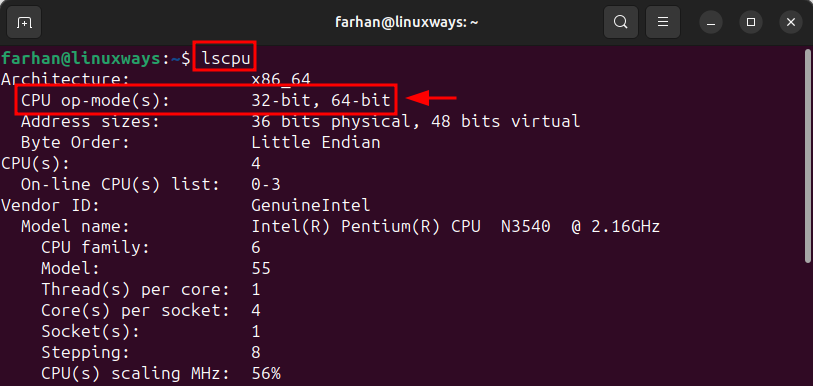
1.2. Update System Repositories
After detecting the CPU architecture, update the local repositories, by running this command:
sudo apt update && sudo apt upgrade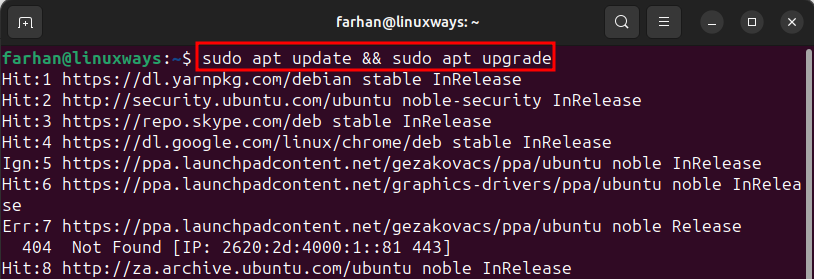
1.3. Install Wine on Ubuntu
Now, that you have figured out your CPU architecture it’s time to install Wine on Ubuntu. If you have a 64-bit CPU, then, run this command to install Wine:
sudo apt install wine64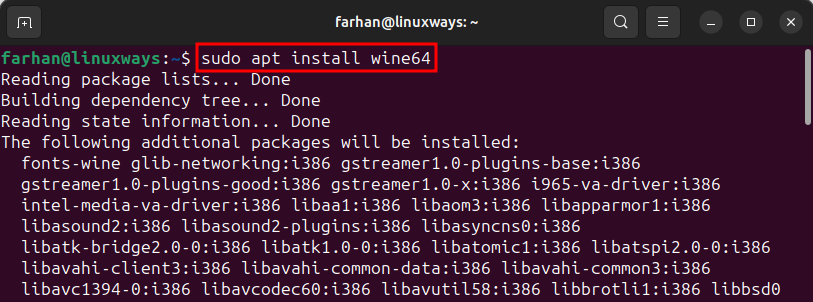
Alternatively, if you have a 32-bit CPU then, run this command to install Wine:
sudo apt install wine321.4. Check Wine Version
After installing wine, check its version to verify the installation by running the given command:
wine --version
Method 2: Install Wine on Ubuntu 24.04 from the WineHQ Repository
Another way of installing wine is from the WineHQ repository. The WineHQ repository contains the latest Wine version, but it may or may not be stable. This vendor-repository pattern is the same one used to install Google Chrome on Ubuntu 24.04. Check the following steps to install Wine from the WineHQ repository on Ubuntu.
2.1. Enable 32-bit Architecture
You can only install Wine from the WineHQ repository if you have a 32-bit supported system. As we know Ubuntu discontinued 32-bit architecture back in 2017, so we can assume that every Ubuntu system nowadays is 64-bit.
So, to enable the 32-bit architecture, execute the below command in the Terminal:
sudo dpkg --add-architecture i386
2.2. Update System Repositories
Once the 32-bit architecture is enabled, then, update the local repositories. It is a good practice to update before installing any package on Ubuntu, to do so, run the below command:
sudo apt update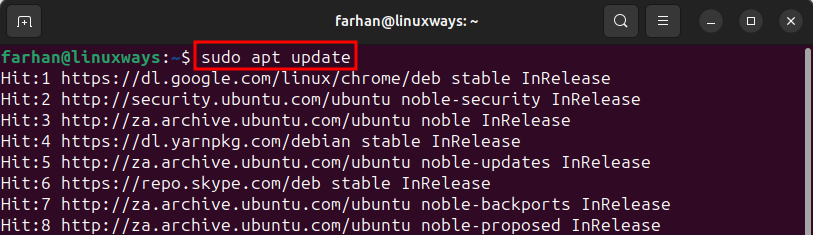
2.3. Add the Wine Repository Keys
Make sure to add security keys before installing Wine so that your system can communicate with the repository securely. To add the security keys to the system run the below command:
sudo wget -O /etc/apt/keyrings/winehq-archive.key https://dl.winehq.org/wine-builds/winehq.key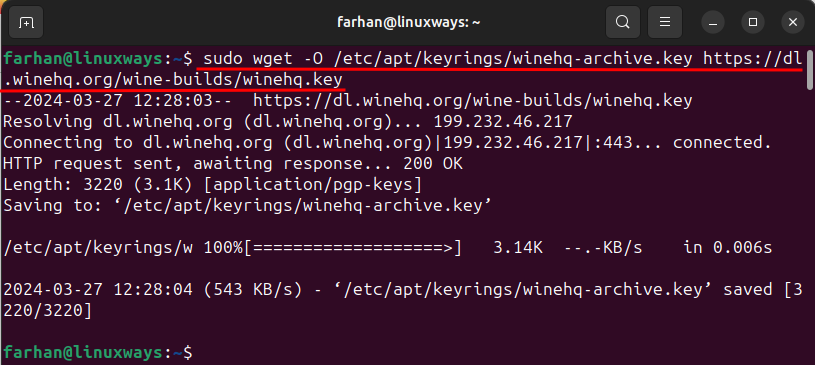
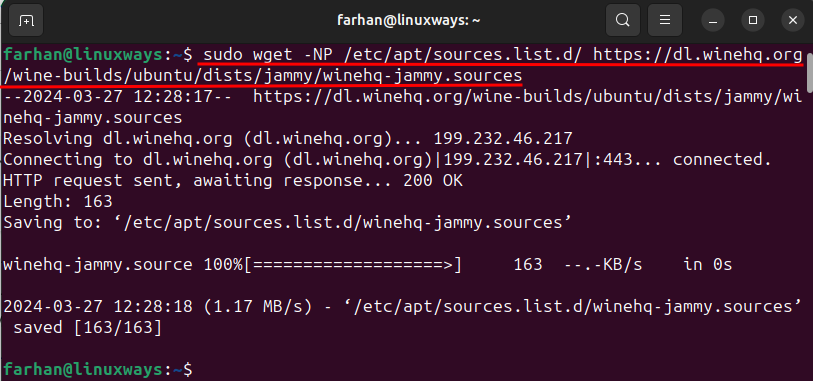
2.4. Add WineHQ Repository
Now, add the WineHQ repository to the system from where you will be able to install Wine on Ubuntu. To add the WineHQ repository to the system run the given command:
sudo wget -NP /etc/apt/sources.list.d/ https://dl.winehq.org/wine-builds/ubuntu/dists/jammy/winehq-jammy.sourcesNote: The command above uses jammy (Ubuntu 22.04) packages, which is a common workaround when WineHQ noble (Ubuntu 24.04) packages are not yet available. Check dl.winehq.org/wine-builds/ubuntu/dists/ to see if a noble directory now exists, and replace jammy/winehq-jammy with noble/winehq-noble in the command if so.
2.5. Update Packages List
Once the WineHQ repository is added, update the system packages list so that WineHQ repository could be displayed in the system:
sudo apt update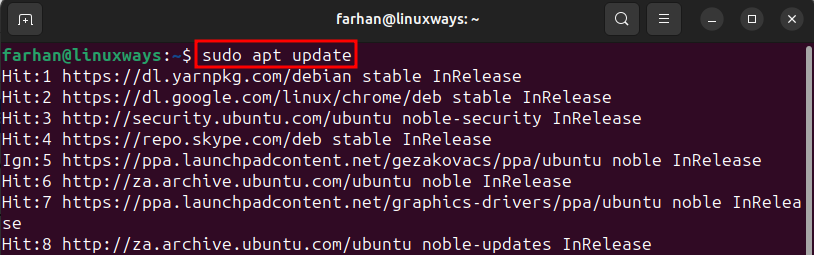
2.6. Install Wine on Ubuntu
After adding WineHQ repository to the system, you are all set to install Wine on Ubuntu from that repository. To install the stable version of Wine from the WineHQ repository run the given command:
sudo apt install --install-recommends winehq-stable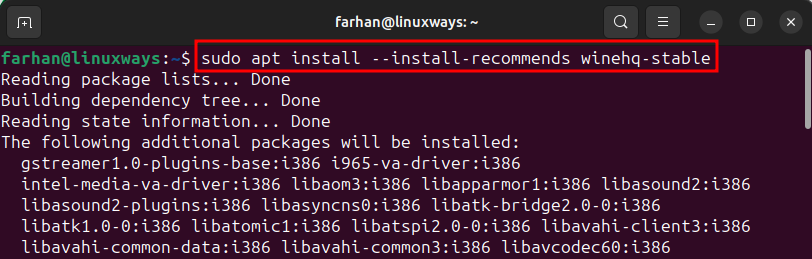
Alternatively, you can install the latest version of Wine from WineHQ repository by running the given command:
sudo apt install --install-recommends winehq-devel2.7. Verify Wine Installation
After installing Wine, verify its installation by executing the given command:
wine --version
How to Update Wine on Ubuntu?
If you have already install the Wine on Ubuntu and want to upgrade it to the latest version. Then, executing the following command will upgrade Wine to the latest version on Ubuntu:
sudo apt-get upgrade winehq-stable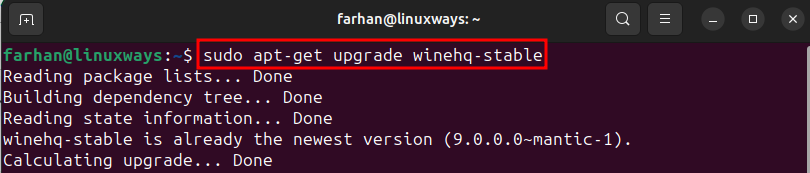
How to Remove Wine from Ubuntu?
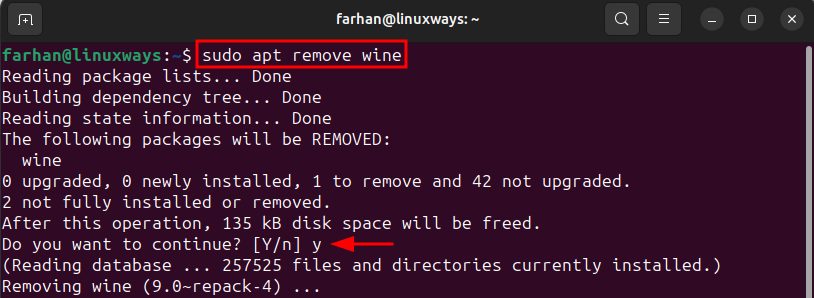
If you are done using Wine or want remove it for some other purpose, then, you can remove it by executing the following command:
sudo apt remove wineThe above command will remove Wine from Ubuntu but not its dependencies:
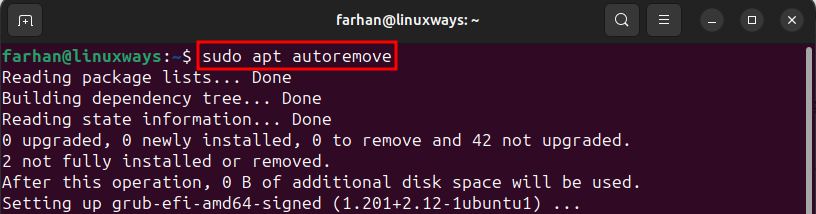
After removing Wine, you can remove all of its dependencies by running this given command:
sudo apt autoremoveNot only of Wine, but it will remove all other left over dependencies of other programs:
Now it is recommended to remove all the folders related to the Wine application. You can remove all the Wine folders, by executing the given commands one by one:
rm -rf $HOME/.wine
rm -f $HOME/.config/menus/applications-merged/wine*
rm -rf $HOME/.local/share/applications/wine
rm -f /.local/share/desktop-directories/wine*
rm -f /.local/share/icons/????_*.xpm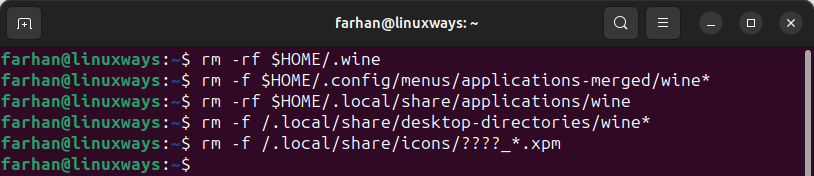
Once you removed all the folders, finally, run the given command to remove all the temporary files related to the Wine package:
sudo apt-get remove --purge ^wine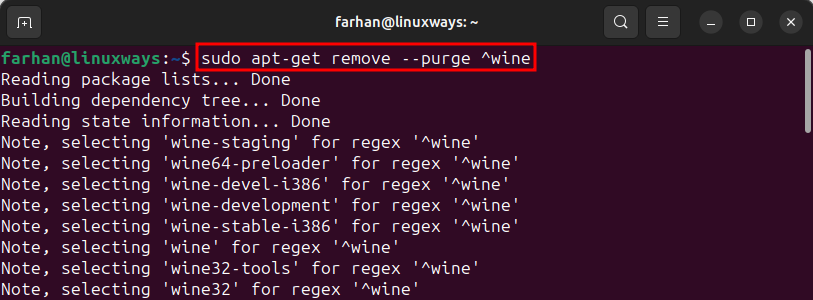
sudo apt update
Once done with removing all the Wine files, dependencies and packages, then, execute the given commands one by one to correct any installation errors:
sudo apt autoclean
sudo apt clean
sudo apt autoremove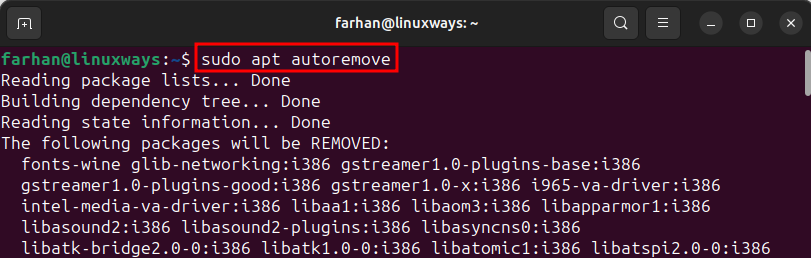
Common Wine compatibility issues
Wine does not guarantee every Windows app will work. The WineHQ AppDB lists tested applications and their compatibility ratings. For apps not listed, these are the most common problems and fixes:
| Issue | Fix |
|---|---|
| App crashes on launch | Run winecfg and try a different Windows version (XP, 7, 10) |
| Missing DLL errors | Install winetricks, then run winetricks vcrun2019 or the needed runtime |
| 32-bit app won’t run | Ensure wine32 is installed: sudo apt install wine32 |
| WineHQ install fails with missing packages | Verify i386 is enabled: dpkg --print-foreign-architectures |
| Corrupted Wine prefix | Reset: rm -rf ~/.wine && winecfg |
| Screen resolution or DPI issues | Open winecfg ? Graphics tab ? set DPI or virtual desktop size |
Before running Windows apps with Wine
Wine does not guarantee every Windows app will work. Some simple apps run well, while games, drivers, security tools, and apps with heavy system integration may fail or need extra configuration. For media playback in particular, a native app like VLC on Ubuntu 24.04 is a better option than running a Windows player under Wine.
Keep Wine prefixes separate when testing different applications. That makes it easier to remove a broken setup without affecting other Windows apps you already have working.