

An IP address is a unique numeric label assigned to every device on a network. It identifies your hardware, enables communication between devices, and determines your physical location online.
This guide explains what IP addresses are, the different types, and how to find your public or local IP on Windows, Mac, Android, and iPhone.
Quick Answer
Search “what is my ip” on Google to find your public IP. For your local IP on Windows, run ipconfig in Command Prompt. On Mac, run ipconfig getifaddr en0 in Terminal.
What is an IP Address?
An IP (Internet Protocol) address is a unique series of numbers lying between 0 to 255 having a specific format xxx.xxx.xxx.xxx. Every device connected to the network contains a unique IP address that makes it different from all other devices.
Why We Need an IP Address?
An IP address is crucial for all devices connected to the network due to several reasons such as:
- Using the unique IP address of the device, we can identify and solve any connectivity issue.
- It identifies devices connected to the network.
- It allows communication between two or more devices on the network.
- It identifies the physical location of any device connected to the network.
- It identifies the source and destination of a data packet.
- It identifies the memory location of a device from where a program is running.
- It identifies the returning address to answer an email.
What are the Types of an IP Address?
There are four types of IP address:
- Public or global IP address
- Local or private IP address
- Static or Dedicated IP address
- Dynamic IP address
What is the Public IP Address
The public or global IP address is an IP that is assigned by the ISP (Internet Service Provider) to the router of the local network. The ISP allocates one public IP address to the network’s router, so all devices on the same network have the same public IP. All network devices are visible to the entire internet using this IP address. It finds which device is requesting for which website and makes their connection accordingly.
How to Find the Public IP Address on Windows, Mac, Android, and iPhone?
We can find our public IP address for any device using any operating system such as Windows or iOS using the two given methods:
- Using Avast’s IP checker (online tool)
- Using Google
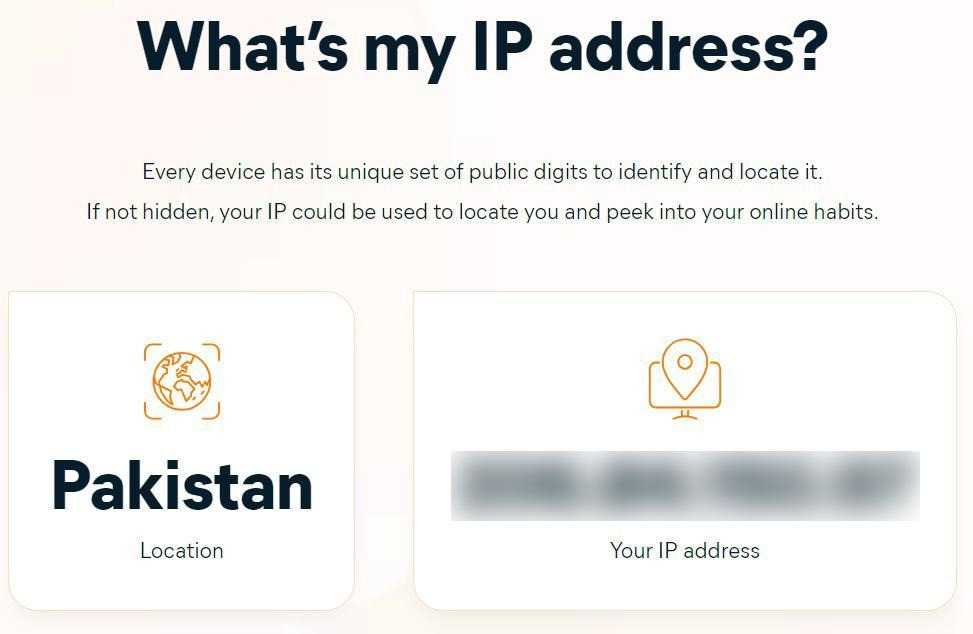
How to Find Public IP Address Using Online Tool Avast’s IP Address Checker?
We can find our public IP address using free online tools such as Awast’s IP address checker. This tool provides our public IP address along with the physical location of our network. This tool automatically identifies our public IP address without entering any command.
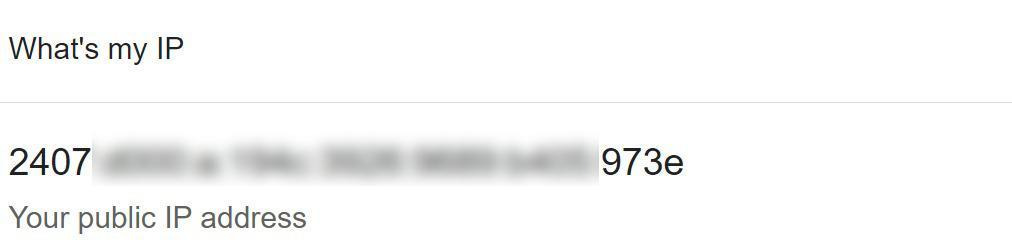
How to Find Public IP Address From Google?
This is an alternate way to find our public IP address. In this way, we just type “What is my IP” in the search bar and it shows our public IP on the screen.
What is the Local IP Address
The local or private IP address is an IP assigned by the network router to the network device. Every device of a single network has a unique local IP that cannot be assigned to another device. The local IP address allows communication between devices on the same network. This is a more private IP address of a device.
While determining your local IP address, you can see IPv4 (IP version 4) and IPv6 (IP version 6) on your device. These both are local IPs. An IPv6 is a string containing both letters and numbers. It creates more unique IP addresses than the IPv4. The IPv6 is not fully supported by all networks and devices.
How to Find a Local IP Address on Windows?
Finding the local IP address of a device having any operating system is more detective than the other IP addresses such as public, static, and dynamic. In this section, we will learn how to find a local IP address on Windows 10 and Windows 11 using GUI (Graphical User Interface) and command line.
How to Find a Local IP Address on Windows 11 Using Graphical User Interface?
Perform the below-given steps to determine your local IP address on Windows 11 using GUI.
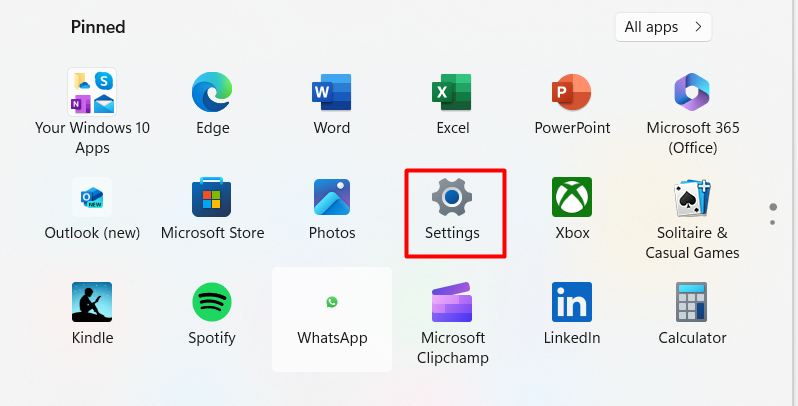
Step 1: Open the Start Menu and click on Settings option:
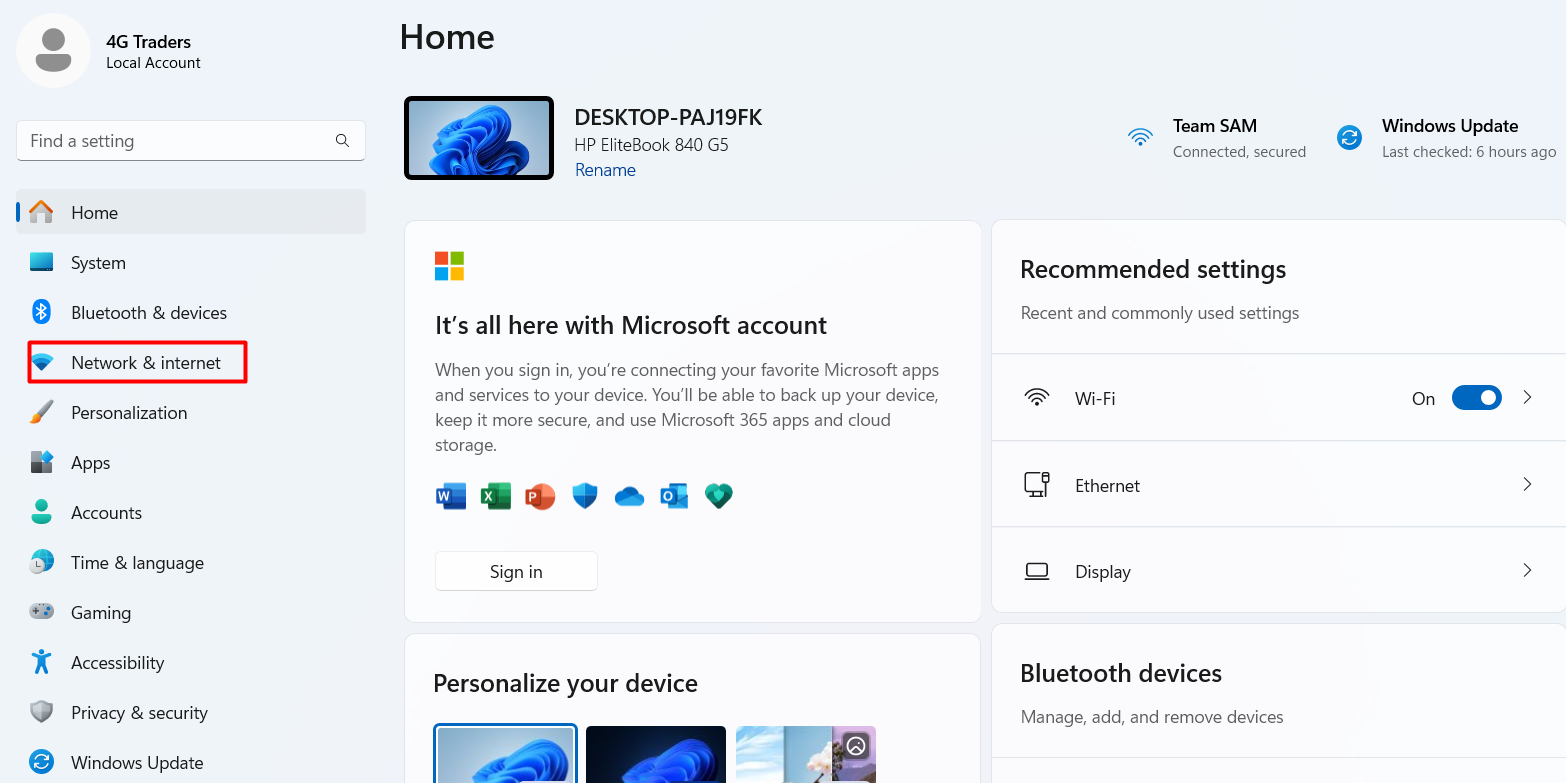
Step 2: After opening Settings, click on the option Network & internet:
Step 3: Select and tap the option Wi-Fi:
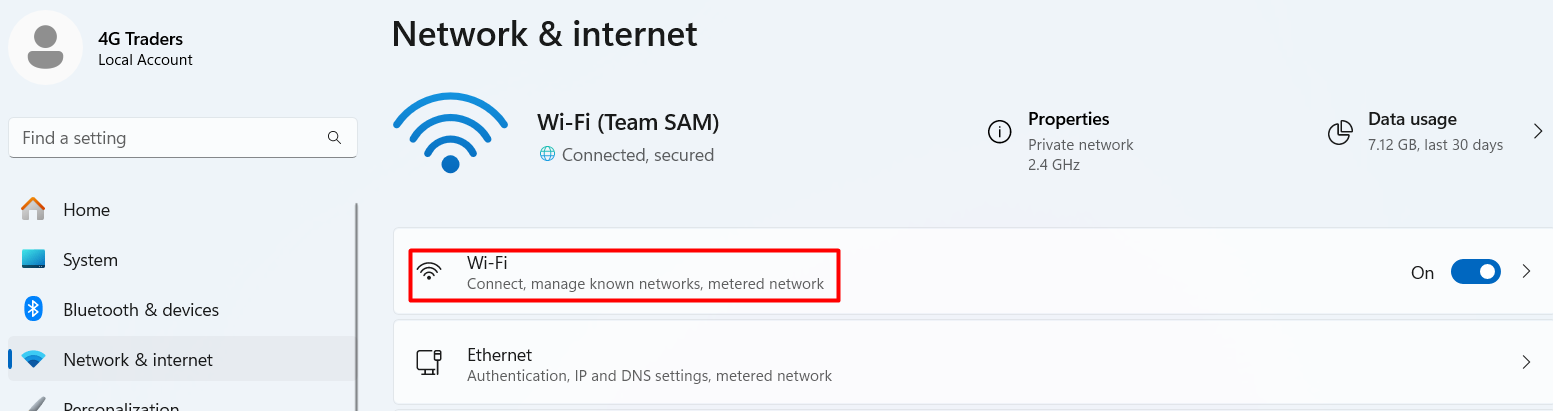
Step 4: Select and click on your connected Wi-Fi properties:
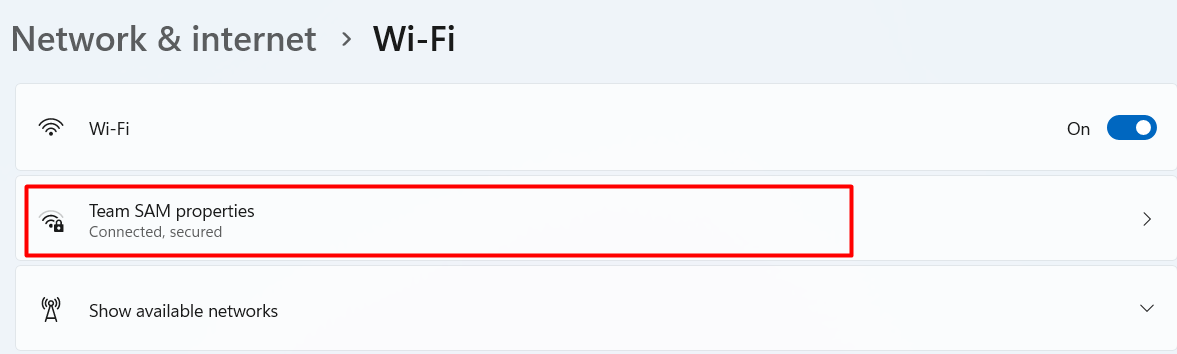
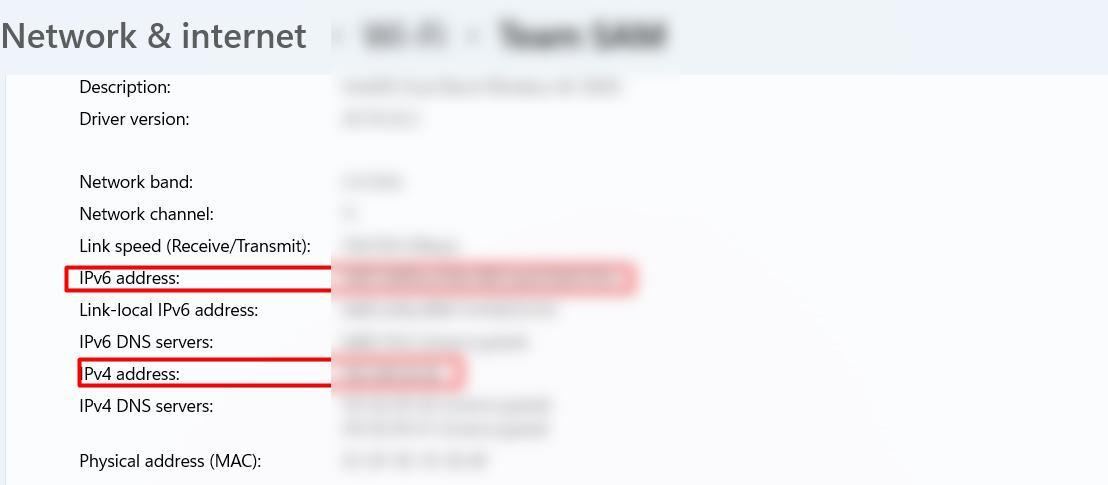
Step 5: Here, you can find your local IP addresses IPv4 and IPv6.
How to Find a Local IP Address on Windows 11 Using Command Line?
This is another way to determine your local IP address on Windows 11. This method follows the same steps for all Windows versions (Windows 7, Windows 10, Windows 11, etc). It includes the below-given steps to identify the local IP address on Windows.
Step 1: Search the command prompt (cmd) from Start Menu:
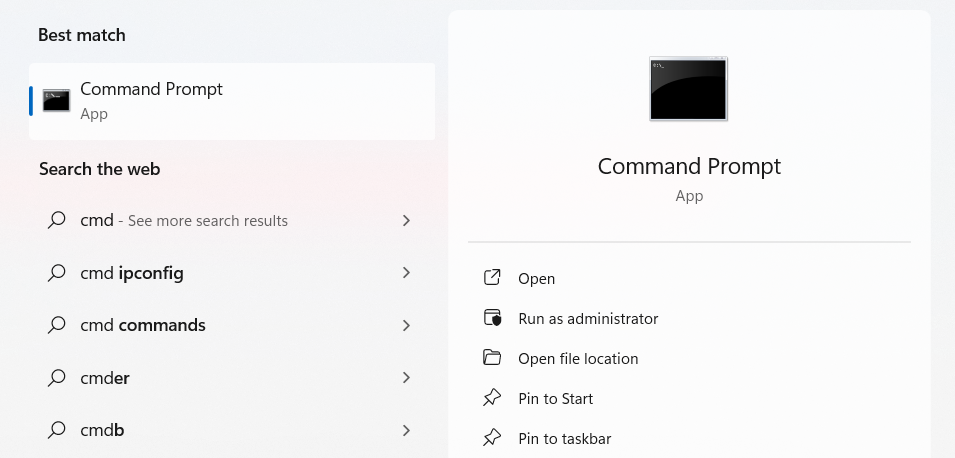
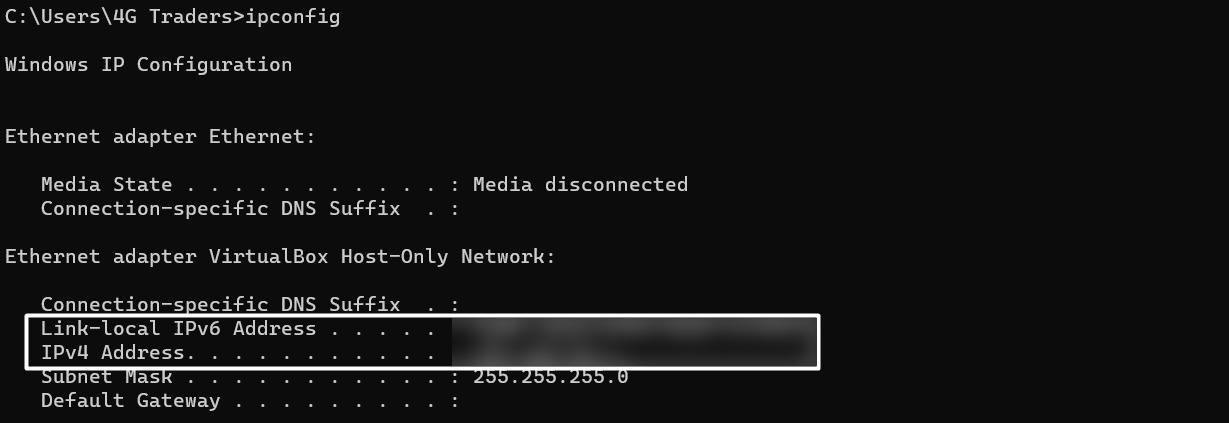
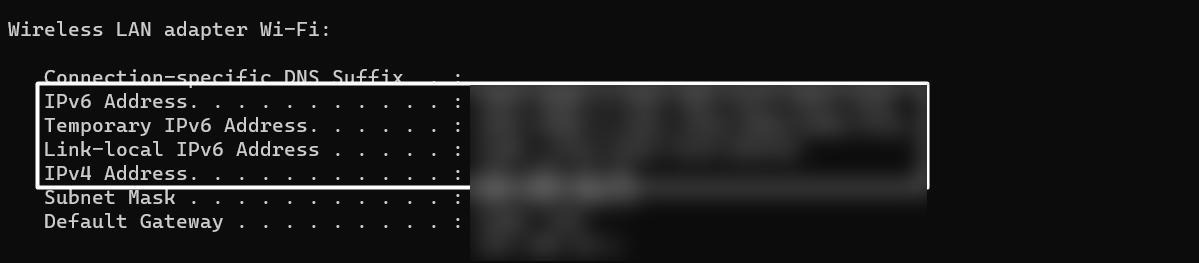
Step 2: Open the cmd and type and run ipconfig command. This command will display the local IP addresses of the virtual box and Wi-Fi on the screen as given below:
How to Find a Local IP Address on Windows 10?
There is a bit of change to find the local IP address on Windows 10 and Windows 11. Perform the below steps to determine the local IP address on Windows 10.
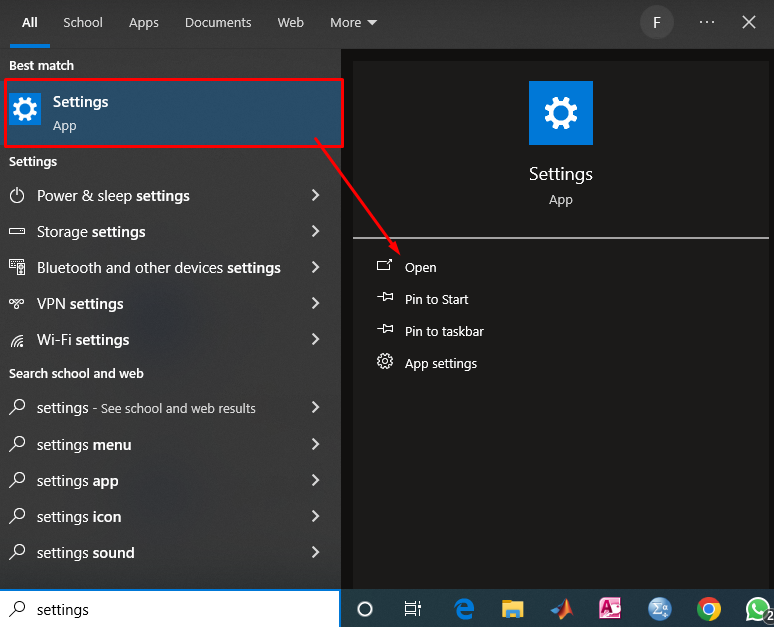
Step 1: Open the Windows search bar and type Settings to search:
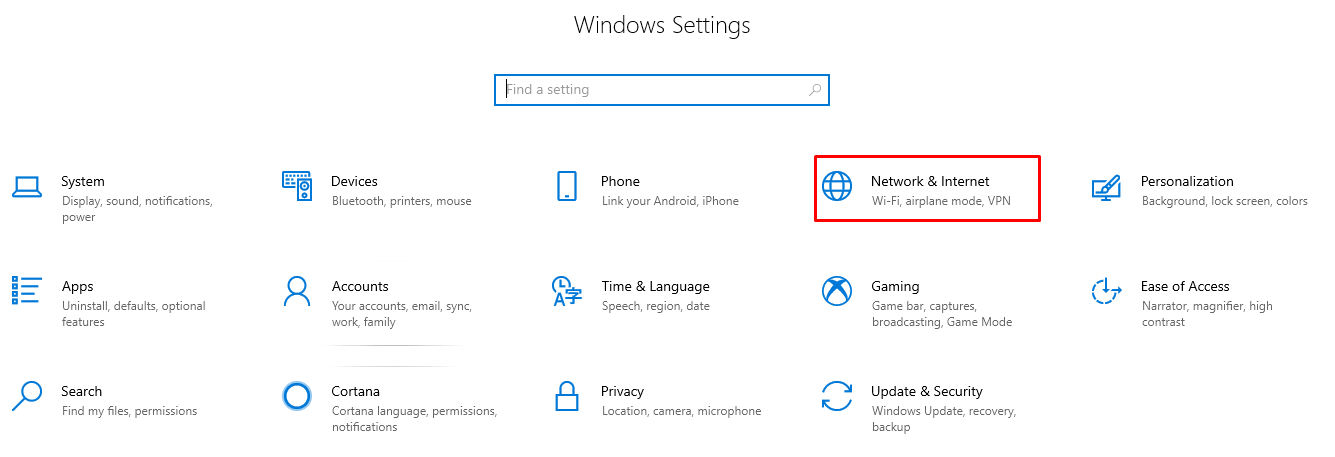
Step 2: Open Settings and click the option Network & internet:
Step 3: Click on the option Wi-Fi:
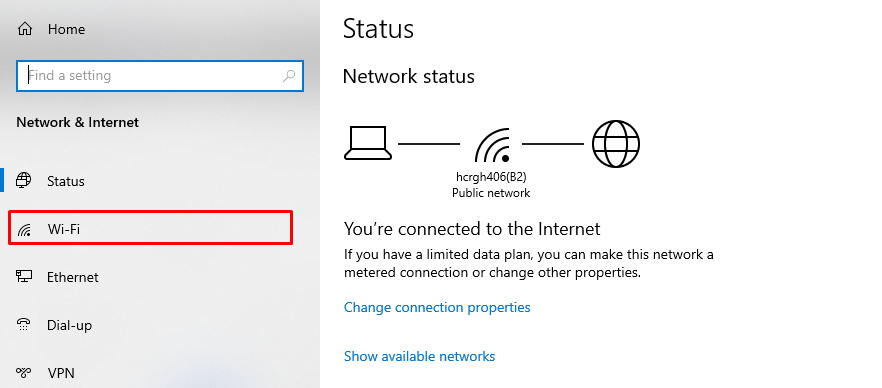
Step 4: Click on the connected Wi-Fi on your device:
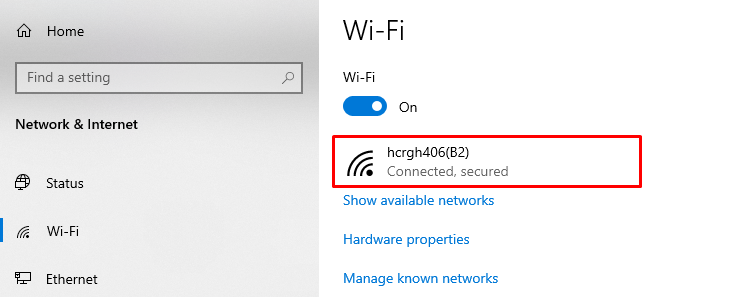
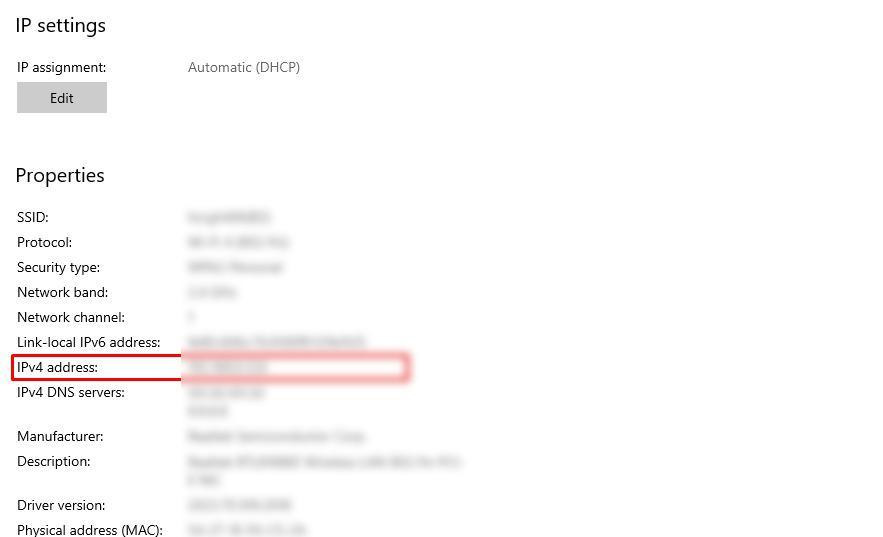
Step 5: Here, you can find your both IPv4 and IPv6 local IP addresses.
How to Find the Local IP Address on Mac?
The local IP address on the Mac can be determined in two ways:
- Using a Graphical User Interface (GUI)
- Using a Mac Terminal
How to Find the Local IP Address on Mac Using Graphical User Interface?
Perform the given steps to find your local IP address on your MacBook using GUI.
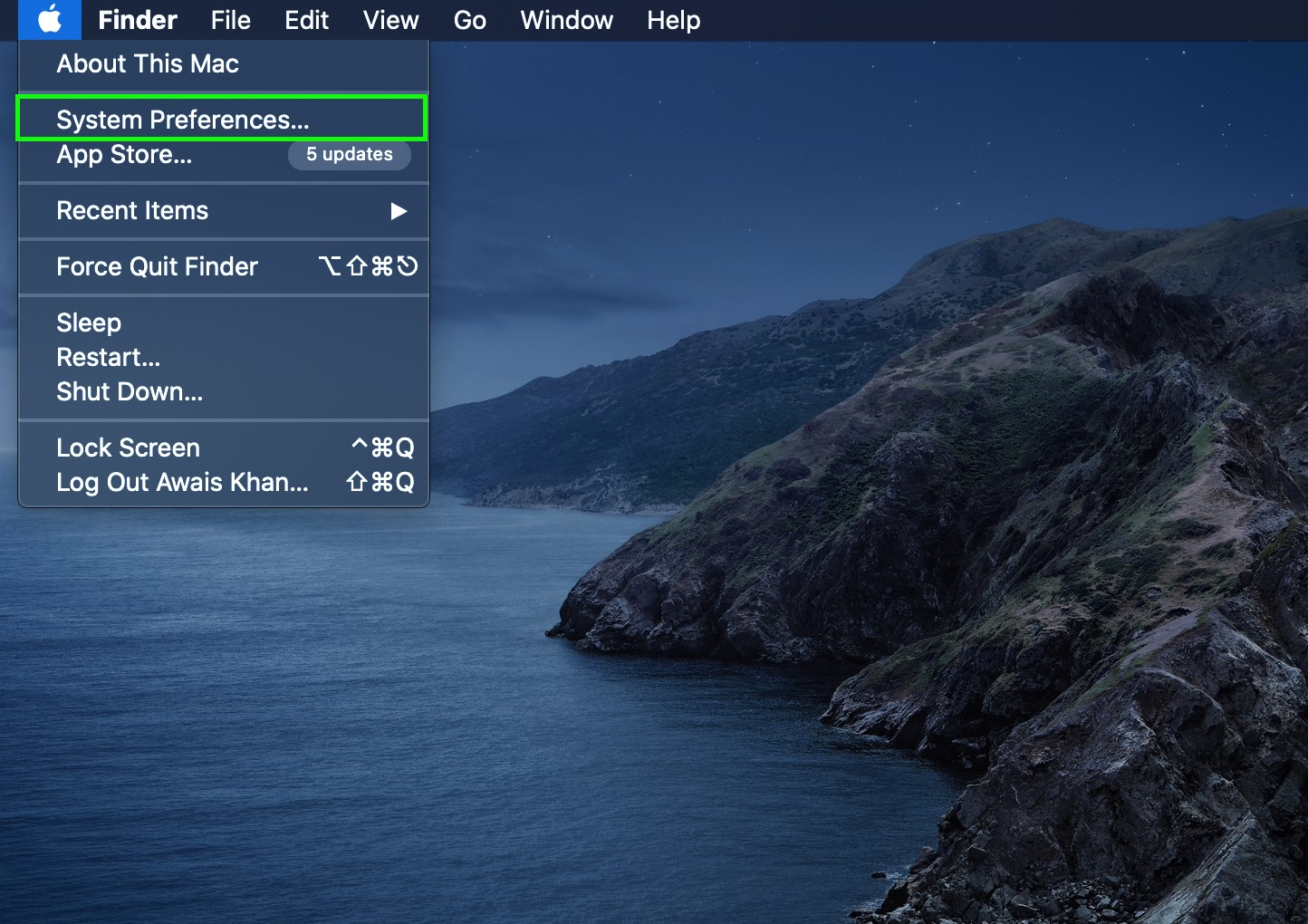
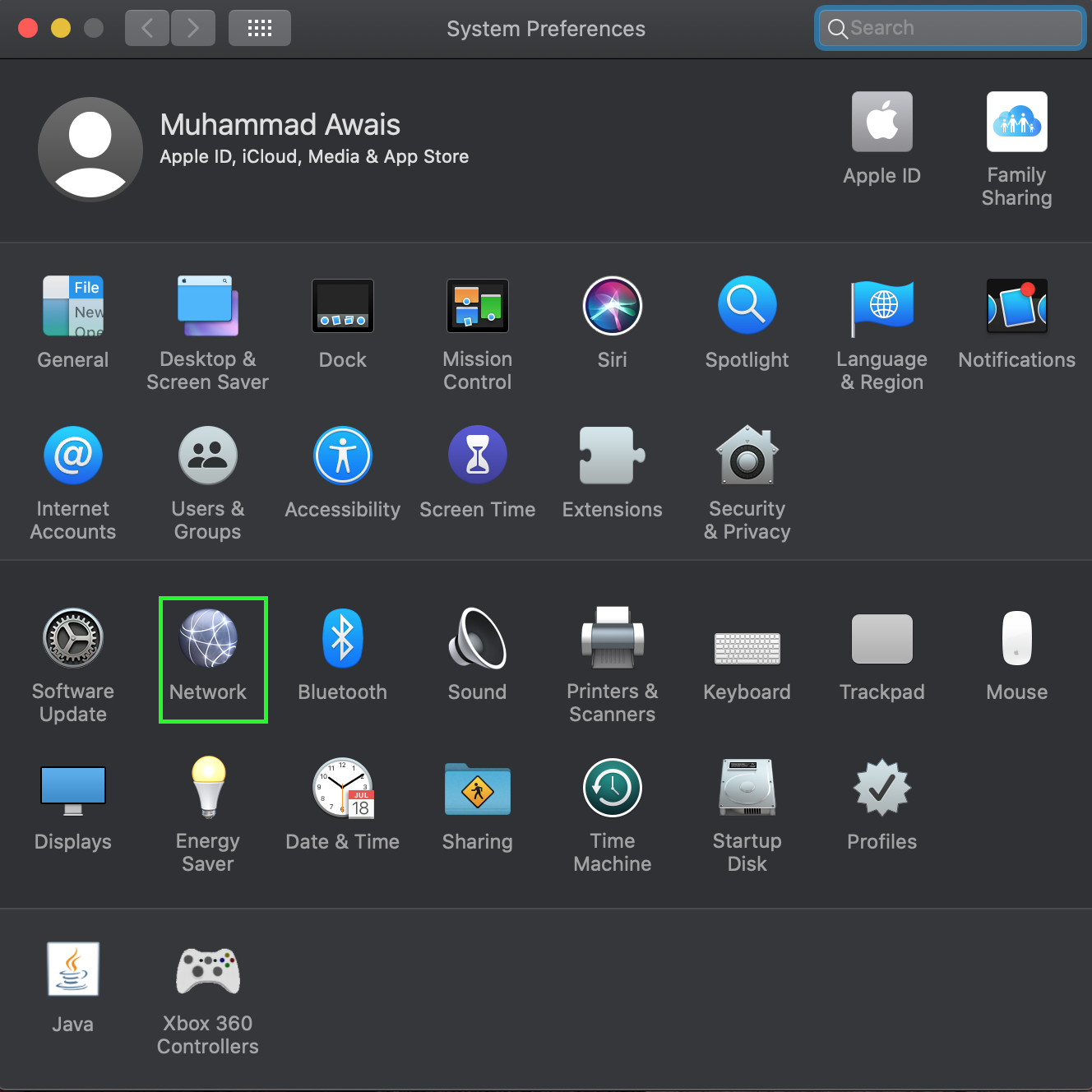
Step 1: Open your Apple system settings by clicking on System Preferences from the Start Menu:
Step 2: Open the network settings by clicking on the option Network:
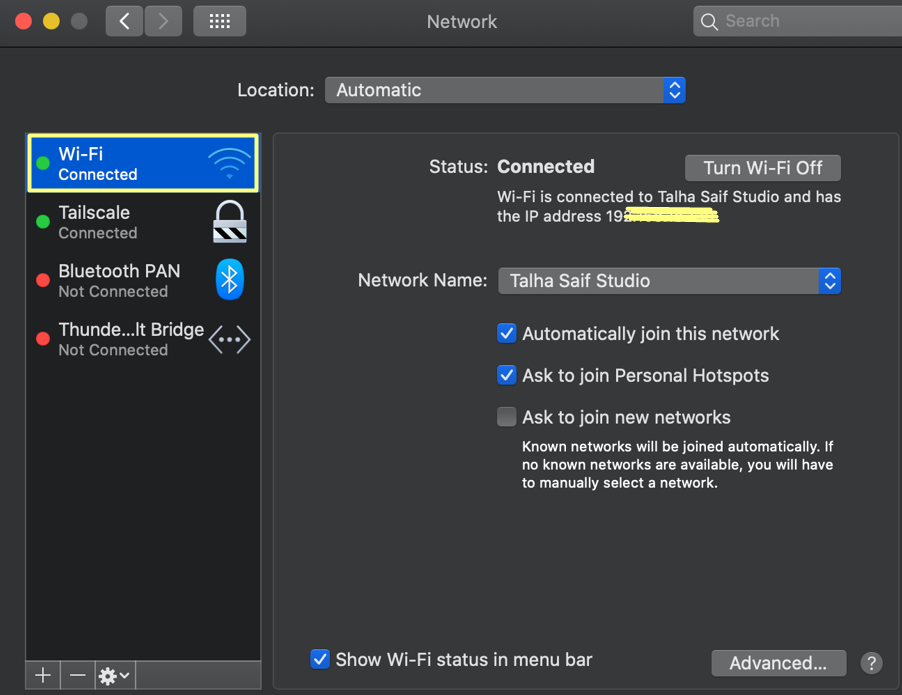
Step 3: Open your Wi-Fi network settings by clicking on it:
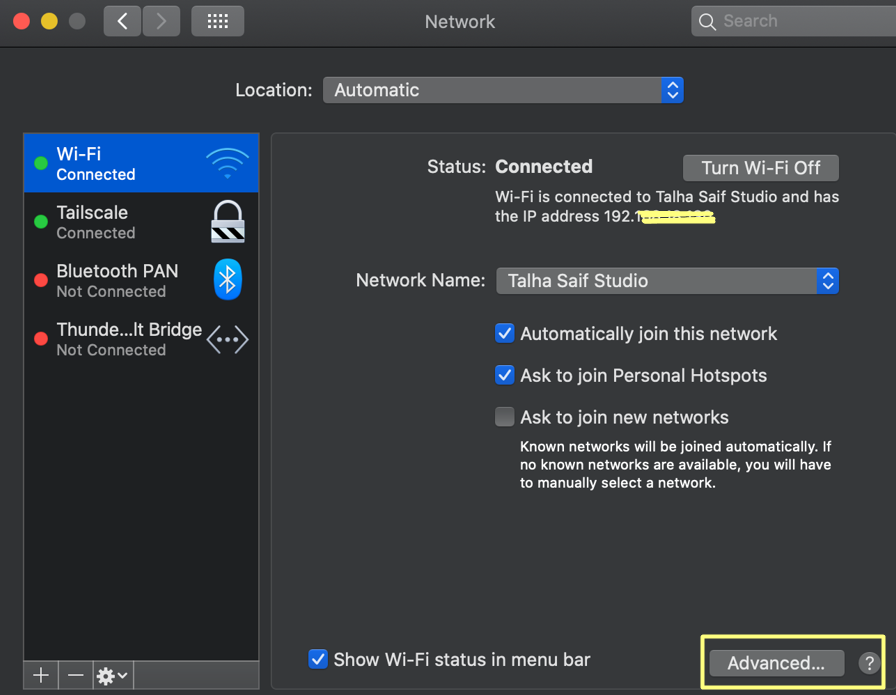
Step 4: Click on the Advanced option to open your connected Wi-Fi details:
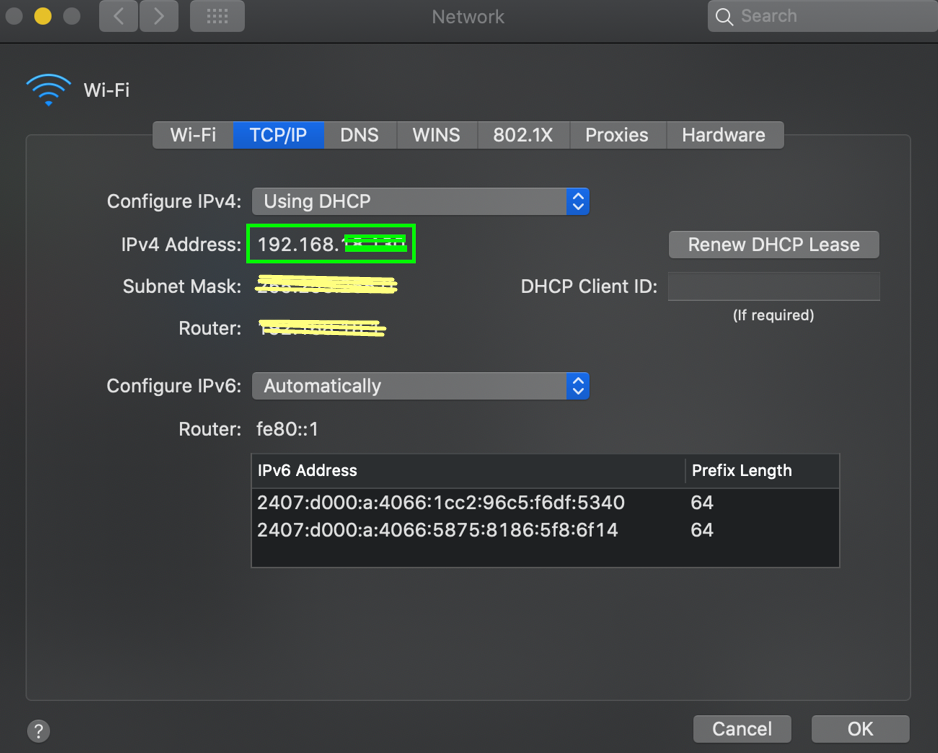
Step 5: Here, you will find your local IP address as IPv4.
How to Find the Local IP Address on Mac Using Command Line?
This is another method to find your local IP address on Mac using its terminal.
Open your Mac Terminal from the Start Menu of your device and type the command ipconfig getifaddr en0 on the terminal. Run this command by pressing Enter key. You will see the local IP address of your device on the screen.

How to Find the Local IP Address on Android?
Identifying the local IP address of an Android device includes the same steps for all models. However, if you face any trouble, you can search IP address from your Android’s settings search bar.
You can find the local IP address of your Android by following the given steps:
Step 1: Open your Android Settings and click on the option Wi-Fi:
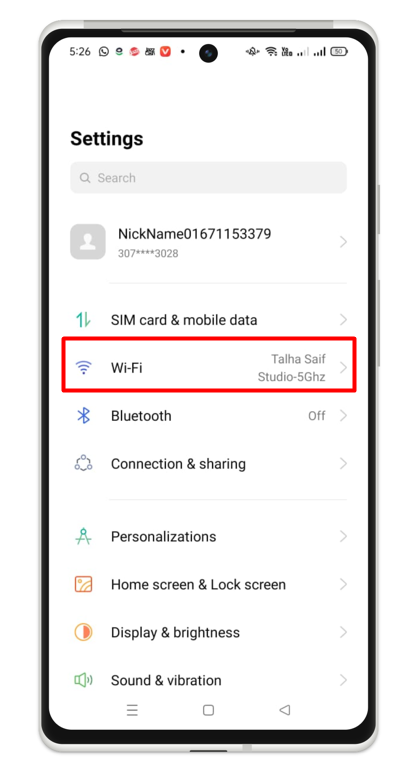
Step 2: Click on your connected Wi-Fi:
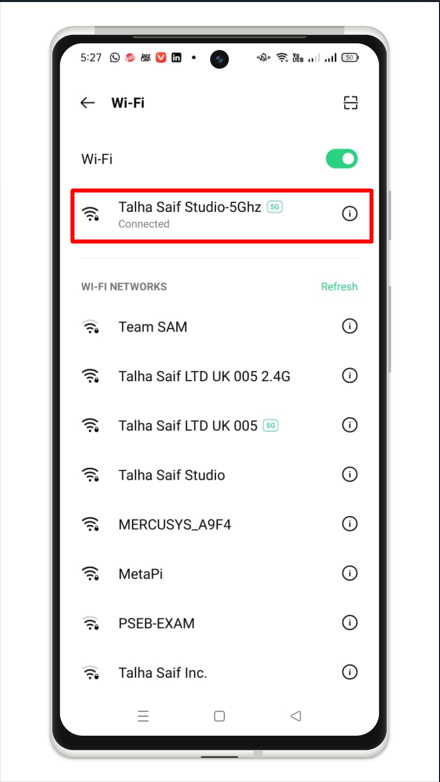
Step 3: Here, you can find the local IP address of your device.

How to Find the Local IP Address on iPhone?
Finding the IP address of iPhones follows the same steps as the other versions of iPhone or iOS. Perform the given steps to find the local IP address of your iPhone, iPad, or iOS.
Step 1: Open Settings of your iPhone device and click on the option Wi-Fi:
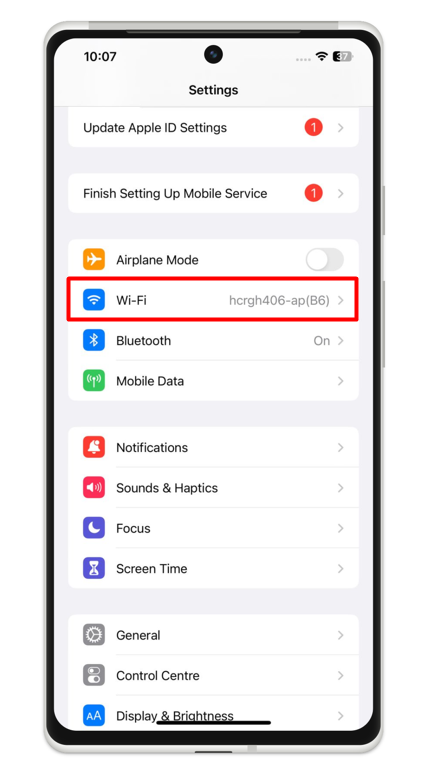
Step 2: Tap the information icon next to your connected Wi-Fi:

Step 3: Click on Configure IP settings:
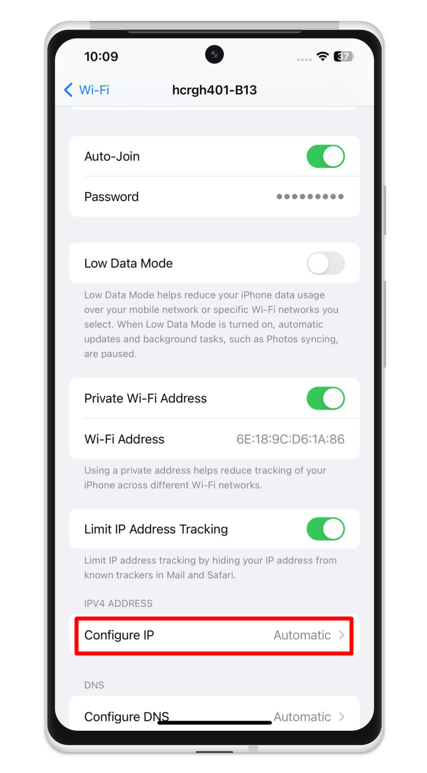
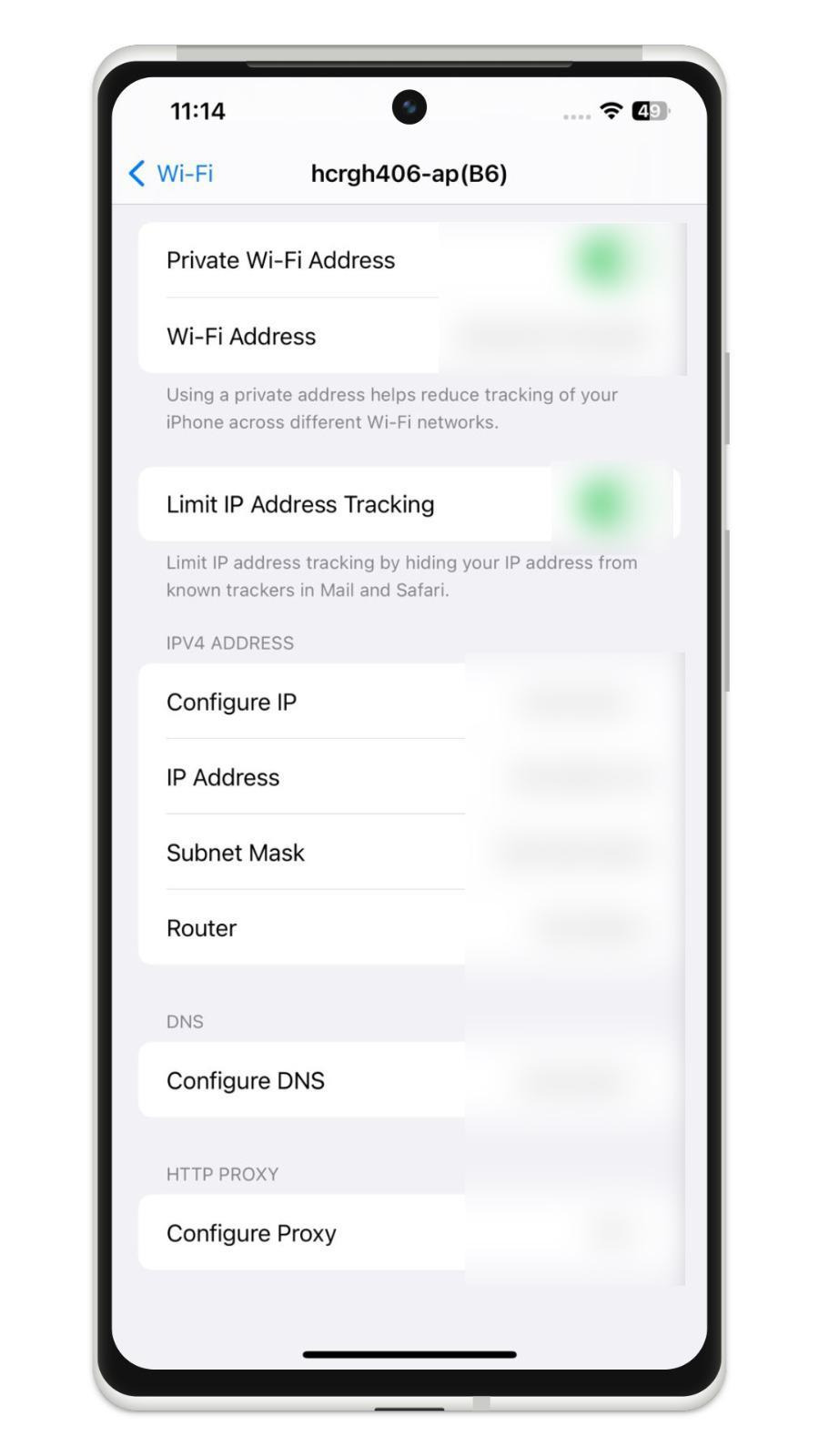
Step 4: Here you can find the local IP address of your iPhone:
What is a Dynamic IP Address?
The dynamic IP address is an IP that changes automatically every time while connecting to the internet. As IP addresses are limited, so a device can use the same IP address multiple times. It means when you connect to the Internet, the ISP (Internet Service Provider) will assign you a free IP, and your previous IP will be assigned to another requesting client.
This is a safe IP that is harder for snoopers to target your network, or track your browser activities or physical location.
Remember that all devices by default have dynamic IP.
What is a Static IP Address?
This is a type of IP address that remains unchanged while reconnecting with the internet. It’s also known as real or permanent IP. It is widely used in server hosting such as web servers and email servers to provide faster access to the clients to get these services.
How to Check my IP Address is Static or Dynamic on Windows?
In this section, we will learn how to check whether my IP address is static or dynamic on Windows 10 and Windows 11 using the graphical user interface and command prompt.
How to Check my IP Address is Static or Dynamic on Windows 11 Using the Graphical User Interface?
Follow the given steps to check whether your Windows 11 device has static or dynamic IP using a graphical user interface:
Step 1: Open the Start Menu and search and click on Settings:

Step 2: Click on the option Network & Internet appears on the left side of the panel:
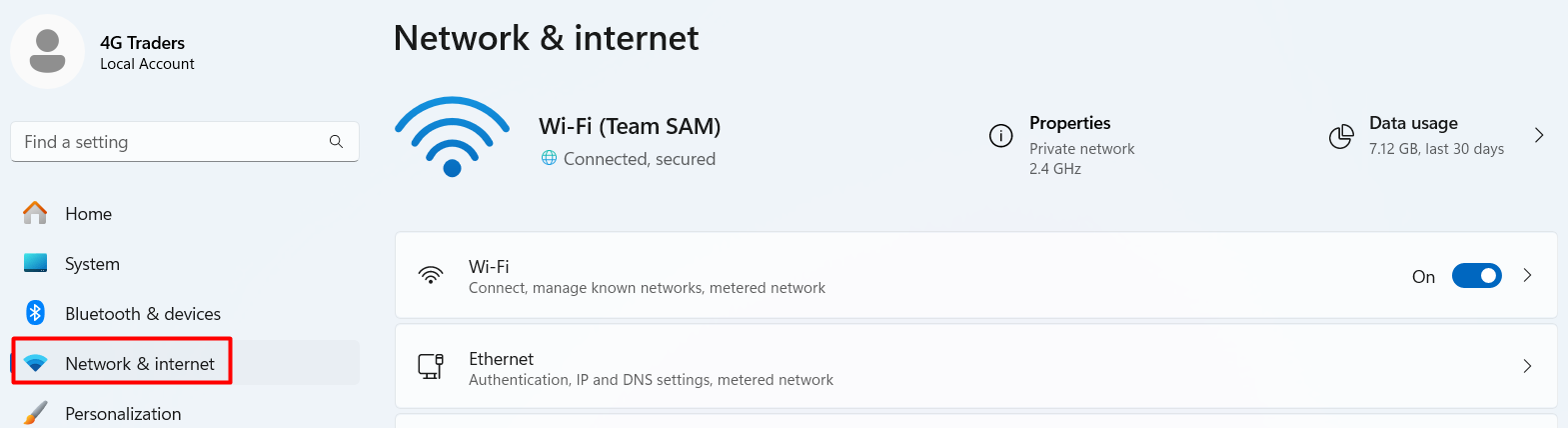
Step 3: Click on Wi-Fi option:
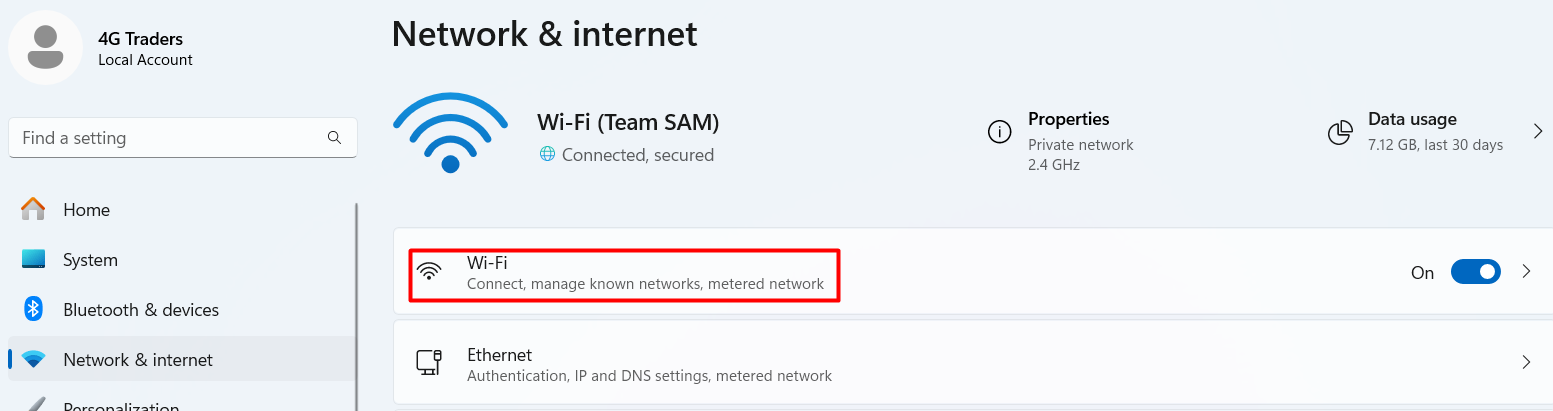
Step 4: Click on your connected Wi-Fi properties:
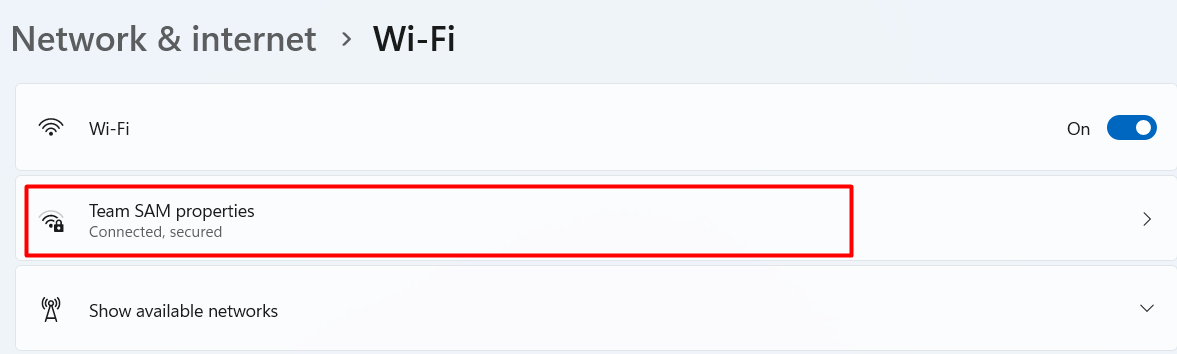
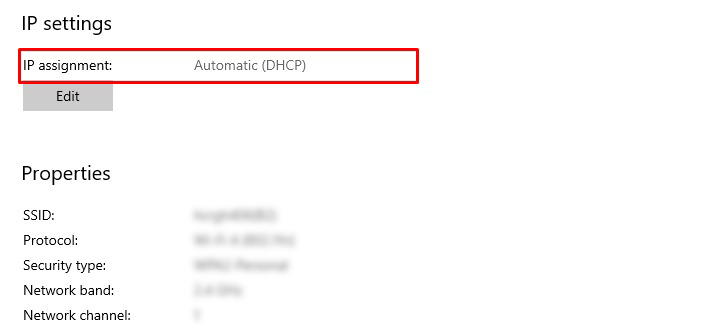
Step 5: Here, you can see that your IP assignment is Automatic (DHCP). This means that your IP is dynamic.

How to Check my IP Address is Static or Dynamic on Windows 11 Using Command Line?
This is another way to check whether your IP is static or dynamic on your Windows 11 device. This method includes the same steps and commands for all Windows versions.
Step 1: Open your command prompt (cmd) from the Start Menu:
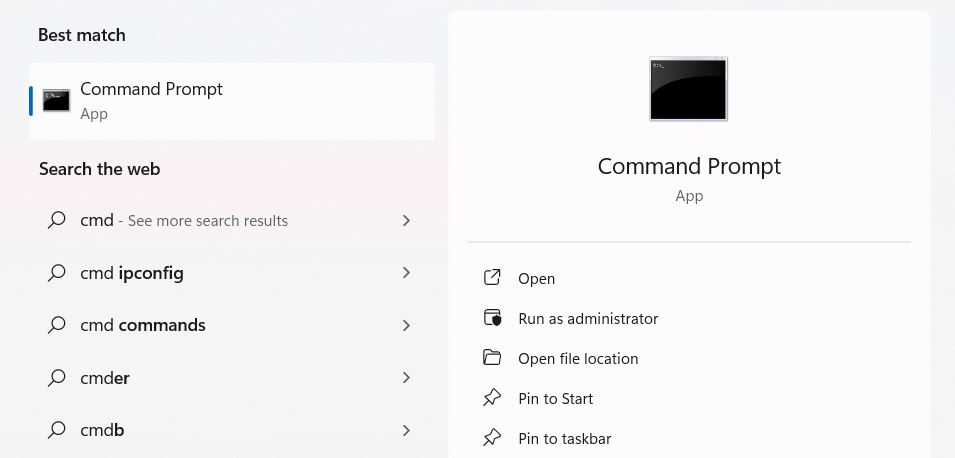
Step 2: Type and run the command ipconfig /all:

Step 3: Here you can see that DHCP (Dynamic Host Configuration Protocol) is enabled that ensures that your IP is dynamic.

How to Check my IP Address is Static or Dynamic on Windows 10?
Finding whether your IP is static or dynamic on Windows 10 follows the same steps as Windows 11 but has a different interface.
Step 1: Open the Start Menu and search and open your system’s Settings:
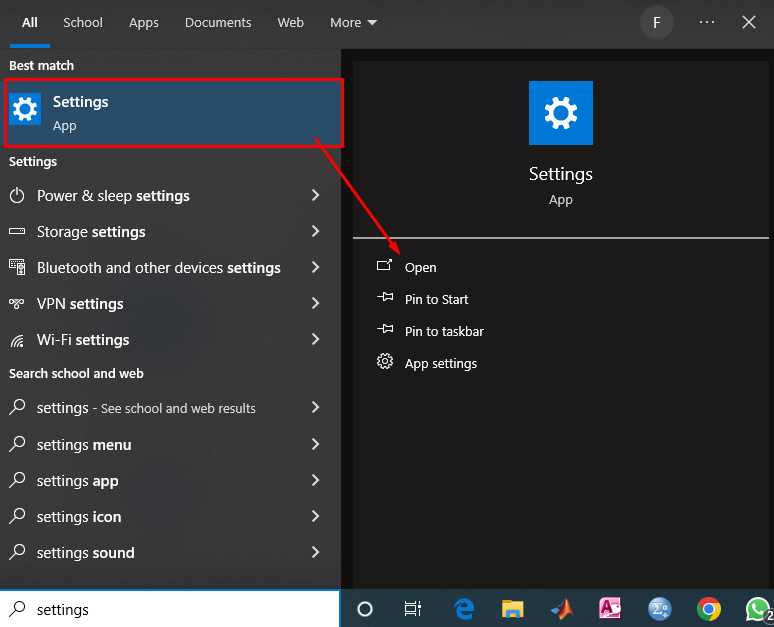
Step 2: Tap the option Network & Internet:
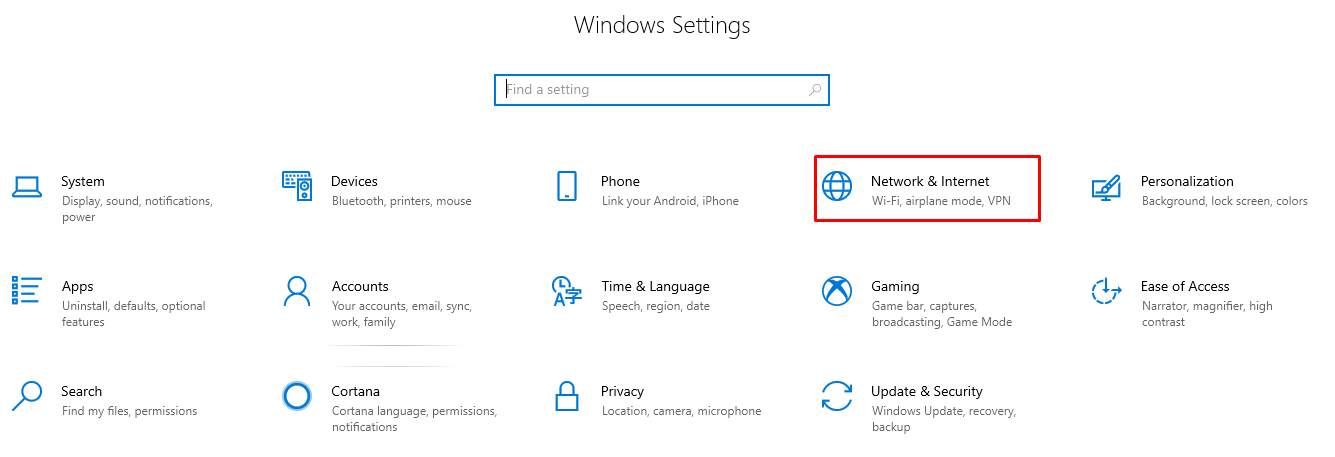
Step 3: On the left panel of the opened window, click on the Wi-Fi option:
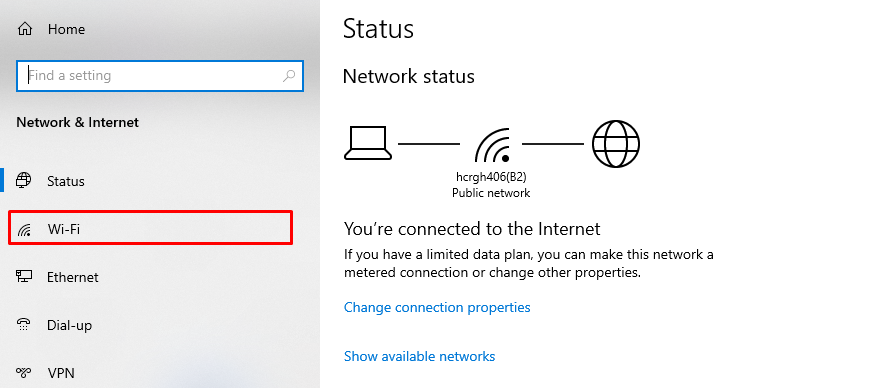
Step 4: Click on the properties of your connected Wi-Fi network:

Step 5: As you can see your IP assignment is Automatic (DHCP), which means your IP is dynamic.
How to Check my IP Address is Static or Dynamic on Mac?
Follow the given steps to check whether your Mac device IP is static or dynamic
Step 1: Open your MacBook’s Start Menu and select and tap the option System Preferences:

Step 2: Tap the option Network:
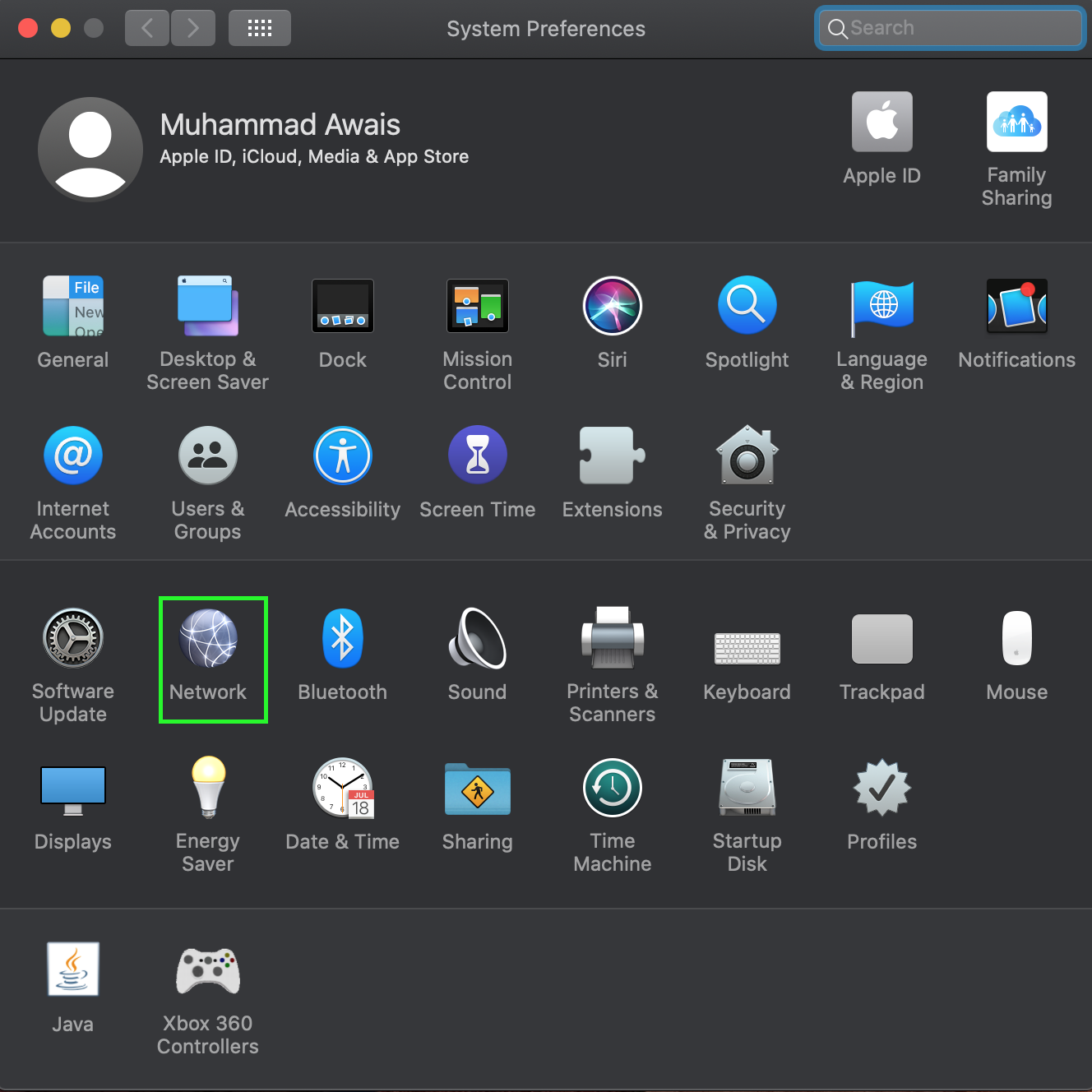
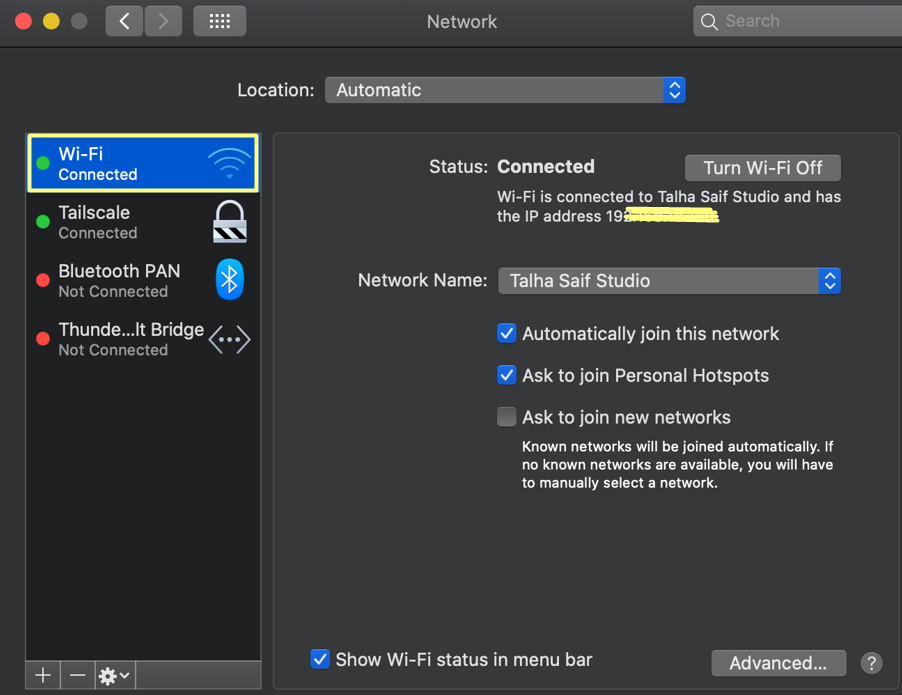
Step 3: Click on the option Wi-Fi appears in the left side panel:
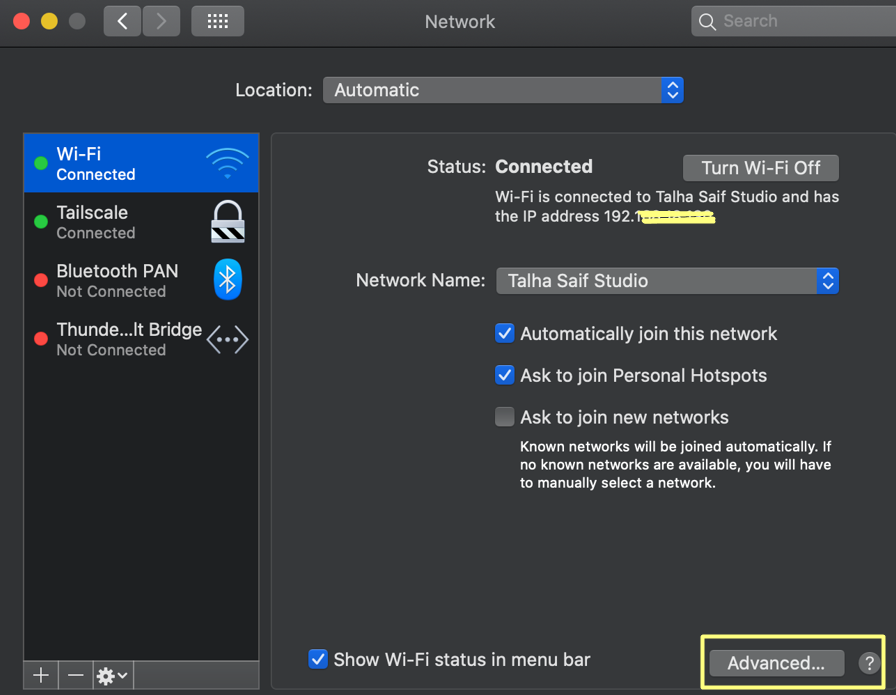
Step 4: In the bottom, select the option Advanced:
Step 5: Here, you can see your device IP is configured using DHCP, which means it is dynamic.

How to Check my IP Address is Static or Dynamic on Android?
Follow the given steps to check whether your IP is static or dynamic on your Android device:
Step 1: Open your device Settings and click on the Wi-Fi option:

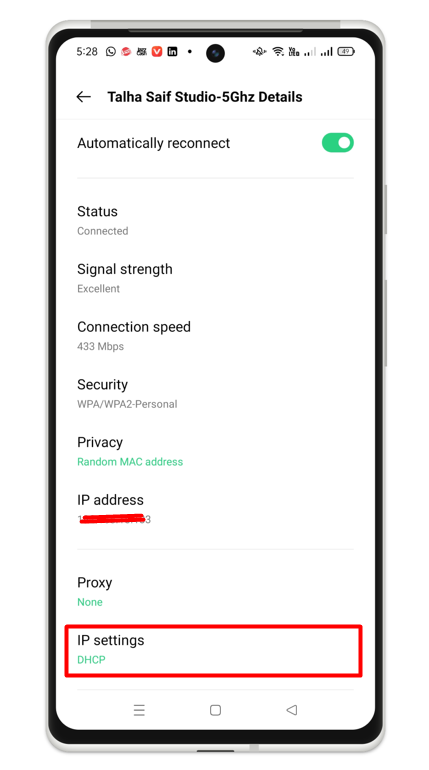
Step 2: Tap your connected Wi-Fi network:
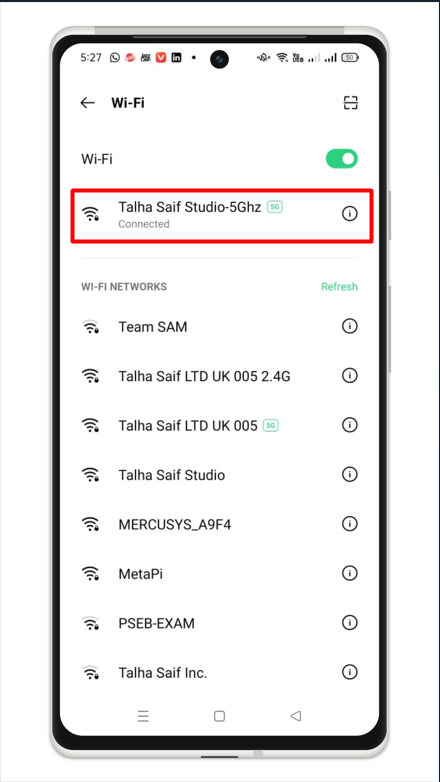
Step 3: Here, you can identify that your IP Settings has a DHCP option that means it is dynamic IP.
How to Check my IP Address is Static or Dynamic on iPhone?
To identify whether your iPhone IP is static or dynamic, follow the below-given steps;
Step 1: Open your device settings and click on the Wi-Fi network:
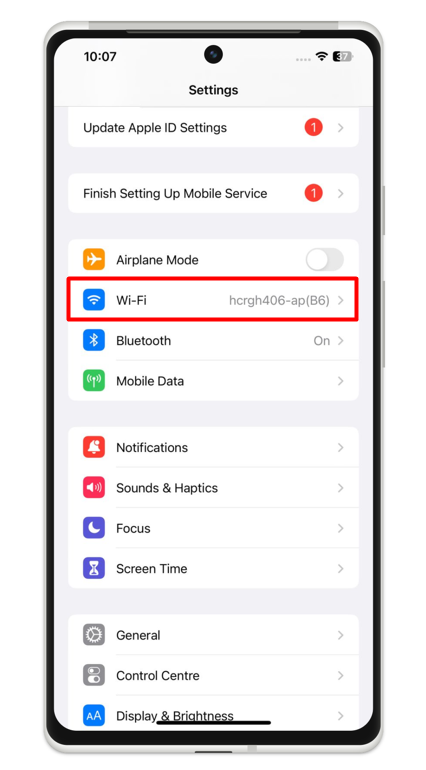
Step 2: Tap your connected Wi-Fi network:
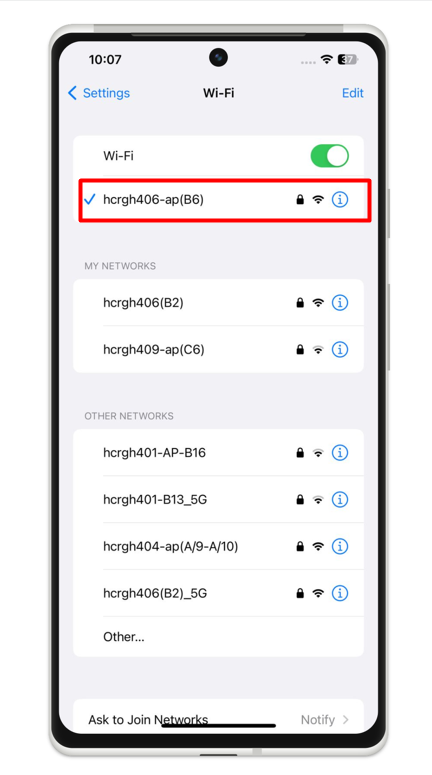
Step 3: Here, your configure IP option is automatic which represents your IP is dynamic.

What is the Difference Between Public and Private IP addresses?
Some key differences between public and private IP addresses are listed below:
| Public IP | Private IP |
|---|---|
| These are IPs provided by an ISP to the router of the network. | These are IPs allocated by the network’s router to the devices of the network. |
| They have a global scope. | They have a local scope. |
| They are used to communicate outside of the network. | They are used to communicate inside the network. |
| Their format differs in varying ranges. | Their format differs in uniform manners. |
| The ISP controls all data transferred by these IPs. | The data transferred using these IPs remains unaffected by external factors. |
| The ISP creates all these IPs. | A Local Network Provider creates all these IPs using the operating system of a network. |
| These IPs come with a cost. | These IPs are free of cost. |
| These IPs are vulnerable. | These IPs are secured. |
| An example of a public IP is 16.4.7.9 | An example of private IP is 192.168.12.20 |
What is the Difference Between Static and Dynamic IP addresses?
Some key differences between static as well as dynamic IP addresses are given below:
| Static IP | Dynamic IP |
|---|---|
| The ISP provides these IPs. | The DHCP provides these IPs. |
| They are fixed and do not change. | They change at any time. |
| These IPs are less secure. | These IPs are more secure. |
| They are difficult to designate. | They are easy to designate. |
| The devices designed by these IPs can be easily traced. | The devices designed by these IPs can not be easily traced. |
| These IPs are more stable. | These IPs are less stable. |
| They are highly cost-effective. | They are less cost-effective. |
| They are used for less confidential data. | They are used for highly confidential data. |
How to Secure Your IP Address?
As you have learned how to find the IP address of any device having any operating system, you should be aware of its vulnerabilities. An IP address of a device can be easily found by the ISP, hackers, advertisers, and others to locate the physical location of your device and to track your browser history such as emails, passwords, online transactions, and other online activities. So you need to secure your IP address to prevent any suspicious activity. You can do it easily using:
- VPN
- Proxy Server
- Tor browser
- Public Wi-Fi
- Prepaid data SIM card
- Browser extension HTTPs Everywhere