

A wrong time zone on Debian 13 makes log timestamps confusing, shifts cron jobs by hours, and can break TLS certificates and two-factor codes when the clock itself drifts. This guide shows how to check and set the time zone, how network time sync works on Debian 13 “trixie”, how to choose between systemd-timesyncd and chrony, and how to fix a clock that is wrong. It is written for server admins and desktop users alike.
Quick answer. Find your zone name, set it with timedatectl, make sure network time sync is on, and check the result.
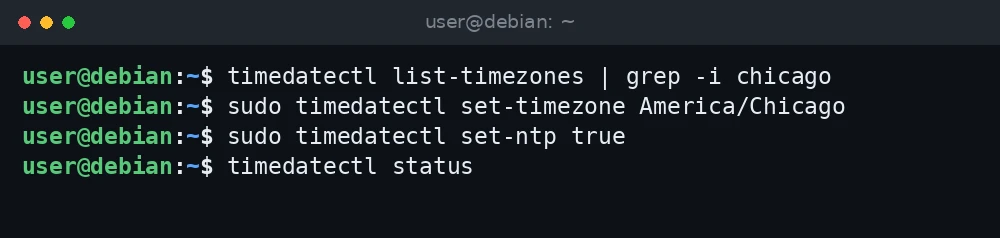
timedatectl list-timezones | grep -i chicago
sudo timedatectl set-timezone America/Chicago
sudo timedatectl set-ntp true
timedatectl status
What was verified and what was not. The commands and paths in this guide were checked against the Debian 13 man pages for timedatectl, timesyncd.conf and chronyc, the Debian packages and source control for systemd, and the Debian Wiki DateTime page. Package versions (systemd 257 with systemd-timesyncd 257.13, chrony 4.6.1) were read from APT on a Debian 13 (trixie) server on 3 November 2026. The commands were not run for this guide, so confirm each step on your own system.
Step 1: Check the current time and time zone
timedatectl statusstatus is the default, so plain timedatectl does the same thing. Example output:
               Local time: Tue 2026-11-03 09:14:22 UTC
           Universal time: Tue 2026-11-03 09:14:22 UTC
                 RTC time: Tue 2026-11-03 09:14:22
                Time zone: Etc/UTC (UTC, +0000)
System clock synchronized: yes
              NTP service: active
          RTC in local TZ: no
Three lines matter most. Time zone is what you are about to change. System clock synchronized tells you whether the clock has been set from a network time source. NTP service shows whether a time sync service is running. Most VPS images start in UTC, which is a sensible choice for servers whose users are spread across zones.
Step 2: Find your time zone name
Time zones use names from the IANA database, in the form Region/City. List them all, or filter the list:
timedatectl list-timezones
timedatectl list-timezones | grep -i africa
Pick a city in your zone, for example Africa/Monrovia, America/New_York or Europe/London. Use the city name rather than a fixed offset so daylight saving changes are handled for you.
Step 3: Set the time zone
Method 1: timedatectl
sudo timedatectl set-timezone Africa/Monrovia
timedatectl
The timedatectl man page notes that this changes the /etc/localtime symlink, which points into /usr/share/zoneinfo/. You can confirm it:
ls -l /etc/localtimeRunning services keep the old zone until they restart. If a long-running service, such as a web server or cron, logs times in the wrong zone, restart it or reboot when convenient.
Method 2: dpkg-reconfigure tzdata
If you prefer a menu, the Debian way is to reconfigure the tzdata package:
sudo dpkg-reconfigure tzdataChoose a geographic area, then a city. This is handy on a console where you do not remember the exact zone name.
Step 4: Understand time sync on Debian 13
A correct time zone does not help if the clock itself is wrong. Debian 13 handles this with a time sync daemon. The Debian Wiki states that since Debian 12 the default NTP client is systemd-timesyncd. In trixie, the systemd package recommends systemd-timesyncd | time-daemon, so a normal install pulls in systemd-timesyncd unless another time daemon is already present. Cloud images and custom installs can differ, so check what you have:
dpkg -l systemd-timesyncd chrony 2>/dev/null | grep ^ii
systemctl status systemd-timesyncd --no-pager
The two main choices compare like this:
| Feature | systemd-timesyncd | chrony |
|---|---|---|
| Package version in Debian 13 | 257.13 | 4.6.1 |
| Role | Client only (SNTP) | Full NTP client and server |
| Config | /etc/systemd/timesyncd.conf.d/*.conf |
/etc/chrony/chrony.conf |
| Status command | timedatectl timesync-status |
chronyc tracking |
| Good for | Most servers and desktops | Serving time to a LAN, unstable networks, VMs that drift |
For a typical web server or desktop, systemd-timesyncd is enough. Install chrony if other machines need to get time from this one or you need tighter accuracy.
Step 5: Enable and check systemd-timesyncd
sudo timedatectl set-ntp true
timedatectl timesync-status
According to the man page, set-ntp true enables and starts the first existing network time sync service. timesync-status shows the server in use, the offset and the poll interval. Example output (shortened):
       Server: 192.0.2.10 (0.debian.pool.ntp.org)
Poll interval: 34min 8s (min: 32s; max 34min 8s)
         Leap: normal
       Offset: -1.214ms
To use your own NTP servers, create a drop-in file rather than editing the main config. The timesyncd.conf man page says drop-ins in /etc/systemd/timesyncd.conf.d/ override the main file.

sudo mkdir -p /etc/systemd/timesyncd.conf.d
sudo nano /etc/systemd/timesyncd.conf.d/local.conf
[Time]
NTP=time.example.com time2.example.comsudo systemctl restart systemd-timesyncd
timedatectl timesync-statusReplace the example host names with real NTP servers, such as the ones your provider gives you.
Step 6 (optional): Switch to chrony
sudo apt update
sudo apt install chronyIn Debian’s packaging, systemd-timesyncd declares a conflict with the virtual time-daemon package, which chrony provides. That means APT will list systemd-timesyncd for removal when you install chrony. Read the list of changes before you confirm.
Check that chrony is syncing:
chronyc tracking
chronyc sources -vtracking shows the clock’s offset and the reference server. sources -v lists the servers with a legend that explains each column. Server settings live in /etc/chrony/chrony.conf. After editing it, run sudo systemctl restart chrony.
Stuck at this step? Ask us, it is free and include the exact error.
Note that timedatectl timesync-status only reports on systemd-timesyncd. With chrony, use chronyc instead. The System clock synchronized line in timedatectl status still works with either.
Step 7: Fix a clock that is wrong
If the clock is far off, first make sure sync is on and the network can reach NTP servers on UDP port 123. A firewall that blocks outbound UDP 123 is a common cause.
With chrony, you can force an immediate correction. The chronyc man page says makestep cancels any remaining gradual correction and jumps the clock:
sudo chronyc makestepWith systemd-timesyncd, restart the service so it queries its servers again:
sudo systemctl restart systemd-timesyncd
timedatectl timesync-statusTo set the time by hand, for example on a machine with no network, turn sync off first, because timedatectl refuses to set the time while NTP is active:
sudo timedatectl set-ntp false
sudo timedatectl set-time '2026-11-03 09:30:00'
sudo timedatectl set-ntp true
The RTC in local time warning
Your computer’s hardware clock (RTC) can store either UTC or local time. Linux expects UTC. If timedatectl shows RTC in local TZ: yes, it also prints a warning that begins:

Warning: The system is configured to read the RTC time in the local time zone.The timedatectl man page says keeping the RTC in local time “is not fully supported” and “will create various problems with time zone changes and daylight saving adjustments”. Switch it back to UTC:
sudo timedatectl set-local-rtc 0This setting is usually changed to suit a Windows dual boot. The Debian Wiki recommends fixing it on the Windows side instead, by adding a RealTimeIsUniversal QWORD value set to 1 in the Windows registry, so both systems treat the RTC as UTC.
Troubleshooting
Failed to set time: Automatic time synchronization is enabled
You ran timedatectl set-time while sync was on. Run sudo timedatectl set-ntp false, set the time, then turn sync back on.
Failed to set time zone: Invalid or not installed time zone
The name is misspelled or uses the wrong case. Zone names are case sensitive. Copy the exact name from timedatectl list-timezones.
System clock synchronized: no
Check that a sync service is installed and running with systemctl status systemd-timesyncd or systemctl status chrony. If neither is installed, run sudo apt install systemd-timesyncd. Then check outbound UDP 123 in your firewall and the logs with journalctl -u systemd-timesyncd.
Logs still show the old time zone
Processes read the zone when they start. Restart the affected service or reboot.
FAQ
Should a server use UTC or local time?
UTC is the safer choice for servers. It avoids daylight saving jumps in logs and makes it easier to compare events across machines. Use a local zone when users or scheduled jobs depend on local time.
Does changing the time zone change the actual time?
No. The system clock runs in UTC. The time zone only changes how that time is displayed and how local-time schedules are interpreted.
Can I run systemd-timesyncd and chrony together?
No, and Debian’s packaging prevents it, because both provide time-daemon and systemd-timesyncd conflicts with it. Two daemons adjusting the same clock would fight each other.
Does timedatectl set-timezone work in a container?
It may not. Containers often share the host clock and may lack a running systemd-timedated. Setting the zone can still work, but time sync is normally handled by the host.
Related guides
- How to use journalctl on Debian 13
- How to set up UFW firewall on Debian 13
- How to change the hostname on Debian 13
- How to set up unattended upgrades on Debian 13