
The hostname is the name your Debian 13 machine uses for itself. It shows up in your shell prompt, in logs, in mail headers and on the network. A fresh VPS often comes with a random name like vps-4f2a91, and many admins want something clearer before they set up mail or monitoring. This guide shows how to change the hostname on Debian 13 “trixie” with hostnamectl, update /etc/hosts so the name resolves, set a fully qualified domain name (FQDN), stop cloud-init from undoing the change, and fix the “unable to resolve host” error.
Quick answer. Set the new name with hostnamectl, point the 127.0.1.1 line in /etc/hosts at it, and check.
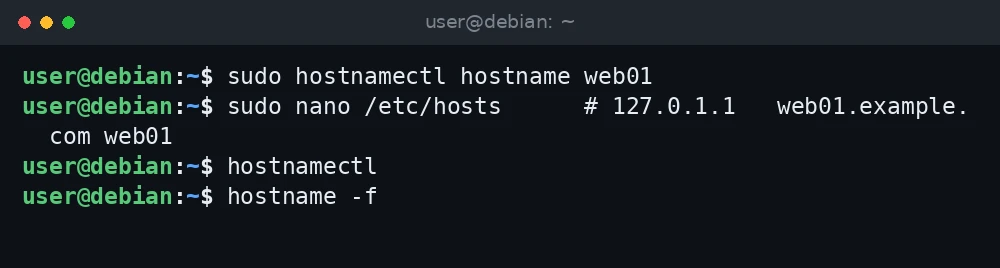
sudo hostnamectl hostname web01
sudo nano /etc/hosts      # 127.0.1.1   web01.example.com web01
hostnamectl
hostname -f
What was verified and what was not. The commands and paths in this guide were checked against the Debian 13 man pages for hostnamectl, hostname and hosts, the Debian Reference network chapter, the Debian Wiki Hostname page and the cloud-init module documentation. Package versions (systemd 257) were read from APT on a Debian 13 (trixie) server on 3 November 2026. The commands were not run for this guide, so confirm each step on your own system.
Hostname types in systemd
systemd keeps three kinds of hostname:
- Static: the name stored in
/etc/hostnameand used at boot. This is the one you normally want to change. - Transient: a runtime name the kernel holds. It can be set by DHCP or other software and normally matches the static name.
- Pretty: a free-form, human-friendly label such as
Talha's Web Server. It may contain spaces and special characters and is mostly shown in desktop interfaces.
A valid static hostname uses lowercase letters, digits and hyphens, does not start or end with a hyphen, and stays short. Keep it to a single label such as web01; the domain part goes into /etc/hosts, as shown later.
Step 1: Check the current hostname
hostnamectlExample output (shortened):
 Static hostname: vps-4f2a91
       Icon name: computer-vm
         Chassis: vm
Operating System: Debian GNU/Linux 13 (trixie)
    Architecture: x86-64
You can also run hostname for the short name and cat /etc/hostname for the stored one.
Step 2: Set the new hostname
The current hostnamectl man page documents the hostname command for this. With no extra switch, it changes the static, transient and pretty hostnames together:
sudo hostnamectl hostname web01Older guides use hostnamectl set-hostname. That spelling is no longer listed in the man page for systemd 257, so use hostname in new scripts.
To change only one type, add a switch. The man page says that when you pass --static, --transient or --pretty, only the selected names are updated:
sudo hostnamectl hostname --static web01
sudo hostnamectl hostname --pretty "Main Web Server"
If you set a pretty name together with the static name, hostnamectl simplifies the text for the static name by removing spaces and special characters. Setting them separately, as above, gives you full control.
The change takes effect at once and is written to /etc/hostname. No reboot is needed, but your current shell prompt keeps the old name until you log out and back in, or start a new shell with exec bash.
Step 3: Update /etc/hosts
This step is easy to forget. The Debian Wiki Hostname page notes that renaming a host is not done by changing the hostname alone; you should also update /etc/hosts so local addresses resolve to the new name.
sudo nano /etc/hostsA typical Debian file looks like this before the change:
127.0.0.1       localhost
127.0.1.1       vps-4f2a91

# The following lines are desirable for IPv6 capable hosts
::1     localhost ip6-localhost ip6-loopback
ff02::1 ip6-allnodes
ff02::2 ip6-allrouters
Change the 127.0.1.1 line to the new name. If the machine has a domain, put the FQDN first and the short name second:
127.0.1.1 web01.example.com web01Why 127.0.1.1? The Debian Reference explains that the installer adds this entry for systems without a permanent IP address, as a workaround for software that needs the hostname to resolve. It also says that for a system with a permanent IP address, that address should be used instead of 127.0.1.1. On a server with a fixed public IP, you can write:

203.0.113.25 web01.example.com web01Use one approach or the other, not both, for the same name. Leave the 127.0.0.1 localhost line alone.
Step 4: Set and check the FQDN
The FQDN is the full name, such as web01.example.com. On Debian, it comes from the hostname plus the first name on the matching /etc/hosts line. The Debian hostname man page says the FQDN is most commonly changed in /etc/hosts, because that file is usually checked before DNS.
hostname
hostname -f
getent hosts web01
Example output:
Stuck at this step? Ask us, it is free and include the exact error.
web01
web01.example.com
127.0.1.1       web01.example.com web01
If hostname -f prints only the short name, the FQDN is not first on the /etc/hosts line. A correct FQDN matters for mail servers, which use it in the SMTP greeting. If the server sends mail, also create a DNS A record for the FQDN and ask your provider to set a matching reverse DNS (PTR) record.
Step 5: Stop cloud-init from resetting the name (VPS)
Many VPS and cloud images run cloud-init at boot. Its Set Hostname and Update Hostname modules can put back the name your provider assigned, so your change disappears after a reboot. Check whether cloud-init is installed:
dpkg -l cloud-init 2>/dev/null | grep ^iiIf it is, set preserve_hostname to true. The cloud-init docs say that when it is true, the hostname will not be changed; the default is false. Put it in a drop-in file so package updates do not overwrite it:
echo 'preserve_hostname: true' | sudo tee /etc/cloud/cloud.cfg.d/99-preserve-hostname.cfgAlso check manage_etc_hosts:
sudo grep -r manage_etc_hosts /etc/cloud/If it is set to true, cloud-init renders /etc/hosts from a template on every boot and your edits are lost. If it is set to localhost, cloud-init appends a 127.0.1.1 entry for the FQDN and hostname every boot. Either set it to false in your drop-in file, or edit the template under /etc/cloud/templates/ instead of /etc/hosts. Some providers also have a hostname setting in their control panel that is fed to cloud-init; change it there too.
Step 6: Verify after a reboot
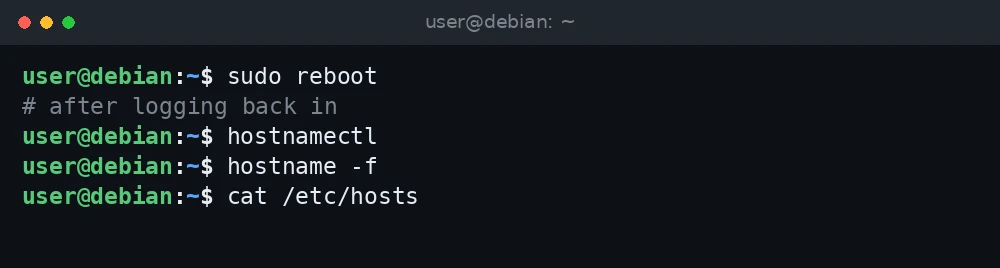
sudo reboot
# after logging back in
hostnamectl
hostname -f
cat /etc/hosts
If the name reverted, cloud-init or a provider tool is resetting it; go back to Step 5.
Troubleshooting
sudo: unable to resolve host web01: Name or service not known
This is the most common problem after a rename. sudo looks up the machine’s own name, and /etc/hosts still has the old one. The command usually still runs after the warning, which is why you can fix it:
sudo nano /etc/hosts
# change the 127.0.1.1 line to:
# 127.0.1.1   web01.example.com web01
If sudo is not usable at all, log in as root, or use su -, and edit the file there.
Mail shows the old name or “localhost”
Mail software reads the hostname or FQDN at start-up and often keeps its own copy. For Postfix, check myhostname with postconf myhostname, and check /etc/mailname, which Debian mail packages use for the mail domain. Restart the mail service after changing them.
Invalid static hostname
If hostnamectl hostname --static rejects the name, it has characters that are not allowed, such as spaces or underscores. Use only letters, digits and hyphens. Put descriptive text in the pretty hostname instead.
The name changes back after a reboot
Check cloud-init as in Step 5. On a DHCP network, the transient name can also come from the DHCP server, but the static name in /etc/hostname should still be used once it is set.
FAQ
Do I need to reboot after changing the hostname?
No. hostnamectl applies the change right away. Services that cached the old name, such as a mail server, need a restart. A reboot is a simple way to test that the change sticks.
Can I just edit /etc/hostname?
You can, but the new name only applies at the next boot. hostnamectl updates the file and the running system in one step.
Should the hostname be the FQDN?
On Debian, the usual practice is a short static hostname, with the FQDN supplied by /etc/hosts or DNS. hostname -f then returns the full name.
Will changing the hostname break SSH?
No. SSH host keys are not tied to the hostname. Clients that connect by IP address are not affected. Clients that connect by name need DNS or their own hosts file updated.