
SSH keys let you log in to a Debian 13 server without typing a password, and once keys work you can switch password login off entirely. That blocks the password-guessing attacks that hit every public server. This guide is for anyone managing a Debian 13 “trixie” VPS or home server from Linux, macOS or Windows. You will create an Ed25519 key, copy it to the server, test it, and then disable password login safely with a drop-in file in /etc/ssh/sshd_config.d/.
Quick answer. On your own computer, create a key and copy it to the server. Log in with the key, then turn off password login on the server.
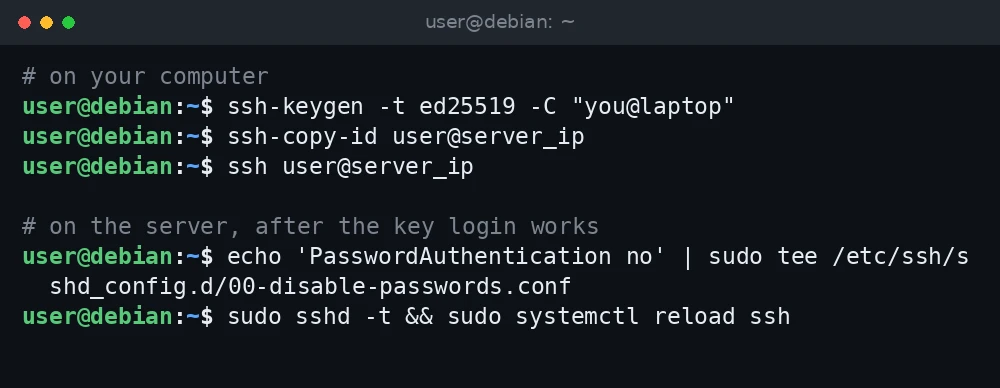
# on your computer
ssh-keygen -t ed25519 -C "you@laptop"
ssh-copy-id user@server_ip
ssh user@server_ip

# on the server, after the key login works
echo 'PasswordAuthentication no' | sudo tee /etc/ssh/sshd_config.d/00-disable-passwords.conf
sudo sshd -t && sudo systemctl reload ssh
What was verified and what was not. The commands, paths and defaults in this guide were checked against the Debian 13 man page for sshd_config, the Debian 13 release notes, the Debian Wiki SSH page and the Microsoft Learn pages for OpenSSH on Windows. Package versions (openssh-server 10.0p1) were read from APT on a Debian 13 (trixie) server on 3 November 2026. The commands were not run for this guide, so confirm each step on your own system. Keep a second session open whenever you change SSH settings on a remote server.
Before you start
- A Debian 13 server with
openssh-serverinstalled and a user account that can usesudo. See how to enable sudo for a user. - Password login working for that user, so you can copy the key.
- Console access from your provider’s control panel, in case you lock yourself out.
Note that Debian 13 ships OpenSSH 10.0p1. The trixie release notes state that DSA keys are no longer supported. If you still use an old id_dsa key, replace it with an Ed25519 key now.
Step 1: Create a key pair
On Linux or macOS
ssh-keygen -t ed25519 -C "you@laptop"Press Enter to accept the default path, ~/.ssh/id_ed25519. Then enter a passphrase. A passphrase protects the key if your laptop is stolen, and ssh-agent (Step 5) means you only type it once per session. The -C text is just a label to help you recognize the key later.
This creates two files: id_ed25519, the private key, which never leaves your computer, and id_ed25519.pub, the public key, which goes on the server.
On Windows 10 or 11 (PowerShell)
Windows 10 (build 1809 and later) and Windows 11 include the OpenSSH client as an optional feature. Check that it is installed from an elevated PowerShell window:
Get-WindowsCapability -Online | Where-Object Name -like 'OpenSSH*'If OpenSSH.Client shows NotPresent, install it:
Add-WindowsCapability -Online -Name OpenSSH.Client~~~~0.0.1.0Then create the key in a normal PowerShell window:
ssh-keygen -t ed25519 -C "you@windows-pc"The files are saved in C:Users<you>.ssh. Microsoft’s documentation notes that Ed25519 is used when you do not name an algorithm, but naming it keeps the command the same on every system.
Step 2: Copy the public key to the server
With ssh-copy-id (Linux and macOS)
ssh-copy-id -i ~/.ssh/id_ed25519.pub user@server_ipEnter the user’s password when asked. ssh-copy-id creates ~/.ssh on the server if needed and appends your key to ~/.ssh/authorized_keys.
From Windows PowerShell
Windows does not include ssh-copy-id. Pipe the public key over SSH instead:
Get-Content $env:USERPROFILE.sshid_ed25519.pub | ssh user@server_ip "mkdir -p ~/.ssh && chmod 700 ~/.ssh && cat >> ~/.ssh/authorized_keys && chmod 600 ~/.ssh/authorized_keys"The part in quotes runs on the Debian server, so it uses Linux shell syntax.
The manual way
If neither option works, for example when you only have the provider’s web console, copy the single line from your .pub file and add it on the server:
mkdir -p ~/.ssh
chmod 700 ~/.ssh
nano ~/.ssh/authorized_keys     # paste the key on its own line
chmod 600 ~/.ssh/authorized_keys
Run these as the user who will log in, not as root, so the files are owned by that user. Permissions matter here: with the default StrictModes yes, the sshd_config man page says the server checks file modes and ownership of the user’s files and home directory before accepting a login. If the home directory, ~/.ssh or authorized_keys is writable by other users, the key is ignored.
Step 3: Test the key login
Open a new terminal and connect:
ssh user@server_ipIf you set a passphrase, you are asked for it instead of the account password. That prompt looks like this:

Enter passphrase for key '/home/you/.ssh/id_ed25519':To prove the key works on its own, force SSH to skip passwords:
ssh -o PasswordAuthentication=no -o KbdInteractiveAuthentication=no user@server_ipIf that logs you in, the key is set up correctly. Do not continue to Step 4 until it does.
Step 4: Disable password login safely
Keep your current SSH session open for this whole step. If something goes wrong, you can fix it from that session.
On Debian, the main /etc/ssh/sshd_config includes /etc/ssh/sshd_config.d/*.conf at the start of the file. The man page also says that for each keyword, the first value obtained is used. Together, that means a drop-in file wins over the main file, and among drop-ins, the file that sorts first wins. This matters because some cloud images ship a drop-in that sets PasswordAuthentication yes. Check what is there:
Stuck at this step? Ask us, it is free and include the exact error.
ls /etc/ssh/sshd_config.d/
sudo grep -ri passwordauthentication /etc/ssh/sshd_config /etc/ssh/sshd_config.d/
Create a drop-in whose name sorts before the others, such as 00-disable-passwords.conf:
sudo nano /etc/ssh/sshd_config.d/00-disable-passwords.confPasswordAuthentication no
KbdInteractiveAuthentication no
PermitRootLogin prohibit-passwordThe upstream default for PasswordAuthentication is yes. Debian already sets KbdInteractiveAuthentication no, but stating it here does no harm. prohibit-password is the default for root and allows root only with a key; use no if root should not log in over SSH at all.
Test the configuration, then reload the service. On Debian, the service is named ssh, not sshd:
sudo sshd -t
sudo systemctl reload ssh
sshd -t prints nothing when the config is valid. Now confirm the settings the server will actually use:
sudo sshd -T | grep -Ei '^(passwordauthentication|kbdinteractiveauthentication) 'Example output:
passwordauthentication no
kbdinteractiveauthentication no
Finally, open a third terminal and log in again with your key. Only close the original session after that works. For more settings, see our guide to hardening SSH on Debian 13.
Step 5: Use ssh-agent so you type the passphrase once
Linux and macOS
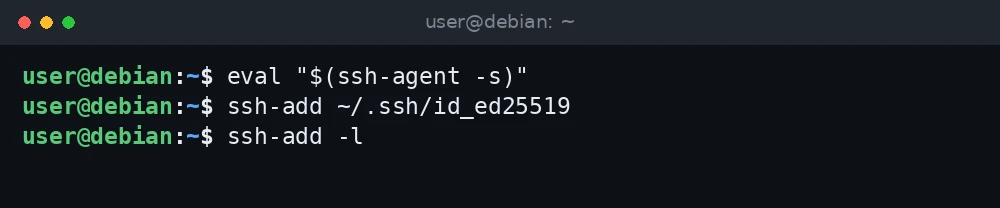
eval "$(ssh-agent -s)"
ssh-add ~/.ssh/id_ed25519
ssh-add -l
Most desktop sessions already start an agent, so ssh-add alone may be enough.
Windows
Microsoft’s documentation notes that the ssh-agent service is disabled by default. In an elevated PowerShell window:
Get-Service ssh-agent | Set-Service -StartupType Automatic
Start-Service ssh-agent
ssh-add $env:USERPROFILE.sshid_ed25519
Troubleshooting
Permission denied (publickey).
The server only accepts keys and did not accept yours. Work through these checks:
- Run the client in verbose mode to see which keys it offers:
ssh -v user@server_ip. Look forOffering public keylines. If your key is not offered, point to it withssh -i ~/.ssh/id_ed25519 user@server_ip. - Check that you are logging in as the user whose
authorized_keysholds the key. - On the server, fix ownership and permissions:
chmod 700 ~/.ssh,chmod 600 ~/.ssh/authorized_keys, and make sure the home directory is not group- or world-writable. - Read the server log from the console:
sudo journalctl -u ssh -n 50. A line such asAuthentication refused: bad ownership or modes for directory /home/user/.sshpoints straight at the permission problem. - Check that the key is a single unbroken line in
authorized_keys. Pasting through some consoles splits it.
Locked out after disabling passwords
Use your provider’s web console to log in, then remove the drop-in and reload: sudo rm /etc/ssh/sshd_config.d/00-disable-passwords.conf followed by sudo systemctl reload ssh. Fix the key, then try again.
Password login still works after the change
Another drop-in that sorts earlier sets PasswordAuthentication yes, or the service was not reloaded. Check the effective value with sudo sshd -T | grep passwordauthentication and rename your file so it sorts first.
WARNING: UNPROTECTED PRIVATE KEY FILE!
Your private key on the client can be read by other users, so SSH refuses to use it. On Linux or macOS, run chmod 600 ~/.ssh/id_ed25519.
FAQ
Why Ed25519 instead of RSA?
Ed25519 keys are short, fast and widely supported by current OpenSSH versions. RSA still works, but use at least 3072 bits if you need it for an older system.
Can I use the same key on several servers?
Yes. Copy the same public key to each server. Many people use one key per computer, so a lost laptop means removing one line from each server.
How do I remove a key from a server?
Edit ~/.ssh/authorized_keys on the server and delete the line for that key. The comment at the end of the line helps you identify it.
Do I still need Fail2ban with keys only?
It is not required, but it cuts log noise and slows scanners. See our Fail2ban guide for Debian 13.