
Docker runs applications in containers, so you can start a database, a web app or a test tool without installing all of its dependencies on the host. On Debian 13 (Trixie) you have two ways to get it: Docker’s own APT repository, which ships the docker-ce packages, or the docker.io package that Debian builds itself. This guide covers both, plus the post-install steps, the Docker Compose plugin, a clean uninstall and the errors people hit most often. It is for anyone running a Debian 13 server or desktop with sudo access.
Quick answer. Add Docker’s signing key and repository, install docker-ce with its plugins, then run the hello-world image to confirm it works.
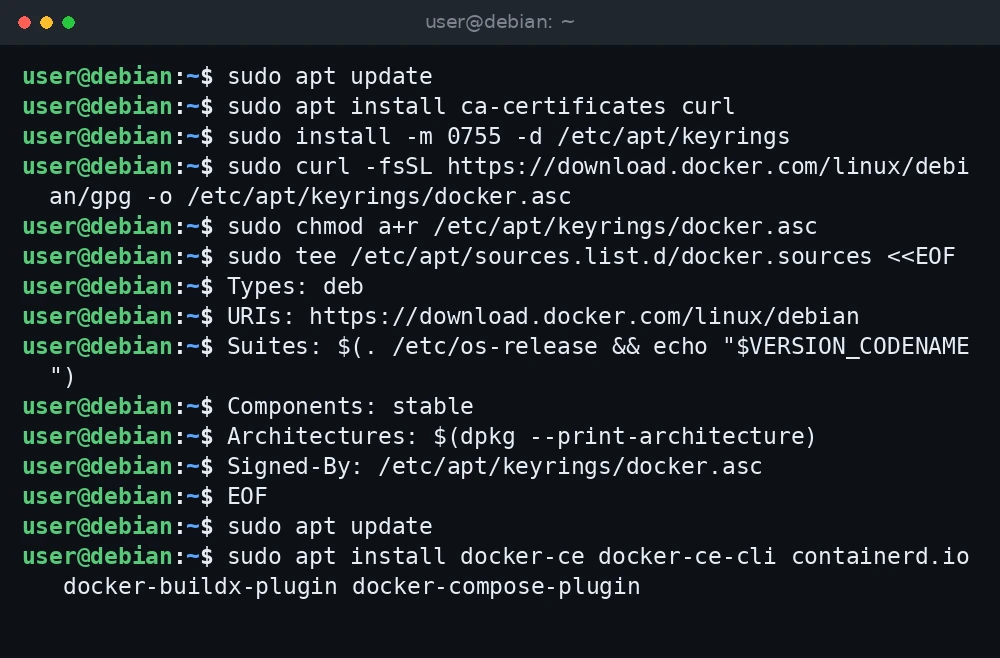
sudo apt update
sudo apt install ca-certificates curl
sudo install -m 0755 -d /etc/apt/keyrings
sudo curl -fsSL https://download.docker.com/linux/debian/gpg -o /etc/apt/keyrings/docker.asc
sudo chmod a+r /etc/apt/keyrings/docker.asc
sudo tee /etc/apt/sources.list.d/docker.sources <<EOF
Types: deb
URIs: https://download.docker.com/linux/debian
Suites: $(. /etc/os-release && echo "$VERSION_CODENAME")
Components: stable
Architectures: $(dpkg --print-architecture)
Signed-By: /etc/apt/keyrings/docker.asc
EOF
sudo apt update
sudo apt install docker-ce docker-ce-cli containerd.io docker-buildx-plugin docker-compose-plugin
sudo docker run hello-world
What was verified and what was not. The commands and paths in this guide were checked against Docker’s official installation and post-installation documentation (docs.docker.com) and the Debian package pages on packages.debian.org. Package versions for the Debian packages were read from APT on a Debian 13 (trixie) server on 3 November 2026. The commands were not run for this guide, so confirm the output on your own system before you rely on it.
docker-ce or docker.io: which one to pick
Both packages give you a working Docker Engine. The difference is who builds and updates them.
| Option | Source | Version on Debian 13 | Updates |
|---|---|---|---|
docker-ce |
Docker’s APT repository | Current upstream release | From Docker, follows new upstream versions |
docker.io |
Debian main archive | 26.1.5+dfsg1-9+deb13u1 (with containerd 1.7.24) | From Debian, security fixes on a fixed version |
Pick docker-ce if you want the newest Docker features, the official Compose and Buildx plugins, and behavior that matches Docker’s documentation. Pick docker.io if you prefer to stay on Debian’s own packages and do not need the latest release. Do not install both. Docker’s documentation lists docker.io, docker-compose, docker-doc, docker-buildx, podman-docker, containerd and runc as packages that conflict with docker-ce.
Docker’s documentation lists Debian 13 (Trixie) as supported on amd64, arm64, armhf and ppc64le.
Install Docker from Docker’s repository (docker-ce)
Step 1: Remove conflicting packages
If you never installed Docker on this machine, you can skip this step. Otherwise, remove the older or conflicting packages first. This command only removes packages that are installed:
sudo apt remove $(dpkg --get-selections docker.io docker-compose docker-doc docker-buildx podman-docker containerd runc | cut -f1)Images, containers and volumes in /var/lib/docker are not deleted by apt remove.
Step 2: Add Docker’s GPG key
sudo apt update
sudo apt install ca-certificates curl
sudo install -m 0755 -d /etc/apt/keyrings
sudo curl -fsSL https://download.docker.com/linux/debian/gpg -o /etc/apt/keyrings/docker.asc
sudo chmod a+r /etc/apt/keyrings/docker.asc
Step 3: Add the repository in deb822 format
Docker now documents a .sources file in deb822 format, the same format Debian 13 uses for its own sources. The command reads your release codename (trixie) from /etc/os-release:
sudo tee /etc/apt/sources.list.d/docker.sources <<EOF
Types: deb
URIs: https://download.docker.com/linux/debian
Suites: $(. /etc/os-release && echo "$VERSION_CODENAME")
Components: stable
Architectures: $(dpkg --print-architecture)
Signed-By: /etc/apt/keyrings/docker.asc
EOF
sudo apt update
If you run a Debian derivative or Debian testing, Docker’s documentation says to replace the codename part with the matching Debian codename, such as trixie. For more on the deb822 format, see our guide to Debian 13 sources in deb822 format.
Step 4: Install the packages
sudo apt install docker-ce docker-ce-cli containerd.io docker-buildx-plugin docker-compose-pluginTo install a specific version instead of the latest, list the available versions and pin one:
apt list --all-versions docker-ceStep 5: Check the service and run hello-world
sudo systemctl status docker
sudo docker run hello-world
The hello-world image downloads, runs, prints a short message and exits. If you see “Hello from Docker!” in the output, the engine works.
Install Docker from Debian’s repository (docker.io)
Debian’s packages are split up. docker.io provides the daemon, docker-cli provides the docker command, and docker-compose provides Compose. docker-cli is a recommended dependency, so APT normally pulls it in, but naming it makes the intent clear:
sudo apt update
sudo apt install docker.io docker-cli docker-compose
sudo docker run hello-world
Debian 13’s docker-compose package (version 2.26.1 at the time of writing) installs both /usr/bin/docker-compose and the CLI plugin at /usr/libexec/docker/cli-plugins/docker-compose, so docker compose and docker-compose should both work.
Post-install steps
Step 1: Run docker without sudo
The Docker daemon listens on a Unix socket owned by root. Members of the docker group can use it without sudo. The group may already exist after installation; if so, groupadd just reports that.
sudo groupadd docker
sudo usermod -aG docker $USER
newgrp docker
docker run hello-world
The newgrp command applies the change to the current shell only. Log out and back in to apply it everywhere. Keep in mind that the docker group grants root-level privileges on the host, so only add users you trust. If you still need a sudo user, see how to enable a sudo user on Debian.
Step 2: Start Docker on boot
On Debian the service is normally enabled when the package is installed. To make sure, run:

sudo systemctl enable docker.service
sudo systemctl enable containerd.service
Use disable instead of enable if you want to start Docker by hand. Note that Debian’s docker.io uses Debian’s containerd package, so the unit name may differ there; systemctl list-unit-files | grep -i container shows what you have.
Use the Docker Compose plugin
With docker-ce, Compose comes from the docker-compose-plugin package and runs as docker compose (with a space). Check that it is installed:
docker compose versionA minimal compose.yaml that starts nginx on port 8080 looks like this:
services:
  web:
    image: nginx:stable
    ports:
      - "8080:80"
    restart: unless-stopped
Start it in the background, check its status, then stop and remove it:
Stuck at this step? Ask us, it is free and include the exact error.
docker compose up -d
docker compose ps
docker compose down
A note on firewalls
Docker’s documentation warns that ports you publish with -p or ports: bypass ufw and firewalld rules. Docker writes its own iptables rules, and traffic to published ports does not pass through ufw’s chains. If a container should only be reachable locally, publish it on the loopback address, for example "127.0.0.1:8080:80". Docker also states that it supports only iptables-nft and iptables-legacy, and that custom rules belong in the DOCKER-USER chain. See our ufw guide for Debian 13 and how to check open ports to confirm what is exposed.
Uninstall Docker
To remove docker-ce and its plugins:
sudo apt purge docker-ce docker-ce-cli containerd.io docker-buildx-plugin docker-compose-plugin docker-ce-rootless-extrasImages, containers, volumes and networks stay on disk. The next two commands delete them permanently, so back up any volume data first:
sudo rm -rf /var/lib/docker
sudo rm -rf /var/lib/containerd
Then remove the repository and key:
sudo rm /etc/apt/sources.list.d/docker.sources
sudo rm /etc/apt/keyrings/docker.asc
For Debian’s packages, use sudo apt purge docker.io docker-cli docker-compose. The data directories are handled the same way.
Troubleshooting
permission denied while trying to connect to the Docker daemon socket
You ran docker as a user who is not in the docker group, or the group change has not taken effect yet. Add the user with sudo usermod -aG docker $USER, then log out and back in, or run newgrp docker. Check membership with id -nG.
Cannot connect to the Docker daemon at unix:///var/run/docker.sock
The daemon is not running. Check it and read its log:

sudo systemctl status docker
sudo journalctl -u docker --no-pager -n 50
If you just switched between docker.io and docker-ce, make sure only one set of packages is installed. Our journalctl guide explains how to filter the logs.
WARNING: Error loading config file: … /.docker/config.json: permission denied
This happens when you ran Docker with sudo before adding your user to the group, so ~/.docker is owned by root. Docker’s documentation gives this fix:
sudo chown "$USER":"$USER" /home/"$USER"/.docker -R
sudo chmod g+rwx "$HOME/.docker" -R
apt reports a conflict with containerd or runc
Debian’s containerd and runc conflict with Docker’s containerd.io. Run the removal command from Step 1 of the docker-ce section, then install again.
NO_PUBKEY or “The repository is not signed”
APT cannot find the key named in Signed-By. Check that /etc/apt/keyrings/docker.asc exists and is readable (ls -l /etc/apt/keyrings/), and that the path in docker.sources matches it exactly.
No space left on device
Images and build cache grow quickly. docker system df shows what Docker is using, and docker system prune removes stopped containers, unused networks, dangling images and build cache after asking for confirmation. See also how to check disk space on Debian 13.
FAQ
Is docker.io the same as Docker CE?
Both are builds of the same open source Docker Engine. docker.io is packaged by Debian and stays on one version for the life of the release, with security fixes. docker-ce is packaged by Docker and follows new upstream releases.
Do I need the old docker-compose command?
No. Current Docker uses Compose v2 as a CLI plugin, run as docker compose. The docker-compose-plugin package provides it with docker-ce.
Can I upgrade Docker with apt?
Yes. Once the repository is set up, sudo apt update && sudo apt upgrade installs new Docker releases along with your other updates. If you use unattended upgrades, note that it only covers Docker’s repository if you add that origin to its configuration.
Will Docker keep my containers after a reboot?
The containers stay on disk, but they only start again automatically if they have a restart policy such as restart: unless-stopped or --restart unless-stopped, and the Docker service is enabled at boot.
Related guides
- Set up the ufw firewall on Debian 13
- Use nginx as a reverse proxy on Ubuntu and Debian
- Debian 13 sources.list and the deb822 format
- Read system logs with journalctl on Debian 13
- Create a swap file on Debian 13